Instant recovery and standbys
Start a machine straight from its backup in minutes, make it permanent while it runs, and keep warm standbys up to date after every backup for failover in seconds.
A full restore of a large server takes hours. With instant recovery the machine runs straight from its image backup in minutes, on your backup server or on a customer's Hyper-V host, while you sort out the hardware. When it needs to stay, make it permanent. For the machines that matter most, keep a warm standby on a Hyper-V host that is brought up to date after every backup and starts in seconds.
Sandboxes: where machines run
Machines started from backups run in a sandbox:
- This backup server: the machine runs on the backup server, with a full console in the browser. Give the backup service hardware virtualisation (KVM); without it Windows takes about a quarter of an hour to boot.
- A Hyper-V host that runs the agent with the backup helper, such as a spare host at the customer's site or in your own data centre. The backup reaches the host over iSCSI. Making machines permanent and keeping standbys happen on Hyper-V hosts.
Add sandboxes in Settings > Backup, on the Recovery tab under Sandboxes. For a Hyper-V host, choose the folder for its disks, the virtual switch, the address it reaches your backup server's iSCSI port at, and what it is for: boot checks, instant recovery, standbys or all three. Check asks the host what it can do (its Hyper-V version, generation 2 support and the iSCSI initiator). One sandbox is The default sandbox.
Starting a machine from its backup
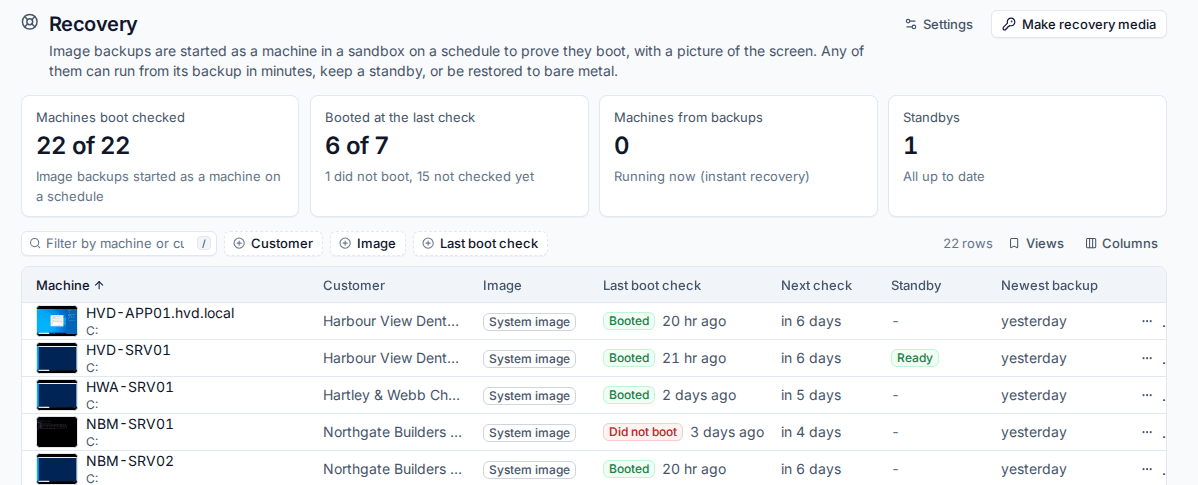
- Open Backup > Recovery. Every machine with image backups is listed with its newest backup and last boot check.
- Open the row's ... menu and choose Start from backup. You can also press Start from backup on the Recovery card of the device's page.
- Choose Instant recovery.
- Choose where it Runs on: the backup server or a Hyper-V host.
- Give it a Name, or leave it empty for the device name with "(from backup)".
- Set Processors and Memory (MB).
- Choose the Network: Isolated (nothing on the network sees it, so it cannot clash with the machine it stands in for) or Connected.
- Press Start the machine.
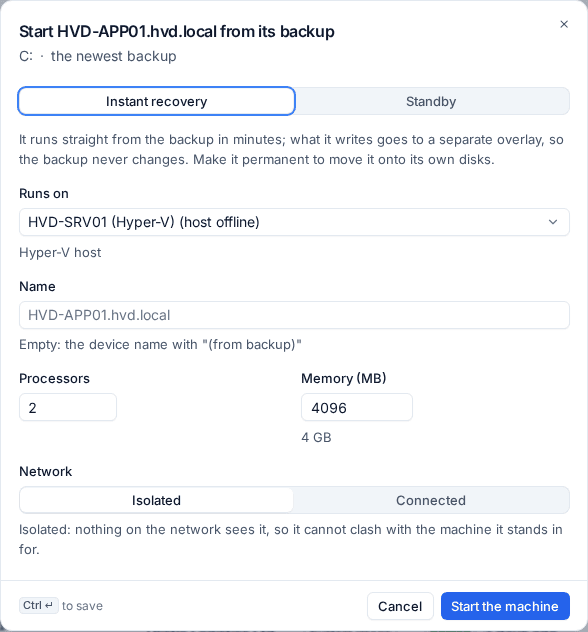
The machine reads from the backup through a separate overlay: whatever it writes goes to the overlay, so the backup itself never changes. Stopping and starting it again keeps its changes.
Working with a running machine
Backup > Recovery > Machines from backups lists instant recoveries and standbys with their customer, kind, state, where they run and which backup they came from. Open one to see its page:
- Screen: the live screen. On the backup server, Open the console gives you full keyboard and mouse in the browser; Send keys sends Ctrl+Alt+Del and other keys.
- Shut down, Turn off (like pulling the plug) and Start.
- Remove: the machine stops and what it wrote since it started is thrown away. The backup is not touched.

Making it permanent
When a machine running on a Hyper-V host is going to stay, Make permanent moves it onto the host's own storage and cuts it loose from the backup, while it keeps running. Its disk is copied into a VHDX on the host while it runs, then again with only what changed, until little is left. It then restarts once, on its own disk.
Once permanent, it no longer depends on the backup.
Warm standbys
A standby is a copy of a machine's disk kept ready as a VHDX on a Hyper-V host. It is written in full once, then after every backup Tenvara brings it up to date with only the data that changed. Failover is one click and the standby runs from its own disk in seconds.
Keeping a standby
- In Backup > Recovery, open the machine's ... menu and choose Keep a standby (also on the device's Recovery card).
- Choose Standby, the Hyper-V host it Runs on, its name, processors, memory and network.
- Confirm. The first full copy is written straight away.
Each update is proved without changing the standby, by a boot check of the backup it now holds. If a standby falls further behind its newest backup than your setting allows (36 hours by default), Tenvara raises an alert.
Failing over
- Open the standby in Backup > Recovery > Machines from backups.
- Check Brought up to date and Behind the newest backup. Bring up to date now catches it up first if a newer backup exists.
- Press Start (fail over).
The machine starts from its own disk on the host. Connect its network when you are ready for it to take over.
Tip: Keep standbys isolated until you fail over. A standby on the network beside the live machine would clash with it.
Related
Was this page helpful?
Thanks for the feedback.