Billing in the portal
What your customers see on the portal's Billing page: what they owe, their invoices and credit notes, a statement, support hours, prepaid hours, and paying online.
The customer portal has a Billing page where your customers can see what they owe, open and download their invoices, print a statement and pay online. It saves you the "can you resend that invoice?" emails, and it is where customers set up Direct Debit or save a card.
Who sees it
Billing shows only to the people who should see money:
- the customer's managers in the portal, and
- the contacts listed as Contacts who get invoices in the customer's Billing details.
Everyone else at the customer sees the portal without the Billing page. You can also switch the billing and payments sections off for the whole portal or for one customer in Settings > Customer portal > Sections and on the customer's Settings tab. See Customer portal and feedback.
The Billing page
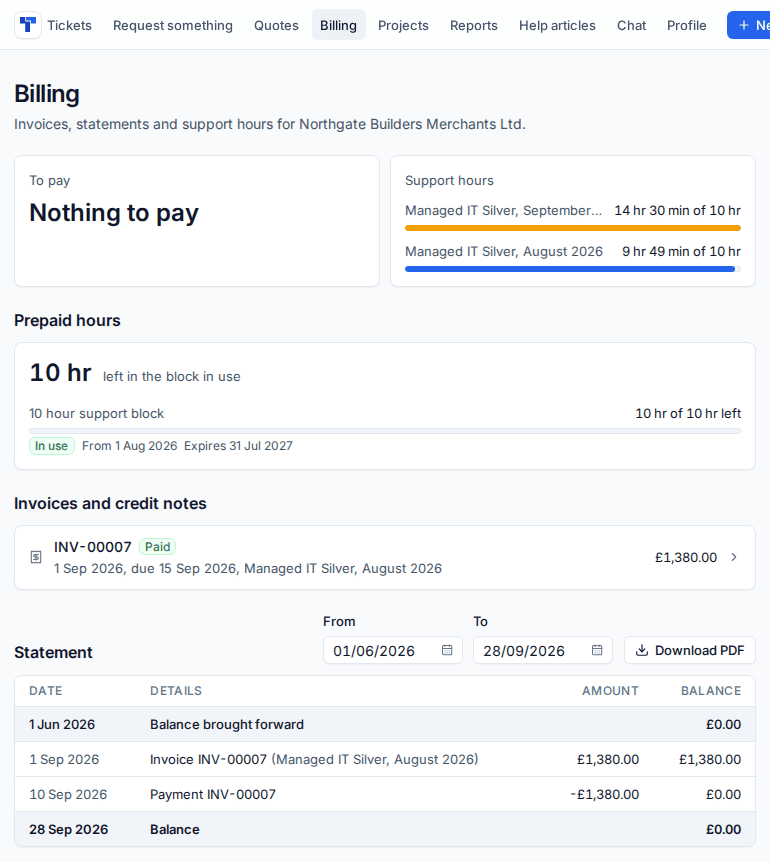
From top to bottom, the customer sees:
- To pay: what is still owed in each currency, or "Nothing to pay".
- Support hours: billable hours used against the included hours on each contract, this month and last, including any hours carried over from earlier months.
- Prepaid hours: what is left in each block, when it started and when it expires, with a warning when it runs low or is used up.
- Pay invoices automatically by card, when you offer card autopay: Add a card to have each invoice paid on its due date, or the saved card with a switch to turn it off and an option to remove it.
- Invoices and credit notes: each with its number, status, dates and amount. Click one to open it.
- Statement: invoices, payments and credits between two dates with a running balance, and Download PDF.
An invoice in the portal
Opening an invoice shows it as a document, laid out as the PDF (following the customer's invoice layout), with Download PDF. When the invoice has a balance and you take online payments, a Pay button takes the customer to the pay page:
- Card: paid on Stripe's secure page, in the invoice's currency.
- Set up a Direct Debit: a GoCardless mandate is set up first, then the invoice is collected from their bank.
The same pay page opens from the link in the invoice email, without signing in, so whoever pays the bills can pay even if they have no portal account. Opening that link marks the invoice as viewed in its activity.
Direct Debit
The Direct Debit button at the top of the Billing page lets the customer set up a mandate at any time: they choose the Currency of your invoices, press Set up a Direct Debit, enter their bank details on GoCardless's secure page and come back. From then on each invoice in that currency is collected on its due date.
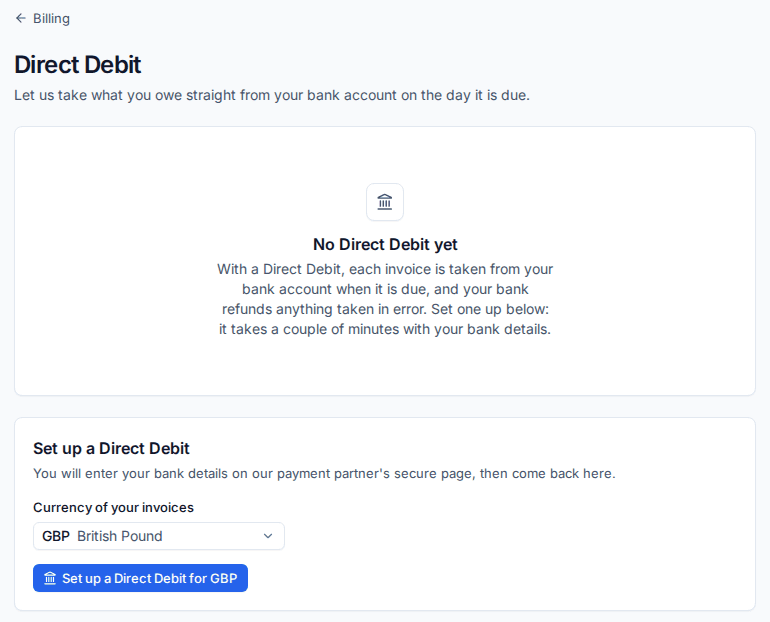
Note: Card payments, autopay and Direct Debit only appear once you have connected your own Stripe or GoCardless account. See Taking payments and autopay.
Related
Was this page helpful?
Thanks for the feedback.