Intune and Autopilot
See every customer's Intune devices and compliance, run remote actions, manage policies, apps and Autopilot, and deploy the same Intune templates to many tenants.
Microsoft 365 > Intune brings Intune for every connected tenant into one place: managed devices and their compliance, compliance policies and configuration profiles, apps, Autopilot registrations, and which devices have a BitLocker key or LAPS password in Microsoft 365. Templates let you give every customer the same Intune baseline and see where a tenant has drifted from it.
What you need
Intune works through the same app registration as the rest of Microsoft 365 (see Connecting a tenant). It needs the registration's Intune permissions consented in each customer's tenant, and the customer needs an Intune licence (Business Premium includes one).
When a tenant has not consented to them, Tenvara says so rather than showing an empty list: the tenant's Intune tab lists the permissions Microsoft asked for, and Consent again sends a global administrator of that tenant through Microsoft's consent. Anything Microsoft refuses is shown as not read, with Microsoft's own words, and nothing already read is thrown away.
Note: Entra devices, and whether each one has a BitLocker key or LAPS password backed up, are read even for tenants without an Intune licence.
The Intune sidebar
Open Microsoft 365 from the rail. Under Intune in the sidebar:
- Overview: every tenant with its Intune licence, devices, devices not compliant, policies, apps, Autopilot devices and BitLocker and LAPS counts.
- Devices: every managed device across your customers.
- Policies: compliance policies, configuration profiles, settings catalog and endpoint security policies, Autopilot profiles and enrolment status pages.
- Apps: apps Intune installs or offers in Company Portal.
- Autopilot: devices registered to set themselves up for a customer.
- BitLocker and LAPS: see GDAP, LAPS and BitLocker.
- Templates: one Intune baseline for many tenants.
Each tenant page also has an Intune tab with the same views for that tenant, and the device page shows Intune's record of a device when it is matched.
Devices and compliance
Intune > Devices lists every managed device with its customer, compliance, user and operating system. Filter by Customer, Compliance, OS, Encrypted and Ownership.
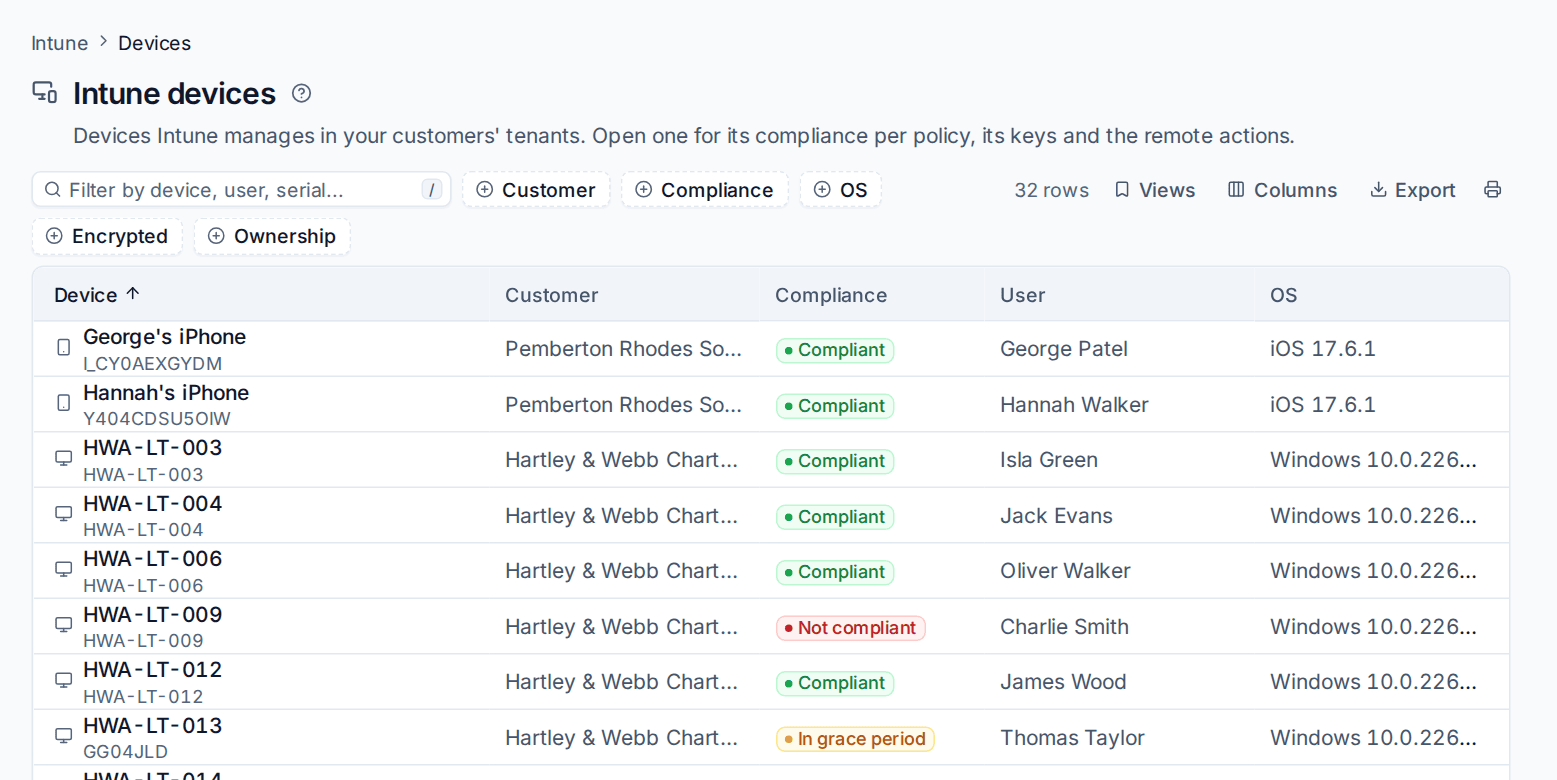
Click a device to open its panel: the user, model, serial, enrolment date and ownership, and Compliance policies with the state of each policy and the setting that fails (for example BitLockerEnabled is false).
Remote actions
Open the ... menu on the device panel (or the device's Microsoft 365 block on its page). The actions are Sent through Intune:
- Sync now, Restart and Lock.
- Defender quick scan and Defender full scan.
- Collect diagnostics.
- Rotate the LAPS password and Rotate the BitLocker keys.
- Rename... (Windows takes the new name after its next restart).
- Retire... and Wipe....
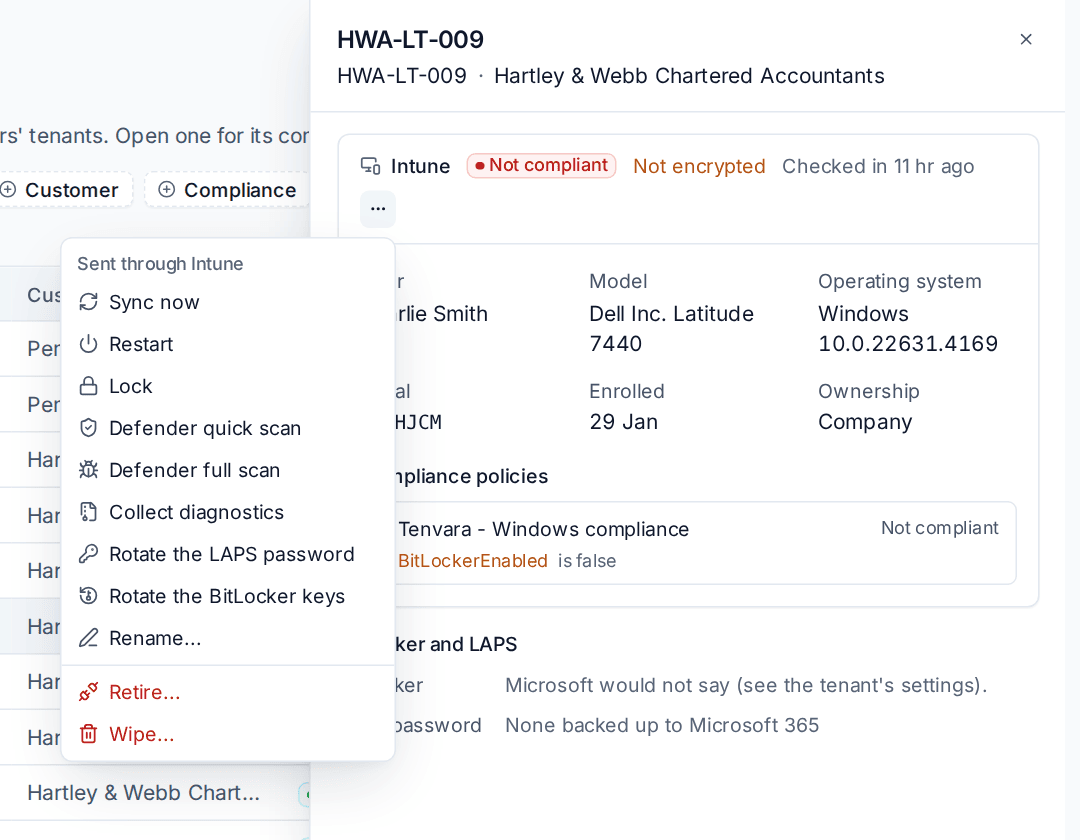
Every action opens the usual change dialog with a preview, and goes through the change log (see Making changes safely). Retire and Wipe are destructive: you type the device's name to confirm. For a Windows wipe you can choose to Keep it in Intune, so it enrols again by itself after the reset. Intune queues an action for the device's next check-in; the device shows it as pending until then, and Tenvara reads the result back.
Policies and apps
Intune > Policies lists every policy kind with its customer, platform and who it is assigned to. Open one to see its settings and assignments, change it, assign it or save it as a template.
Intune > Apps lists what Intune installs or offers. Press Add an app to add:
- A Store app, by its Microsoft Store package id.
- Microsoft 365 Apps, with the Update channel and architecture.
- A Web link.
- A Windows .msi: choose the file and Tenvara reads its product code, version and publisher, uploads it to Intune the way Microsoft asks, and keeps the file only until it is sent.
Then choose Who gets it and whether it is required or available. Win32 apps are made in the Intune admin centre; Tenvara lists and assigns them.
Autopilot
Intune > Autopilot lists each registered device with its serial, customer, model, group tag and whether it is set up. Devices are matched to Tenvara's own devices by serial number.
To register new machines:
- Press Import hardware hashes.
- Choose the tenant and the Hardware hash file (the CSV
Get-WindowsAutopilotInfowrites). - Optionally give a Group tag and an Assigned user, then Read the file and Continue.
Microsoft takes a few minutes to register them; each row says how it went. On a registered device use Tag and user... to change its group tag or user, Give it a profile... to assign an Autopilot profile (Intune gives profiles to groups, so the device is put in the profile's group), and Remove from Autopilot... to deregister it.
Templates
Intune > Templates holds one Intune baseline for every customer. Starter templates are included for Windows, iPhone and iPad, Android and macOS compliance, a Windows Update ring, BitLocker, Windows LAPS, Defender Antivirus, Firewall, attack surface reduction and Defender for Endpoint onboarding, Company Portal, Microsoft 365 Apps, a user-driven Autopilot profile and an enrolment status page.
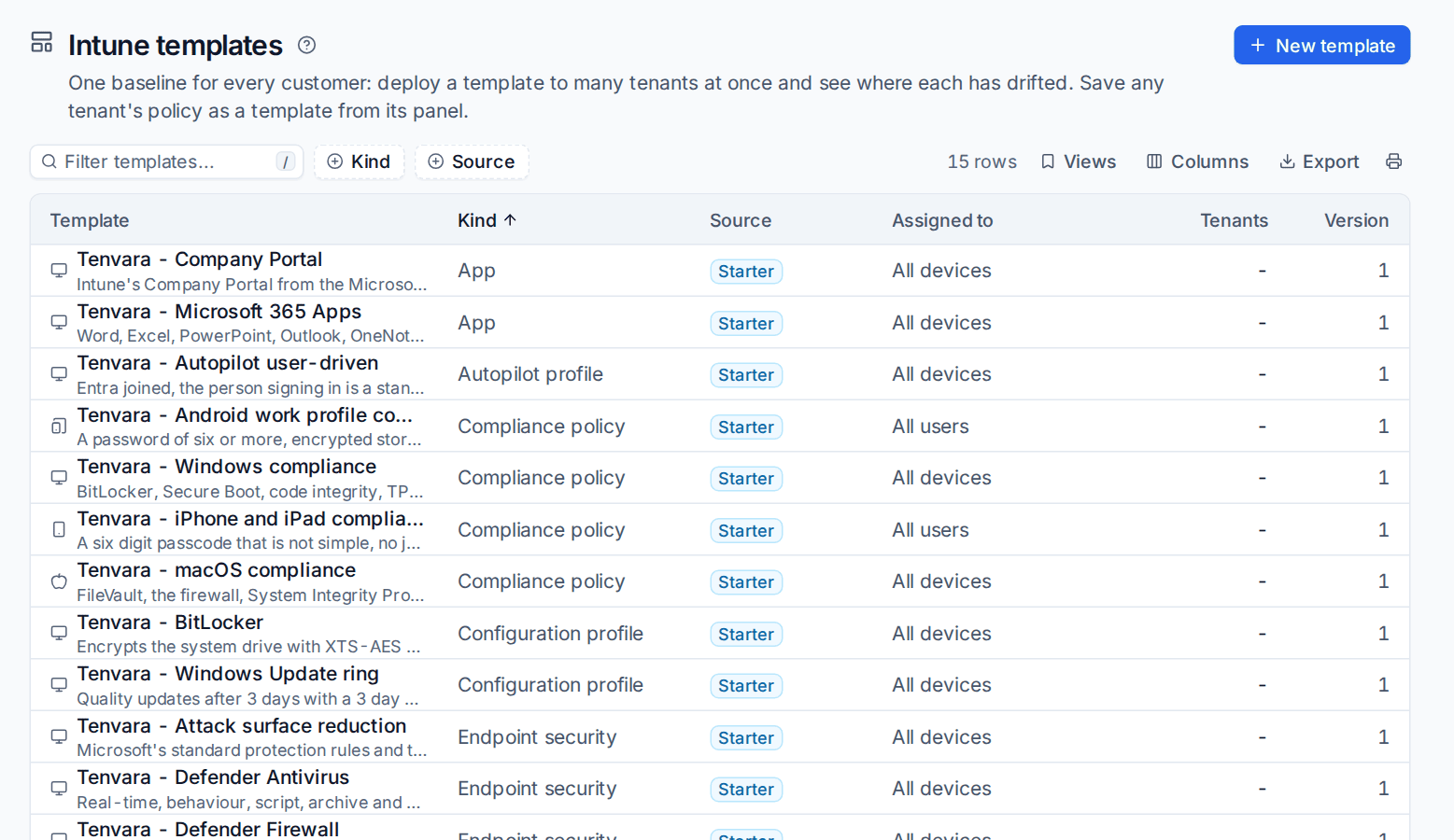
Make your own with New template, or save any tenant's policy as a template from its panel. Groups are named, and each tenant's group of that name is used.
A template's page compares every tenant: In line, drifted (with each difference, the template's value and the tenant's), missing, Behind the template (the template changed after it was deployed) or Not known. Only the settings the template names are compared.
To deploy:
- Open the template and press Deploy.
- Choose the tenants. The policy is made where it is missing, adopted where a policy of the same name is there, and brought back into line where it has drifted.
- Check the preview and continue. A deploy to more than one tenant is high risk, so a technician's goes to an administrator for approval with a reason.
Settings
Settings > Microsoft 365 > Intune and devices sets how often Intune is read (every 240 minutes by default), how long a device stays in grace before it counts as not compliant under the policies Tenvara makes, whether a Windows wipe keeps enrolment, the default Autopilot group tag for imports, and who may reveal BitLocker keys and LAPS passwords.
Related: GDAP, LAPS and BitLocker, Baselines and drift, Mobile device management.
Was this page helpful?
Thanks for the feedback.