Configuration snapshots
Tenvara keeps every version of each tenant's Entra ID, Conditional Access, Exchange, SharePoint, Teams and Intune settings, flags changes made outside Tenvara, compares any two snapshots and restores an earlier version.
Configuration snapshots are a backup of how each customer's tenant is set up, as opposed to its mail and files. Tenvara reads 31 kinds of setting on a schedule, keeps a version whenever one changes, shows you what changed and who changed it, and can put a setting or policy back the way it was.
What is kept
| Area | Settings and policies |
|---|---|
| Entra ID | Authorisation policy (guests, consent, app registration), security defaults, the authentication methods policy and each method, admin consent requests, cross-tenant access defaults and partners, group settings, idle session timeout policies |
| Conditional Access | Policies and named locations |
| Exchange Online | Organisation and transport settings, mail flow (transport) rules, anti-spam, outbound spam, connection filter, anti-phishing and anti-malware policies, Safe Links, Safe Attachments, remote domains, audit log settings, the external sender tag, calendar sharing and Outlook on the web policies |
| SharePoint and OneDrive | Tenant settings |
| Teams | External access, client settings and meeting policies |
| Intune | Every policy and profile (when Intune is read; see Intune and Autopilot) |
A kind Microsoft will not give (usually a missing permission) is shown as not read, with the reason. A kind the tenant is not licensed for is marked as not applying. Neither is ever shown as removed.
Each version of a setting is kept once, however many snapshots name it, so a year of daily snapshots costs very little.
Configuration backup across tenants
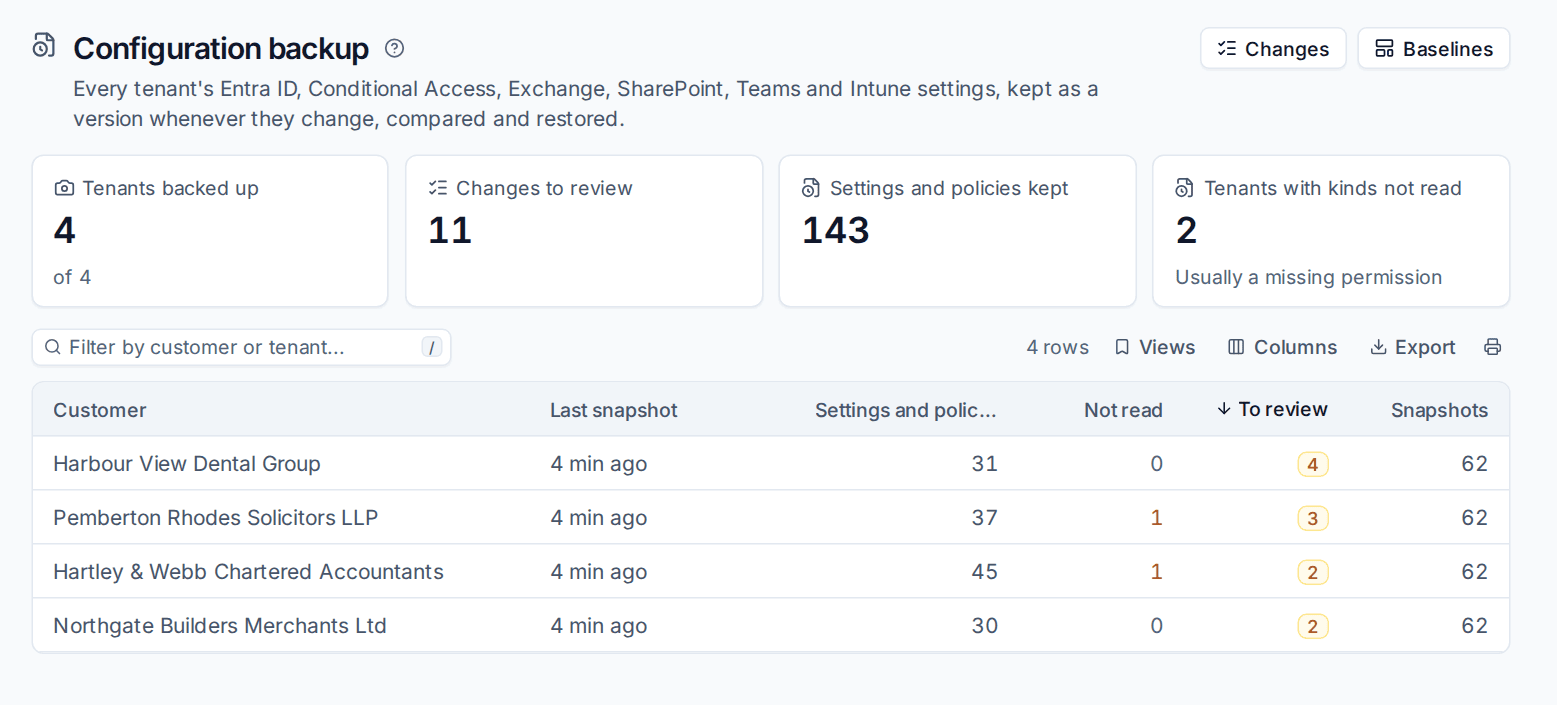
Open Microsoft 365 > Configuration (under Operations). The top of the page counts Tenants backed up, Changes to review, Settings and policies kept and Tenants with kinds not read. Below, each tenant shows its Last snapshot, how many settings and policies it holds, how many kinds were Not read, how many changes are To review and how many snapshots are kept.
Reviewing changes
When a snapshot finds a setting that changed, Tenvara works out whether it made the change itself. Changes made through Tenvara (a restore, a baseline fix, any change from the change log) are accepted already. Changes made in Microsoft 365 directly wait for review.
Microsoft 365 > Configuration > Changes lists them, filtered to To review by default. Each shows the setting or policy, the customer, whether it was Added, Changed or Removed, and which fields changed.
Open a change to see who made it (when Microsoft's audit log says), when it was found, and each field Before and After.
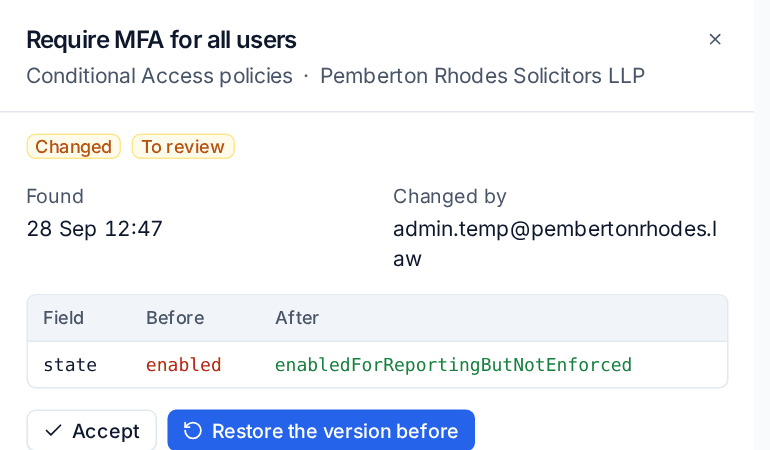
Then either:
- Accept: the change was meant. It leaves the review list.
- Restore the version before: put it back.
Change alerts
One alert per tenant lists the changes waiting for review, and clears when every one is accepted or restored. Changes to Conditional Access, security defaults and the authorisation policy always raise a critical alert; the severity for the rest is set in Settings > Microsoft 365 > Configuration and baselines. Under Never alert on changes to you can tick kinds that change often on purpose, so they are kept and shown but never alert. A customer can have the alert switched off on their own settings.
A tenant's configuration
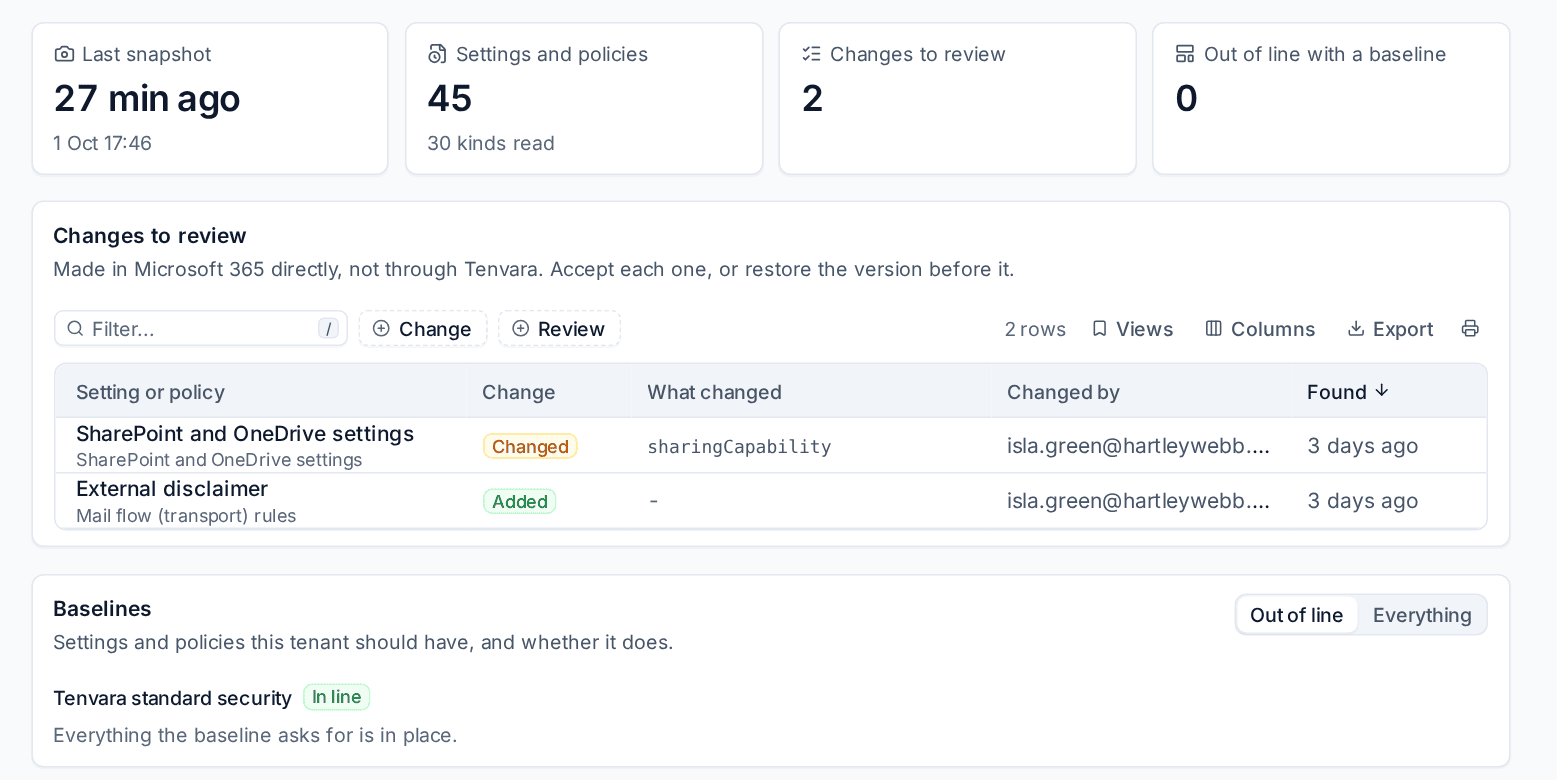
Open a tenant and its Configuration tab. It shows the last snapshot, how many settings and policies and kinds were read, the changes to review, the baselines assigned to the tenant, a comparison of two snapshots and every snapshot kept.
Taking a snapshot now
Snapshots are taken on the schedule in Settings (once a day by default). Press Take a snapshot now on the tenant's Configuration tab before and after planned work, so the change is easy to see.
Comparing two snapshots
Under Compare two snapshots, choose From and To. The older one is always "before". Tenvara lists every setting and policy that was added, removed or changed between them, with each field that differs. Kinds that were not read in one of the two are named as not compared.
Restoring an earlier version
- Open a snapshot, or a setting's history, and choose the version you want.
- Check How this version differs from now.
- Press Restore this version. The preview lists each field, now and after.
Only the fields that differ are sent to Microsoft. A Conditional Access policy, named location, group setting or Intune policy that was deleted is made again from the version kept (a Conditional Access policy comes back in report-only mode). A restore is high risk, so a technician's goes to an administrator for approval, and it can be undone from the change log like any other change (see Making changes safely).
Note: Teams settings, admin consent requests, cross-tenant access and idle session timeouts are kept and compared but restored by hand in Microsoft 365. The screen says so for each one.
Making a baseline from a tenant
On a snapshot, pick the settings and policies you want every customer to have and press Make a baseline. See Baselines and drift.
Settings
Settings > Microsoft 365 > Configuration and baselines sets how often a snapshot is taken, how long snapshots are kept (365 days by default; within two weeks every snapshot is kept, after that snapshots with no changes keep one a week), whether outside changes alert and at what severity, and the kinds that never alert. Most can be set per customer on the customer's settings.
Was this page helpful?
Thanks for the feedback.