Alerts
See every alert from your phone, filter by severity and source, acknowledge, resolve or mute an alert, and raise a ticket from it.
Alerts in the app lists everything that needs a look, from monitoring, backup, Microsoft 365, security and the rest, exactly as the web does. It is the quickest way to check on things when you are away from your desk or on call.
The alert list
At the top are Search alerts and the filters: Open, Severity, Source, Acknowledged? and Customer. Swipe the row of filters to see them all.
Each alert shows:
- a coloured dot and a pill for the severity: Critical, Warning or Info;
- the title, for example "CPU above 95% for 15 minutes on OLT-DC01";
- the customer, the device and the source, such as Monitoring, Backup or Microsoft 365;
- how many times it has happened (31x), whether it has been Acknowledged, and the ticket it is on, if there is one;
- when it was last seen.
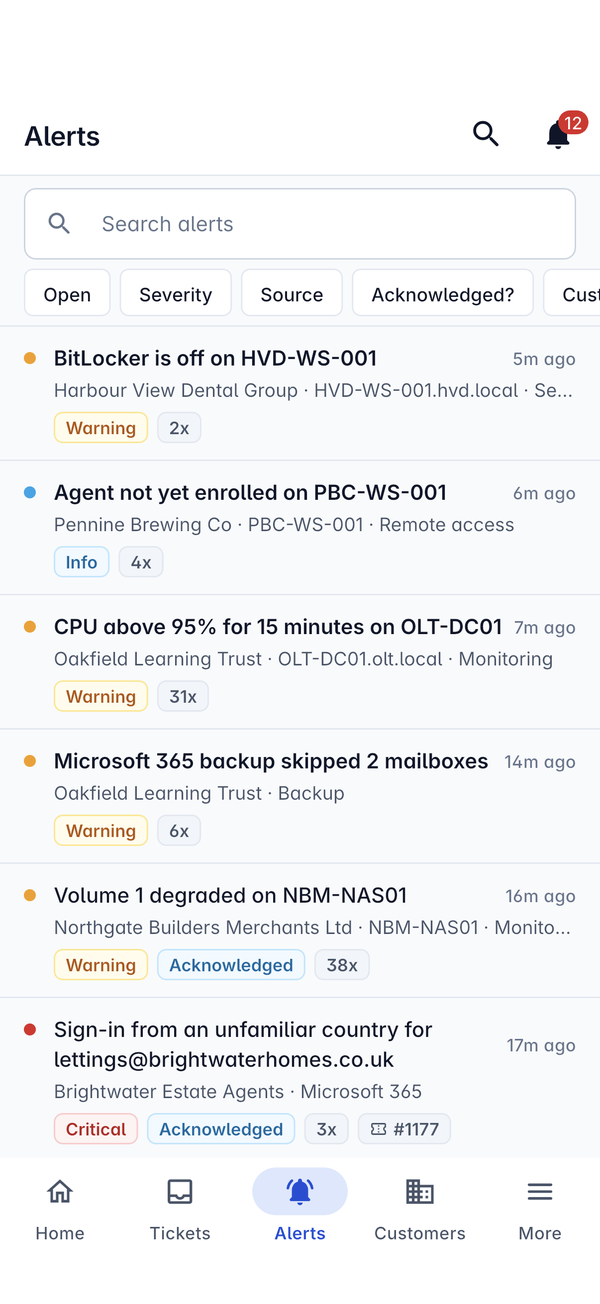
Pull down to refresh the list. It also refreshes when you come back to the app, so it is up to date whenever you open it.
An alert
Tap an alert to open it. The top shows the source, the title, the severity and status pills, and when it was last seen.
- What happened explains the alert in plain words, for example "Successful sign-in from Lagos, Nigeria, 4 minutes after one from Brighton."
- Details lists the Customer, the Device, the Ticket, the number of Occurrences, when it was First seen and Last seen, who Acknowledged it and when, when it was Resolved, and its Dedupe key. Tap the customer, device or ticket to open it.
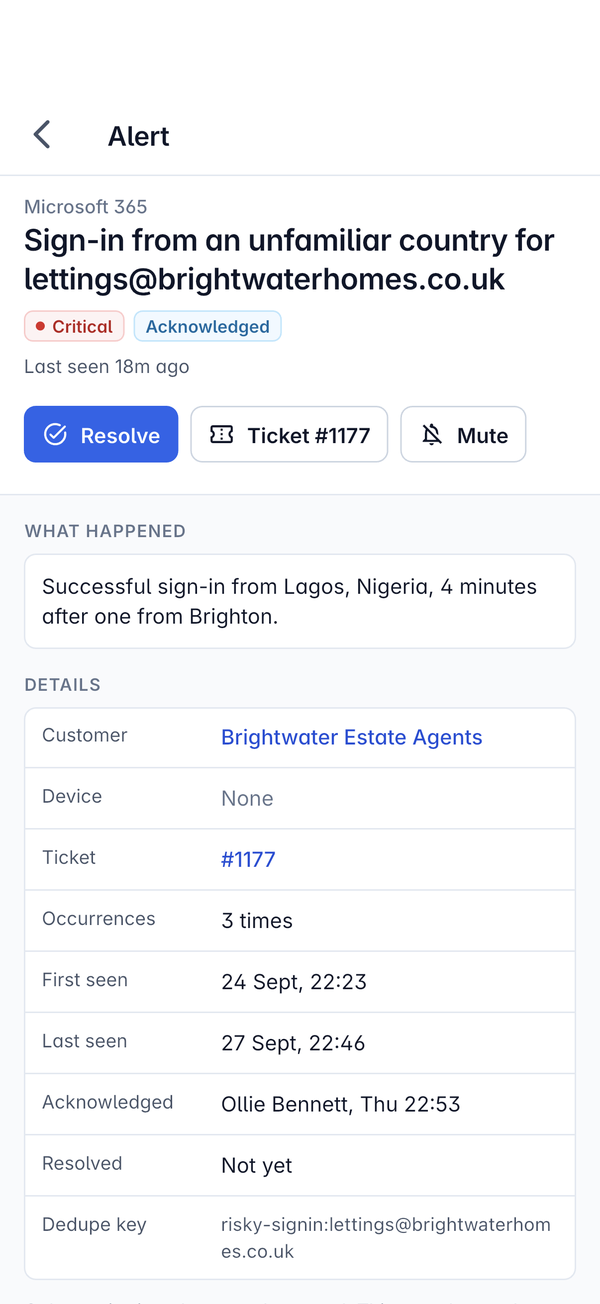
What you can do
The buttons under the title depend on where the alert has got to and what your role allows:
- Acknowledge an open alert to tell your team you are on it. Your name and the time appear under Acknowledged, and the alert list shows the Acknowledged pill.
- Resolve it once it is dealt with.
- Mute it to stop it alerting while you work on it. Only monitoring alerts can be muted; the alert explains how others clear, for example "This one clears when Microsoft 365 says the problem is fixed."
- Raise a new ticket from an alert that has none. The new ticket is linked to the alert, and the alert then shows a Ticket button (for example Ticket #1177) that opens it.
Acknowledging and resolving work offline too: the change is kept on the phone and sent when you are back online.
On a tablet
On a tablet the list stays on the left and the alert you tap opens alongside it, so you can work through a run of alerts without leaving the list.
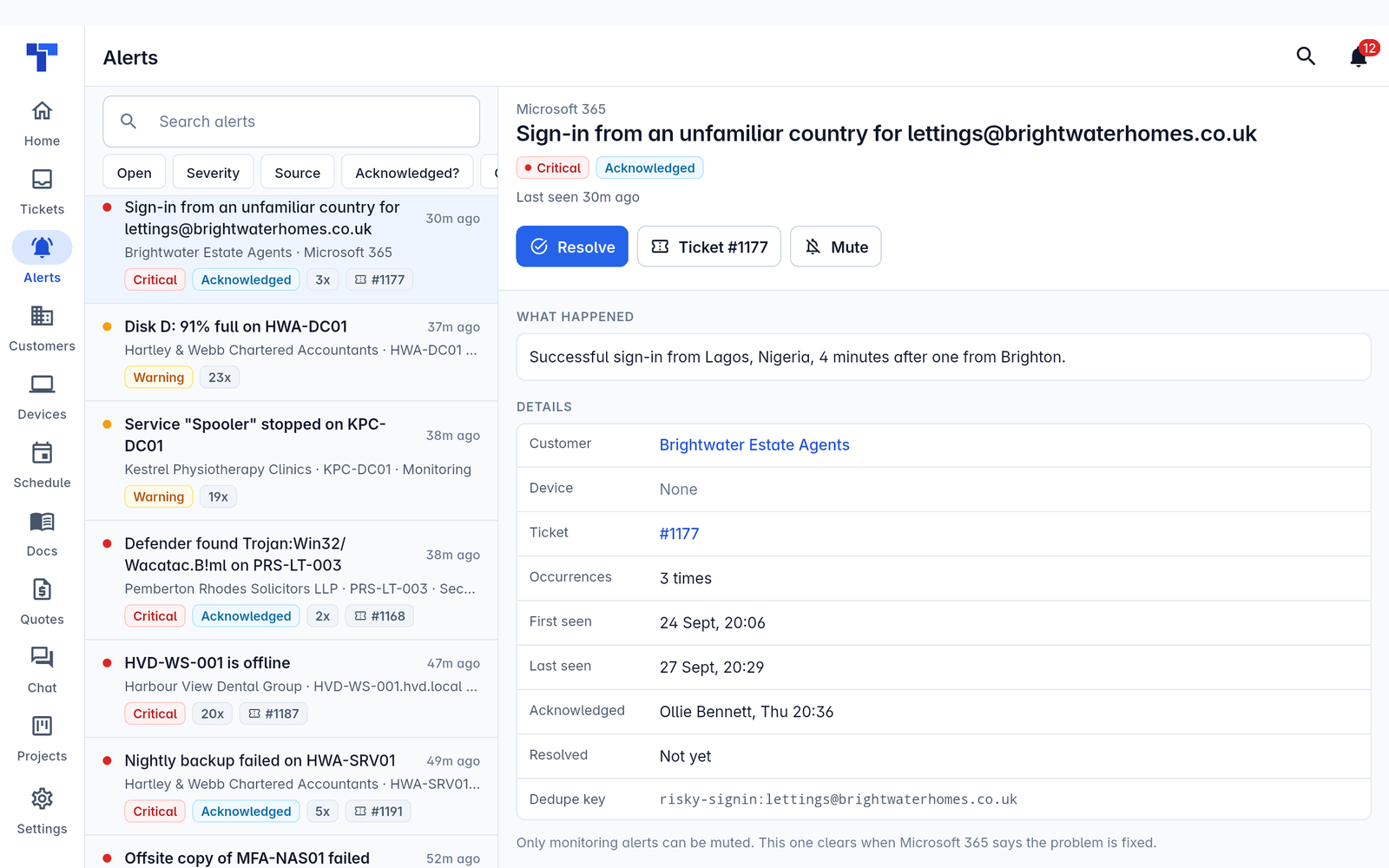
Hearing about alerts
Critical alerts, and the tickets they raise, reach you through your notifications like any other. The bell in the app shows them in Notifications. Where else they reach you, such as email, Teams or text, and when to hold them back, is set in Your profile, security and notifications.
For how alerts are raised, deduplicated and turned into tickets, see Alerts and Alerts into tickets and notifications.
Was this page helpful?
Thanks for the feedback.