Customer groups and scoped access
Group customers, and limit a person or a whole role to some customers so they see nothing that belongs to anyone else, enforced in the database itself.
Most of your team works across every customer. Some people should not: a subcontractor who looks after one client, a technician dedicated to a large account, an apprentice. Tenvara lets you limit a person, or everyone with a role, to named customers and customer groups. They then see nothing that belongs to any other customer, anywhere in the app.
Customer groups
A customer group is a named set of customers, such as "Northern accounts" or "Schools and charities". Groups are useful on their own for filtering the customer list, and they make scoped access easier to manage: limit someone to a group, and adding a customer to the group widens their access straight away.
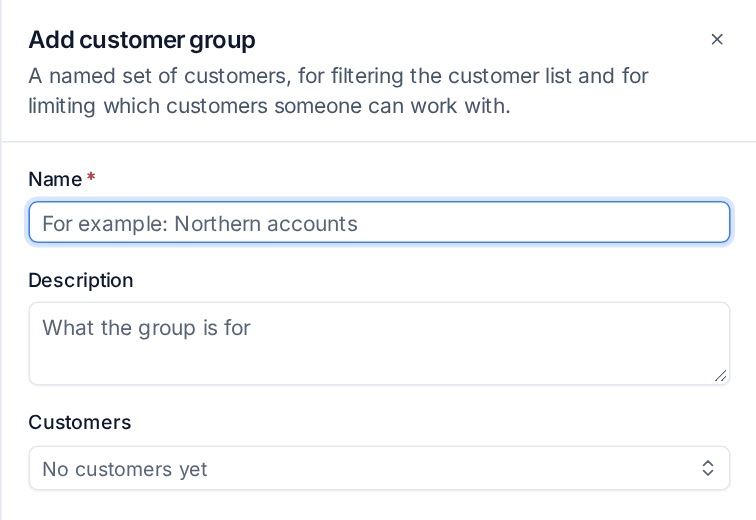
Add a group
- Go to Settings > Customer groups and press Add group.
- Enter a Name and, if you like, a Description of what the group is for.
- Under Customers, pick the customers in it.
- Press Add group.
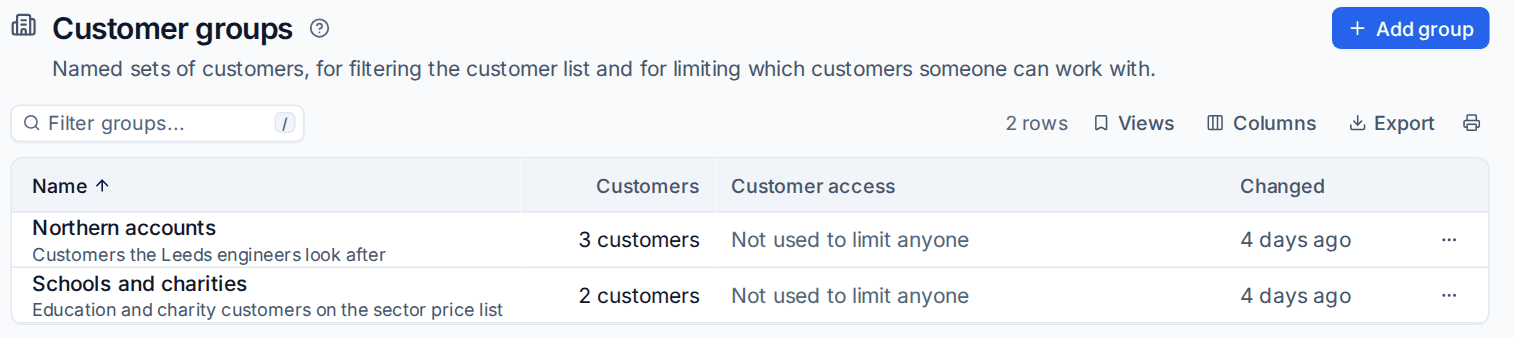
The list shows how many customers each group holds and, under Customer access, whether anyone is limited to it ("Not used to limit anyone", or the people and roles that use it). On the customer list, filter by group to see just its customers.
Warning: Deleting a group does not change its customers, but anyone limited only to that group is left with no customers until you change them. Tenvara tells you who is affected before you confirm.
Limit one person to some customers
- Go to Settings > Users and open the person.
- Under Customers this person can work with, choose Only some customers.
- Pick Customers, Customer groups, or both.
- Press Save changes.
With nothing picked, the person sees no customers at all: no tickets, devices or anything else that belongs to one. The dialog shows the person's effective access as you edit it.
The Customers column in Settings > Users shows "All" for people who work with every customer, or the number of customers for someone who is limited, with the reason (their own setting or their role) when you hover over it.
Limit a whole role
- Go to Settings > Roles and permissions.
- In the Customers card, press Change next to the role.
- Choose the customers and customer groups everyone with this role may work with.
- Press Save.
Administrators always work with every customer: a scope cannot be set on them, and making someone an administrator clears theirs.
When both are limited
When a person's role and their own setting are both limited, they get only the customers on both lists. When only one is limited, that one applies. A customer group always counts as whoever is in it at the time.
What a limited person sees
Everything that belongs to a customer outside their scope is simply not there for them:
- lists, counts, totals, search and the command palette;
- customer, device and ticket pages (another customer's record opens as if it does not exist);
- remote sessions, terminals and file transfers, backups and restores, documentation and credentials, security events and detections;
- reports, exports and scheduled reports, which run in the scope of the person they belong to;
- live updates and notifications, and AI answers, which only use what the person can see.
Things that belong to no customer, such as your own internal tickets and settings, follow the person's normal permissions in Roles and permissions. Records that name several customers or devices, such as a script schedule or an automation rule, are only shown to them when every customer they name is in scope.
When you narrow someone's scope, any remote sessions they have open on devices that are now outside it end straight away.
How it is enforced
Scoped access is not just hidden from the screen. For a limited person, every request runs with a database rule that only lets their customers' rows through, so every query, count, search, report and export sees only those customers, and any attempt to write to another customer's record is refused. The remote access and backup services apply the same scope to every device, session, job and restore.
Every change to a person's or role's scope, and to a group's members, is recorded in the audit log with the before and after.
Tip: For a subcontractor, combine a customer scope with a role that has only the areas they need, and turn on two-factor for them. See Passwords and two-factor.
Related
- Users
- Roles and permissions
- Custom fields, which can be limited to customer groups
Was this page helpful?
Thanks for the feedback.