Self-service restores in the portal
Let your customers' people get back their own mail, OneDrive files, calendar entries and contacts from the customer portal, with you deciding who may restore what and seeing everything they do.
Most restore requests are small: a deleted email, last week's version of a spreadsheet. With self-service on, your customers' people open Backups in the customer portal and get these back themselves, at any backed up point in time, without raising a ticket. You decide who may restore what, per customer and per contact, and everything they do is recorded.
Self-service covers Microsoft 365 backups (mail, OneDrive, calendar and contacts) and Google Workspace backups (Gmail, Google Drive, calendar and contacts).
Turning it on
Self-service is off until you switch it on.
- Open Settings > Backup and choose the Self-service tab.
- Turn on Self-service restores. This applies to every customer with Microsoft 365 or Google Workspace backups, unless the customer says otherwise.
- Choose what Portal users may restore: Their own or Nothing.
- Choose what Portal managers may restore: Anyone's (they can restore for colleagues, as approvers) or Their own.
- Choose where restores may go: Restore to where it was, Restore to a new folder and Download.
- Leave Tell staff about restores on to notify everyone who manages backup when a contact restores something.
- Set the Folder name for restores to a new folder (today's date is added) and the Most items in one restore (0 for no limit).
- Press Save.
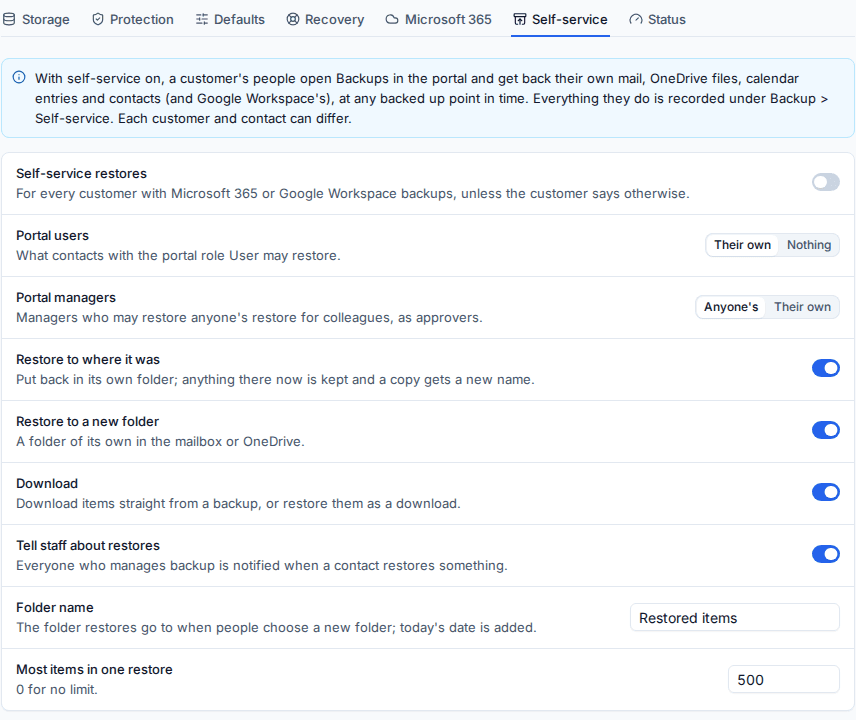
Reset to defaults puts these settings back.
A person's own backups are the mailbox and OneDrive (or Google account) backed up under their email address.
Different settings for one customer
- Open Backup and choose Self-service in the sidebar. Every customer is listed with whether self-service is on for them.
- Open the customer.
- Under Settings, each setting shows Default with the value it follows, or choose On or Off (or another value) for this customer.
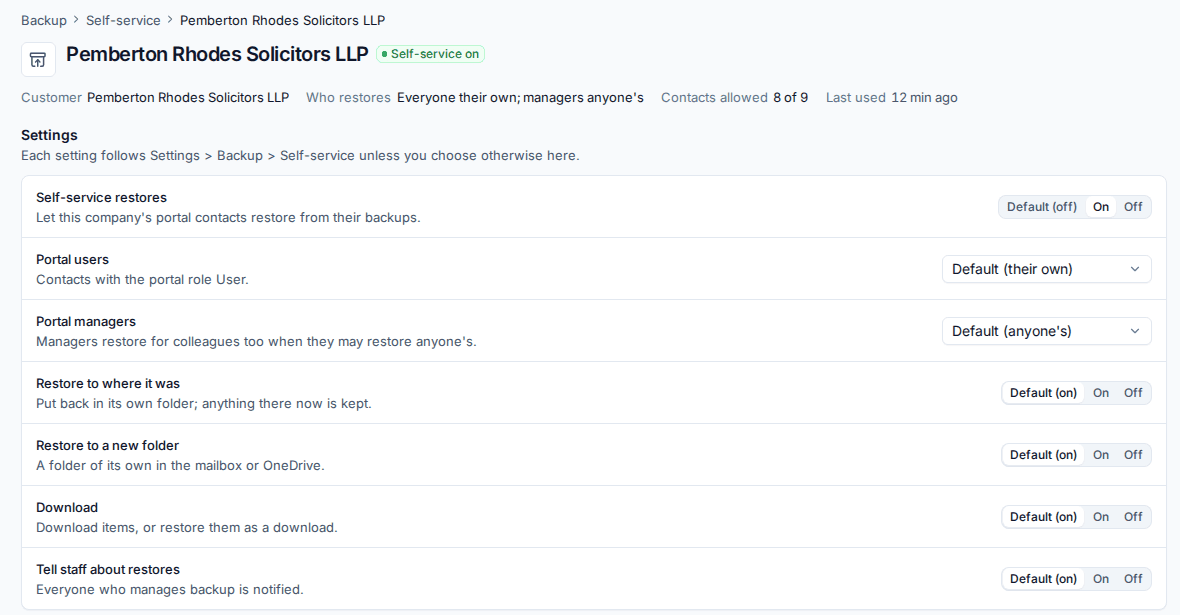
Under Contacts, every portal contact is listed with their portal role, the mailbox they are Backed up as, what they May restore and their Access. Change a contact's Access to give them their own setting: the company's, their own, anyone's, or nothing. This is how you keep one person out, or let one trusted person restore for everyone.
What your customers see
In the customer portal, Backups shows:
- Backup from: the point in time, newest first.
- The part: Mail, OneDrive, Calendar or Contacts (Gmail, Google Drive, calendar and contacts for Google Workspace).
- The folders, with Search this backup to find a message by subject or sender, or a file by name.
- A person who may restore for colleagues also chooses whose backup to look at.
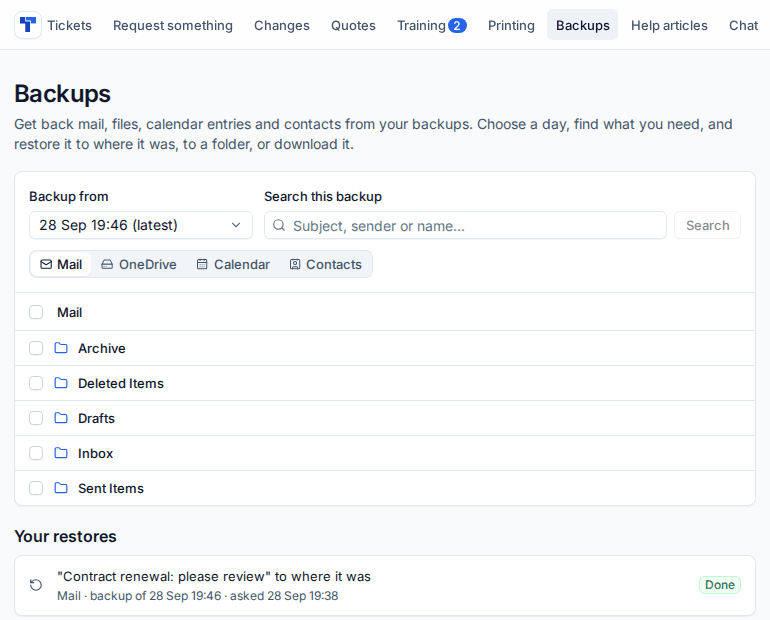
They tick the messages, files or folders they want and press Restore. They can look at a message in a side panel first, or download an item straight from the backup.
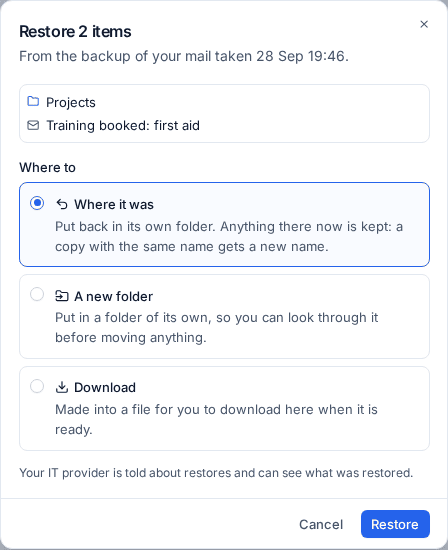
Restores go:
- Where it was: back in its own folder. Anything there now is kept, and a copy with the same name gets a new name. A portal restore never overwrites.
- A new folder: a folder of its own, so they can look through it before moving anything.
- Download: made into a file to download from the page when it is ready.
Your restores at the bottom of the page lists their restores and updates live while one runs. Portal restores go through the same malware scan as your own restores.
Seeing what customers did
Everything a contact does is recorded: opening a backup, searching, looking at a message, downloading and restoring, with the recovery point, the items, the job and the address they came from.
- Backup > Portal activity lists it for every customer.
- The customer's self-service page shows it for that customer.
- Restores also go on the customer's activity.
With Tell staff about restores on, everyone who manages backup gets a notification that opens the customer's self-service page.
Related
Was this page helpful?
Thanks for the feedback.