Custom fields
Add fields of your own to customers, sites, contacts, devices, tickets, contracts, quotes and projects, and use them in lists, filters, automation, reports, the portal and CSV.
Custom fields let you record what your team needs that Tenvara does not ask for out of the box: an account manager, a support tier, a Cyber Essentials certificate number, the alarm company for a site, an asset tag, a customer's purchase order reference. Administrators set them up in Settings > Custom fields.
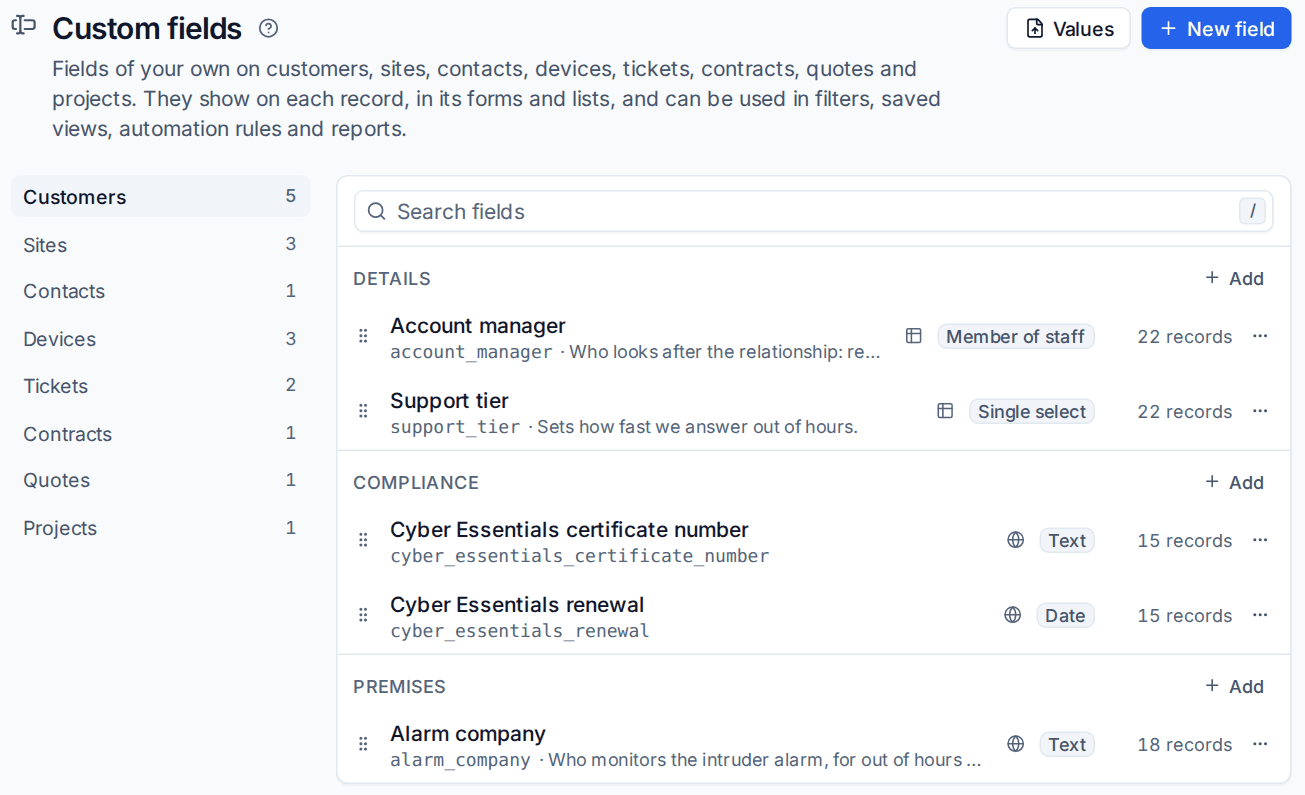
Where custom fields work
Fields can be added to eight kinds of record: Customers, Sites, Contacts, Devices, Tickets, Contracts, Quotes and Projects. Once added, a field shows up:
- on the record's page and in its form, under its section;
- in the record's list, in the column chooser, with sorting and filters, and in saved views;
- in the ticket inbox, as a filter step and a sort;
- in automation rules, as conditions, as a "Set a custom field" action and as placeholders;
- in the report builder, as columns for the record and for the record's customer;
- in the API, in CSV export and import, and on ticket templates;
- in the customer portal, when you choose.
Field types
| Type | Good for |
|---|---|
| Text and Long text | Reference numbers, notes, alarm companies |
| Number | Counts and sizes, with decimals, a lowest and highest value and a unit such as "users" |
| Money | Amounts in a fixed currency or the customer's own currency |
| Date and Date and time | Renewal dates, install dates |
| Yes or no | Flags such as "Onsite visit needed" |
| Single select and Multi select | Tiers, categories, anything with a fixed list of options |
| Member of staff | An account manager or project sponsor |
| Contact | One of the record's own customer's contacts |
| Web address, Email address and Phone number | Links and ways to reach someone |
Add a field
- Go to Settings > Custom fields and choose the kind of record on the left, for example Customers.
- Press New field, or Add on a section to add the field straight into it.
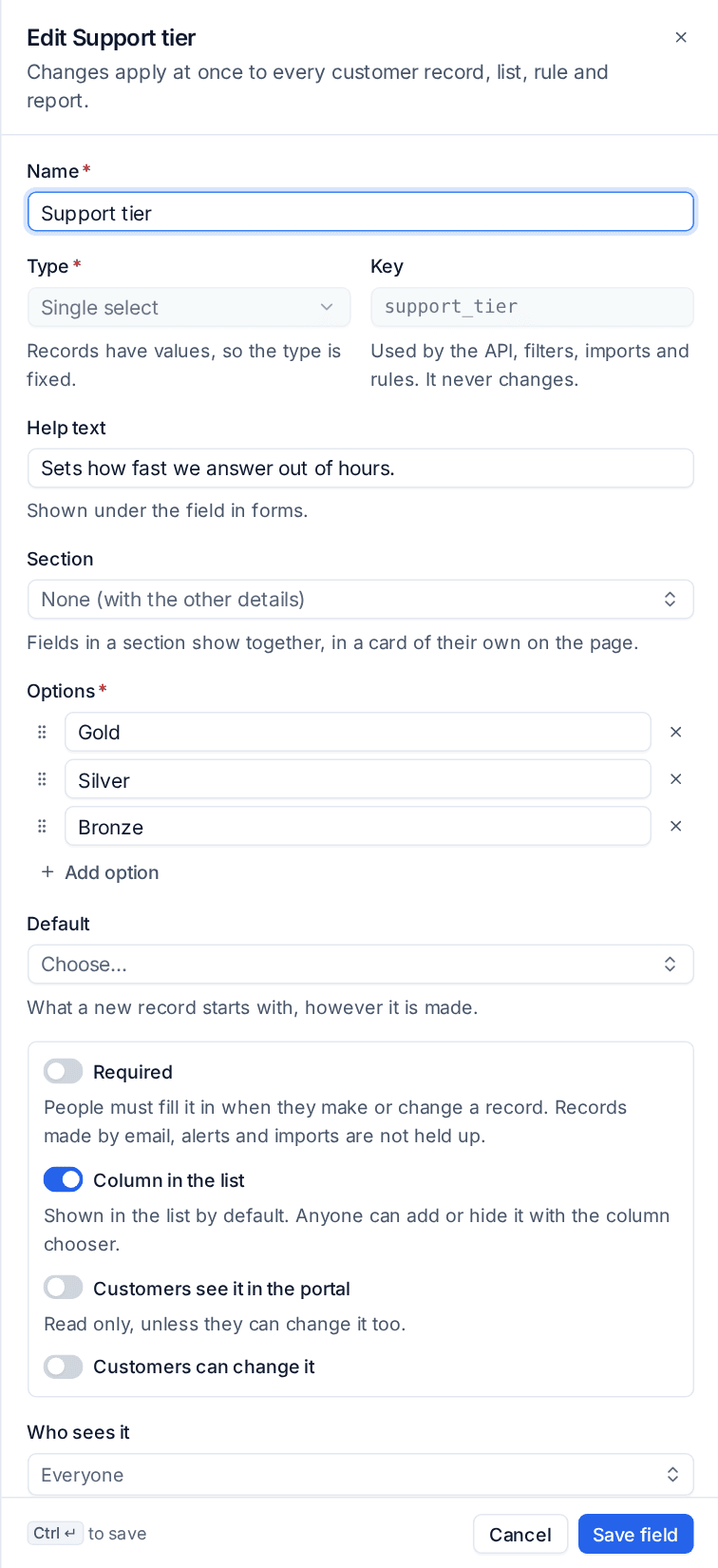
- Enter the Name. The Key is made from the name and never changes, so you can rename the field later without breaking filters, saved views, reports or rules.
- Choose the Type, then fill in what that type needs, such as the Options for a select.
- Optionally add Help text (shown under the field in forms), a Section (fields in a section get a card of their own on the record's page) and a Default (what a new record starts with, however it is made).
- Choose the switches:
- Required: people must fill it in when they make or change a record. Records made by email, alerts, recurring tickets and imports are never held up for it.
- Column in the list: shown in the list by default. Anyone can still add or hide it with the column chooser.
- Customers see it in the portal, and Customers can change it.
- Under Who sees it, leave Everyone or pick roles. Administrators always see every field.
- Under Which records it is for, limit the field to some customers, customer groups, customer statuses or customers with an active contract whose name contains a word. Device fields can also be limited to device types and device roles.
- Press Save field.
Drag fields to reorder them or move them between sections. Each kind of record can have up to 100 active fields.
Note: A field a role cannot see is left out everywhere for those people: forms, lists, filters, reports, CSV and the API.
In the customer portal
A field marked Customers see it in the portal appears there read only. With Customers can change it as well:
- ticket fields are asked for on the portal's new ticket form (required ones must be filled in);
- contact and customer fields can be changed from the contact's profile in the portal: their own fields by the contact, their company's by a portal manager.
You can give a field different wording for customers with Label in the portal and Help text in the portal. Staff keep seeing the normal label. Member of staff and contact fields are shown in the portal but never edited there.
Changing or removing a field
- Once records have values, the type is fixed (text and long text can swap).
- Removing an option that records use asks what those records should get instead.
- Archive hides the field everywhere and keeps its values. Restore brings it back.
- Delete removes the field and every value. Settings tells you how many records have one first.
Filling in values in bulk
Press Values to export every record of a kind with its custom fields as CSV, fill in the columns in a spreadsheet and import the file back.
- Choose Export the current values and edit the file. Empty cells change nothing.
- Import the file. A dry run shows What changes, rows that Will change, rows that are Already the same and Rows that will be skipped with the reason.
- Press Update records to apply it.
Rows match by record id, devices also by serial number and contacts by email. Options can be written as their labels, people by name or email, money as 1250.00 GBP and yes or no as Yes or No.
In automation and reports
In automation rules, every field of the trigger's customer, site, device and ticket is available as a condition, grouped as "Customer fields" and so on. "A ticket is updated" can fire when a custom field changes, and the Set a custom field action sets or clears one. Placeholders such as {{customer.fields.support_tier}} put a value into messages. See Conditions and placeholders.
In the report builder, the Tickets, Contracts, Quotes, Devices and Projects datasets have a column for each of their fields and each of their customer's fields. See The report builder.
Related
Was this page helpful?
Thanks for the feedback.