Quote approval
Make quotes over a value, under a margin or with a big discount wait for an approver before they reach the customer, and approve or reject them in the app or from an email link.
Quote approval puts a second pair of eyes on the quotes that matter: big ones, thin ones and heavily discounted ones. A quote that breaks one of your rules cannot be sent until an approver has said yes. Everything else goes out as normal.
Approval is off until you turn it on, so nothing changes until you do.
Set the rules
Go to Settings > Sales and find Quote approval (administrators only).
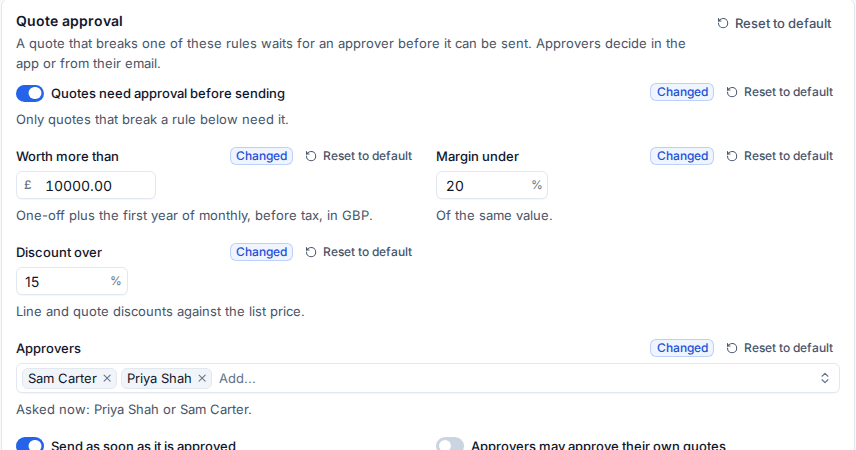
- Turn on Quotes need approval before sending. Only quotes that break a rule below need it.
- Set any of the rules. Leave a rule empty to switch it off.
- Worth more than: the one-off total plus the first year of monthly, after discounts and before tax, in your base currency.
- Margin under: the margin on that same value, as a percentage.
- Discount over: line and quote discounts against the list price, as a percentage.
- Choose the Approvers. Leave it empty and every administrator approves.
- Decide whether to Send as soon as it is approved. When on, an approval sends the quote straight away as the person who asked, with the send options they chose.
- Decide whether Approvers may approve their own quotes. Someone who is the only approver always can.
- Save.
Note: If you turn approval on but set no rules, no quote needs approval. Add at least one rule.
Ask for approval
You do not need to remember the rules. When a quote breaks one, its page says it needs approval before it is sent, and Ask for approval takes the place of sending.
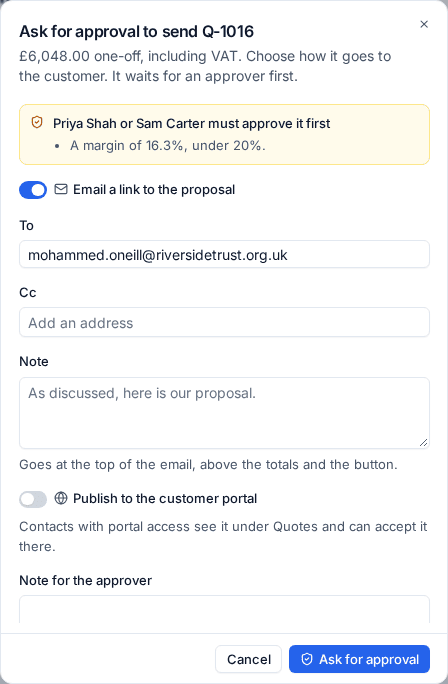
- Press Ask for approval at the top of the quote.
- Check the reasons at the top, for example "A margin of 16.3%, under 20%."
- Set up how it goes to the customer as you would for sending: Email a link to the proposal with To, Cc and a Note, and Publish to the customer portal.
- Add a Note for the approver: why the price is what it is.
- Press Ask for approval.
A quote that was never sent moves to Awaiting approval and shows in Sales > Awaiting approval, with a count in the sidebar. The approvers are told in the bell and by email.
Approve or reject
Approvers can decide in three places: on the quote, from Sales > Awaiting approval, or from the link in their email, which works without signing in for seven days and only for that approver.
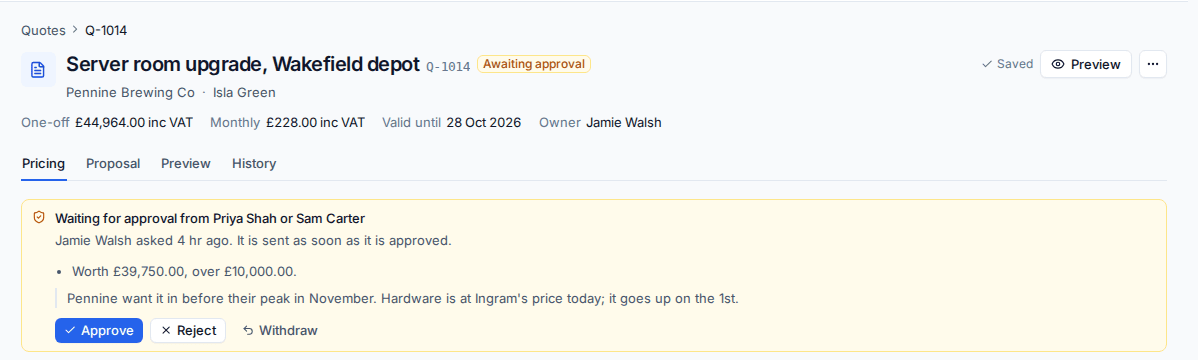
The banner on the quote shows who is being asked, who asked and when, the reasons and the note.
- Approve: with Send as soon as it is approved on, the quote goes to the customer at once. Otherwise the person who asked is told and can send it.
- Reject: give a reason saying what needs to change. The person who asked is told why, and can change the quote and ask again.
- Withdraw: the person who asked can take the request back.
What approval covers
Approval is for the price. Tenvara keeps a fingerprint of the quote's totals, currency and recipient, so you can still change the wording after approval. Change the price and the approval lapses: the quote needs asking again.
On a quote that has already been sent, a new version that breaks a rule keeps the sent status and shows the approval on its page until it is approved.
The record
Every step (asked, approved, rejected, withdrawn) goes on the quote's History, the customer's activity and the audit log.
Related: Sending a quote and versions, Building a quote.
Was this page helpful?
Thanks for the feedback.