Google Workspace and Entra ID backup
Back up customers' Google Workspace domains (Gmail, Drive, Calendar, Contacts and shared drives) with your own service account, and back up a Microsoft 365 tenant's Entra ID directory to see what changed and put it back.
Besides devices and Microsoft 365 mail and files, Tenvara backs up two more things for your customers: Google Workspace domains, and the Entra ID directory of each connected Microsoft 365 tenant. Both use the same encrypted storage, schedules, retention and restore flow as the rest of backup.
Google Workspace
Tenvara backs up every user's Gmail, Drive, Calendar and Contacts, and every shared drive, in a customer's Google Workspace domain. Google Docs, Sheets and Slides are kept as Office files.
What you need
Google Workspace backup connects through a Google Cloud service account with domain-wide delegation, which you create in your customer's (or your own) Google Cloud project:
- the service account's JSON key file, from Google Cloud > IAM and admin > Service accounts > Keys;
- a super administrator in the customer's domain for the service account to act as when it lists users and shared drives;
- domain-wide delegation for the service account's client ID, with the scopes Tenvara lists, added in the customer's Google Admin console under Security > Access and data control > API controls > Manage domain-wide delegation.
Connecting a domain
- Open Backup, choose Google Workspace in the sidebar, and press Connect Google Workspace.
- Choose the Customer.
- Enter the Primary domain and the Super administrator.
- Paste the Service account key, or choose the key file. It is stored encrypted.
- Under Domain-wide delegation, copy the Client ID and Scopes shown, and add them in the Google Admin console as above.
- Press Check and connect.
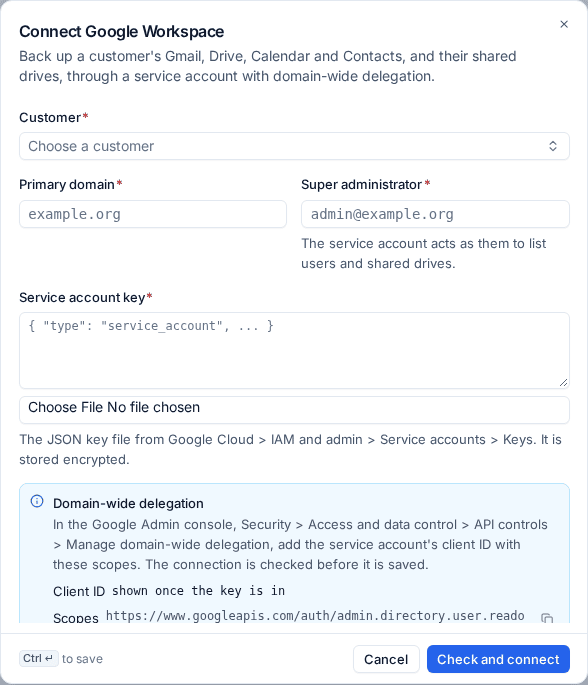
Tenvara checks the key, the delegation, the directory and each Google API before it saves anything. If something is refused, it says what to fix.
The domain page
Backup > Google Workspace lists each connected domain. Open one to see every user and shared drive with whether it is Backed up, the size of each part (Gmail, Drive, Calendar, Contacts) and the last backup.
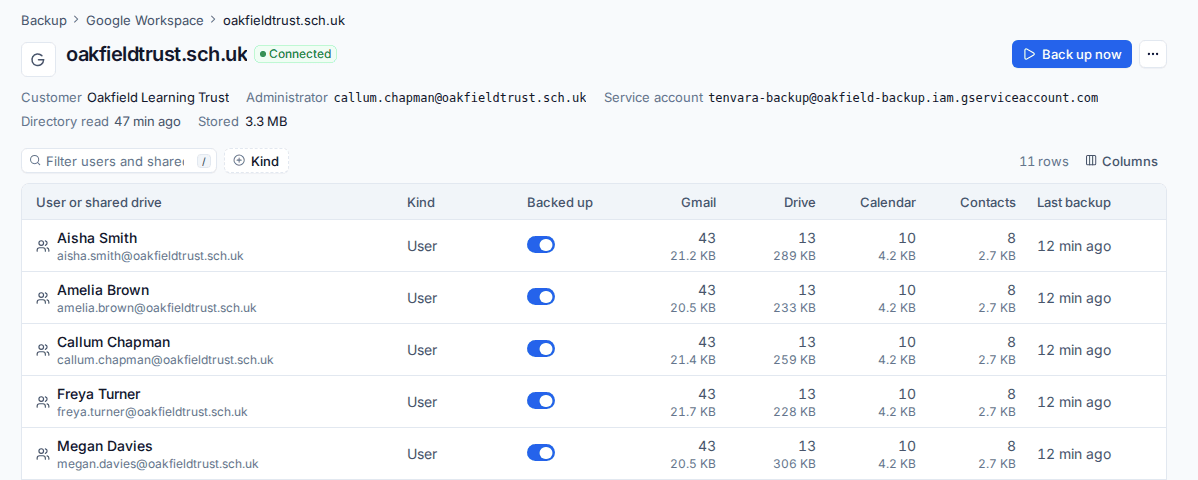
- Use the switch on a row to protect or stop protecting a user or shared drive.
- Back up now runs a backup straight away.
- The ... menu checks the connection, reads the directory again, changes the administrator or key, or disconnects the domain. Disconnecting keeps its backups.
The directory is read on connect and every six hours. New users and shared drives are protected when the domain is set to protect new ones, and people who leave are kept as removed, with their backups.
Google Workspace follows the Microsoft 365 schedule and retention, including a customer's own override. Legal holds and email archiving cover Gmail too.
Restoring Google Workspace
Open a user or shared drive, choose the part and the point in time, and browse or search (names, subjects, senders and addresses). You can look at a message, event, contact or text file before you restore it. Restore to:
- Where it was: mail goes back with its original labels, files into their folders (a file with the same name already there is kept and the restored copy gets a dated name), events by their calendar ID, contacts as new contacts.
- A new label, Drive folder, calendar or contact label.
- A download: a message as
.eml, an event as.ics, a contact as.vcf, or a folder as a zip.
Entra ID backup
For every Microsoft 365 tenant you connect, Tenvara can back up its Entra ID directory:
- users, and groups with their members and owners;
- app registrations and enterprise apps;
- Conditional Access policies and named locations;
- directory role assignments.
Each backup reads the whole directory and keeps it as a recovery point. If nothing changed since the newest point, no new point is written and Entra ID still counts as backed up.
Turning it on
- Open Backup > Microsoft 365 and open the tenant.
- Choose the Entra ID tab.
- Turn on Back up Entra ID. Back up now runs a backup straight away.
The tab shows the state, last good backup, number of recovery points and size.
Seeing what changed
Under What changed, choose two recovery points in From and To. Tenvara lists every object added, removed or changed between them, with which properties changed. Filter by Kind and Change, and click an object to see each property's old and new value side by side.
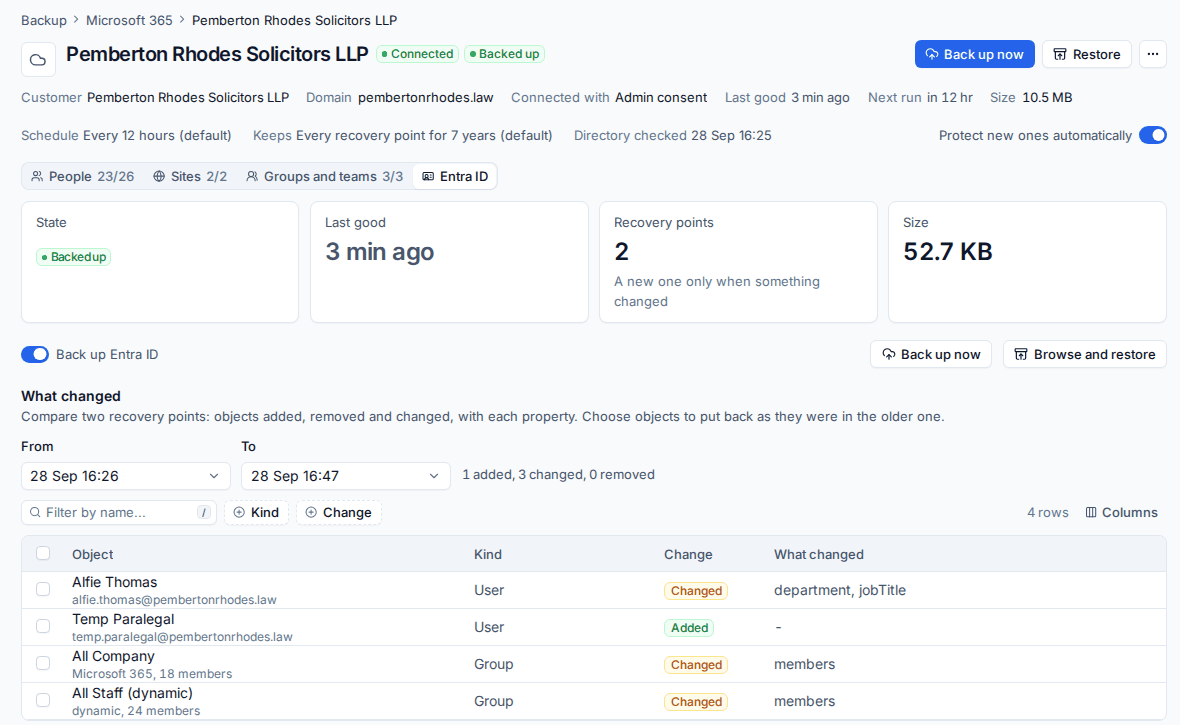
This is a quick way to answer "who changed this group last week?" or "what did that Conditional Access policy look like before?".
Putting it back
From an object's side panel, press Put back as on and the date to set it back. You can also tick several objects in the list and put them all back, or use Browse and restore for any recovery point.
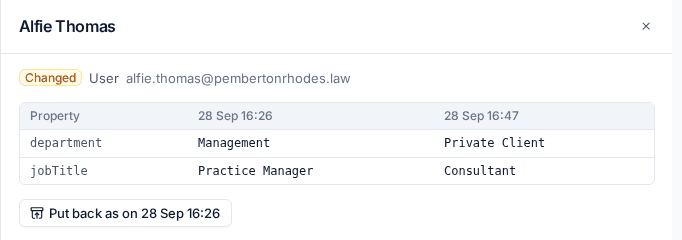
Before anything is written, Tenvara reads the tenant as it is now and shows what the restore will do to each object: nothing (unchanged), set back, bring back from the recycle bin, or make again.
- Changed properties and group memberships are set back.
- Deleted users and groups come back from the Entra ID recycle bin with their own IDs, or are made again if they have left it.
- Conditional Access policies made again are created report-only, so a restore can never lock anyone out. Review them and turn them on yourself.
You can also download objects as JSON.
Note: Entra ID backup and restore use the same Microsoft 365 app registration and admin consent as the rest of Microsoft 365 backup. See Microsoft 365 backup.
Related
Was this page helpful?
Thanks for the feedback.