Security awareness training
Run phishing simulations for your customers' staff, give them short lessons with quizzes, ask them to accept policies, and see a risk score for each person.
Security > Awareness is a security awareness programme you run for your customers' staff. It has three parts that feed one risk score per person: phishing simulations, short training lessons with quizzes, and policies people read and accept. Staff do their lessons and accept policies in the customer portal, and the results go into the customer's report and their compliance evidence.
The overview
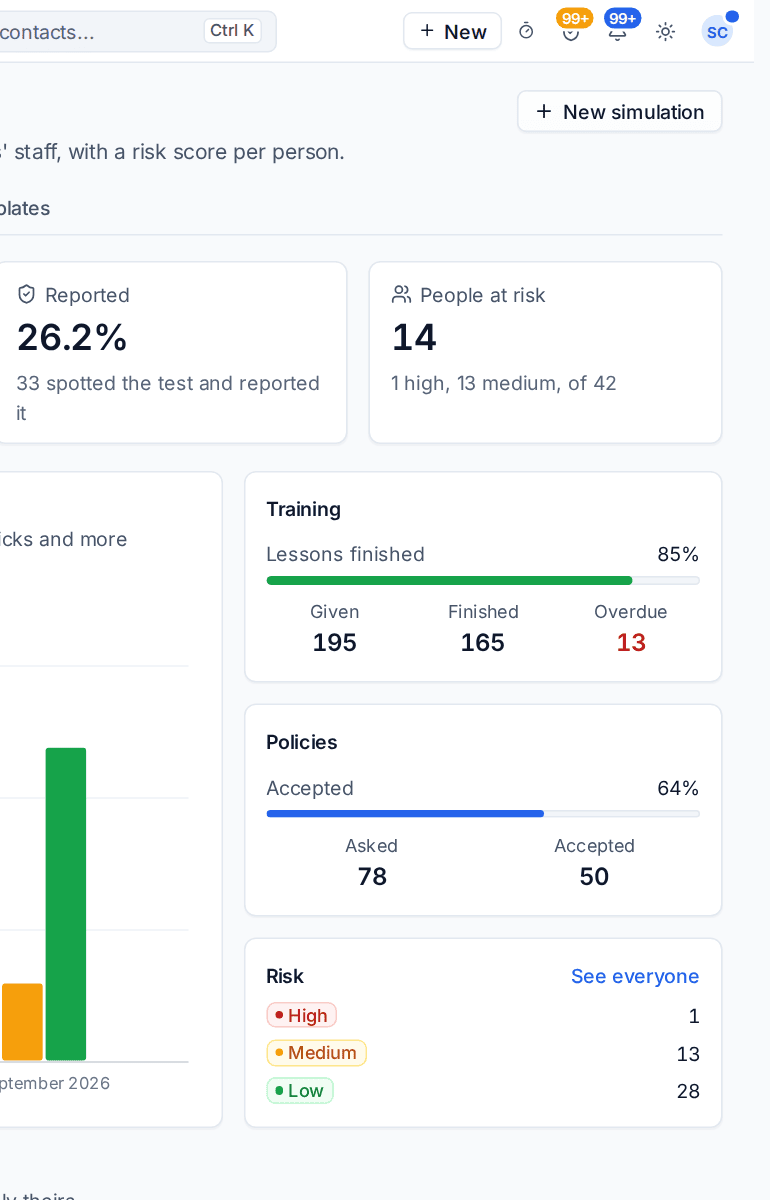
The overview counts Simulated emails sent, how many were Clicked (and how many people entered details), how many were Reported (people who spotted the test, the best outcome) and People at risk. A chart shows the click and report rates month by month; dry runs are left out. Beside it are Training (lessons given, finished and overdue), Policies (asked and accepted) and Risk (people in each band).
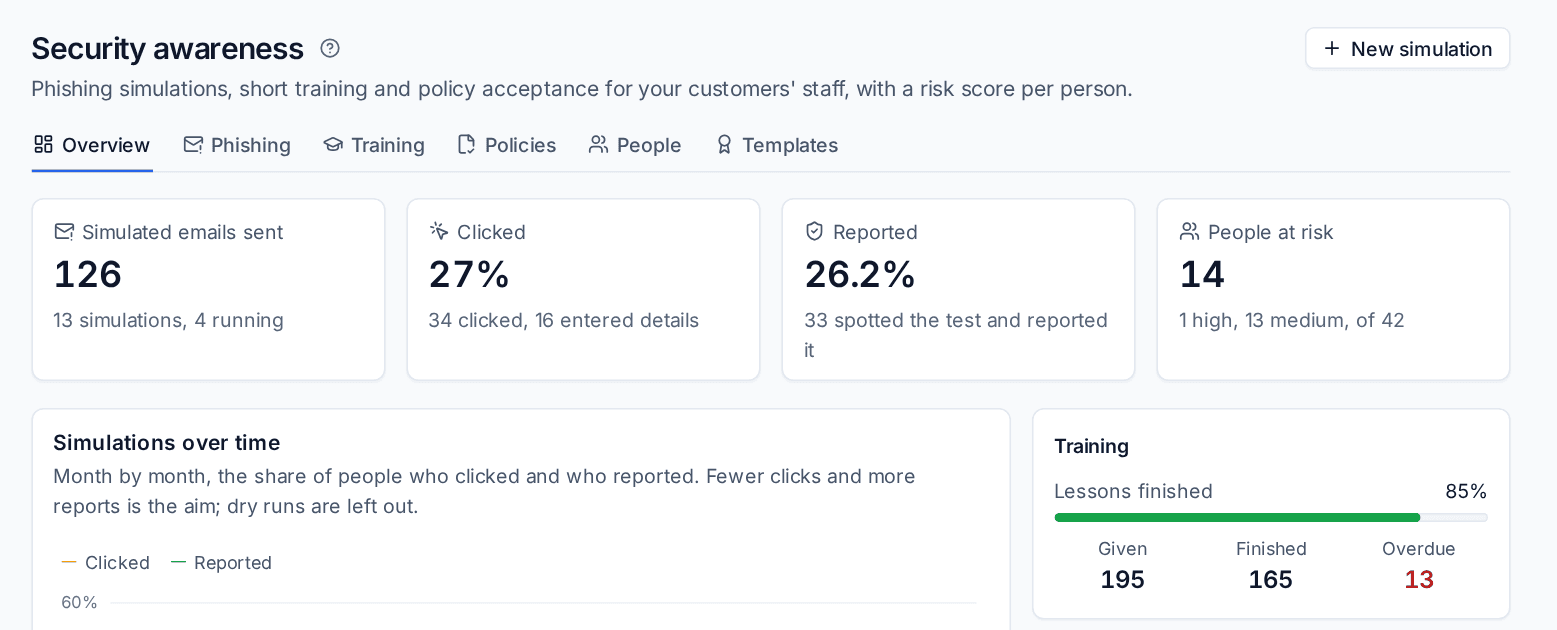
Across customers, Customers lists each one on the programme with its average risk, people at risk and the last test's click and report rates. The page follows the customer switcher.
Phishing simulations
A simulation sends a safe, realistic phishing email to a customer's staff and records who opens it, clicks, enters details on the landing page and reports it. It never captures or stores a password: a form on the landing page only counts that something was entered.
Sending a simulation
- Press New simulation.
- Choose the Customer and give it a Name, for example "Q1 password test".
- Choose a Template (the email) and a Landing page (shown after a click; by default the template's own, a teachable page in the customer's brand).
- Choose how to Send through:
- A support mailbox of yours.
- The customer's Microsoft 365: sent as a mailbox in their tenant that you name, usually a shared mailbox made for the programme. It must be a mailbox Tenvara has read from the tenant.
- Optionally Space sends out by some minutes, so a burst does not look like a real attack, and set Start at for a scheduled start.
- Choose the Recipients (everyone at the customer with an email, or chosen people) and press Create draft.
Open the draft and press Preview to see the email as a mail client shows it and whether the sender is ready. Then press Start or Schedule: the confirmation says how it will be sent. A simulation whose sender is not ready does not start, and says why.
Note: Mail security scanners and link previews follow links before people do. Tenvara recognises them and does not count them as clicks (Ignore mail security scanners in Settings, on by default).
Results
A simulation's page shows who it was sent through, the follow-up lesson, when it started, and the funnel: Recipients, Sent, Opened, Clicked, Entered details and Reported. Each recipient shows what they did and when.
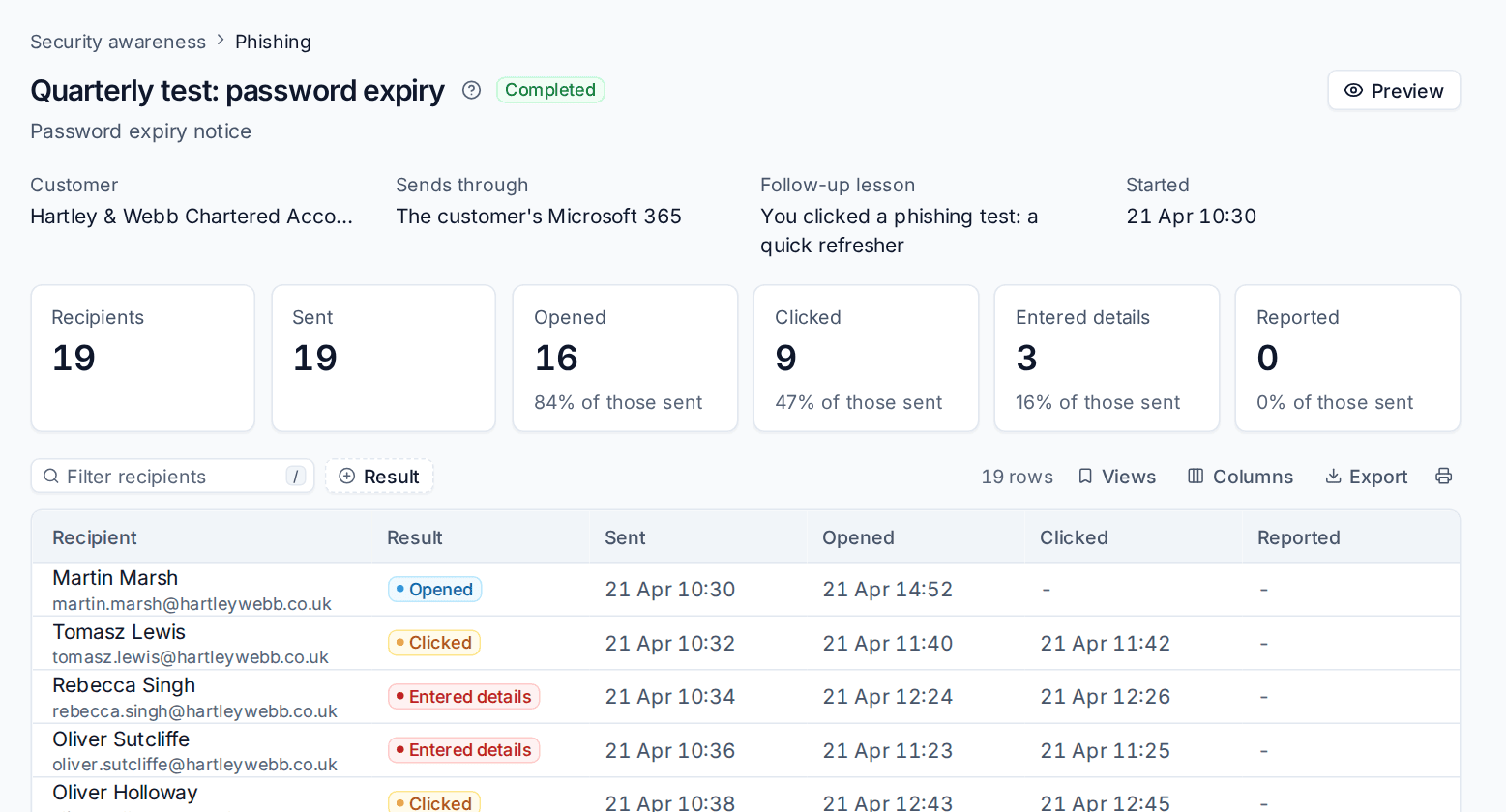
Someone who clicks can be given a follow-up lesson automatically, for example a two-minute refresher.
Templates
Templates holds the phishing emails and landing pages: built-in ones to view and copy, and your own to write and change. The usual placeholders for the person's name and the link are kept; scripts are stripped from anything you write.
Training
Training is a library of short lessons, each with a quiz. Built-in lessons cover phishing, passwords and password managers, multi-factor authentication, handling personal data and safe remote working, plus a refresher for people who clicked a test. Press New lesson to write your own.
Lessons are given to people:
- By hand: Assign to everyone at a customer or to chosen people.
- On a schedule, as a refresher every so many months.
- When someone clicks a simulation.
- When a new contact is added (onboarding). This is off by default and switched on per customer, so customers who are not on the programme never get lessons.
People read the lesson and take the quiz in the customer portal's Security training page. A score at or above the lesson's pass mark completes it. Overdue lessons get reminder emails in the customer's brand.
Policies
Policies holds documents staff must read and accept, such as an acceptable use policy. Write one, upload a PDF, or copy one from the policy library for a customer. Publish it, then Ask all staff. People accept it in the portal; the policy's panel shows who was asked and where each person stands.
Uploading a new version asks everyone to accept again.
People and the risk score
People lists everyone on the programme with their Risk, Score and Why (for example Phishing, Training due or Policies to accept). The score runs from 0 (best) to 100 and is banded low, medium or high:
- Clicking or entering details on a simulation counts against a person; reporting one helps. The latest simulation counts in full and earlier ones at half, so people who improve see their score fall.
- Lessons not done and policies not accepted add to it.
Open a person for their simulations, lessons and policies, and Assign a lesson to them.
Evidence and reports
Three checks feed the compliance frameworks: training finished on time, a real phishing simulation within the last 180 days (dry runs do not count), and policies accepted. A customer who has not started the programme is shown as not known rather than failing. Cyber Essentials covers technical controls only, so its readiness is not affected.
The monthly customer report gets a Security awareness section: emails sent and what people did, lessons finished and overdue, policy acceptance, the risk bands and the people who would benefit most from help. It is left out for customers who are not on the programme.
Settings
Settings > Security monitoring > Awareness sets the default sender and spacing, when training and policies are due and reassigned, the reminder cadence, the risk bands, onboarding lessons and ignoring mail scanners. Many can be set per customer on the customer's Settings tab.
Was this page helpful?
Thanks for the feedback.