Mobile device management
Manage your customers' iPhones, iPads and Android phones from Tenvara with policies, apps, enrolment links and actions such as lock, lost mode and wipe, beside the phones Intune manages.
Tenvara manages phones and tablets as well as computers. iPhones and iPads are managed over Apple's MDM protocol, Android phones through Android Enterprise, and the phones Intune already manages in your customers' Microsoft 365 tenants appear in the same list. One policy covers iPhones, iPads and Android, so you think in terms of "the customer's phone policy" rather than one per platform.
Everything is under Devices > Phones and tablets, with Mobile policies, Mobile apps, Mobile enrolment and Apple Business Manager beside it.
Connecting Apple and Google
Managing phones means connecting your own Apple and Google accounts. Tenvara does not manage any phone until you do. An administrator sets this up under Settings > Mobile devices.
| Platform | What you need | Where |
|---|---|---|
| iPhones and iPads | An Apple push certificate, made with your company Apple ID at Apple's Push Certificates Portal. The request is signed with an MDM vendor certificate from an Apple Developer Enterprise account. Your Tenvara server must be reachable by phones over HTTPS at its public address. | Settings > Mobile devices > Apple |
| Apple Business Manager (optional) | Your customer's Apple Business Manager account, to add Tenvara as an MDM server and download its server token. | Settings > Mobile devices > Apple Business Manager |
| Android | A Google Cloud project with the Android Management API and a service account, then each customer bound to an Android Enterprise through Google's sign-up. | Settings > Mobile devices > Android Enterprise |
The Apple push certificate
- Click Make request. The private key stays on your server; only the request leaves it.
- Sign in to the Apple Push Certificates Portal with your company Apple ID and upload the request.
- Upload the certificate Apple gives back with Upload certificate (.pem), and note the Apple ID you used.
The certificate lasts a year. Renew it with the same Apple ID, or every iPhone and iPad must enrol again. Tenvara warns you before it expires.
Apple Business Manager
Add a server for each organisation, give its public key to Apple Business Manager, then upload the server token it returns. New iPhones and iPads assigned to it enrol by themselves, supervised, when first switched on. Devices > Apple Business Manager lists them.
Android Enterprise
Click Bind a customer and complete Google's sign-up with the customer's work account or a managed Google account. Each bound customer shows its enterprise, how many devices it has and Read devices now.
Enrolling phones
Go to Devices > Mobile enrolment and click New link. Choose the customer, whether the phones are Company owned or personal, and optionally the policy they get.
- iPhones and iPads: open the link (or scan its QR code) on the device and install the profile. Each device gets its own identity from your server, tied to that link's customer.
- Android, company owned: on a new or reset phone, tap the welcome screen six times and scan the QR code. The phone becomes fully managed.
- Android, personal: the person adds a work profile with the link's token, so only work apps and data are managed. Wiping a personal phone removes only its work profile.
Links last 30 days by default. Android QR codes last at most 90 days; New QR code makes a fresh one.
The device list
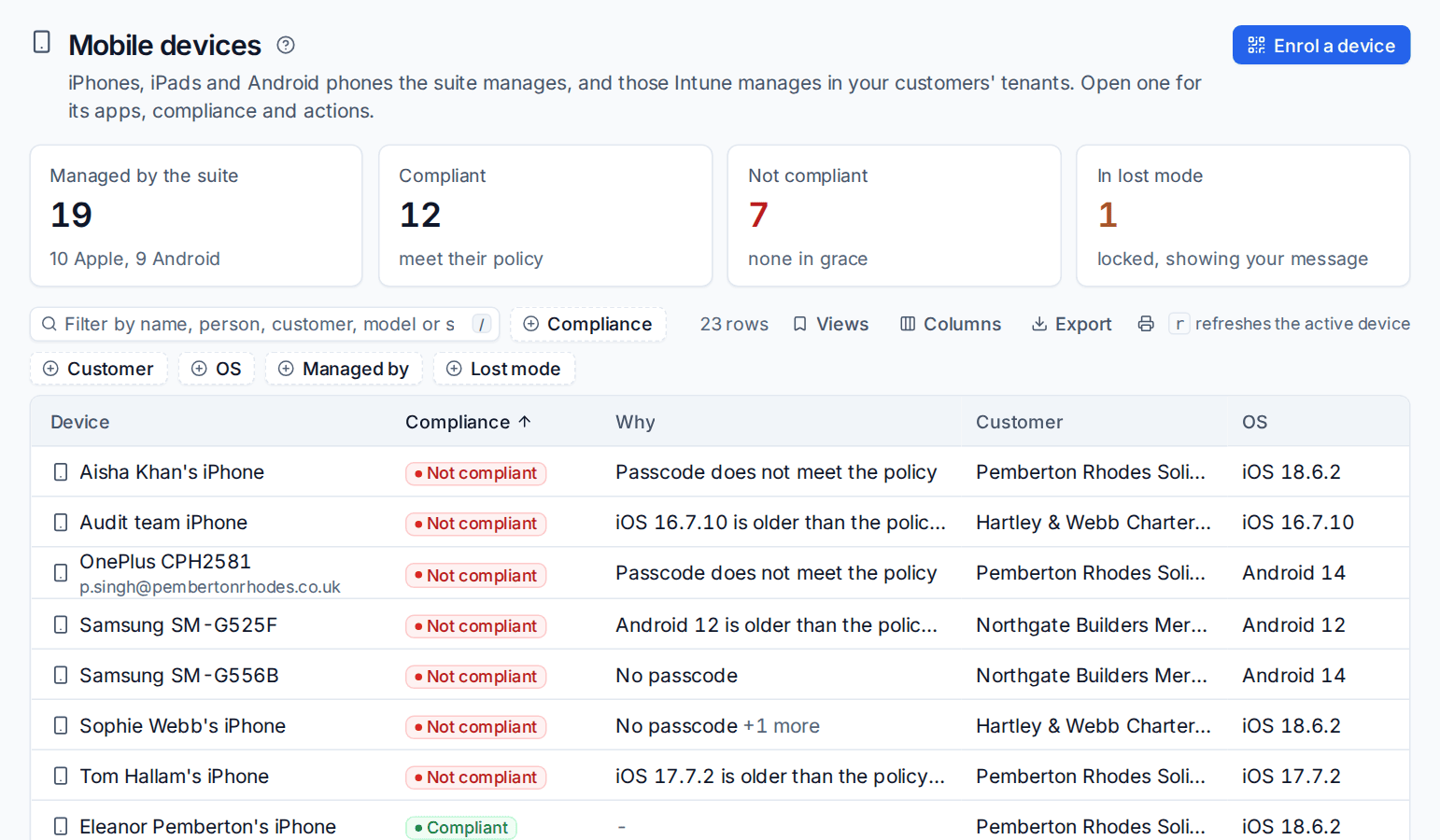
The tiles count the devices Tenvara manages, how many are compliant, how many are not (and how many are still in their grace period), and how many are in lost mode. Filter by Compliance, Customer, OS, Managed by or Lost mode. Intune's phones show with Managed by Intune; their actions stay in Intune.
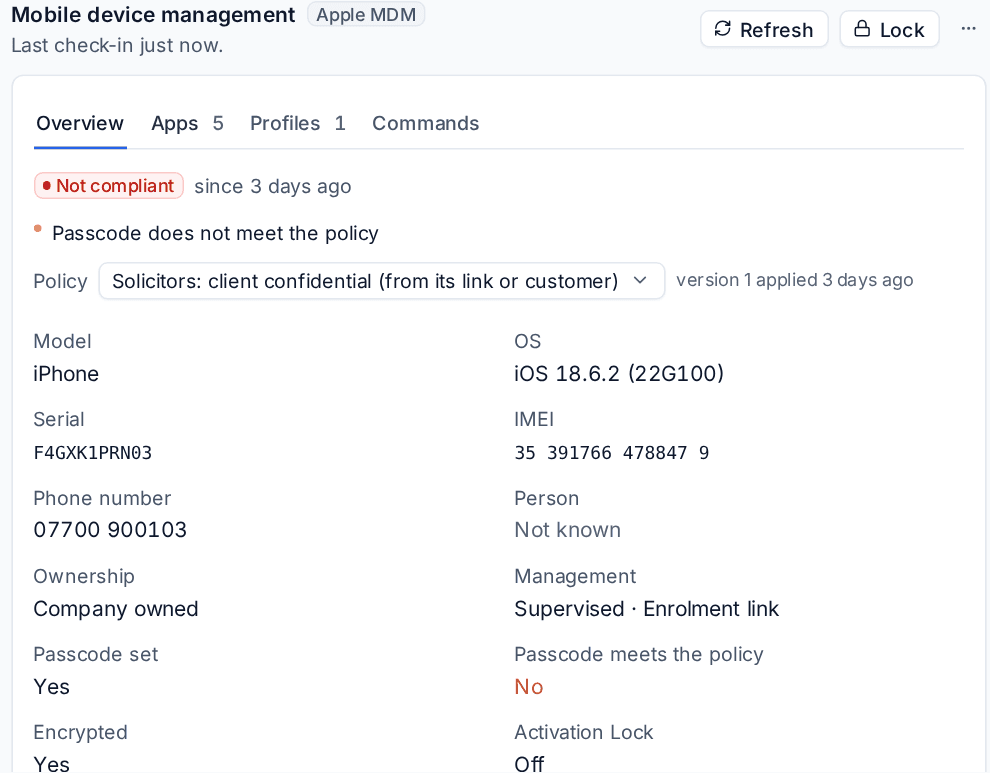
Open a phone to see its compliance and why, its policy (which you can change for that one device), model, OS, serial, IMEI, phone number, ownership, passcode and encryption, its apps and profiles, and the commands sent to it.
Actions
Refresh asks the phone for a fresh inventory and Lock locks it with your lock screen message and phone number. The ... menu has the rest:
- Lost mode...: locks the phone and shows your message until you choose End lost mode. On iPhones you can then Locate it and play a sound.
- Clear passcode... (iPhone) or Reset passcode... (Android).
- Restart, Shut down, Install app, Remove app and Rename, where the phone supports them.
- Wipe... and Remove from management, confirmed by typing the device's name.
An action a phone cannot take right now is greyed out with the reason. Every action is recorded with its outcome.
Policies
Go to Devices > Mobile policies. Each customer can have a default policy, and there is a default for every customer without their own.
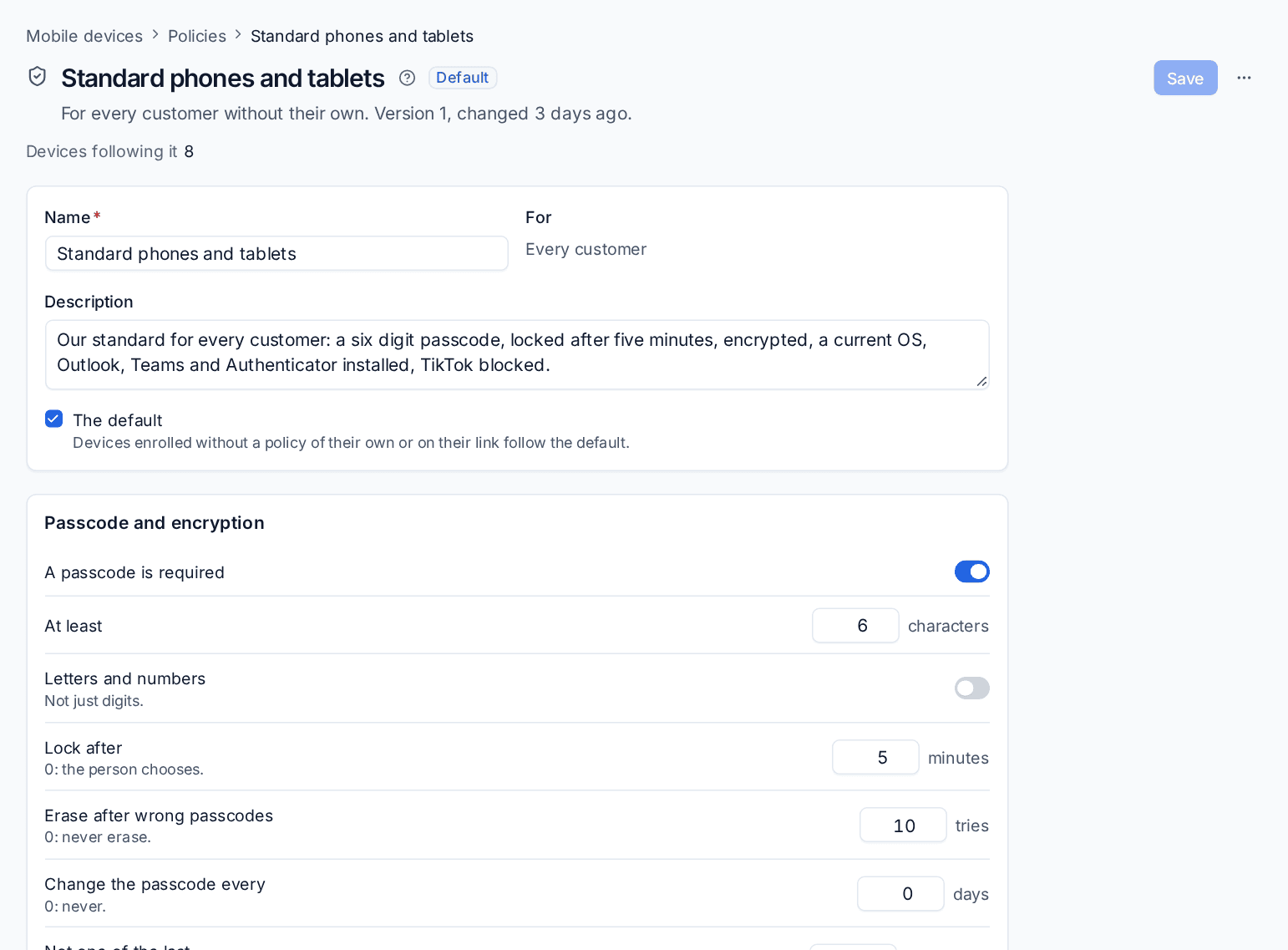
A policy sets:
- Passcode and encryption: a passcode required, its length, letters and numbers, lock after, erase after wrong passcodes, how often it changes, and encryption.
- The oldest iOS, iPadOS and Android versions allowed.
- Restrictions such as the camera, screenshots, installing apps, iCloud backup, AirDrop, Bluetooth, USB debugging, factory reset and apps from outside Google Play.
- Wi-Fi networks and Exchange mail accounts.
- Apps from Mobile apps: required, available or blocked.
- On Android, work profiles for personal phones and how system updates install.
A phone follows its own policy if it has one, then its enrolment link's, then its customer's default, then the default for every customer. Saving a policy makes a new version and sends it to every phone that follows it.
Mobile apps holds the App Store, Volume Purchase, managed Google Play and in-house apps your policies use.
Compliance and alerts
A phone is compliant when its passcode meets the policy, it is encrypted, its OS is new enough, it has the current policy and it has checked in recently. When it breaks a rule, a grace period starts (24 hours by default); after that it counts as not compliant and, if you choose, raises an alert that clears itself once the phone complies again. Set these, and the lock screen message, under Settings > Mobile devices > Compliance and wording.
Related
Was this page helpful?
Thanks for the feedback.