Xero and QuickBooks
Connect your own Xero or QuickBooks Online organisation so issued invoices and credit notes post to your ledger and payments made there come back to Tenvara.
Tenvara is where invoices are made; your accounting package keeps the books. Connect Xero or QuickBooks Online and every invoice and credit note posts to your ledger as it is issued, with Tenvara's number, currency and tax, and payments recorded in the ledger come back to the invoice. Both connections use your own organisation and an app you register with Xero or Intuit.
What you need
- Xero: an app registered at developer.xero.com (a web app), with its client id and secret.
- QuickBooks Online: an app at developer.intuit.com with the accounting scope, and its keys. Turn on custom transaction numbers in QuickBooks so it can take Tenvara's invoice numbers.
- An administrator in Tenvara, and someone who can authorise the app in your Xero organisation or QuickBooks company.
One ledger is connected at a time. If you invoice as more than one company, each trading entity can post to the main ledger or have its own. See Invoice layouts and trading entities.
Connect
- Go to Settings > Integrations > Accounting.
- On the Xero or QuickBooks Online card, press App details. Copy the Redirect URI shown into your app at Xero or Intuit, then paste the app's client id and secret into Tenvara.
- Press Connect Xero (or Connect QuickBooks Online) and approve access on the provider's page.
- Back in Tenvara, the card shows the organisation, its Base currency, Other currencies and Country. Any warnings appear here too, for example a currency you bill in that is not turned on in your ledger.
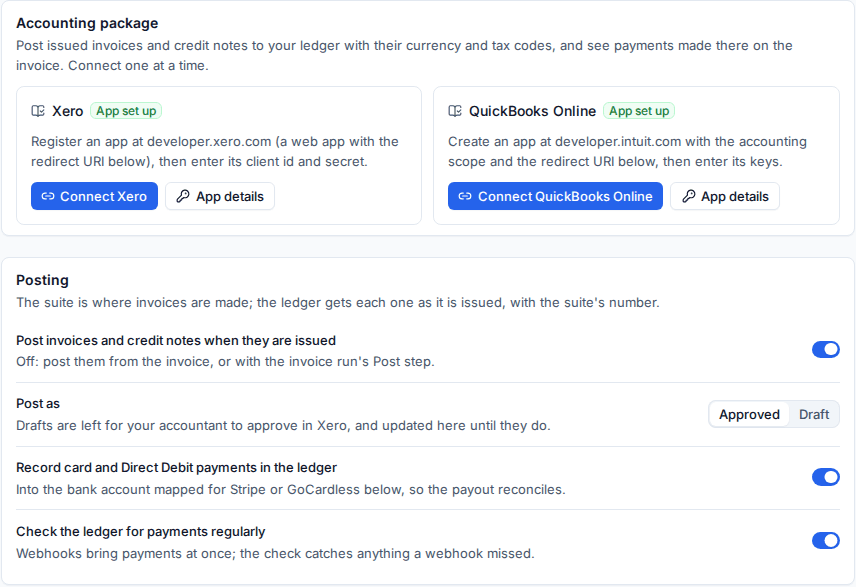
Posting
Under Posting:
- Post invoices and credit notes when they are issued: on by default. Off, you post them from the invoice, or with Post to Xero on an issued invoice run.
- Post as: Approved, or Draft for your accountant to approve in Xero (QuickBooks Online has no drafts).
- Record card and Direct Debit payments in the ledger: payments taken through Stripe and GoCardless are recorded against the bank account you map for them, so the payout reconciles.
- Check the ledger for payments regularly: webhooks bring payments straight away; the regular check catches anything a webhook missed.
The ledger's invoice gets Tenvara's number, and the tax goes over exactly as Tenvara charged it, so the totals agree to the penny. Credit notes are posted and allocated to their invoice, and voiding an invoice in Tenvara voids it in the ledger.
Mapping
Mapping says what Tenvara's tax rates, kinds of line and payments are called in your ledger. Invoices post with these.
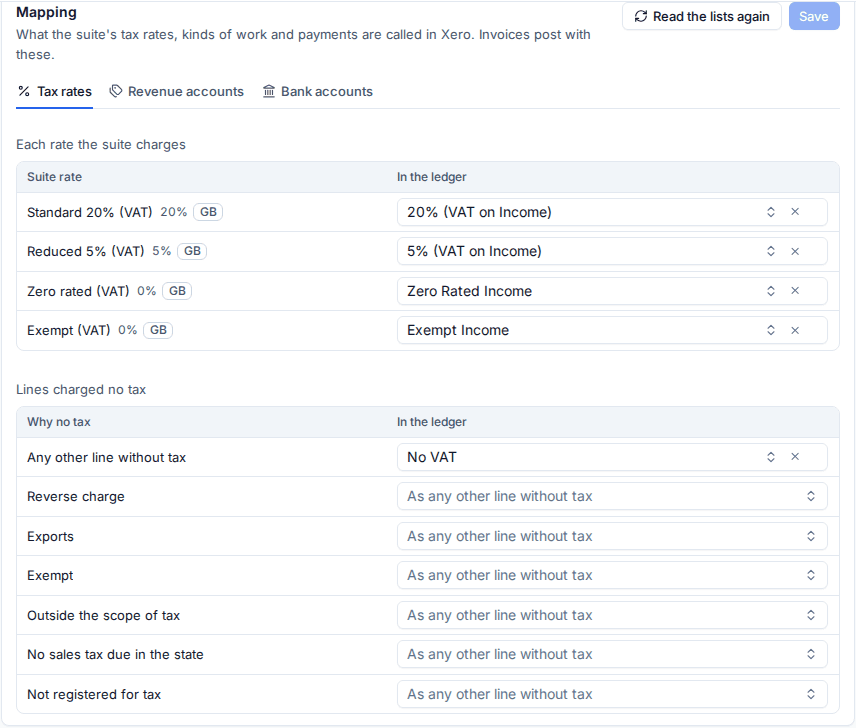
- Tax rates: each rate Tenvara charges against the ledger's, and the ledger's rate for lines charged no tax (reverse charge, exports, exempt and so on).
- Revenue accounts (Xero) or Items (QuickBooks Online): the account or product each kind of line posts to.
- Bank accounts: where payments by hand, card and Direct Debit go.
- Press Save. If you add accounts or rates in the ledger later, press Read the lists again.
Customers and contacts
Each customer is one contact in the ledger. Tenvara matches them by name and tax number and lists them as Suggested, Not linked, Changed or Linked.
- Confirm the suggestions, or use Link to a customer... for the rest.
- Create in Xero makes a contact for a customer that has none. Otherwise it is created when their first invoice is posted.
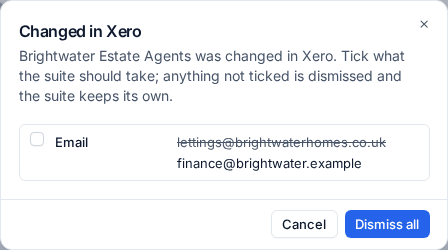
- When someone changes a contact in the ledger, it shows as Review 1 change. Tick what Tenvara should take; anything not ticked is dismissed. Changes in the ledger never reach your customer records without someone ticking them.
On the invoice
Each issued invoice has an Accounting card with its State in the ledger, when it was Synced and what is Due in Xero, with Open in Xero and Update. Every post and payment is listed below it.
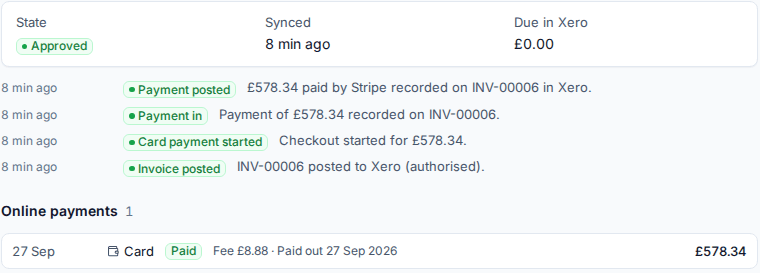
If the ledger refuses an invoice, the card says why (for example an account code the ledger does not know), with Retry once you have fixed it. Posting is also retried by itself. If the total in the ledger ever differs from Tenvara's, the invoice says so.
Payments made in the ledger
A payment or credit note recorded in Xero or QuickBooks against an invoice comes back as a payment on the Tenvara invoice, and its status changes to Part paid or Paid. You do not need to record it twice.
The sync log
Settings > Integrations > Sync log lists every post, payment and webhook, with filters for the service (Xero, QuickBooks, Stripe, GoCardless) and the result (Problems, Worked, Skipped). Start here when an invoice did not appear in the ledger.
Note: Disconnecting stops posting and stops payments coming back. What was posted stays in the ledger, and the mapping is kept for when you connect the same organisation again.
Related
Was this page helpful?
Thanks for the feedback.