Baselines and drift
Write your own standard for customer tenants, assign it to tenants, see where each has drifted and let Tenvara put settings back automatically where you allow it.
A baseline is your own standard for a tenant: the Conditional Access, Entra ID, Exchange, SharePoint and Intune settings every managed customer should have, with the values you want. Tenvara compares each assigned tenant with it after every configuration snapshot, shows exactly what differs, and can put drifted settings back by itself.
Baselines read the tenant's configuration snapshots, so they work for every tenant whose configuration is being kept (see Configuration snapshots).
The baselines list
Open Microsoft 365 > Baselines (under Operations in the sidebar). Each baseline shows how many Settings it holds and how many are fixed automatically, how many Tenants it is assigned to, how many are Out of line, and when it last Changed.
A baseline's page
Open a baseline to see its version and four figures: Settings and policies, Tenants, Out of line and In line.
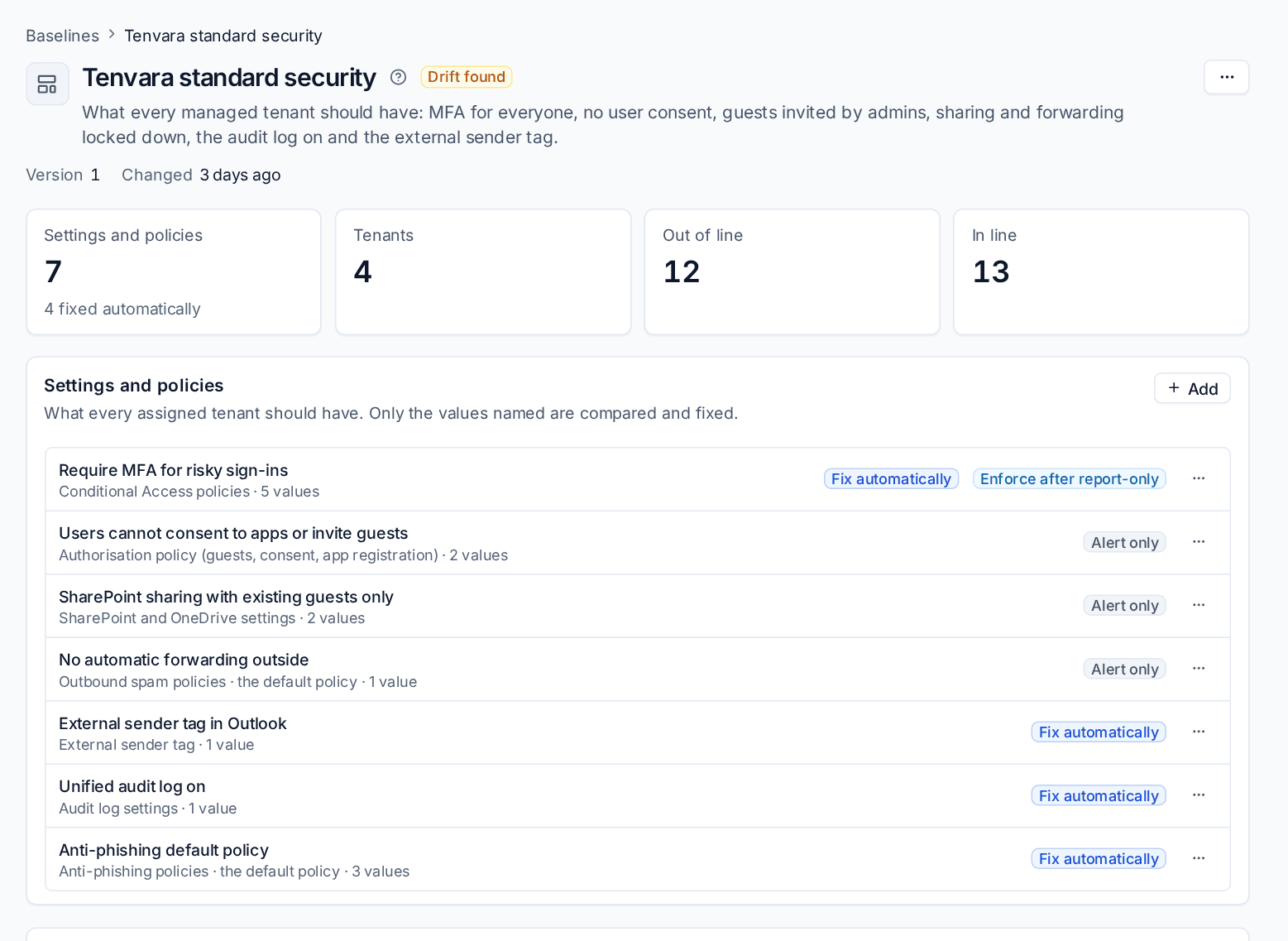
Settings and policies
Each item is one kind of setting with the values wanted, for example Require MFA for risky sign-ins (a Conditional Access policy), No automatic forwarding outside (the default outbound spam policy) or Unified audit log on. Only the values an item names are compared and fixed; everything else in the tenant is left alone.
Each item is either:
- Alert only: drift raises an alert and waits for a person.
- Fix automatically: drift is put back on the next check.
A Conditional Access item can also be marked Enforce after report-only: a policy the baseline makes starts in report-only mode for a set number of days before it is enforced.
Building a baseline
- Press New baseline and give it a name and a description.
- Press Add to add an item. Choose the kind of setting, which object (the setting itself, a policy by name, or Exchange's default policy whatever it is called) and the values wanted.
- Choose Alert only or Fix automatically.
The quickest way is to capture a tenant you are happy with: open a snapshot on that tenant's Configuration tab, pick the settings and policies you want and press Make a baseline. Each tenant's own IDs and dates are left out so it fits any tenant.
Assigning and checking tenants
Under Tenants, press Assign to add tenants. For each tenant you can use Leave items out... with a reason, for example a customer who shares files with a partner on purpose. Left-out items show as Left out with the reason, and never alert or get fixed.
Tenvara checks every assigned tenant after each configuration snapshot and on a schedule (every 15 minutes by default, taking a fresh snapshot first when the last one is old). Press Check now to check straight away.
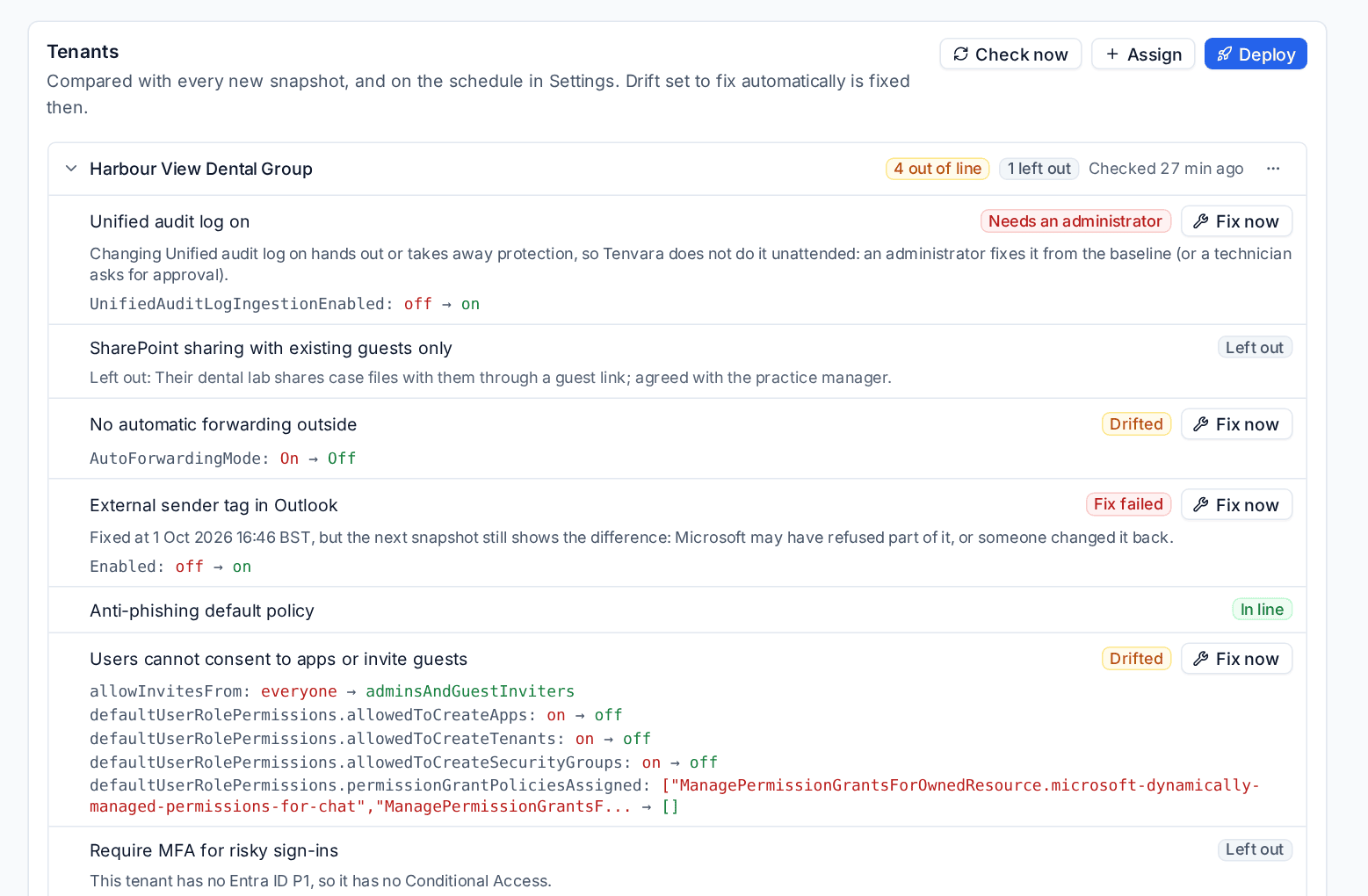
Each tenant shows how many items are out of line, and each item one of these:
| State | Meaning |
|---|---|
| In line | The tenant has what the baseline asks for |
| Drifted | Something differs: each field shows what the baseline wants and what the tenant has |
| Missing | The policy the baseline names is not in the tenant |
| Report-only | A Conditional Access policy the baseline made, still in its report-only spell |
| Needs an administrator | The fix changes protection, so it waits for an administrator |
| Fix failed | It was fixed, but the next snapshot still showed the difference |
| Left out | Left out for this tenant, with the reason |
| Not known | Microsoft would not give the setting, so it cannot be compared |
Fixing drift
By hand
Press Fix now on a drifted item. Only the values that differ are sent to Microsoft, through the usual change dialog and the change log (see Making changes safely).
To bring several tenants into line at once, press Deploy on the baseline, choose the tenants and check the preview. A deploy to more than one tenant is high risk, so a technician's goes to an administrator for approval with a reason.
Automatically
Items marked Fix automatically are put back by Tenvara itself, through the same change log, when Fix drift automatically is on in Settings > Microsoft 365 > Configuration and baselines. It can be switched off per customer, so their baselines only alert.
Some changes are never made unattended. Anything that hands out or takes away protection (Conditional Access changes and enforcing a policy, the authorisation policy, SharePoint sharing, outbound spam and the audit log settings) shows Needs an administrator: an administrator fixes it from the baseline, or a technician asks for approval. A missing Conditional Access policy is made in report-only mode.
A fix that did not hold at the next snapshot is marked Fix failed and tried again after a day. Microsoft may have refused part of it, or someone changed it back.
Tip: Changes Tenvara makes for a baseline are recognised in the next snapshot as Tenvara's own, so they never show up as outside changes to review.
Alerts
Each tenant and baseline raises one alert while an alert-only item has drifted, or while a fix has failed or waits for an administrator. It clears when the tenant is back in line. Your alert rules can turn it into a ticket.
Where else baselines show
- The tenant's Configuration tab lists the baselines assigned to it, with Out of line and Everything views.
- The customer's Microsoft 365 tab includes baseline drift in its operations block.
Related: Configuration snapshots, Security findings, Intune and Autopilot.
Was this page helpful?
Thanks for the feedback.