SLA policies and escalations
Set up SLA policies per priority, decide which tickets follow them, escalate before and after a target is missed, and give queues their own internal OLAs.
An SLA policy is a set of targets per priority: how soon someone first replies, how long the customer waits between updates, and how soon the ticket is resolved. Different customers and contracts can follow different policies, so a Gold contract can run around the clock while a lighter agreement runs in business hours. Policies live in Settings > Ticket setup > SLAs.
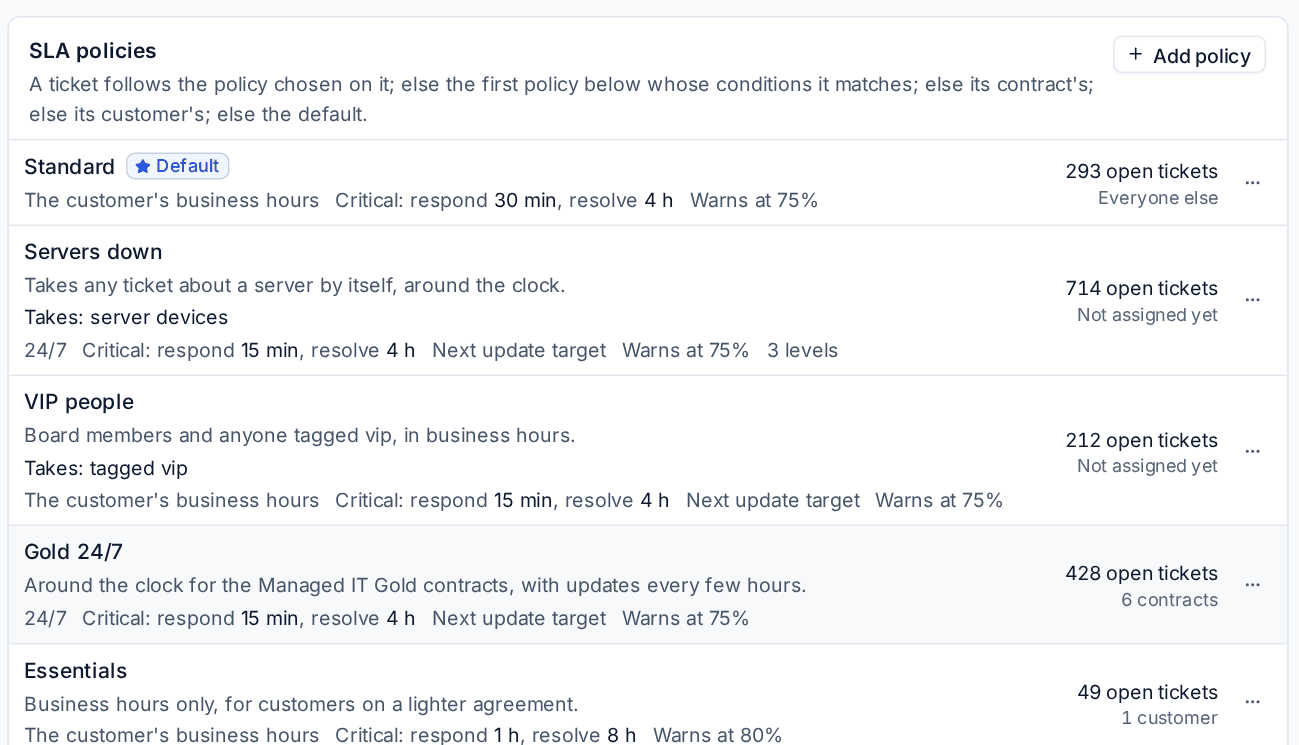
Which policy a ticket follows
Each ticket follows exactly one policy, worked out in this order:
- The policy chosen on the ticket itself.
- The first policy in the list whose conditions the ticket matches (by ticket type, device type, contact or tag).
- The policy on the customer's contract.
- The policy on the customer.
- The default policy, Standard, which takes every ticket no other policy takes.
Each row in the list shows how many open tickets follow the policy, and which contracts or customers use it. When a ticket's type, contact, tags or linked devices change, it moves to the policy it now matches and the activity log says so.
Add a policy
- In Settings > Ticket setup > SLAs, press Add policy.
- Enter a Name and a Description (who it is for).
- Under Clocks run in, choose The customer's business hours, Chosen hours or 24/7.
- Set Warn at as a percentage of each target (75% means a quarter of the time is left), and optionally Or this long before due. Whichever comes first raises the warning.
- Under Which tickets, add conditions if the policy should take tickets by itself: Ticket types, Device types (of the devices linked to the ticket), Contacts or Tags. Leave them empty to use the policy only through contracts, customers and tickets.
- Choose when the Clocks start: When the ticket opens, or When it first gets a status you pick.
- Choose what The first response is: the first public reply, any reply or internal note from staff, or any reply including automatic ones such as the acknowledgement.
- Fill in the Targets table: First response, Next update and Resolution for each priority, in minutes, hours or days. Turn on 24/7 for a priority that should run around the clock whatever the policy's hours. Leave a box blank for no target.
- Under Pausing, keep Statuses marked "Pauses the SLA" or tick the statuses that pause this policy only.
- Set up the escalations (below) and press Save policy.
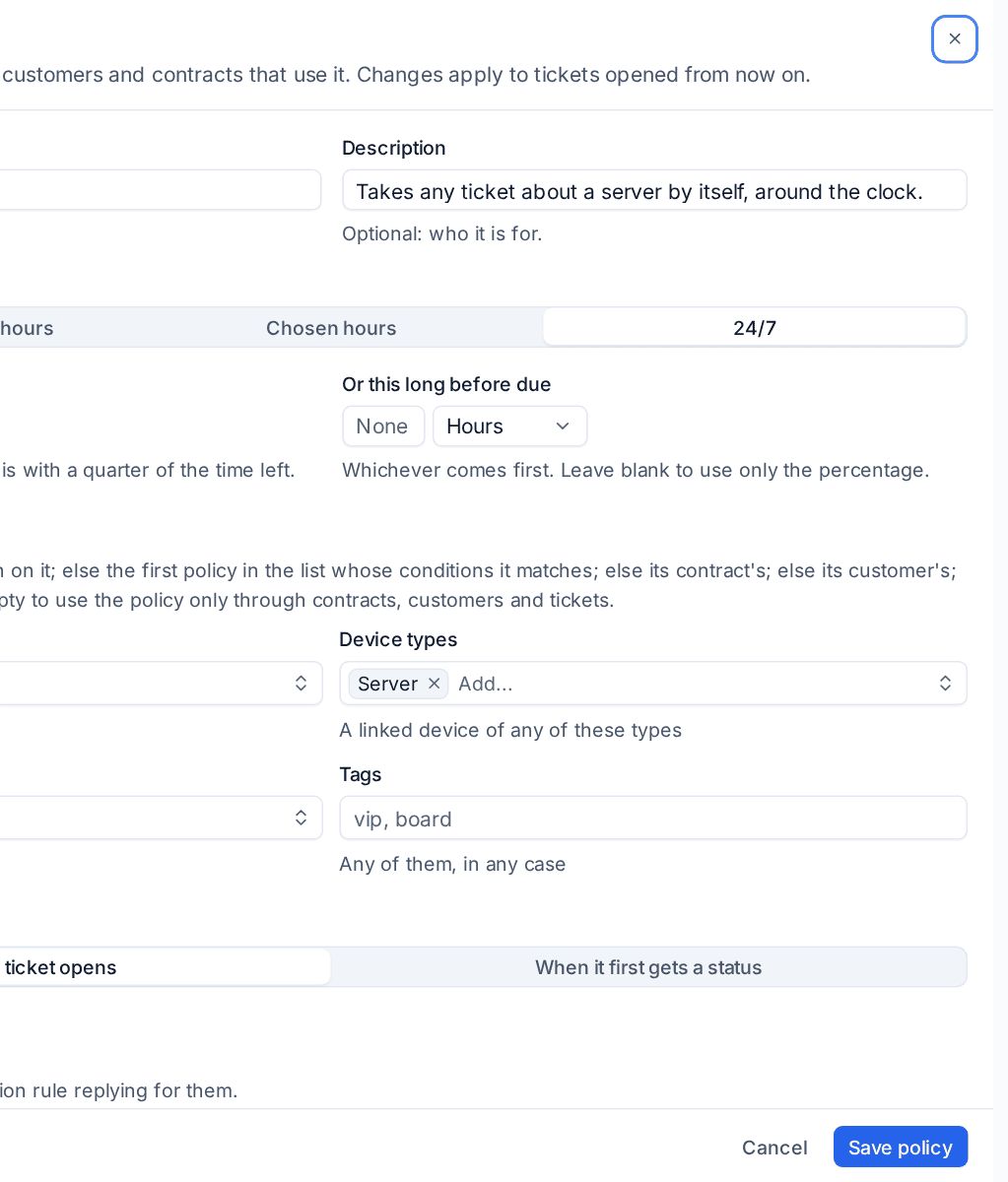
Note: Changes to a policy apply to tickets opened from then on. Next update restarts with every public reply from your team, so it measures the longest a customer waits between updates.
To use a policy for a contract or a customer, choose it on the contract, or on the customer's Settings tab.
Escalations
Escalations in the policy say what happens by itself when a ticket reaches its warning (At a warning) or misses a target (At a breach). For each one choose the action, which target it is for (or Any target) and, optionally, which Priorities:
- Tell the assignee
- Tell the service desk leads (or chosen people)
- Reassign the ticket
- Raise the priority, for example one level up
- Page whoever is on call, through the default escalation policy in On-call
Each escalation runs once per ticket and target. Automation rules still receive the "SLA warning" and "SLA breach" events, so any rule you already have keeps working.
Levels
For finer control, press Add a level under Levels. A level acts at its own moment: a percentage of the target's time, a number of minutes or hours before it is due, or after it is missed. Besides the actions above, a level can Run an automation rule about tickets, Set the status or Add an internal note, where {reference}, {target} and {due} are filled in.
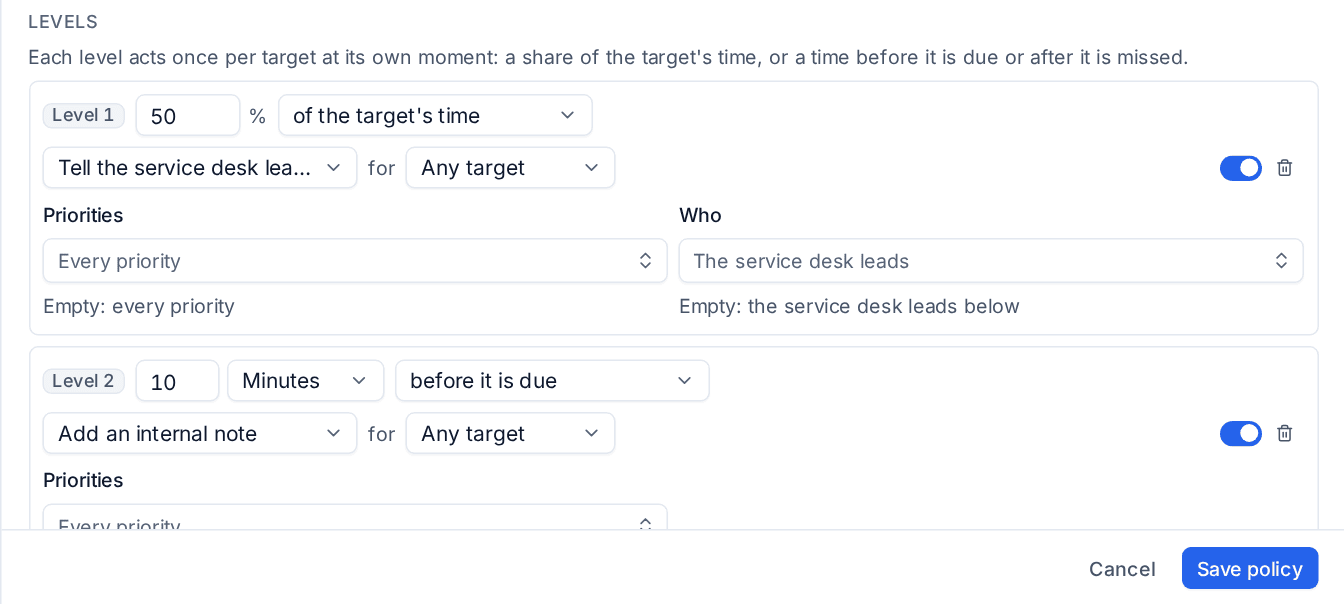
The ticket's activity log records each one, for example "Escalation level 2".
Clock rules and breach reasons
Below the list, Clock rules set how the clocks behave for every policy:
- Work the targets out again when the priority changes: on by default.
- Start the resolution clock again when a ticket reopens: off by default, so a reopened ticket carries on from where its clock stopped.
- Ticket types with no SLA: for internal jobs, projects or sales enquiries.
- Tickets have no SLA: usually set on a customer or a contract for ad hoc work.
Breach reasons asks staff why a target was missed. Choose Ask why a target was missed: Never, when a ticket that missed a target is resolved, or as soon as a target is missed. Edit the Reasons to choose from. Reports > Tickets counts each reason.
Stale tickets
Turn on Remind the assignee about tickets nobody has touched to catch tickets that have gone quiet. Set After so many hours, whether to Count business or calendar hours, and who hears When nobody is assigned. The reminder goes once per quiet spell; a reply, a note or any change starts the wait again. Tickets in a status that pauses the SLA are left alone.
OLAs for queues
An OLA is an internal target for the team working a queue, shown beside the customer's SLA. It runs from when a ticket reaches the queue and pauses when the SLA pauses.
- Under Queues, open a queue's ... menu.
- Turn on its OLA, set a response and a resolution target per priority and the warning percentage.
- Optionally give the queue its own stale ticket time.
- Save.
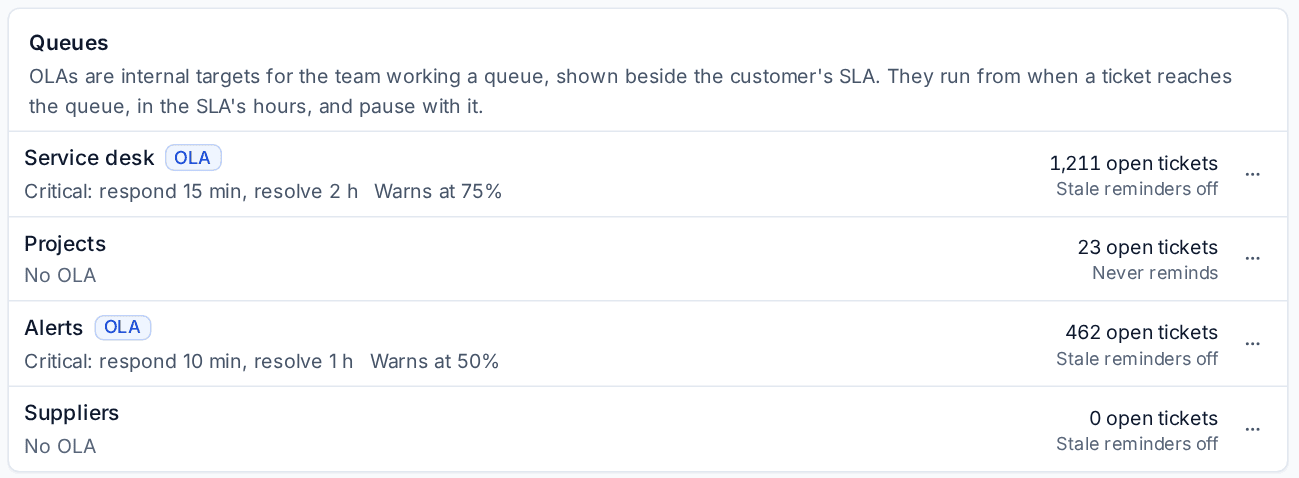
The assignee is warned before an OLA is missed, and the service desk leads are told when it is. Lists and the ticket header show an OLA chip when one is at risk or late, and Reports > Tickets shows each queue's OLA performance.
Service desk leads and the out-of-hours reply
Service desk leads names who "Tell the service desk leads" reaches, and who hears about major incidents. Empty means the administrators.
Out-of-hours reply answers a customer who writes outside their business hours, telling them when someone will pick it up. Choose whether it applies to Email and Portal, edit the Subject and Message (placeholders such as {{hours.next_open}} are filled in), and set how often the same person can get it. A support mailbox can use the standard wording, its own wording or none.
Where SLAs show
- The SLA section of a ticket's details panel shows each clock with the business time left, the policy and why it applies.
- Ticket lists sort and colour by the nearest target, and the inbox has SLA breached and SLA at risk views.
- Reports > Tickets groups SLA results by policy, including next updates on time.
Business hours and public holidays come from the customer's business calendar. See Public holidays and business calendars and Ticket setup.
Was this page helpful?
Thanks for the feedback.