EDR actions
Isolate devices, run scans, deal with threats, manage exclusions and deploy the agent through Microsoft Defender for Endpoint, SentinelOne and Huntress without leaving Tenvara.
Once a security console is connected (see Integrations and alerting), Tenvara does not only read its alerts: it can act through it. Isolate a machine from the device page, quarantine a threat from the detection, add an exclusion for a line-of-business app, or deploy the vendor's agent to the devices that are missing it.
What you need
These are integrations you connect with your own console accounts:
| Console | What to connect |
|---|---|
| SentinelOne | A service user's API token with the IR Team role (Viewer only reads), and the console address |
| Huntress | An API key and secret, and the account key for deploying the agent |
| Microsoft Defender for Endpoint | The customer's tenant connected through the Microsoft 365 app registration, with the Defender for Endpoint application permissions consented: Machine.ReadWrite.All, Machine.Isolate, Machine.Scan, Machine.StopAndQuarantine and Ti.ReadWrite (for indicators) |
Defender's permissions are separate from Microsoft Graph's. A tenant that has not consented to them still sends its Defender alerts; the integration lists the permissions Microsoft asked for.
What each console can do
| SentinelOne | Defender for Endpoint | Huntress | |
|---|---|---|---|
| Device | Isolate, release, full scan, stop a scan | Isolate, release, quick and full antivirus scans | |
| Threat | Kill the process, quarantine, remediate, roll back, resolve in the console | Stop and quarantine the file | Approve or reject the remediations in an incident report |
| Exclusions | Per site: paths, file hashes and certificates | Allow indicators: files, certificates, IP addresses, domains and URLs | |
| Grouping | Move the agent to another group in its site | Add and remove machine tags, which decide device groups and policy | |
| Deploy the agent | Yes | Onboarded through Intune or the Defender portal | Yes |
Tenvara only offers what the console allows.
From the device page
The device page has a Security tools block: how each console sees the device, and what can be done through it. For each console you see the agent's health (for example Healthy, Unhealthy or Isolated), any active threats, its version, when it was last seen, its group or tags, site, last scan and the vendor's other details, with In the console to open it there.
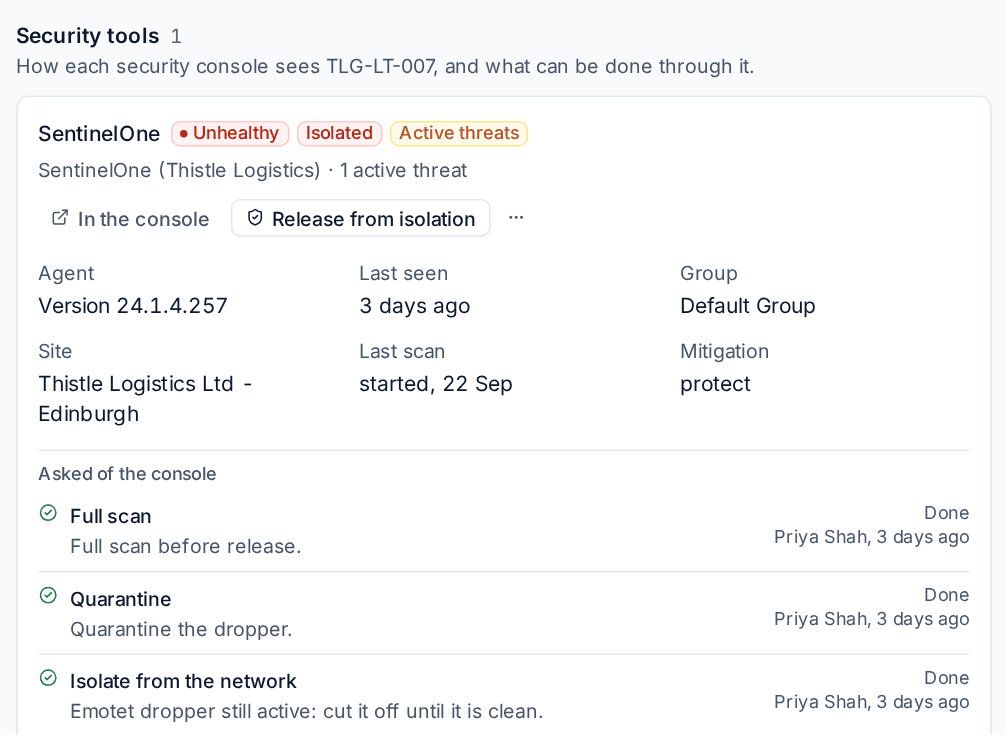
To act:
- Press the action, for example Release from isolation, or open ... for the rest (scans, moving to a group, adding or removing a tag).
- Give a Reason. It is sent to the console with the request and kept in the activity log. Isolating, releasing and threat actions always need one.
- Confirm. Isolating explains that the device loses every network connection except to the console until it is released.
Asked of the console lists each request with who asked, why, and whether it is running, Done or failed. Running requests refresh until they finish. If the console refuses, the request is kept as failed with the console's own words, so you can see why.
From a detection
A detection that came from a console shows an In SentinelOne (or Defender, or Huntress) card: the agent on the device, its state, the threat actions and the device actions, and what has been asked so far. Act on the detection without leaving it.
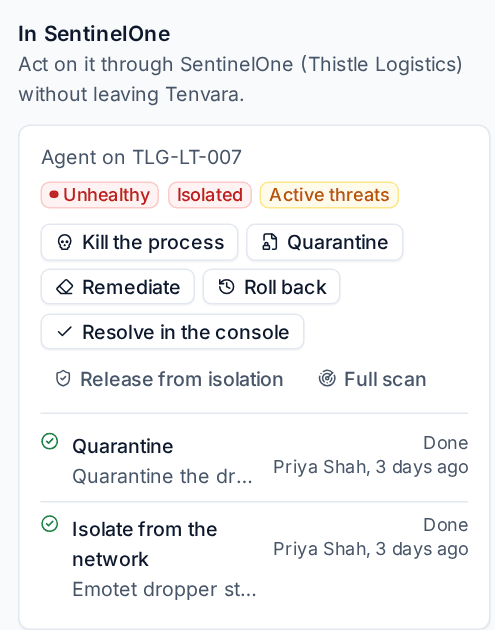
Each request made from a detection adds a note to its trail, so the detection's history shows exactly what was done. When the console resolves the threat, the detection follows (see Working detections).
Tip: All the actions are in Cmd+K on the device and detection pages too.
Exclusions
When a console keeps blocking something a customer needs, add an exclusion from Tenvara rather than signing in to the console:
- Go to Settings > Security monitoring > Integrations and open the console.
- Open the Exclusions tab and choose the site.
- Press Add an exclusion, choose the Kind (for example a path, a hash or a certificate), give the Value and the operating system where it applies, and explain Why. The reason is kept with the exclusion in the console.
Remove one with Remove: the console treats that file or address like anything else again.
Deploying the agent
For SentinelOne and Huntress, Tenvara can install the vendor's agent on the customer's Windows devices that have the Tenvara agent but are missing from the console.
- Add the vendor's Windows installer (MSI or EXE) to the software library.
- Open the console in Settings > Security monitoring > Integrations and the Deployment tab.
- Choose the installer as the Package. Leave Installer arguments empty to use the vendor's own, or write your own:
{key}is replaced by the site's install key (and, for Huntress,{account_key}by the account key). - Each site shows whether its install key is kept and how many devices are without the agent. Press Deploy on a site.
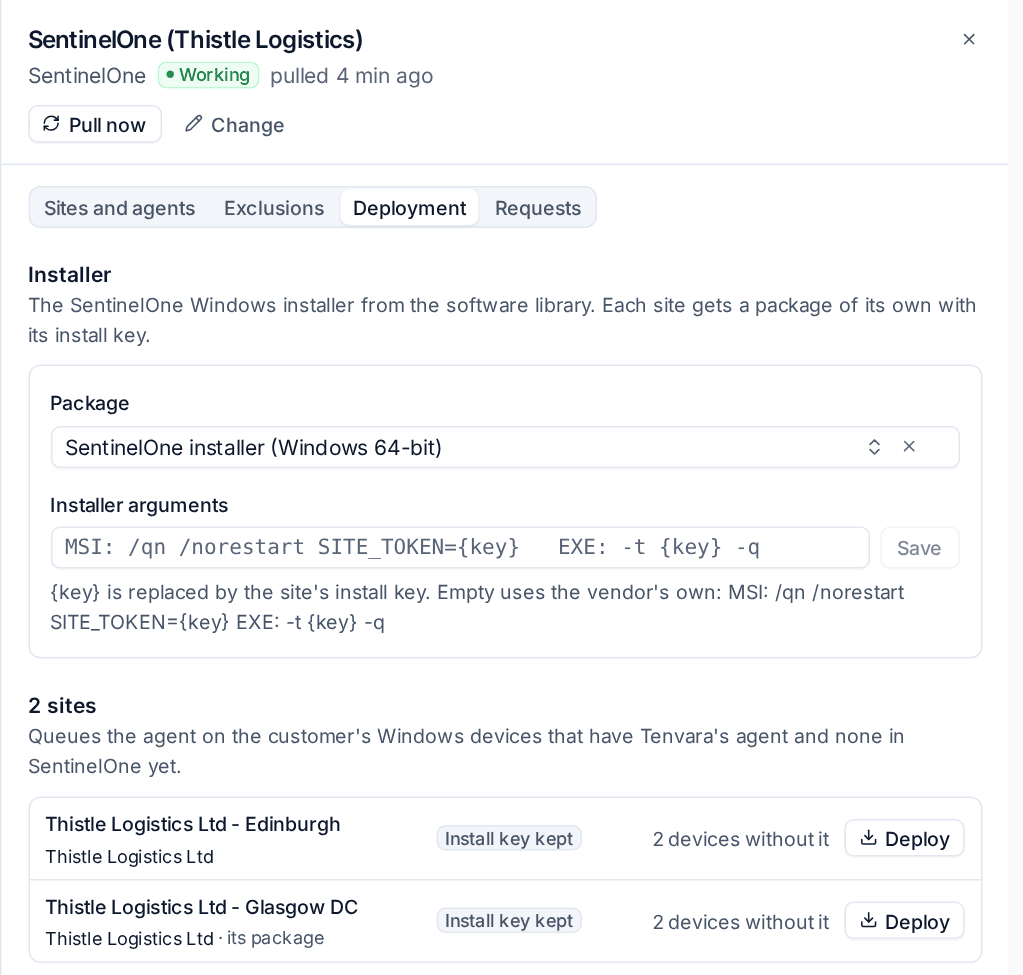
Tenvara makes a package of the customer's own with its site's install key and queues it through software deployment. Install keys are kept encrypted and never shown. Defender for Endpoint is part of Windows and is onboarded with the tenant's onboarding package through Intune or the Defender portal, so it is not deployed from here.
Requests and the activity log
The console's Requests tab lists every isolation, scan, threat action, exclusion and move asked of it, newest first. Each is in the activity log too.
Seeing the tools needs Security view; acting needs Security manage (see Roles and permissions).
Was this page helpful?
Thanks for the feedback.