Project team and resource planning
Give a project its team with roles, plan each person's hours week by week, spot people booked beyond their working hours, and find projects that still need people.
Each project has a team, and each person on it can have hours planned per week. Resource planning then adds those hours up across every open project and sets them against each person's working hours, so you can see who is over-committed and which projects are short of people before it becomes a problem.
The project team
Open a project's Team tab.
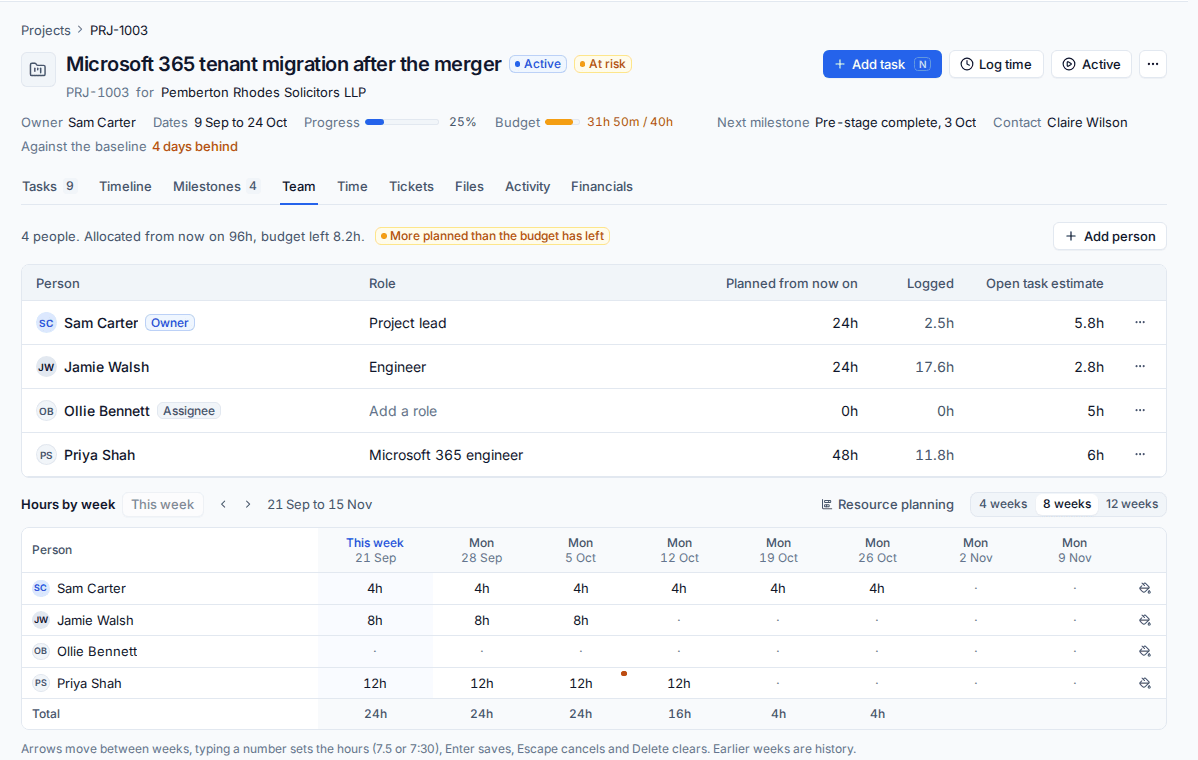
The team is everyone who works on the project:
- the Owner, always listed first;
- every Assignee of a task (they count without being added);
- anyone you add with a role or hours.
The table shows each person's Role, the hours Planned from now on, the time they have Logged on the project and their Open task estimate (what is left on their open tasks here; a task shared between several people counts an equal share each).
The line above sums it up, for example "4 people. Allocated from now on 96h, budget left 8.2h." A warning shows when more is planned than the budget has left.
Add someone
- Press Add person.
- Choose them from your staff and give them a Role, for example "Project lead" or "Engineer".
- Optionally enter Hours a week to plan them now.
- Press Add to the team.
They are told in their inbox that they have been added (unless they added themselves). To change a role, click it in the table and type. Each person's ... menu has Fill (the same Hours a week from the week you choose, for as many weeks as you say; 0 clears them) and Remove from the team. Removing someone clears all their hours on the project; the owner and assignees stay on the team as long as they own or work its tasks.
Plan hours by week
Hours by week is a grid of people against weeks. Choose 4 weeks, 8 weeks or 12 weeks, move earlier or later with the arrows, and press This week to come back.
- Click a cell (or move to it with the arrow keys,
HomeandEnd). - Type the hours. Tenvara reads "7.5", "7,5", "7:30", "7h 30m" and "45m".
- Press
Enterto save and move down, orEscapeto cancel.Deleteclears a cell.
Hours are planned per week (Monday to Sunday), at most 168 in one week. Weeks that have passed and people who have left are read only. Only planned, active and on hold projects take hours.
A red marker on a cell means the person is over their working hours that week across all projects. Hover it to see why, for example "32h allocated across 3 projects, 30h capacity".
Tip: Templates carry no team. A project made from a template starts with its owner and assignees and no hours, so plan the hours once the dates are set.
Resource planning across projects
Open Schedule > Resource planning (it is also in the Projects sidebar and in Cmd+K).
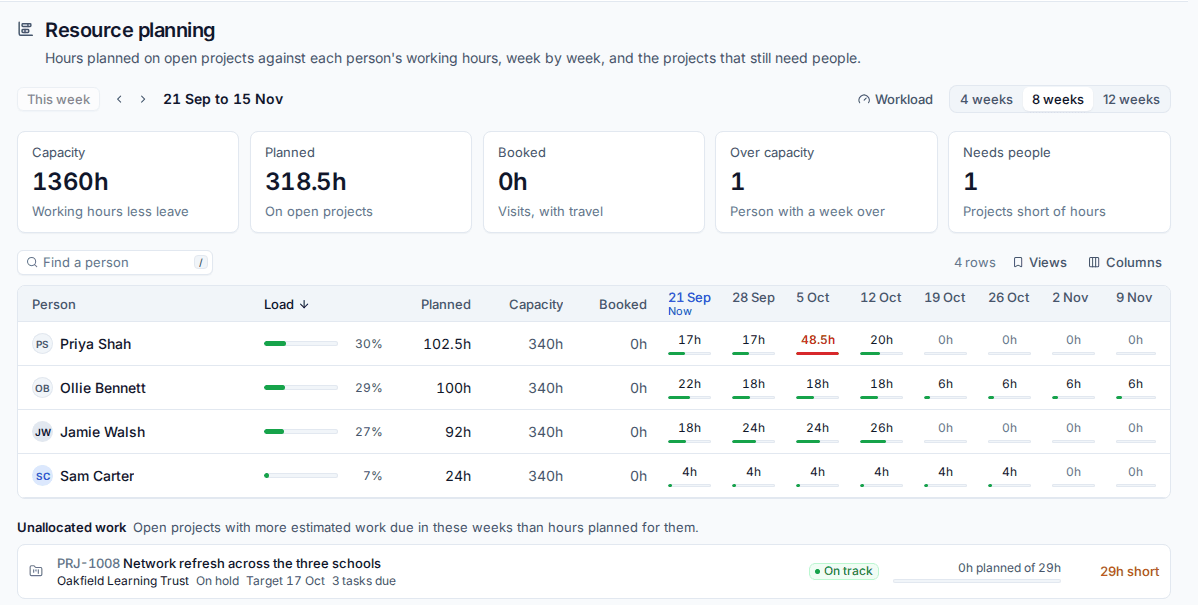
The figures at the top show:
- Capacity: everyone's working hours in the weeks shown, less public holidays, office closures and approved leave;
- Planned: hours planned on open projects;
- Booked: visits in the diary, with their travel;
- Over capacity: people with at least one week planned beyond their hours;
- Needs people: projects short of planned hours.
The table has a row per person with their load, planned, capacity and booked hours, and a bar per week of planned against capacity. Click a person to see their hours by project and week in a side panel, with links to each project's Team tab. Press T for this week, and the left and right arrows to move by the weeks shown.
Capacity comes from each person's working hours in Scheduling (or your business hours if they have none), in their own time zone. See Working hours, leave and skills.
Unallocated work
Unallocated work lists open projects whose remaining task estimates due in the weeks shown come to more than the hours planned for them, most short first. For example "0h planned of 29h, 29h short" means the tasks need 29 hours and nobody has been given time for them.
Workload
Schedule > Workload looks at the near term: for each person, their capacity, booked visits, open tickets and the time left on their open project tasks due in the period, spread over the working days before each task is due. It links to resource planning with Plan ahead in Resource planning.
Related: The board, the timeline and My work, The dispatch board.
Was this page helpful?
Thanks for the feedback.