Tax
How Tenvara charges VAT, GST and sales tax for your country and your customers', with registrations, built-in rates, reverse charge, tax number checks and the wording each country's invoices need.
Tenvara works out the tax on every quote, contract and invoice line from three things: where you are registered, where the customer is and what kind of business they are, and the tax category of what you sell. You do not pick a rate per line.
Everything is set in Settings > Regional > Tax.
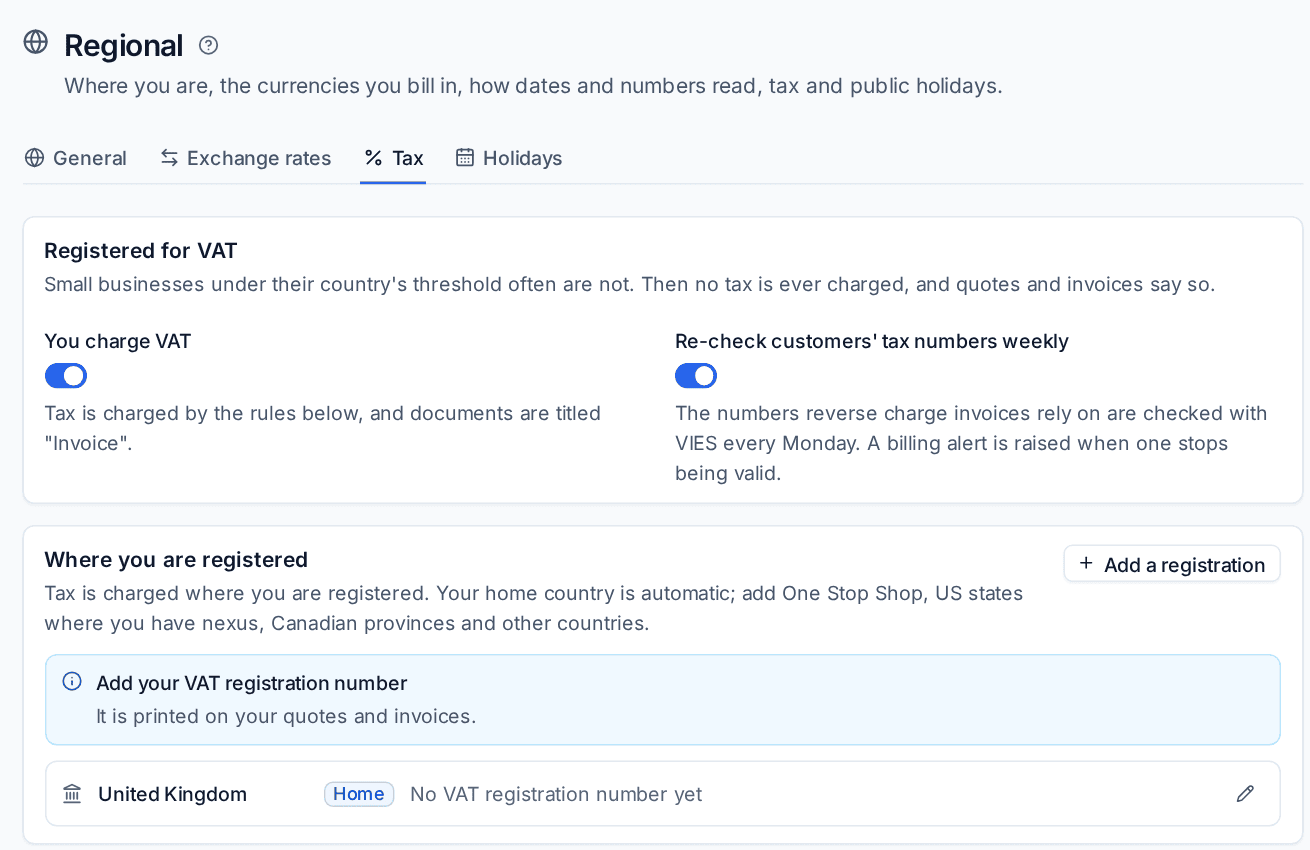
Registered or not
You charge VAT (or GST, or the tax your country uses) is on for most MSPs. Turn it off if your business is under your country's threshold and not registered: no tax is ever charged, and quotes and invoices say so.
Where you are registered
Tax is charged where you are registered. Your home country is added automatically, marked Home. Add your tax registration number to it so it is printed on your quotes and invoices.
To add another:
- Press Add a registration.
- Choose the Country (and the US state or Canadian province where it applies).
- Choose the Scheme: Registered, EU One Stop Shop (OSS), EU Import One Stop Shop (IOSS) or Sales tax nexus.
- Enter the Tax number to print on your documents.
- Optionally set Registered from. Empty means always.
- Press Add registration.
Note: In the United States, add each state where you have sales tax nexus. Customers in states where you have none are charged no sales tax.
Rates
Rates lists every tax rate, built in for the UK, every EU country, Switzerland, Norway, Canada (including HST, PST and QST), every US state and DC, Australia, New Zealand, South Africa, Singapore, the UAE, Japan and India. Countries you deal with shows only the ones in use; All countries shows the rest.
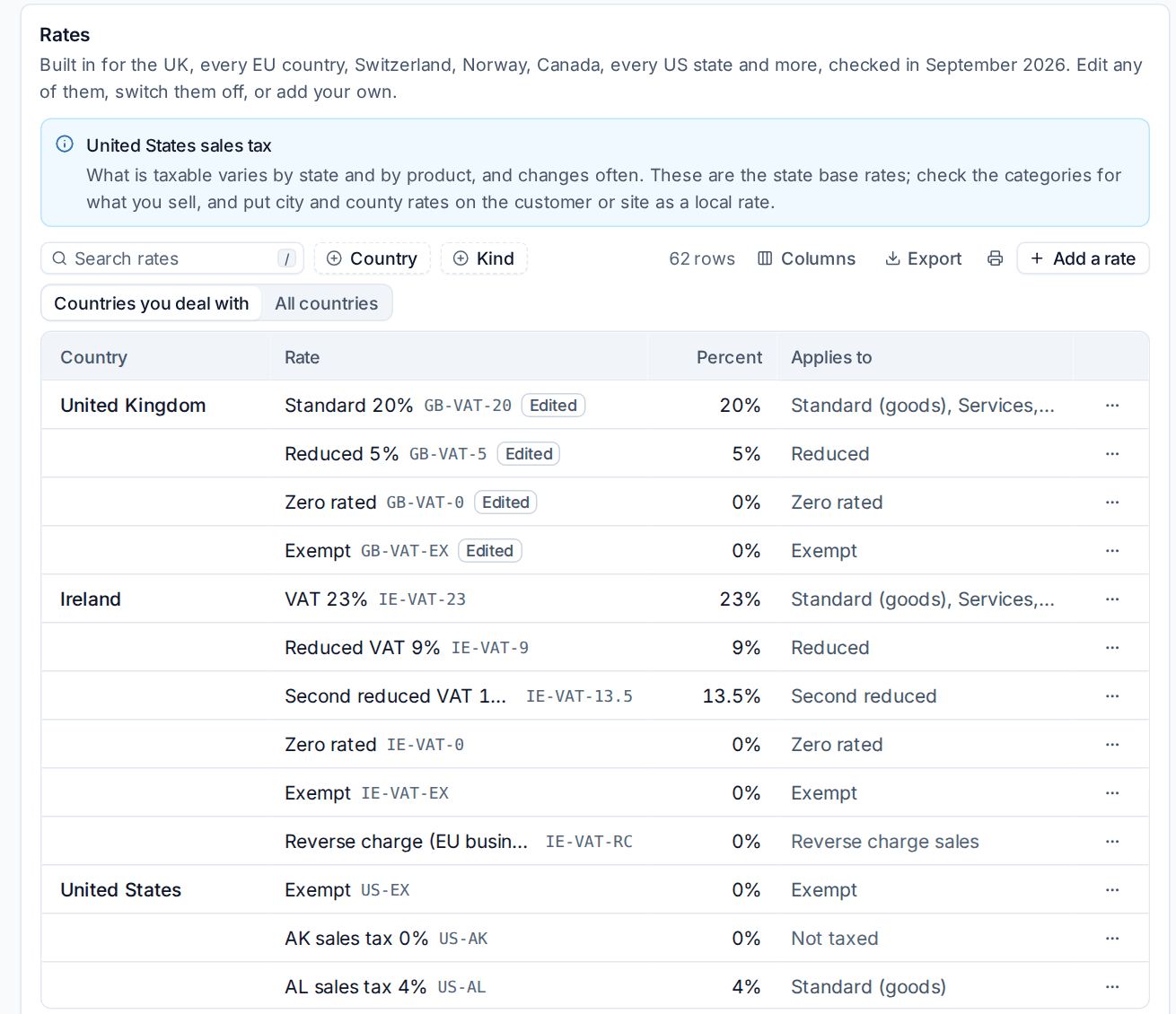
- Each rate has a name, a code, a percentage and the categories it Applies to. Rates you changed are marked Edited.
- Use the ... menu on a rate to edit it or switch it off, and Add a rate to add your own.
- Each rate can carry the code your accounting system uses for it, so Xero and QuickBooks get the right tax rate.
Note: US sales tax depends on the state and the product, and changes often. The built-in rates are the state base rates: check the categories for what you sell, and put city and county rates on the customer or site as a Local sales tax rate.
Tax categories
Catalogue items, quote lines, contract lines and invoice lines carry a category rather than a rate: standard (goods), services, digital services and software, reduced, second reduced, super reduced, zero rated, exempt, and outside the scope of tax (for example disbursements). Tenvara turns the category into the right rate for each customer.
How the tax is decided
In order:
- A line outside the scope of tax has none.
- A customer set to Always charge a rate gets that rate. A customer marked Exempt from tax gets none, with the reason printed.
- A customer in a country (or state or province) where you are registered pays that place's rates for the category.
- A customer abroad depends on where you are. For example: from the EU, a business in another member state with a confirmed VAT number is reverse charged; from the UK, a business abroad is outside the scope of UK VAT; from Australia or New Zealand, exports are GST-free; from the US or Canada, customers abroad pay no tax.
Tax is worked out on the document's total per rate, so the lines always add up exactly.
Try it
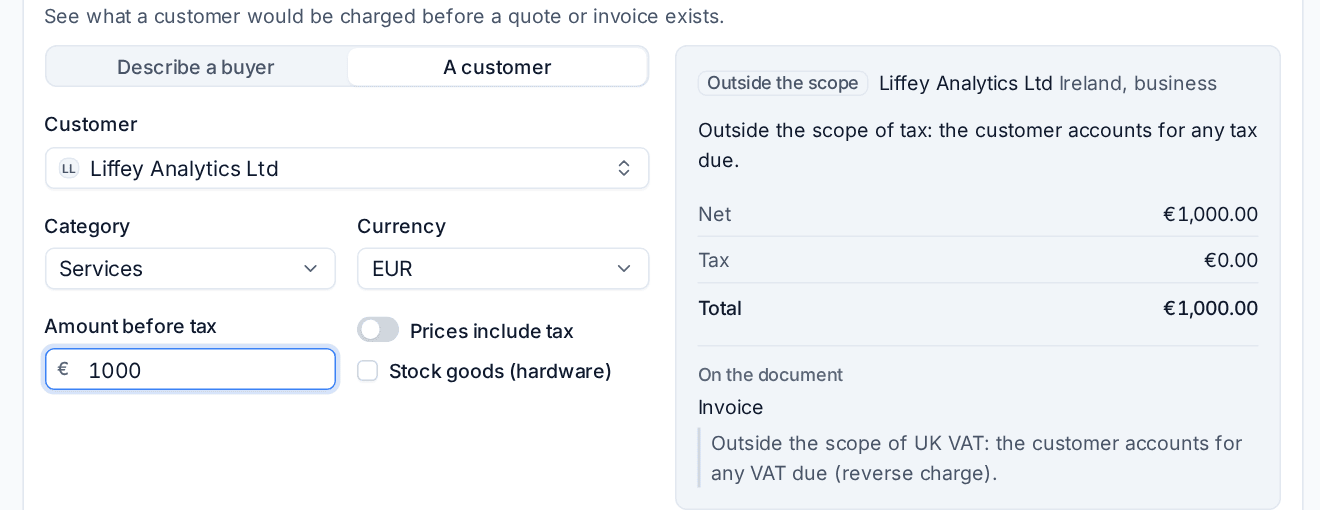
Try it shows what a customer would be charged before a quote or invoice exists. Choose Describe a buyer or A customer, then a category, currency and amount. The result shows the tax, the total and the wording printed on the document.
A customer's tax details
In the customer's Billing and region section:
- Country and Region: the tax depends on where they are. Their main site's address is used when it has one.
- Customer type: Business or Consumer. Consumers pay tax where a business would not, for example across EU borders.
- Tax number (named for the country, such as VAT number or ABN) with Check, and the company number.
- Always charge: one rate for everything. Empty lets the tax engine decide.
- Exempt from tax, with the Exemption certificate or reason printed on their invoices.
- Local sales tax: city and county rates on top of the state's, in the United States.
Checking tax numbers
Check tests the format and check digits of a tax number for the UK, every EU country, Australia, New Zealand, Canada, the United States, Switzerland, Norway and India, then asks the official register where there is one:
- EU VAT numbers (and Northern Ireland's XI numbers) are checked with VIES, with no set-up. The register's name and address are kept with the result.
- Norwegian numbers are checked with the Brønnøysund register, with no set-up.
- UK VAT numbers are checked with HMRC and Australian ABNs with the Australian Business Register when you add your own credentials under Online checks, free from each service. Without them, these numbers are checked by format and check digits only, and the result says so.
Re-check customers' tax numbers weekly checks the numbers that reverse charge invoices rely on every Monday, and raises a billing alert if one stops being valid.
Looking up companies
Look up on the customer and lead forms finds a company's registered name, number and office. French and Norwegian companies, and any EU VAT number, work with no set-up. UK companies need a Companies House API key of your own, added under Online checks.
What invoices say
Each country's invoice requirements are built in: the title ("Tax invoice" in Australia and New Zealand when registered), your tax number and its label (VAT registration number, ABN, GST number, USt-IdNr., EIN), the buyer's number where it is required, supply dates where they are needed, the tax in the local currency on a foreign-currency invoice in the UK and EU, and notes such as the EU reverse charge wording. Notes are printed in the customer's language.
Related: Currencies and exchange rates, Invoices and credit notes, Building a quote.
Was this page helpful?
Thanks for the feedback.