Working offline and sync conflicts
What the Tenvara app keeps on the phone for when you have no signal, which changes it queues and sends later, and how to settle a sync conflict.
Technicians spend a lot of time in places with no signal: plant rooms, basements, lifts and the M25. The app is built for it. What you have looked at stays readable, the everyday changes you make are kept on the phone and sent when you are back online, and if someone else changed the same thing in the meantime, you decide which version wins.
What you can read offline
The app keeps a copy of:
- tickets, the ticket list and the tickets you have opened;
- customers you have looked at;
- devices;
- today's jobs in Schedule, with their addresses and contacts.
When you are offline these show what the app last loaded, so you can still look up a hostname, a phone number or the address of your next job.
What you can change offline
These changes are queued on the phone and sent as soon as you have a connection:
- ticket replies and internal notes;
- time you log;
- status and assignment changes;
- checking in to a visit and completing it.
A queued change shows straight away where you made it, marked as waiting to sync, so you can carry on working. You do not have to do anything to send it: the app syncs by itself when the connection comes back.
The offline banner
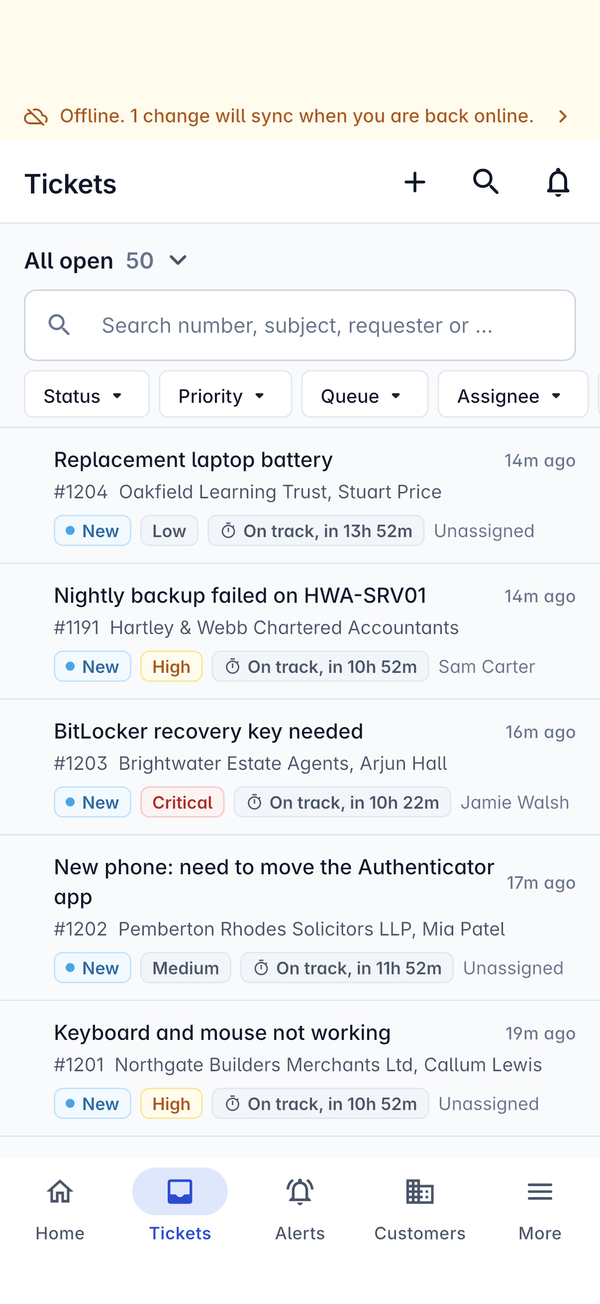
While you are offline a banner runs across the top of the app, for example Offline. 1 change will sync when you are back online. It counts the changes waiting. Tap it to open Sync.
What needs a connection
Some things are checked by the server there and then, so they only work online:
- remote control;
- running scripts, and device actions such as Patch now and Restart;
- revealing or copying a password or two-factor code. Nothing secret is ever kept on the phone.
The app tells you when one of these needs a connection, rather than queuing it.
Sync and conflicts
Settings > Sync shows what is waiting. The row in Settings reads Everything is synced when nothing is. At the top is a summary, for example "1 change waiting. 1 change needs you to decide.", and Sync now to try straight away rather than waiting.
Each waiting change shows what it is (for example Status of #1208 to Open), when you made it and how many times the app has tried to send it.
Settling a conflict
A conflict happens when someone else changed the same thing while you were offline: say you set a ticket to Open in a basement, and a colleague set it to In progress on the web before you came back up. Rather than overwrite their change, the app marks yours Conflict and shows both, under Theirs and Mine.
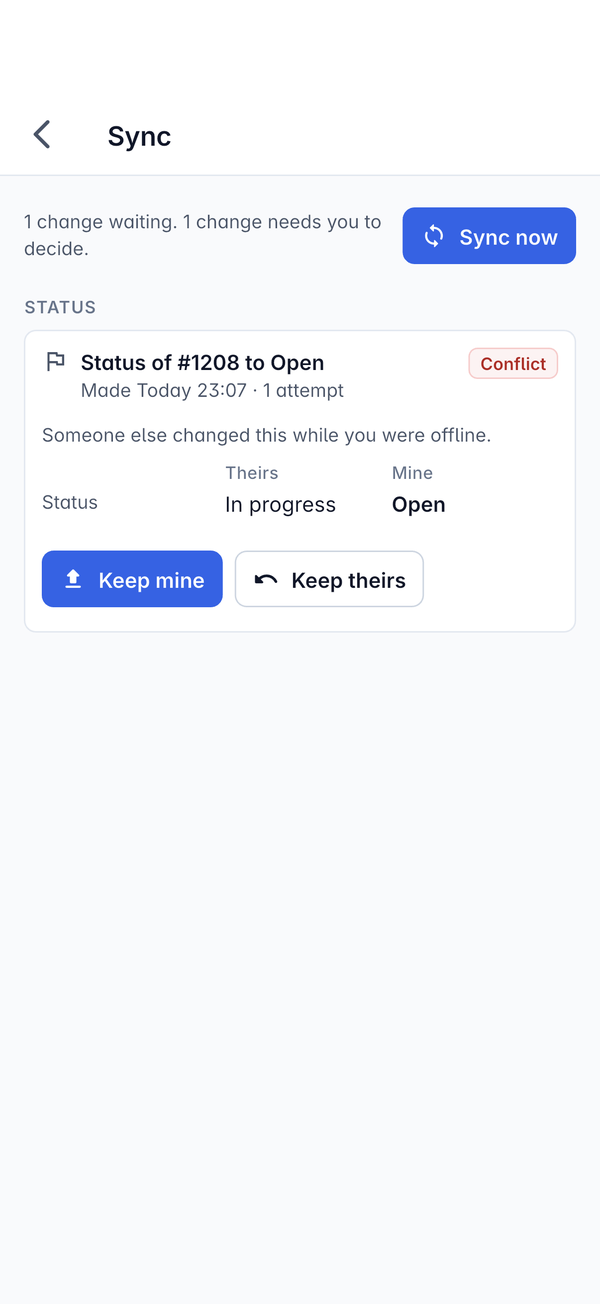
- Keep mine sends your change, replacing theirs.
- Keep theirs drops your change and keeps what is on the server.
Talk to your colleague if you are not sure: the ticket's activity shows who changed what. Replies and notes do not conflict; they are simply added to the ticket in order.
Tips
- Open the tickets, customers and jobs you need before you head somewhere with no signal, so they are on the phone.
- Check Settings > Sync before you sign out, so nothing waiting is lost.
Was this page helpful?
Thanks for the feedback.