Suppliers and distributors
Keep your suppliers, connect distributor price feeds with your own accounts, match their products to your catalogue and keep costs and quotes up to date.
A supplier is anyone you buy from: a distributor, a vendor or the computer shop down the road. A distributor feed connects a supplier's price list to Tenvara, so your catalogue costs, quote prices and stock information follow what they actually charge.
Suppliers
Suppliers in the Procurement sidebar lists everyone you buy from, with your Account number with them, where Orders go to, their Lead time, how many catalogue items they supply and how many orders are open.
Add a supplier
- Press New supplier.
- Enter the name, your account number with them, and their email, phone and website. Give an orders email if orders should go to a different address.
- Set their currency and country, address and tax number.
- Add their payment terms and lead time in days. The lead time sets the expected date on orders you send them.
- Add notes, such as a cut-off time for next day delivery or your account manager's name, and save.
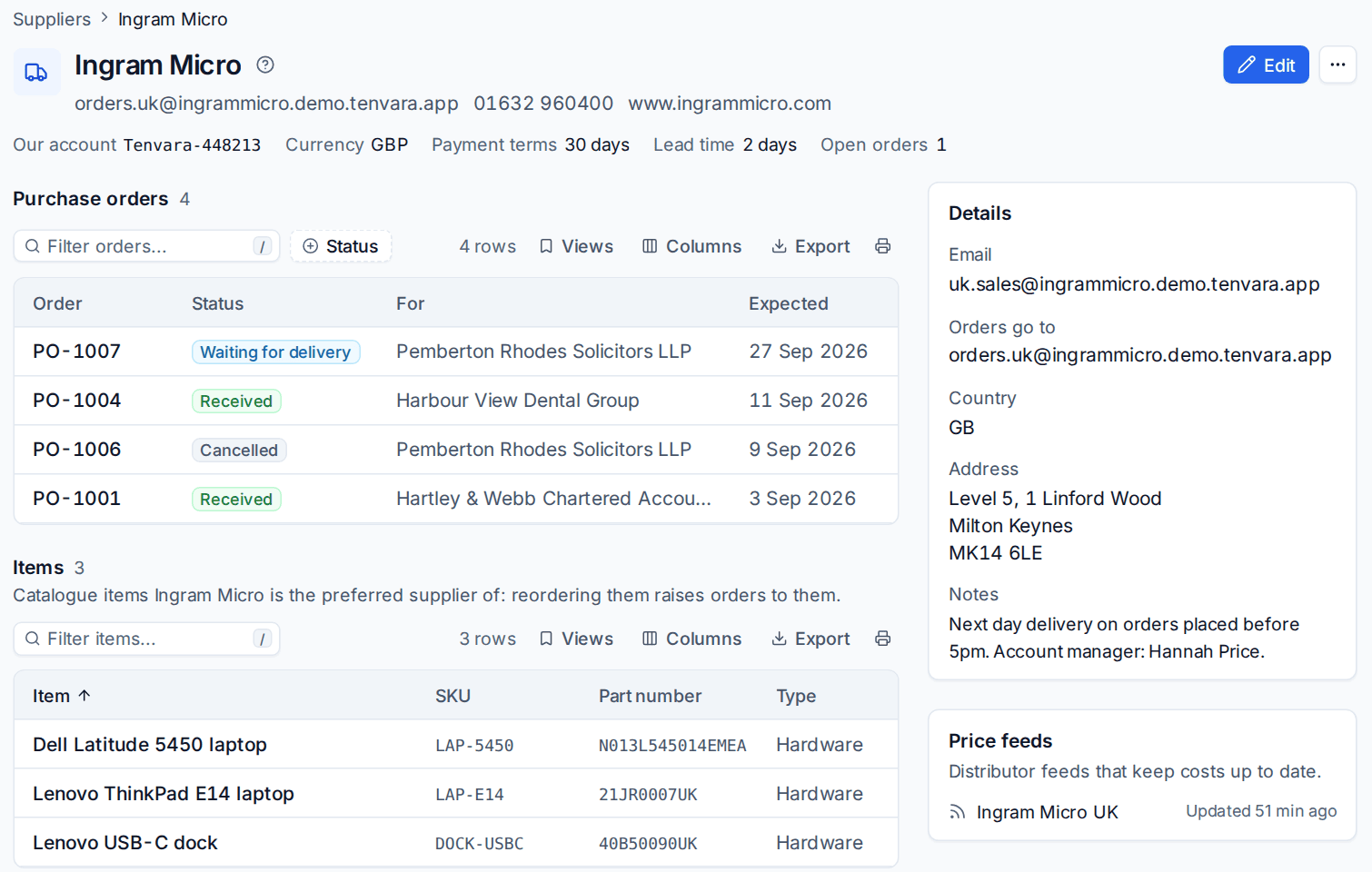
The supplier's page lists their Purchase orders, the Items they are the preferred supplier of (reordering those raises orders to them), and their Price feeds. A supplier that has orders, items or a feed can be archived but not deleted.
Distributor feeds
Tenvara reads catalogues and prices from:
| Distributor | How it connects |
|---|---|
| Ingram Micro | Their Reseller API, with live prices and availability |
| TD SYNNEX | Their XML price and availability service |
| Pax8 | Their API, for licence products and prices |
| Dicker Data, Westcoast, Exertis | Their daily price file, read in their usual layout |
| Any other distributor | A price file (CSV or XLSX) you map column by column |
Every feed uses your own account with the distributor: you need the API details from your account manager (Ingram Micro, TD SYNNEX, Pax8), or access to their price file by web address, SFTP, or a file you upload.
Add a distributor
- Go to Settings > Integrations > Distributors and press Add a distributor.
- Choose the distributor and the Supplier it belongs to (or add the supplier as you go).
- Enter its connection details. Secrets are stored encrypted and never shown again.
- For a price file, say Where the file comes from and How the file is read, press Read the file, and choose which column holds each field. The preview shows the first rows as they will be read. SKU, name and cost are needed; part number, manufacturer, RRP, stock and due date are optional.
- Choose Refresh every night, and whether to Change catalogue costs when its cost changes. Off, the feed only shows the difference.
- Save, then press Test to check the connection.
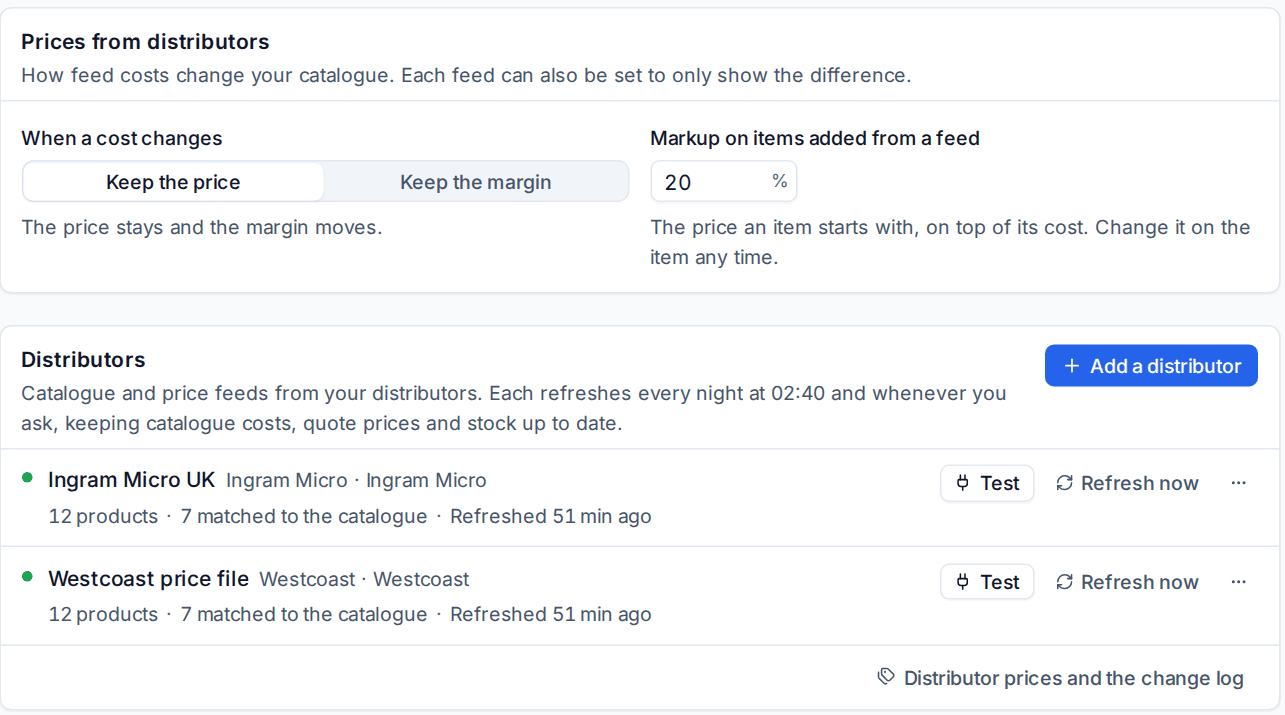
Each feed refreshes every night at 02:40 and whenever you press Refresh now. If a feed fails twice in a row an alert is raised, and it clears with the next good refresh.
When a cost changes
At the top of the page, Prices from distributors sets what happens to your catalogue:
- When a cost changes: Keep the price (the margin moves) or Keep the margin (the price moves with the cost).
- Markup on items added from a feed: the price an item starts with, on top of its cost.
An item's cost comes from its preferred supplier's feed, or the cheapest feed when it has none, converted into the item's currency. Every cost change a feed sees is kept in the price change log.
Matching products to your catalogue
Each refresh matches distributor products to your catalogue items by part number, then by SKU. Only one item may fit, so nothing is matched by guesswork. To match by hand, open the product's menu on Distributor prices and choose Match to a catalogue item; a match you make by hand is never changed by the automatic matching, until you choose Match automatically again.
Distributor prices
Distributor prices in the Sales sidebar searches every feed by name, SKU or part number, with the cheapest offer marked and each distributor's stock and due date.
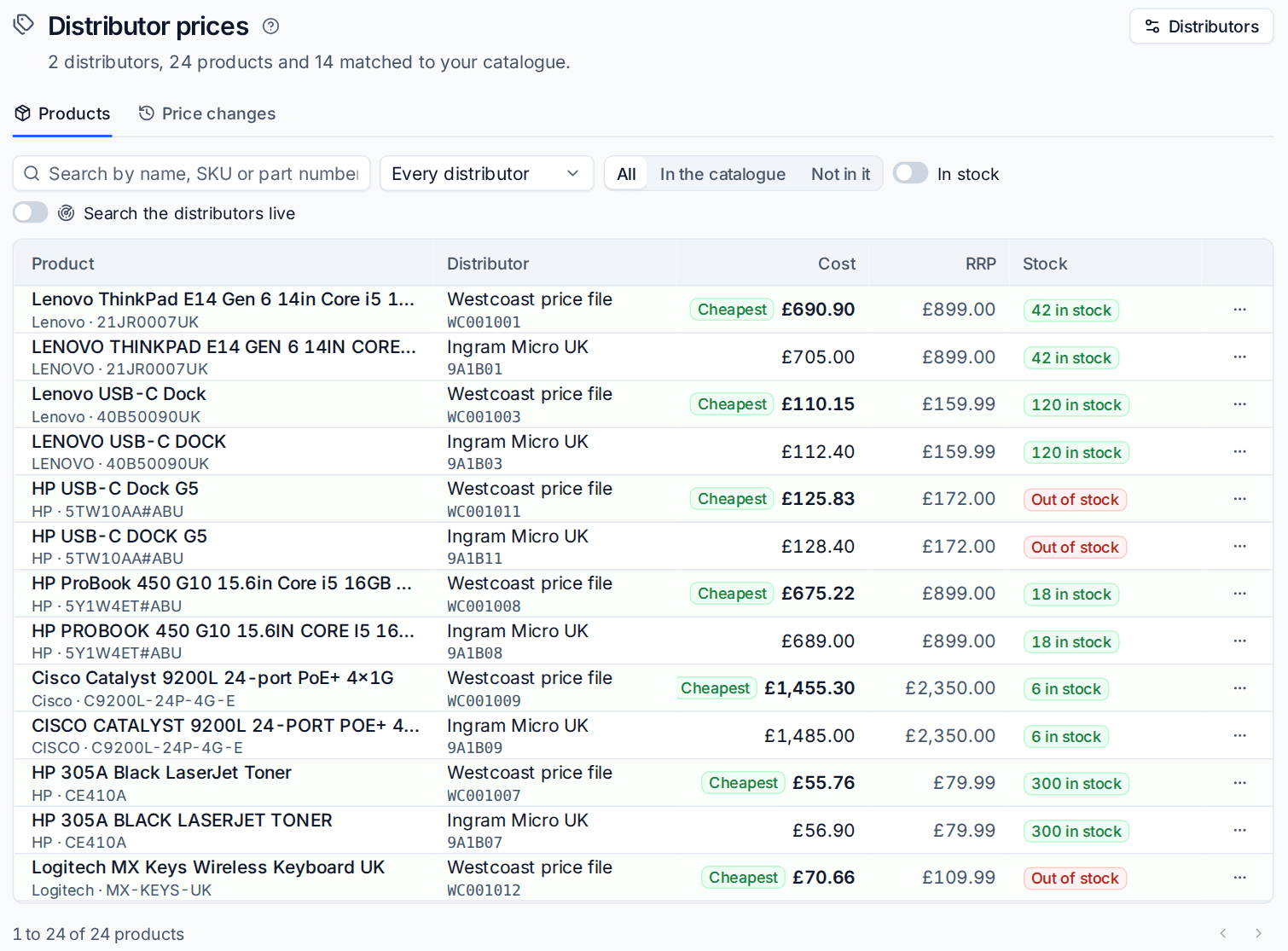
- Turn on Search the distributors live to ask Ingram Micro and TD SYNNEX as you type.
- Add to the catalogue makes a catalogue item from a product, priced with your markup. Hardware tracks stock.
- Price changes lists every cost change with filters, so you can see what got dearer this month.
Prices on quotes
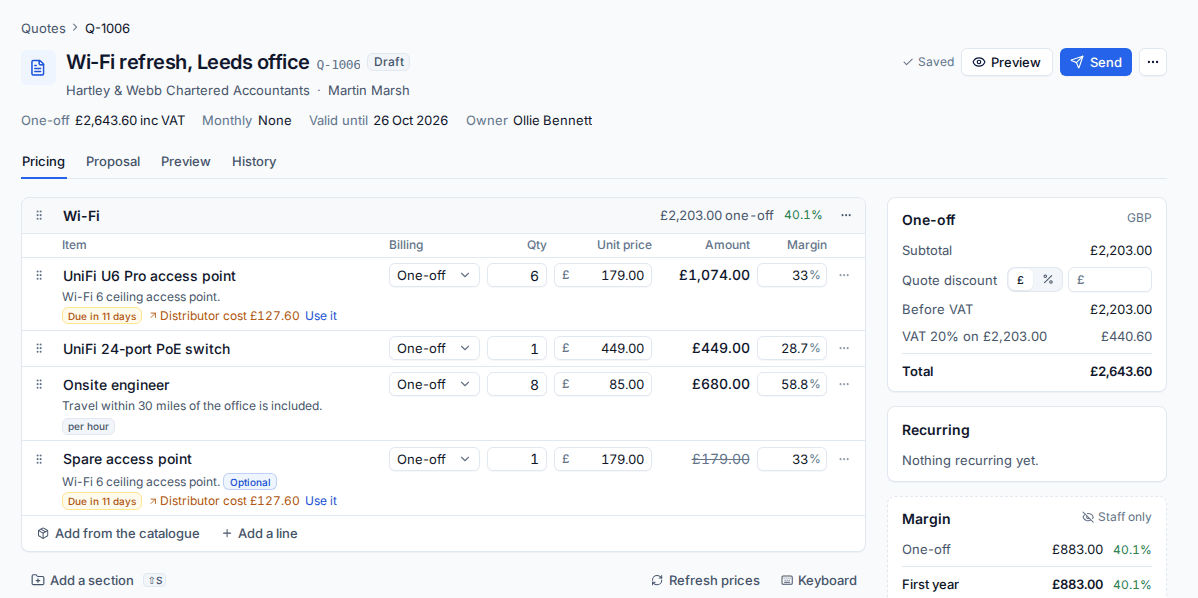
In the quote builder, each catalogue line shows the distributors' stock, and when their cost differs from the catalogue it shows the new cost with Use it. Refresh prices on a draft quote asks the feeds and lists the changes for you to pick, with an option to keep each line's margin. Search the distributors in the catalogue menu adds a distributor product straight to the quote, adding it to the catalogue on the way.
Note: Distributor feeds and ordering need your own account with each distributor. Until a feed is connected, catalogue costs stay as you typed them.
Related
Was this page helpful?
Thanks for the feedback.