Tickets on the go
Work the ticket inbox from your phone: filter and search, reply or add a note with canned responses and photos, assign, change status, time and raise new tickets.
Tickets in the app is the same service desk as on the web, laid out for a phone. Anything you do here is on the ticket for everyone straight away, or as soon as you are back online.
The ticket list
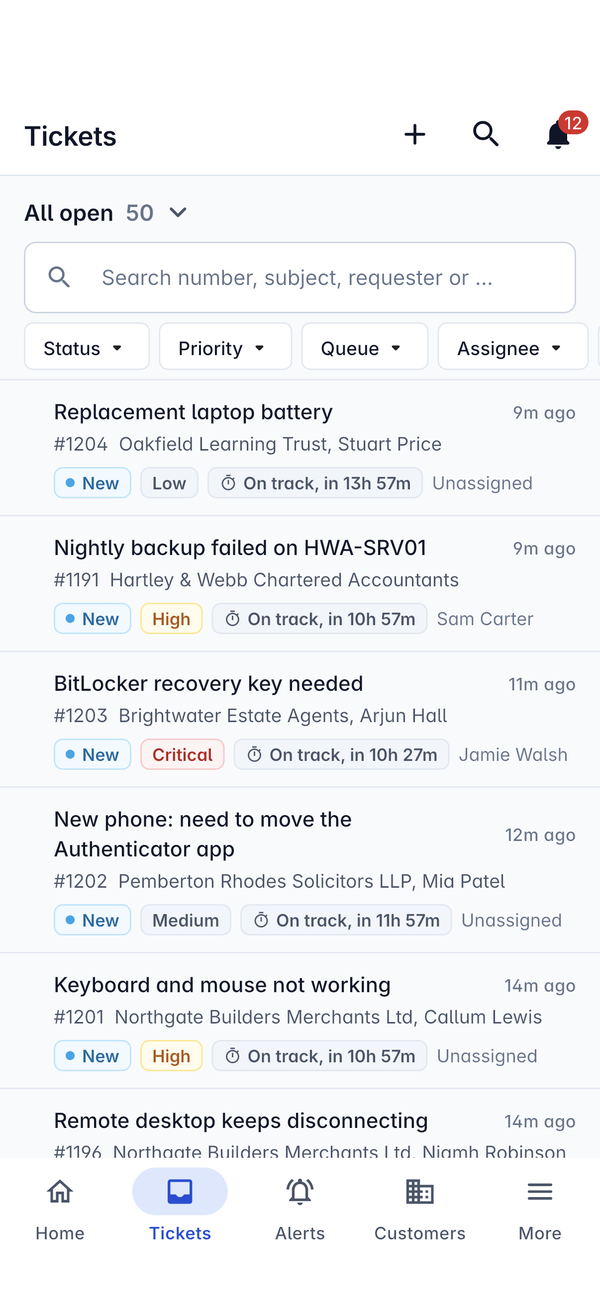
The list opens on a view, shown at the top with its count, for example All open 50. Tap the view name to switch to another, such as your own tickets.
- Search number, subject, requester or ... finds a ticket by any of those.
- The filters Status, Priority, Queue and Assignee narrow the list. Swipe the row of filters for more.
Each ticket shows its subject, number, customer and requester, how long ago it last changed, and pills for the status, priority and SLA (On track, in 13h 57m, for example), with who it is assigned to or Unassigned.
Working a ticket
Tap a ticket to open it. Under the subject you see the queue and customer, the status, priority and SLA, a Customer replied pill when they are waiting on you, and who raised it and when.
The buttons under the title:
- Assign: pick who it belongs to.
- Status: move it on, for example to In progress or Resolved.
- Start timer: time your work on this ticket (see below).
Details shows the customer, the contact (tap their number to call them), the site, assignee, queue, type and when it is due. The ... menu at the top holds the rest of the ticket's actions.
Reply or add a note
- Press Reply or Note at the bottom of the ticket.
- Switch between Reply and Internal note at the top of the box. A reply shows who it is going To.
- Write your message. The icons under the box add a canned response, an article from Docs, a photo from the camera or one from your photos.
- Choose what happens to the status with the button at the bottom left (Keep status until you change it).
- Press Send reply.
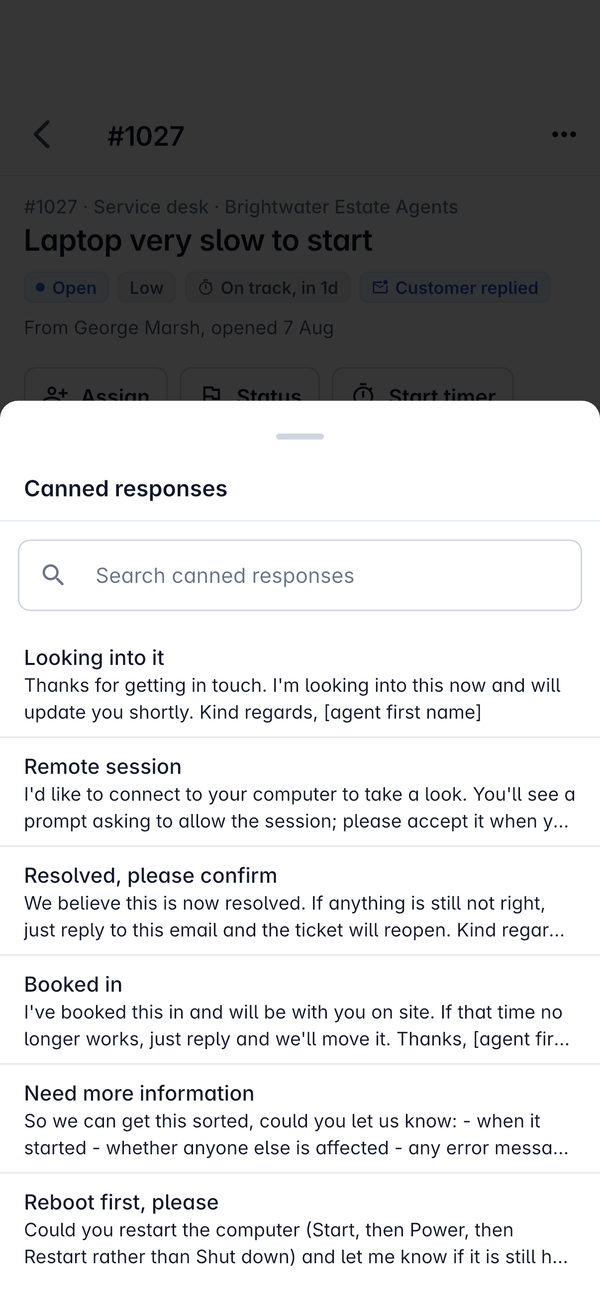
Canned responses open in a list you can search. Tap one to drop it into your message, then change what you need.
Timing your work
Press Start timer when you start on the ticket. The timer runs on your phone, for one ticket at a time, and carries on if you leave the app. Stop it when you are done and the time is logged on the ticket, so it appears in the time entries and your timesheet like time logged on the web. See Logging time.
Raising a ticket
Press + at the top of the list, or Raise ticket on a customer, site, contact or device, which fills in who it is for.
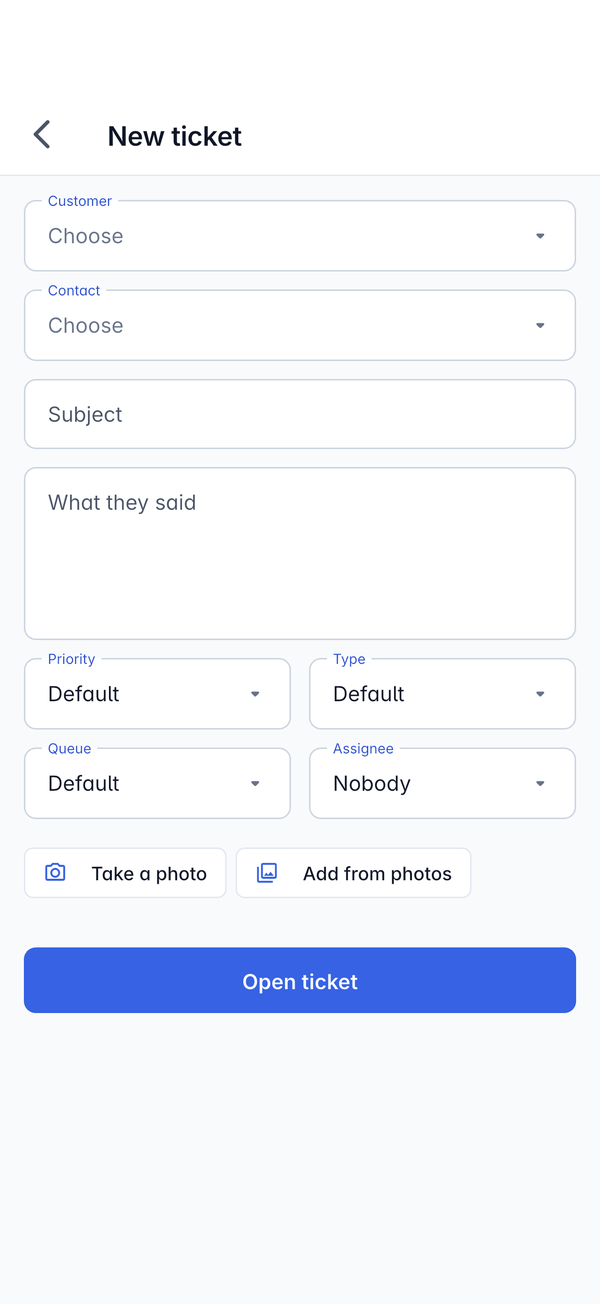
- Choose the Customer and Contact.
- Type the Subject and, under What they said, the problem in the customer's words.
- Set the Priority, Type, Queue and Assignee, or leave them on Default and Nobody.
- Add pictures with Take a photo (a photo of an error on screen, a label or a cabinet) or Add from photos.
- Press Open ticket.
No signal?
Replies, notes, time, status changes and assignments you make without a connection are kept on the phone and sent as soon as you are back online. They show as waiting to sync until then. See Working offline and sync conflicts.
For how tickets work in general, see Working a ticket.
Was this page helpful?
Thanks for the feedback.