The service catalogue
Give customers a catalogue of things they can ask for in the portal, each with its own form, approval and fulfilment, and follow every request from approval to done.
The service catalogue is a menu of things your customers' people can ask for in the portal: a new starter, access to a shared mailbox, a laptop, a mobile phone, a password reset. Each item has its own form that asks the right questions, its own approval, and its own "what happens next". Every request becomes a ticket with the answers written out, so nothing is lost in an email thread.
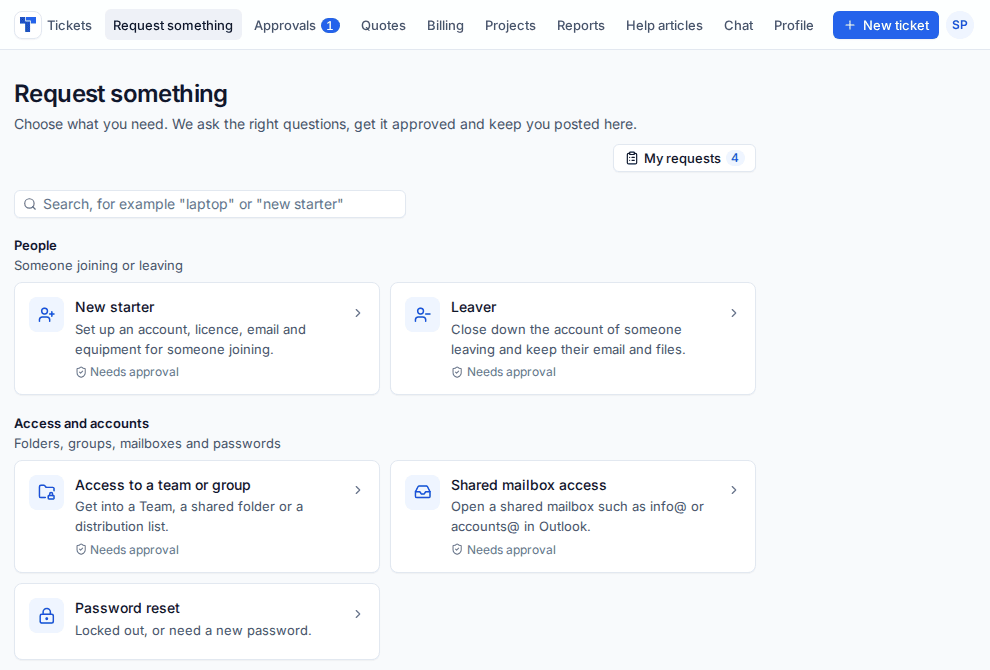
What customers see
In the portal, contacts open Request something, search or browse the categories, and choose an item. The form shows only the questions that apply, using the customer's own users, licences, groups, mailboxes and devices where a question needs them. Prices show on the form when an item or a choice has one.
After they send it, My requests shows each request with its progress (Sent, Approved, Being done, Done), who approved it, what you are doing and a timeline. Under the catalogue, Something else? Raise a ticket sends them to the usual new ticket form.
Set up the catalogue
Settings > Service catalogue has four tabs: Items, Categories, Approvers and General.
Every install starts with eight items in four categories: New starter, Leaver, Access to a team or group, Shared mailbox access, Password reset, New equipment, Install software and General request. Use them as they are, change them, or archive them. Put back starter items brings back any you archived. Items with requests are archived rather than deleted, and any item can be duplicated.
Add an item
- On the Items tab, press New item.
- On the Details tab, set the name, summary, description, Search words, Category and Kind, and an icon.
- Set a Price if it has one: One-off and Monthly.
- Under Who sees it, choose the Customers (every customer, only some, or everyone except some) and Their people (everyone with portal access, portal managers, the company's approvers, or managers and approvers).
- Build the form on the Form tab (below).
- Set the approval on the Approval tab. See Approvals.
- Set what happens on the What happens next tab (below).
- Turn on In the portal to publish it.
Build the form
A form is made of sections and questions. Add a question offers short and long text, email, number, a choice (as a list or buttons, with a price per choice), several choices, a date, yes or no, files, a line of information, and pickers for the customer's own things: a Microsoft 365 user, a contact, a licence, a Microsoft 365 group or team, a mailbox, a device, and software from your catalogue.
For each question set the label, help, placeholder, whether it is required and a default. A question can show only when an earlier answer matches (for example "Number to move across" only when they need a new SIM). Hidden questions are never required, and their answers are dropped when the form is sent.
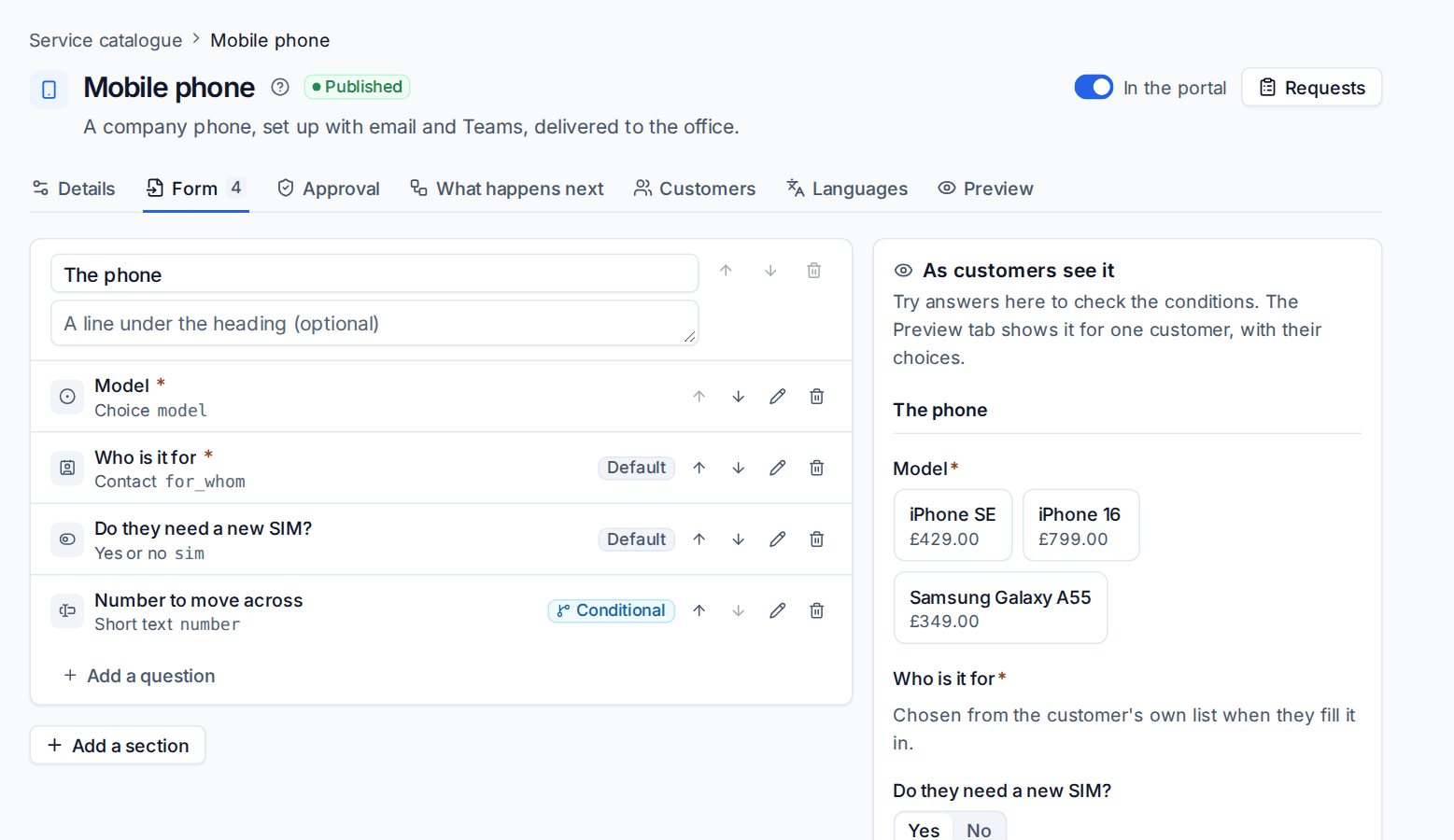
As customers see it beside the builder lets you try answers to check the conditions. The Preview tab shows the form as one chosen customer sees it, with their pickers.
Note: Pickers only ever list the customer's own things, and the answers are checked against the same lists when the form is sent. A customer without Microsoft 365 connected gets a text box instead of a Microsoft 365 picker, so the form still works.
Per-customer versions
On the Customers tab you can switch the item on or off per customer, and give a customer their own version: their own wording, defaults, choices, required and hidden questions, price and approval.
What happens next
When a request is approved (or as soon as it is sent, if you choose that in General), it raises a ticket:
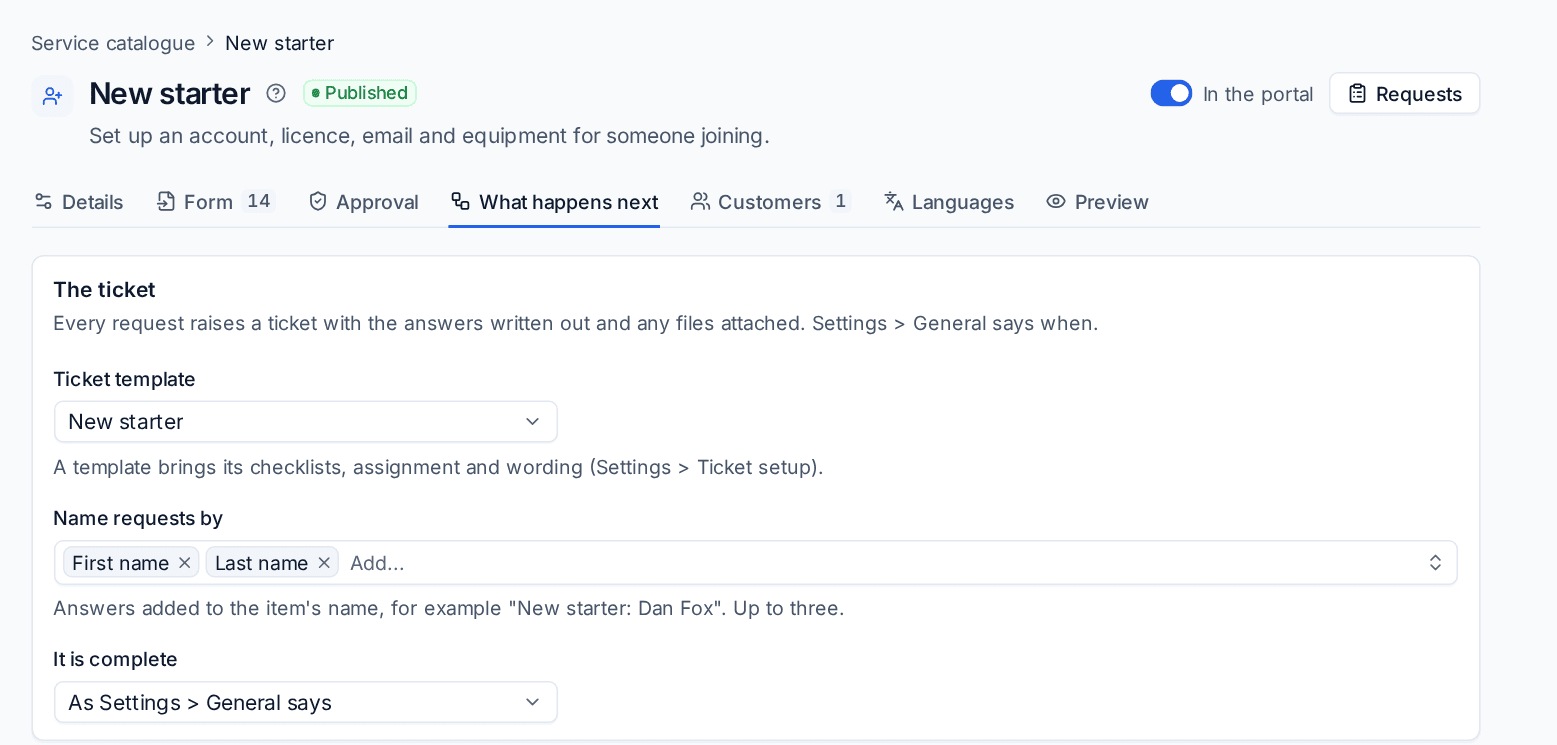
- from the item's Ticket template, which brings its checklists, assignment and wording (see Checklists, ticket templates and recurring tickets),
- with a subject that names the request, using up to three answers (Name requests by), for example "New starter: Maya Collins (REQ-1151)",
- with every answer written into the ticket and the files attached.
Automations do work from the answers, either Once approved or when A technician starts it from the request. For example, Set up a Microsoft 365 account (new starter) creates the new user in the customer's Microsoft 365 tenant from the form's answers, on the start date less the days you set, with a temporary password or a Temporary Access Pass. It needs the customer's tenant connected. See Starters and leavers.
A request is complete when its ticket is resolved, or when every automation has finished, as It is complete says.
General settings
The General tab sets:
- whether the catalogue shows in the portal, its heading and introduction, and whether to offer "Something else? Raise a ticket",
- when the ticket is raised (once approved, or when the request is sent) and when a request counts as complete,
- how many days approvers have, when to remind them, and what happens when nobody decides in time,
- who approves for you,
- until when the person who asked can cancel, and whether they are emailed when it is approved, turned down and done,
- who sees a new starter's first password: the person who asked, in the portal, or nobody but the technician.
Requests on the staff side
Service requests in the tickets sidebar lists every request with saved views for those waiting for approval, in progress and waiting for a technician. The cards at the top count open requests, those waiting for approval (by the customer or by you) and those with a step to start.
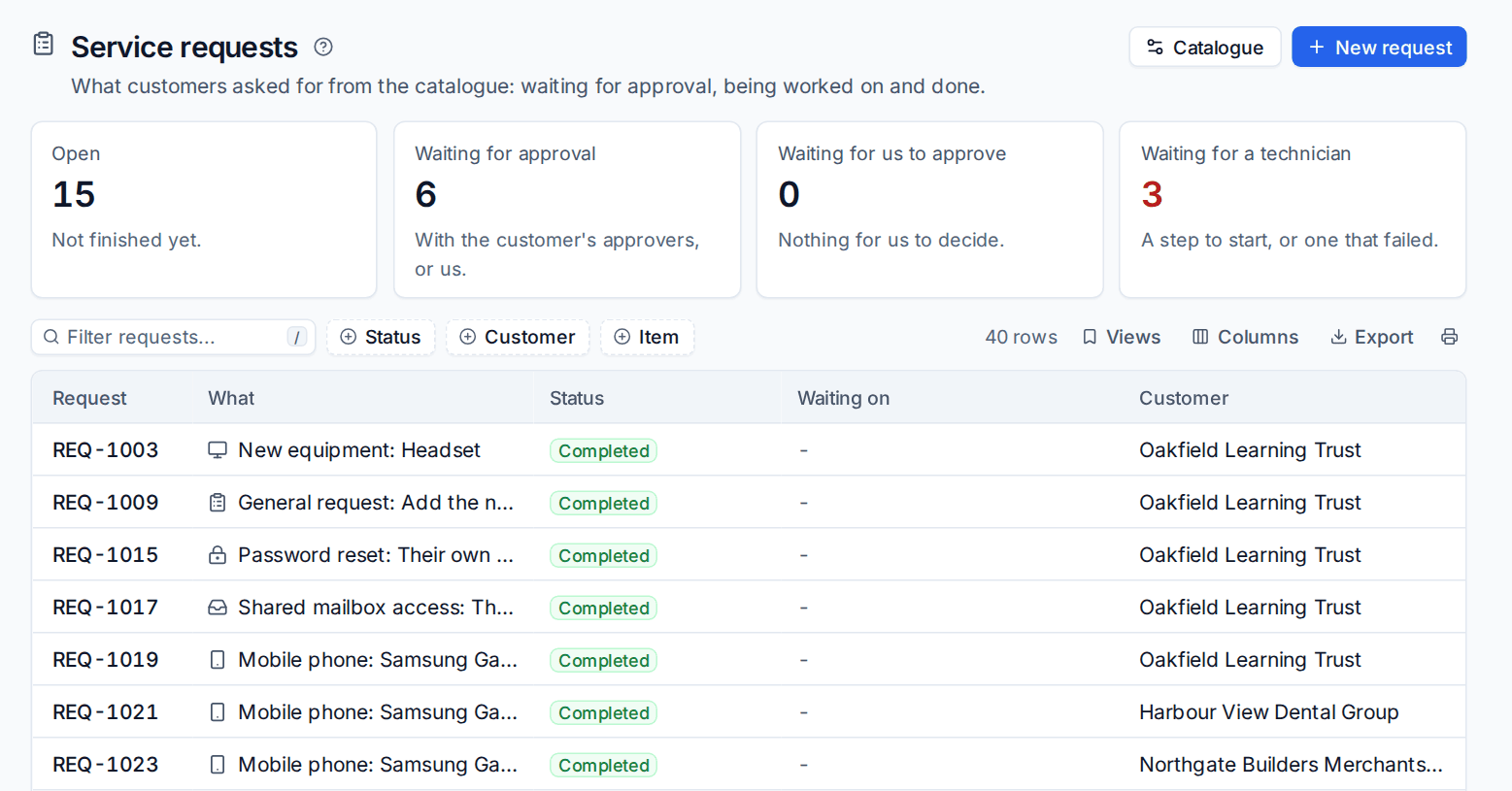
Open a request to see the answers, the approval with each approver, the work (its ticket and any automation steps, with Start where a technician starts them) and the timeline. New request raises one on a customer's behalf, for example after a phone call.
Reports > Service requests shows requests per item and per customer, how many were completed, not approved or cancelled, the average and median time to fulfil, and requests by month.
Items can also have their words in other languages for contacts who read the portal in them. See Languages.
Was this page helpful?
Thanks for the feedback.