Finding your way around
The bottom bar on phones, the rail on tablets, Home, search and the notification list in the Tenvara app.
The app is laid out the same way on every screen: the areas you use most are one tap away, every list has search and filters at the top, and every record has its main actions as buttons under its title.
On a phone: the bottom bar
A bar along the bottom holds Home, Tickets, Alerts, Customers and More.
More holds everything else:
- under Go to: Devices, Schedule, Docs, Quotes, Chat and Projects. Chat shows how many chats are waiting;
- under You: Notifications, Search and Settings.
At the top of each area are the search button and the bell, with a count of unread notifications. Press the back arrow at the top left to go back a screen.
On a tablet: the rail
On an iPad or Android tablet the bottom bar becomes a rail down the left with every area: Home, Tickets, Alerts, Customers, Devices, Schedule, Docs, Quotes, Chat, Projects and Settings.
Lists use the extra room: the list stays on the left and the record you tap opens alongside it, so you can work down a queue of alerts or tickets without going back and forth.
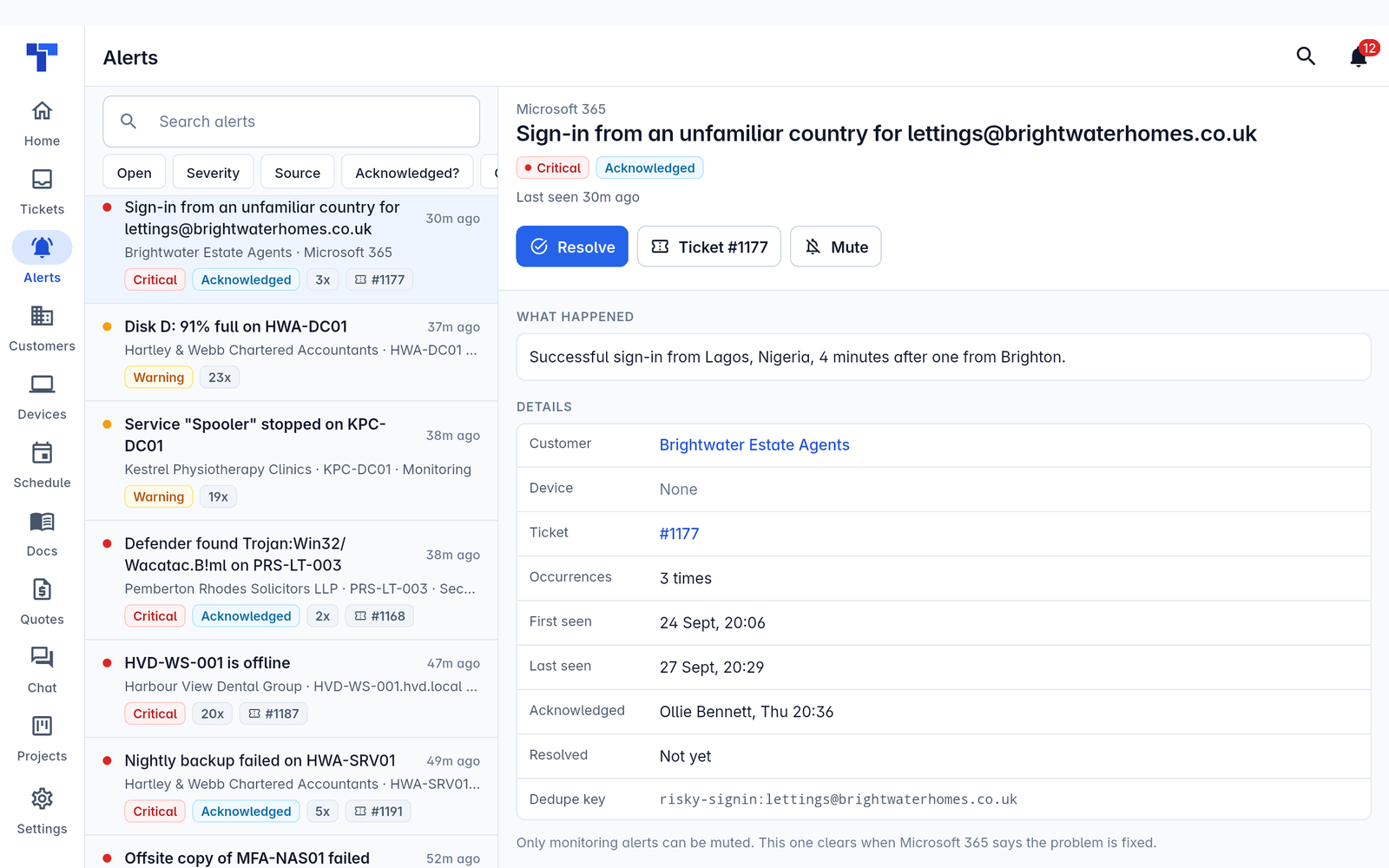
The app only shows the areas your role allows and your modules have switched on, on phones and tablets alike. See Roles and permissions.
Home
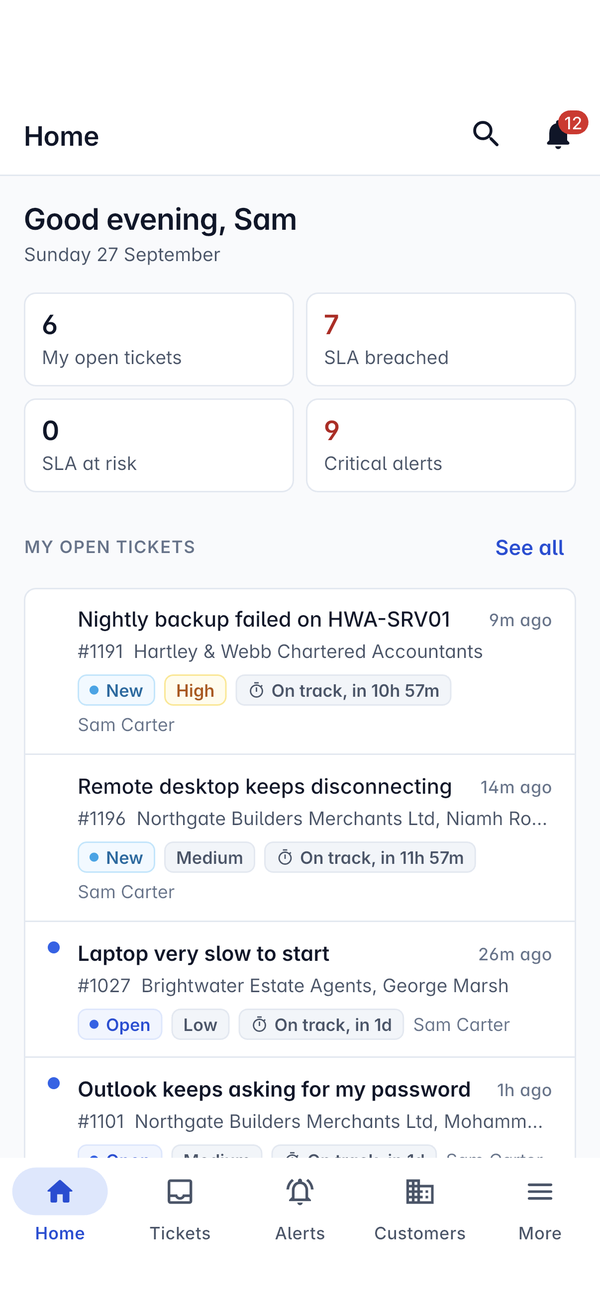
Home greets you with the date and four tiles: My open tickets, SLA breached, SLA at risk and Critical alerts. Figures that need attention show in red. Tap a tile to open the list behind it.
Under the tiles, My open tickets lists your tickets with their status, priority and SLA, for example On track, in 10h 57m. See all opens the full list. When you have a ticket timer running, Home shows it too, so you can get back to that ticket quickly.
Search
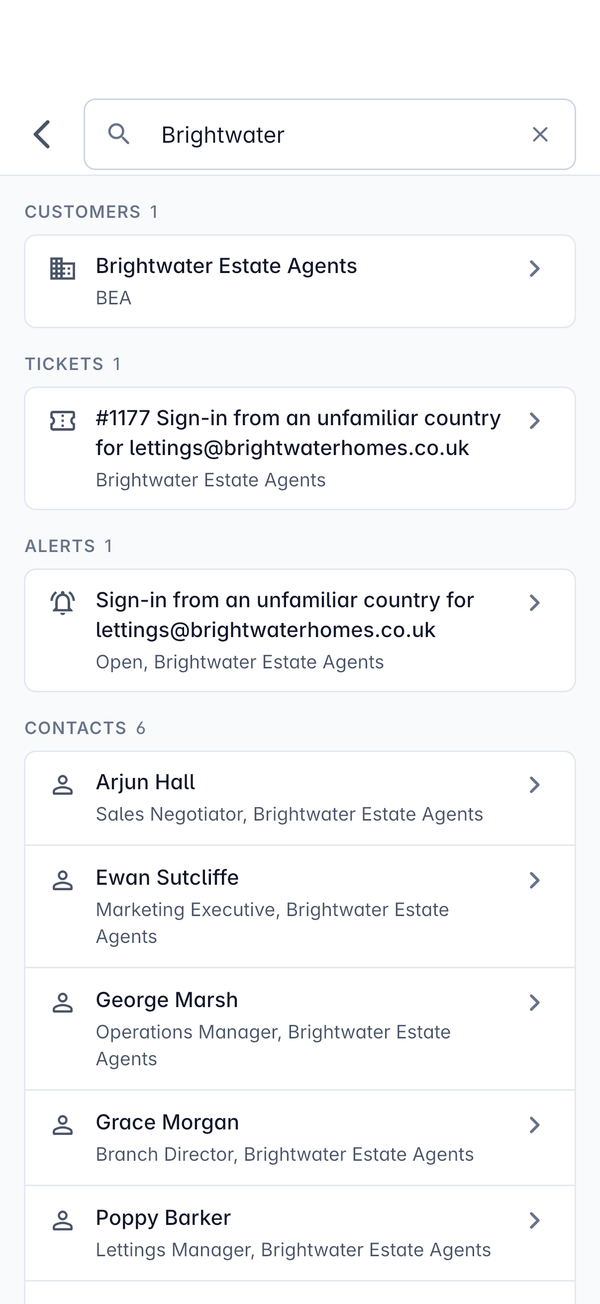
Tap the magnifying glass on any area to search everything you are allowed to see. Type part of a name, a ticket number or an email address, and the results come back grouped by type, such as Customers, Tickets, Alerts and Contacts, each with a count. Tap a result to open it, or the cross to clear the search.
Notifications
The bell opens Notifications: the same notification inbox you see on the web, with ticket assignments, customer replies, comments on project tasks, quotes the customer has opened, articles due for review and more. Unread items have a dot. Tap one to go straight to what it is about, or press Mark all read.
The count on the bell updates when you open the app. For where else notifications reach you, such as email or Teams, see Your profile, security and notifications.
Keeping lists up to date
Pull down on any list to refresh it. Lists also refresh when you come back to the app after using something else. If you have no signal, the app shows what it last loaded and tells you so. See Working offline and sync conflicts.
Light and dark
The app follows light or dark as you choose in Settings > Appearance.
Was this page helpful?
Thanks for the feedback.