Asset lifecycle and warranty
Record purchase and warranty details for every device, look Dell and Lenovo warranties up with your own keys, and forecast what each customer needs to replace and what it will cost.
Every device in Tenvara, with or without an agent, can carry its purchase and warranty details. Tenvara combines them with a maintained table of operating system and vendor support dates to tell you when each device is due for replacement, and what replacing it will cost. That turns into a hardware refresh forecast for each customer, ready for a business review.
Kit without an agent
Switches, firewalls, routers, access points, printers, UPS units, desk phones, monitors and NAS boxes can all be devices in Tenvara. Add one with Add by hand on the device list and choose what it is, or add it from a network scan (see Network discovery and topology). Filter the device list by type to see each kind.
A device's lifecycle
Every device page has a Lifecycle and warranty section.
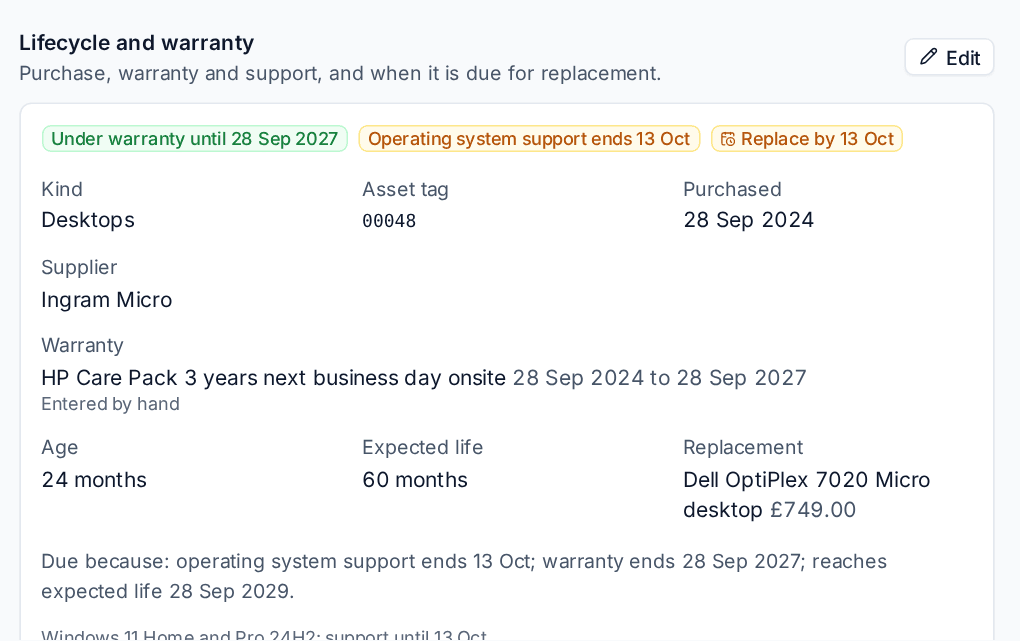
The badges at the top show where it stands: under warranty or not, when its operating system loses support, and when it should be replaced. Below are its kind, asset tag, purchase date and supplier, its warranty with the dates, its age and expected life, and the replacement it should get, priced. Due because explains the date.
Click Edit to fill in or change:
- Asset tag, Purchased, Bought from (a supplier or free text), Cost and an Order reference.
- The warranty: its start and end and what it covers. A warranty typed in here is kept: lookups never replace it.
- The expected life, a Replace by date (a date here replaces the rules) and the Replacement item from your catalogue.
Kit you supplied through Tenvara's purchase orders fills in its purchase details by itself.
Warranty lookups
Dell and Lenovo warranties can be looked up by serial number. These are supported integrations you connect with your own keys:
| Maker | What you need |
|---|---|
| Dell | A client id and secret from a Dell TechDirect account with the Warranty API. |
| Lenovo | A key from Lenovo's partner warranty API. |
HP does not offer warranty lookups to service providers, so HP warranties are entered by hand.
- Go to Settings > Assets and find the warranty lookups.
- Enter the keys for each maker and click Save keys. Test them before relying on them.
- Turn on Look warranties up every night if you want them checked automatically.
Once set up, Look up warranty on a device, or Look up warranties on a customer's Lifecycle tab, asks the maker straight away. The nightly lookup asks again once a warranty was last checked more than the number of days you choose.
When a device is due
A device is due for replacement on the earliest date its customer's refresh rules give. Under Settings > Assets:
| Refresh rule | A device is due when |
|---|---|
| Replace when the warranty ends | Its warranty ends. |
| Replace when the operating system loses support | Its operating system stops getting security updates. |
| Replace at the maker's end of support | Its maker stops supporting the model (network kit). |
| Replace at the end of its expected life | It reaches the expected life for its kind, counted from its purchase date. |
| Count paid extended support | Use the end of paid extended support (Extended Security Updates, Ubuntu Pro) instead. |
Set the Expected life in months for each kind of device (0 never replaces it for age), and the replacement item that prices each kind. A customer can have its own rules and expected lives on its Lifecycle tab.
Support dates come from the Lifecycle table in Settings > Assets: Windows, Windows Server, macOS, Ubuntu, Debian and RHEL releases, and network makers' end of life (Cisco, HPE Aruba, Ubiquiti, Fortinet, SonicWall, WatchGuard, Meraki, Netgear, APC and more). The table is kept up to date for you. Add rows of your own, or change a built-in row; your changes are kept when the table is updated.
The hardware refresh forecast
Go to Reports > Hardware refresh for every customer, or open a customer's Lifecycle tab for one.
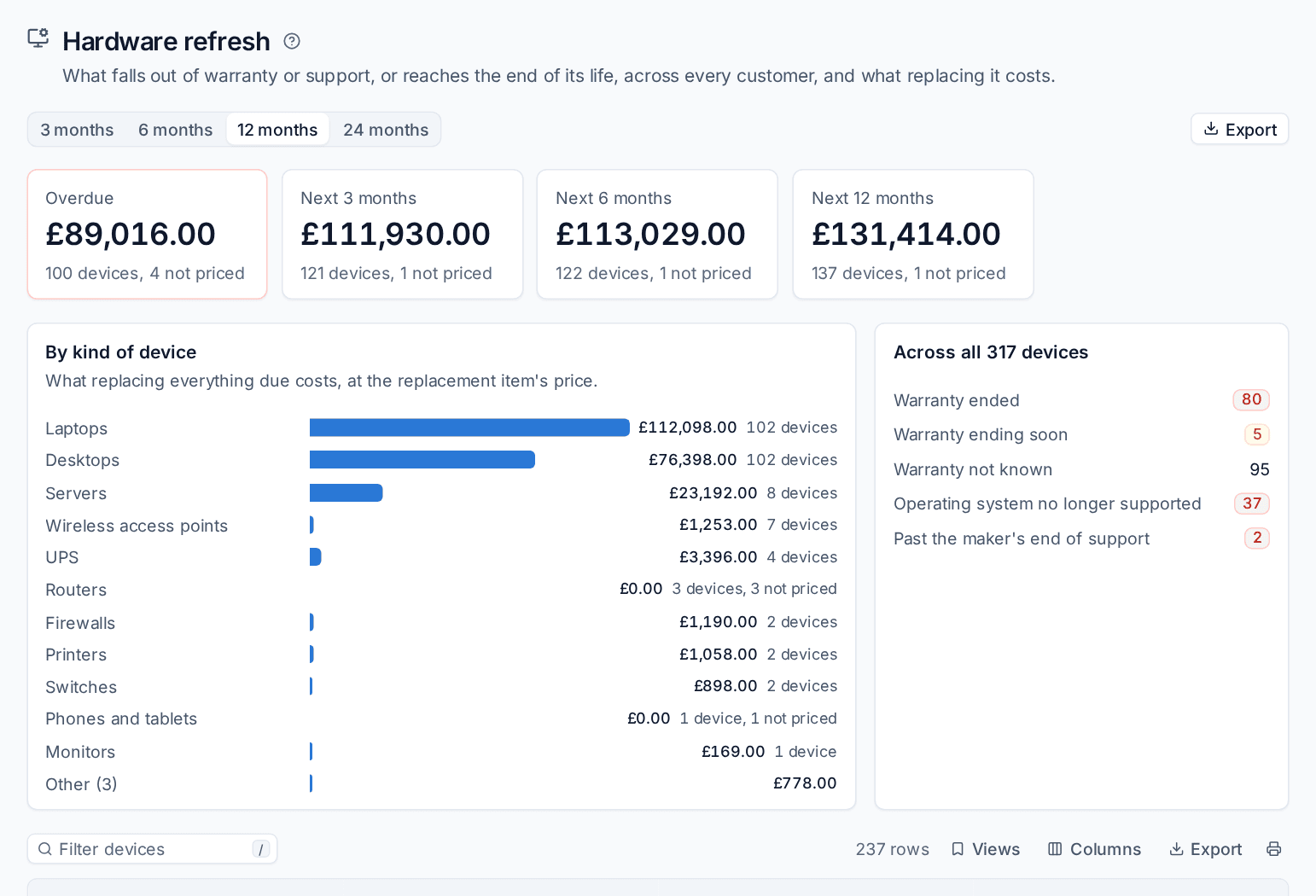
- Choose how far ahead to look: 3 months, 6 months, 12 months or 24 months.
- Read the totals: what is Overdue and what falls due in the next 3, 6 and 12 months, with how many devices are not priced yet.
- By kind of device shows what replacing everything due costs, kind by kind, at the replacement item's price, in the customer's currency.
- The panel beside it counts warranties ended, ending soon and not known, operating systems no longer supported and kit past the maker's end of support.
- The list below names every device due, with its customer, kind and replace-by date.
Click Export for a CSV spreadsheet, or a PDF for a business review to take to the customer.
Tip: "Warranty not known" is usually the biggest number at first. Set up the Dell and Lenovo lookups and enter the rest by hand as you touch each device, and the forecast sharpens quickly.
Related
Was this page helpful?
Thanks for the feedback.