The password manager for your customers
Give your customers' staff personal and shared password vaults in the portal, encrypted in their browser, and see a vault only when its owner shares it with you.
Your customers' staff need somewhere safe for the passwords they use every day: the practice software, the courier account, the office Wi-Fi. The password manager gives them personal and shared vaults in the customer portal. Everything in it is encrypted in their own browser with a passphrase only they know, so nobody else can read it, your team included, unless a vault's owner chooses to share it with you.
This is separate from your own credentials vault. Your technicians keep their logins in the credentials vault; the customer's staff keep theirs here.
Switching it on
The password manager is off until you switch it on for a customer.
- Go to Settings > Documentation > Password manager for customers.
- Turn on Offer the password manager in the portal for the customer.
- Choose whether to Let them share a vault with you.
- Set Lock the password manager after: the minutes without use before the portal asks for the passphrase again.
These settings can be set per customer. See Settings overview.
Once it is on, the customer's portal users find Passwords in their account menu.
What your customers see
Setting it up
The first time someone opens Passwords, they Set up your password manager:
- They choose a Vault passphrase of at least 12 characters. It is not their portal sign-in, and nobody can reset it for them.
- They are shown a recovery code once, to copy or download and keep somewhere safe.
- They tick that they have saved it and press Set up.
Personal and shared vaults
Everyone gets a Personal vault. Anyone can press New vault to make another, either Personal, only mine or Shared with people I choose.
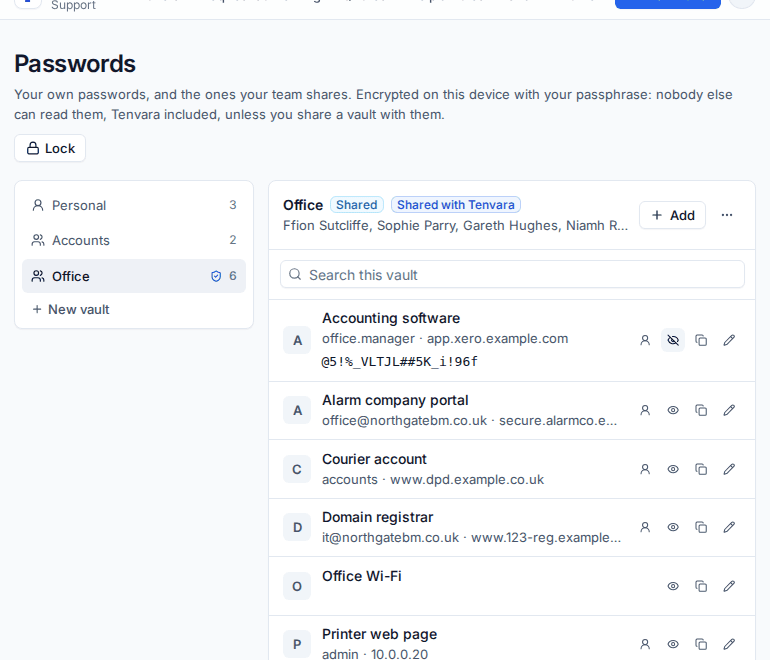
In a vault they can Add items with a Name, Username, Password (with Generate), Website and Notes, and copy or show passwords. The owner of a shared vault adds colleagues under People as Owner, Can edit or Can view. Only people who have set up their own password manager can be added.
When someone is removed from a shared vault, the vault gets a new key and every item is encrypted again in the browser, so they cannot read anything in it afterwards.
Locking and forgotten passphrases
The password manager locks itself after the set time without use, when they press Lock, and when the page is reloaded. To unlock, they type their passphrase.
If they forget it, Use your recovery code unlocks it and lets them choose a new passphrase, with a new recovery code. Without the passphrase or the recovery code, nobody can open their vaults, including you. The only way forward is Start again, which deletes their personal vaults and takes them out of shared ones.
Warning: Make sure your customers understand the recovery code. You cannot recover a forgotten passphrase for them, by design.
Shared with you
When Let them share a vault with you is on, a vault's owner can turn on Share with your company for that vault, so your team can help when they are stuck. They can stop sharing at any time.
Open Docs and choose Customer password managers under Security. The list shows every vault by Vault name, Customer, Owner, Kind, People and Your access: Shared with you or Not shared.
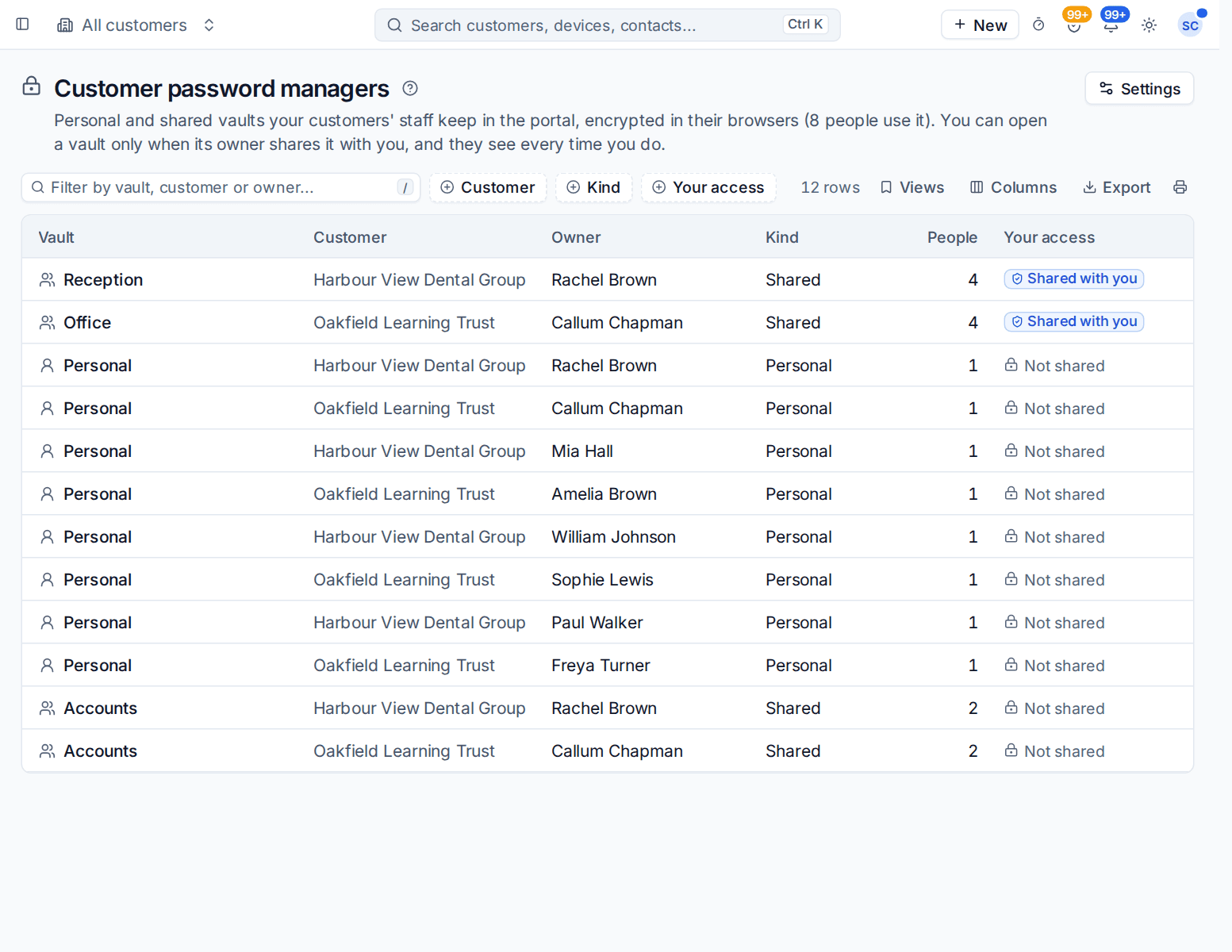
Click a vault shared with you to see its items: names, usernames and websites. Press Reveal to see a password, or copy it.
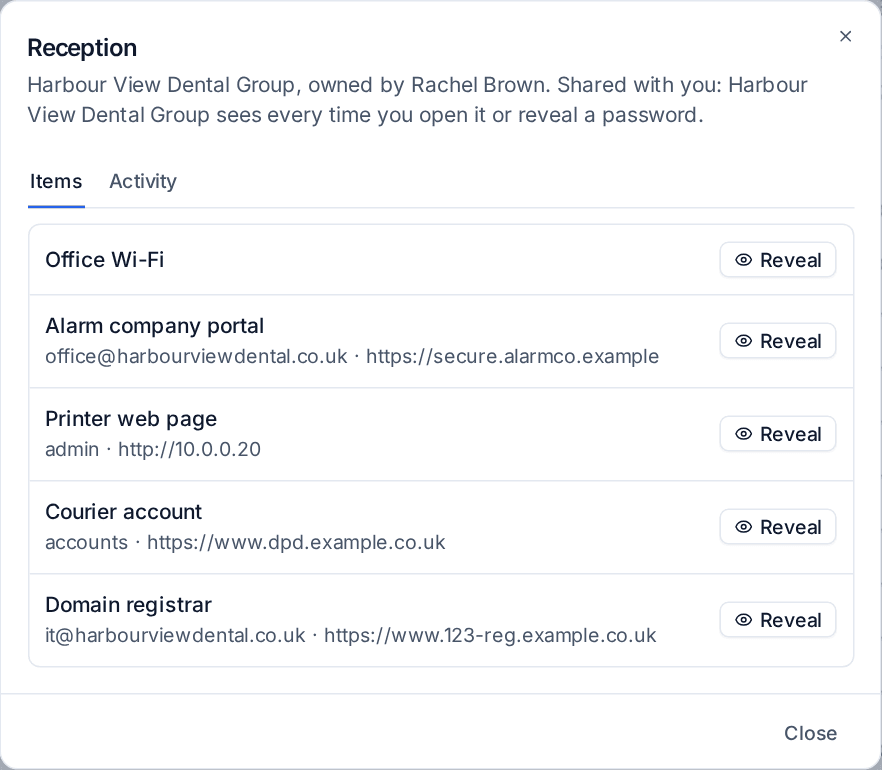
Every time someone on your team opens a shared vault or reveals a password, it is recorded in the vault's Activity, which the customer's people see in the portal with your technician's name. A vault that is not shared with you cannot be opened at all; you only see its name, owner and size.
Good to know
- Items are encrypted in the browser before they are saved. Tenvara stores only encrypted data and cannot read it.
- Vault names are not encrypted, so they can appear in your list.
- The password manager has its own permission checks on every request: someone who is not in a vault cannot see that it exists in the portal.
Related: The customer portal, Self-service password reset.
Was this page helpful?
Thanks for the feedback.