The Teams and Slack apps
Let your customers' people chat with you, raise and follow tickets and approve requests from inside Microsoft Teams or Slack, using an app you register in your own Microsoft and Slack accounts.
Many of your customers live in Microsoft Teams or Slack all day. The Teams and Slack apps let their people reach you from there: chat with your team, raise and follow tickets, reply to you and approve changes and service requests. Their chats land in the same console as every other chat, and the chat bot answers first when it is on.
Both apps are off until you switch them on. You register each app in your own Microsoft and Slack accounts, so it carries your name and brand.
What people can do
| Microsoft Teams | Slack | |
|---|---|---|
| Chat with you | Write to the app in a personal chat | Write to the app, or type /support and what is wrong |
| See their tickets | "my tickets" | /support my tickets, or the app's Home tab |
| Raise a ticket | "new" and what is wrong, or Raise a ticket on a card | /support new ..., or Raise a ticket on the Home tab |
| Reply to a ticket | The box on the ticket's card | The box on the ticket's card |
| Approve | Approve or Reject on the card | The same, on the card or the Home tab |
| The portal | The Support tab, signed in with their Teams account | The portal link on each card |
Anyone can write "stop" to have no more cards, and "start" to have them again. "end" ends a chat, and they get the rating card. Out of hours, or when nobody is online, what they wrote becomes a ticket request (a ticket straight away for a known contact) and they are told so. The apps work in personal chats only, never in channels, so one person's tickets are never shown to a whole team.
Set up the Teams app
You need an Azure Bot registered in your own Microsoft Entra tenant.
- In Azure, create an Azure Bot and add the Microsoft Teams channel.
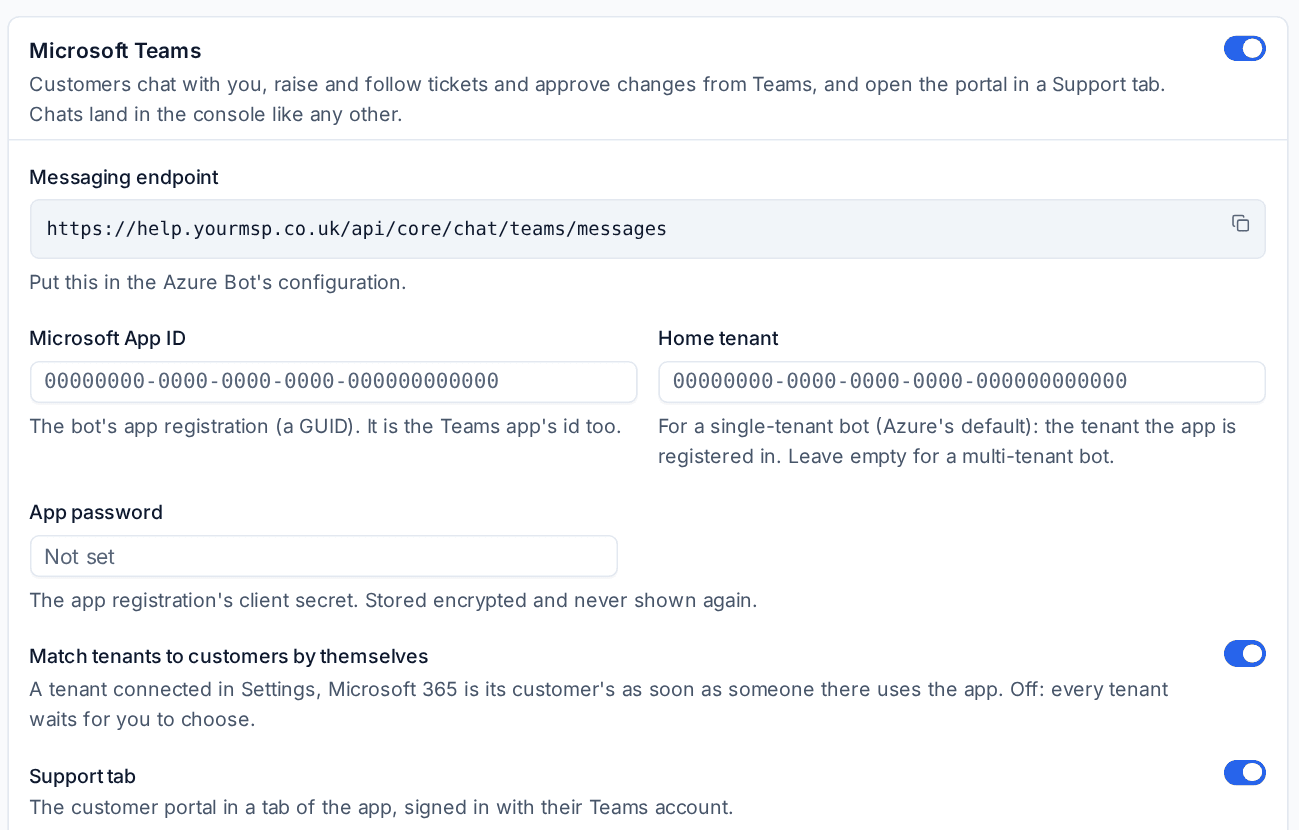
- In Tenvara, go to Settings > Chat > Teams and turn on Microsoft Teams.
- Copy the Messaging endpoint into the Azure Bot's configuration.
- Enter the bot's Microsoft App ID, its Home tenant (for a single-tenant bot, Azure's default) and its App password (the app registration's client secret, stored encrypted and never shown again).
- For the Support tab, on the same app registration expose an API with the Single sign-on resource shown (the Application ID URI), add the scope
access_as_user, and pre-authorise the Microsoft Teams clients. - Press Save.
Give the app to a customer
Under The Teams app, press Download package. It is built from your brand: name, colour and icon. Raise the Package version each time you change the package.
The customer's Teams administrator uploads the package in the Teams admin centre (Manage apps, Upload new app). The first time someone there uses the app, their tenant is matched to the customer whose Microsoft 365 tenant it is, while Match tenants to customers by themselves is on. Otherwise use Switch on for a customer under Customers. A tenant nobody has matched waits in the list as "Choose the customer".
Set up the Slack app
- Go to Settings > Chat > Slack and turn on Slack.
- Press View manifest, and create the app at api.slack.com from it (Create New App, From a manifest). The manifest carries your brand's name and colour, the
/supportcommand, the Home tab and the addresses Slack calls. - Enter the app's App ID, Client ID, Client secret and Signing secret. Every request from Slack is checked with the signing secret.
- Press Save.
- For each customer, press Install link (under Customers, or on the customer's Chats tab) and send it to their Slack administrator. The link works for 14 days. Their workspace appears in the list once they install it.
Who is who
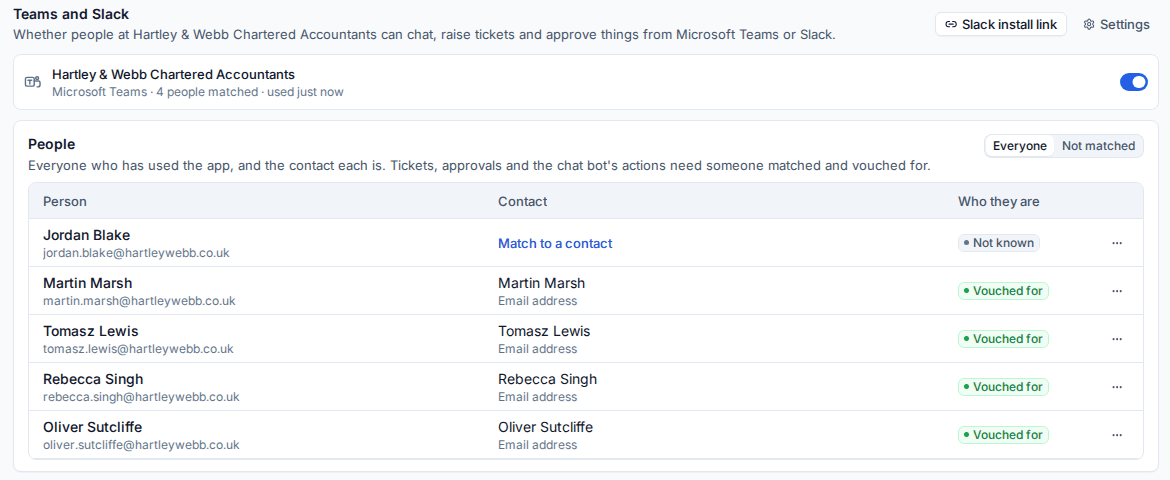
Tenvara matches everyone who uses the app to a contact:
- Teams: the contact linked to their Microsoft 365 user, or the contact at that customer with their email address. Microsoft signs every message with the tenant and the user, so a match is who they say they are.
- Slack: the contact at the workspace's customer with the email address Slack confirmed. Turn off Trust the email Slack confirmed if you want the chat bot to ask for its emailed code first and tickets to wait for a technician to match them.
People who are matched and vouched for can see and raise tickets and approve requests. Anyone else can still chat. The People list shows everyone who has used the app, their contact and how they were matched; use Match to a contact to match someone by hand.
Cards people get
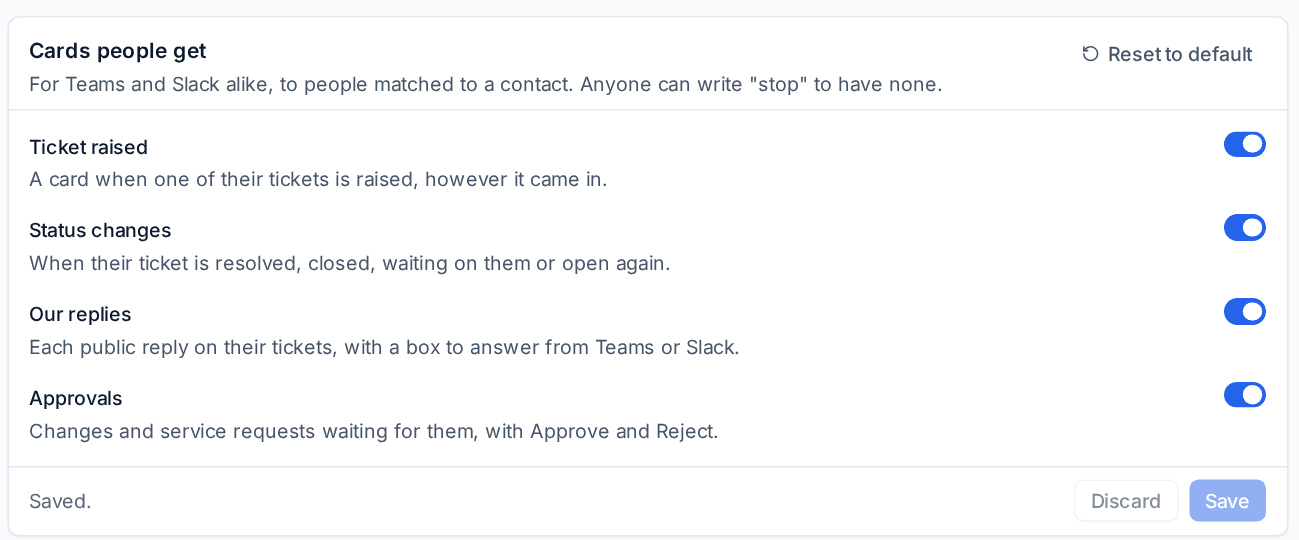
Cards people get (shared by both apps) chooses which cards matched people receive:
- Ticket raised: when one of their tickets is raised, however it came in,
- Status changes: when their ticket is resolved, closed, waiting on them or open again,
- Our replies: each public reply, with a box to answer from Teams or Slack,
- Approvals: changes and service requests waiting for them, with Approve and Reject.
A decision made somewhere else (the portal, the email link, or recorded by a technician) updates the card to say so. What the app says lets you change the welcome, help and other lines; leave a line empty for the suggested wording, shown in each person's language.
Answering in the console
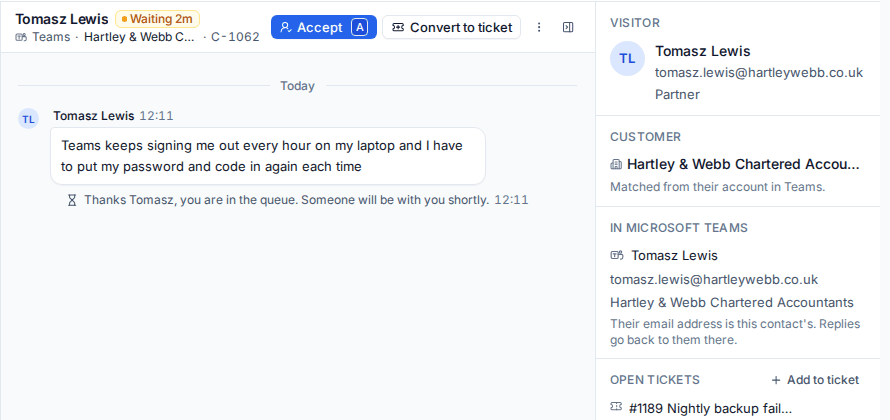
Teams and Slack chats arrive in the console like any other chat, marked with where they came from. The visitor panel shows an In Microsoft Teams or In Slack block with the person's name, address, tenant or workspace, and how they were matched. Your replies, files and the chat bot's messages go back to them in Teams or Slack.
The Log at the bottom of each settings tab lists everything sent and received, newest first. A message that failed to send can be sent again from there.
Related: Answering a chat, The chat bot, Approvals.
Was this page helpful?
Thanks for the feedback.