What your customers see
How a brand profile shows up in the customer portal, emails, PDFs, chat, booking and status pages and on devices, and how to check it before customers do.
Once a customer has a brand profile, everything they receive from you wears it. This page goes through each place, so you know what to check.
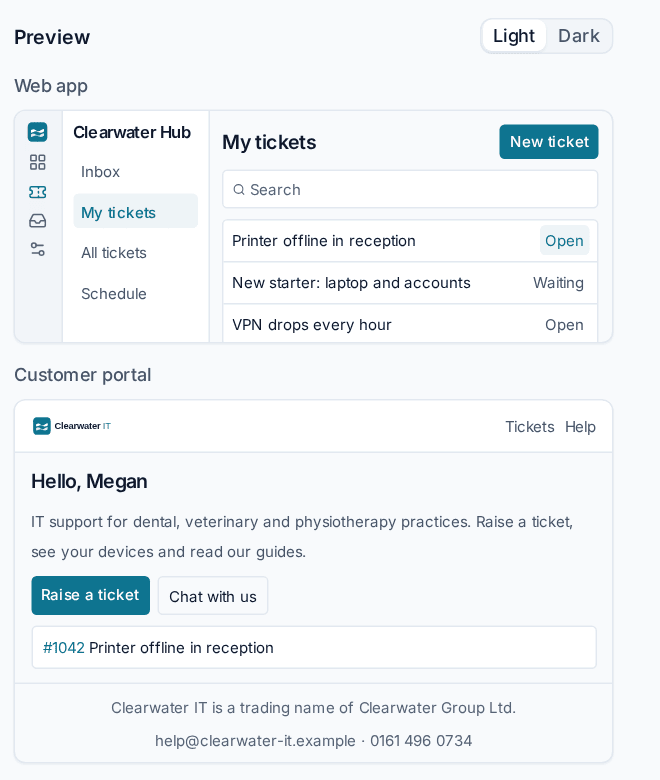
The customer portal
When a contact signs in, the portal wears their customer's profile:
- The logo at the top, the favicon and the browser tab title use your product and portal name.
- Colours follow your brand colour in light and dark.
- The home page shows your Portal welcome text, and the foot of every page your Portal footer and support email and phone.
- Help links go where the profile says: the standard guide, your own address, or nowhere. With Hide help links from customers on, the portal shows none.
- "Powered by Tenvara" only shows when you turn on Show "Powered by Tenvara" to customers.
Before a contact signs in, the portal's sign-in page wears the brand of the address it was opened on: a verified custom domain shows its profile, any other address the default.
Emails
Each email wears the brand of the customer it is addressed to, worked out from its recipients. That includes portal invitations and sign-in links, ticket replies, quotes, invoices and reminders, project sign-off requests, visit confirmations, satisfaction surveys, saved report deliveries and chat transcripts.
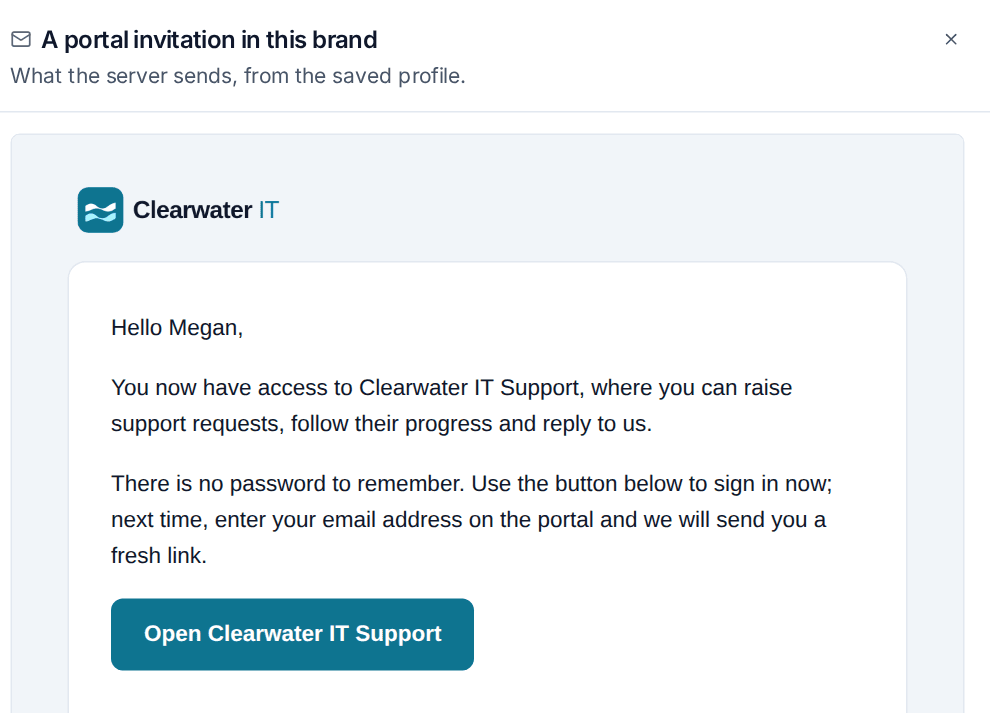
- The header shows the profile's logo. A profile without a logo uses your template logo.
- Emails sent from the standard address go out under Emails come from. A mailbox with its own name keeps it.
- Customer emails end with the profile's Email signature and Email footer.
- Buttons and links use your brand colour, with the text on them checked for contrast.
- Links point at the profile's verified portal domain when it has one.
Emails to your own team (password resets, two-factor changes, automation notifications) use the default profile.
PDFs
These PDFs render in the customer's brand: invoices and credit notes, quotes and proposals, customer reports, project status reports, Cyber Essentials and compliance reports, and saved report PDFs. They use the profile's logo and brand colour where the template has no colour of its own. Invoices and credit notes always name who issued them: with no logo, they show the seller's name.
Chat and the assistant
The chat widget takes its name and colours from the same brand as the portal, and the tray's chat window uses the agent's brand. The AI assistant uses the profile's Assistant name and Assistant avatar. See Website widget, portal and tray.
Pages that open without signing in
- Booking pages carry the brand of the customer they belong to. See Booking pages and calendar sync.
- Status pages: a customer's status page wears that customer's profile (name, mark, colours, favicon), and emails to its subscribers are sent in it. Your own status page wears the brand of the address it is opened on, else the default. See Status pages.
On their devices
The agent shows the customer's agent name, publisher, icon and support details in Apps and features, the tray, the remote control consent prompt and the "being viewed" indicator. See Branded agent and installers.
Language
A brand changes names, logos and colours, not the language. Customers read the portal, emails and PDFs in their own language, set on the customer. See Languages.
Checking before customers see it
- Open Settings > Branding and pick the profile.
- Use the Preview on the right: it shows the web app, the portal, a customer email and an invoice, and redraws as you type. Switch between Light and Dark.
- Press Open the real email to see a portal invitation exactly as the server sends it for the saved profile.
- Press Open the real PDF to see the newest invoice in this brand.
Tip: Save first: the real email and PDF use the saved profile, not unsaved changes.
Related: Brand profiles, The customer portal, Customer portal settings.
Was this page helpful?
Thanks for the feedback.