Importing from IT Glue and Hudu
Bring your documentation, passwords, contacts and devices across from an IT Glue export file or from Hudu through its API.
If your documentation and passwords live in IT Glue or Hudu, you can bring them into Tenvara with the customers, contacts and devices they belong to. The two work differently:
| IT Glue | Hudu | |
|---|---|---|
| How Tenvara reads it | From an export file: the ZIP you download from IT Glue | Through Hudu's API, with your Hudu address and an API key |
| What you need | An IT Glue account that can export data | A Hudu API key from your own Hudu account |
Both only read: nothing is changed in IT Glue or Hudu.
Importing from IT Glue
What comes across
| In IT Glue | In Tenvara |
|---|---|
| Organisations | Customers |
| Locations | Sites |
| Contacts | Contacts |
| Configurations | Devices (retired configurations are skipped) |
| Passwords, with one-time password seeds | Credentials in the vault, with their two-factor secrets |
| Documents | Articles, on the customer, or in the knowledge base for documents that belong to no organisation |
Step by step
- In IT Glue, go to Account > Export data, export your account and download the ZIP file.
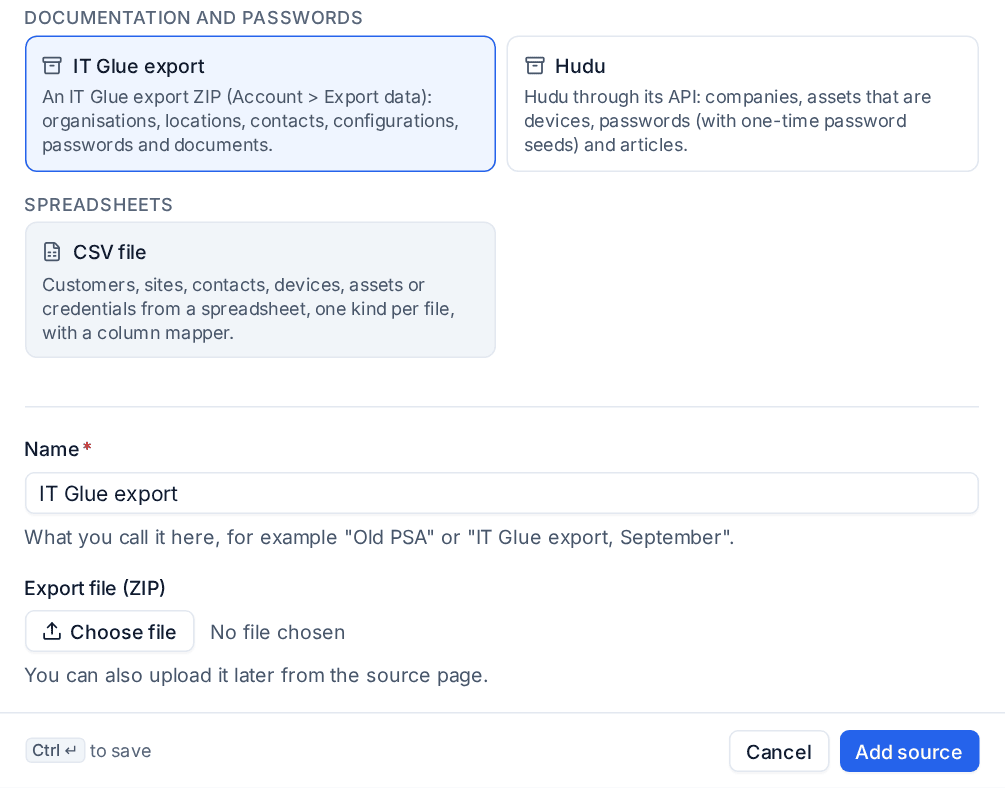
- In Tenvara, go to Settings > Migration and press Add source.
- Under Documentation and passwords, choose IT Glue export.
- Give it a Name, for example "IT Glue export, September".
- Under Export file (ZIP), press Choose file and pick the ZIP. You can also upload it later from the source page.
- Press Add source.
Then open the source, press Test to see what it found, choose what to bring across, and start with a Dry run. See Checking and importing, below.
Tenvara reads the export's columns by name, so exports from different IT Glue versions work. To bring across changes made in IT Glue since, export again, press Replace file on the source and run it again.
Importing from Hudu
What comes across
| In Hudu | In Tenvara |
|---|---|
| Companies | Customers |
| Assets that are devices | Devices |
| Passwords, with one-time password seeds | Credentials in the vault, with their two-factor secrets |
| Articles | Articles, on the customer, or in the knowledge base for Hudu's own knowledge base |
Step by step
- In Hudu, go to Admin > API keys and create a key. A key without password access brings everything except the passwords.
- In Tenvara, go to Settings > Migration and press Add source.
- Under Documentation and passwords, choose Hudu.
- Give it a Name.
- Enter your Hudu Address, for example
https://docs.example.com. - Paste the API key.
- Press Add source.
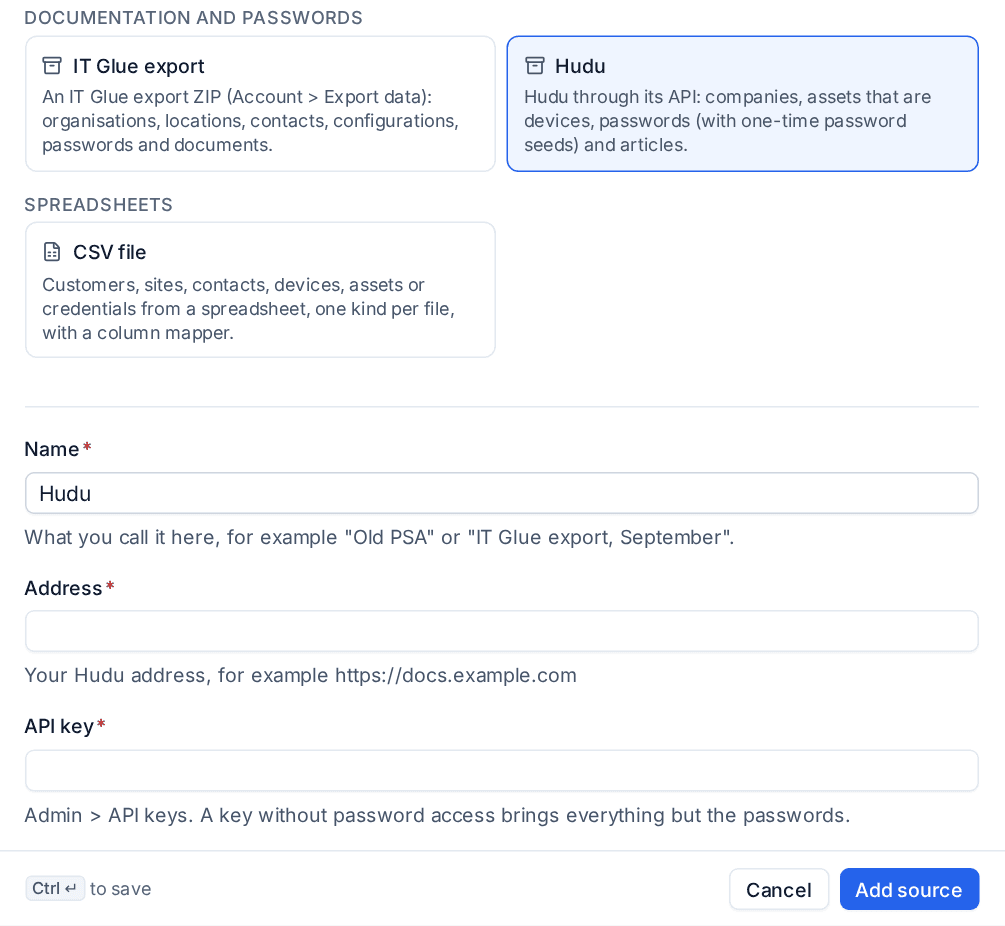
The API key is stored encrypted and never shown again. To change it, press Edit on the source and enter a new one; leaving it empty keeps the saved key.
Because Tenvara reads Hudu directly, each new run sees what is in Hudu at that moment. There is no file to replace.
Checking and importing
For either source:
- Open the source from Settings > Migration and press Test. Tenvara reads it and counts what it found of each kind.
- Under What to bring across, choose the kinds of record you want. Anything they depend on is added for you, so choosing passwords also brings the customers they belong to.
- Press Dry run and open the run. Check the counts for each kind and look through the decisions: what would be created, what matched a record you already have, and any errors.
- Correct any wrong matches by hand. See Running side by side and switching.
- Press Import on the dry run.
Customers are matched by name and email domain, devices by serial number then host name, and credentials by name and username, so records you already added in Tenvara are matched rather than duplicated. See How records are matched.
Note: Passwords and two-factor secrets go straight into the encrypted vault and are never shown in a run. Documents are cleaned up as they come in, so only safe formatting is kept.
Tip: After the import, open a few customers and check their Documentation tab: the articles, records and credentials should be where your technicians expect them.
Related: The credentials vault, Knowledge base articles, Importing from CSV.
Was this page helpful?
Thanks for the feedback.