Mobile, guest and self-service printing
Let people print from a phone or any device by uploading in the portal, give visitors a guest code to print, and let staff add the office printers to their own computers.
Not everything people need to print starts on a managed computer. Tenvara lets your customers' staff send documents from a phone or any device through the portal, lets visitors print with a guest code, and lets staff add the office printers to their own computers without a ticket.
Printing from a phone or any device
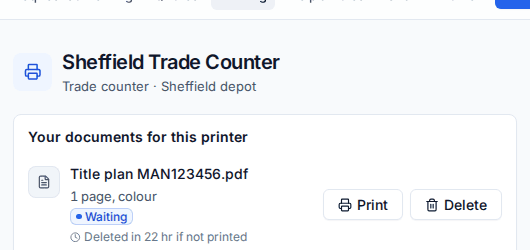
On the portal's Printing page, Send a document to print takes PDFs, pictures and text files from any device, including a phone.
- They drop files on the box or press Choose files.
- They choose the Site, Copies, Colour or Mono, and Double-sided.
- The document waits with the rest of their printing until they release it at a printer, the same as a Secure print job.
Tenvara turns pictures and text into PDFs and keeps each document encrypted until it is printed. When it is released, an agent at the printer's site sends it to the printer. Office documents need saving as a PDF first.
Uploads are on for each site by default. Turn them off or on for a site under Devices > Printers > Sites (Upload to print). The size limit is Largest upload in the settings.
Tip: Put a printer sticker on each release printer. Someone can upload a document on their phone, scan the sticker and print it there, without touching a computer.
Guest printing
Visitors, auditors and contractors can print without an account. Each site with guest printing has its own guest page, which you can put on a poster by the printer.
Turning it on for a site
- Go to Devices > Printers > Sites and open the site.
- Under Guest printing, turn it on. The site gets a guest page Link, which you can show as a QR code for a poster.
Making a guest code
- Go to Devices > Printers > Guests and press Add guest.
- Choose the customer and the site, or Any site with guest printing.
- Enter the guest's Name, for example "Visiting auditor", and optionally their Email: the code is sent there.
- Set Hours it works, or leave it for the settings, and how many pages they may print (0 for no limit).
- Press Make code. Give the code to the guest: it is shown once.
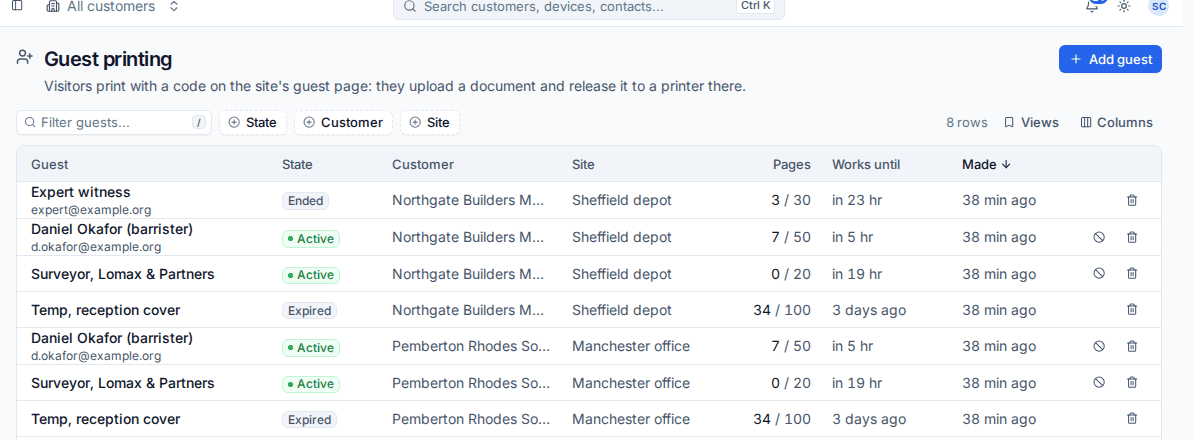
The Guest printing list shows each guest's State (Active, Expired or Ended), Customer, Site, Pages used of their limit, and when the code Works until. Press End the code now to stop a code early.
Portal managers at the customer can make guest codes too, from Guests on the portal's Printing page, so reception can sort out a visitor without calling you.
What the guest does
- They open the site's guest page on their own phone or laptop.
- They type their Guest code and press Continue.
- Under Send a document, they choose files (PDF, pictures or text).
- They choose the printer and print.
Guests print in mono unless Guests may print colour is on. A guest code stops working when its time is up, its pages run out, or someone ends it.
Guest settings
Settings > Device management > Secure print, under Guest printing, has Guest codes last, Pages a guest may print, Guests can ask for a code themselves (on the guest page, by giving their name and email; the code is emailed to them) and Guests may print colour. All can be set per customer.
Self-service printers
Staff can add the company's printers to their own computers from the portal, without raising a ticket.
On the portal's Printing page, Printers on your computers lists the computers they sign in to that you look after, and the printers at their site. They choose a printer to add it to a computer, and it appears within a few minutes. They can remove the ones they added.
Each one is an ordinary deployment to that device, marked as added by the contact, so you see it under Devices > Printers > Deployments with the rest. See Deploying printers to devices.
Related: Secure print release, Print quotas and costs.
Was this page helpful?
Thanks for the feedback.