Wake-on-LAN and remote access rules
Wake a sleeping device through another computer on the same network, and decide who may view, control or fully manage which devices.
Two things decide whether you can get onto a device: whether it is awake, and whether you are allowed. Wake-on-LAN wakes a sleeping or powered-off machine through a neighbouring Tenvara agent, with nothing to set up on your firewall. Access rules narrow who may remote into what, on top of the remote access permission.
Waking a device
A device that is asleep or shut down cannot run an agent, so Tenvara asks another online agent on the same network to send the wake-up packet for it.
- Open the offline device.
- Click ... and choose Wake up. The option only shows while the device's agent is offline.
Tenvara finds the device's network adapters and addresses from its last inventory, then picks up to two online agents of the same customer that sit on the same network, preferring agents at the same site. They send the magic packet to the network's broadcast address. You see which computers sent it, for example Wake-up sent through HWA-SRV01. It can take a minute or two to come online.
If it cannot send one, Tenvara says why: the device has no MAC address on record, or no other online agent shares its network. Every wake-up is recorded on the device's timeline.
What the device needs
- Wake-on-LAN switched on in the machine's firmware (BIOS or UEFI) and on its network adapter. Most desktops support it on a wired connection; many laptops only wake when on mains power.
- At least one other device with the agent, online, on the same network. A server or an always-on desktop at each site is ideal.
- The Background tools module on for that neighbour (it is on by default).
Waking devices before patching
A patch policy can wake sleeping devices through a neighbouring agent before its maintenance window opens, so overnight installs reach machines that were left asleep. Turn on Wake before the window in the policy under Devices > Patches > Policies and choose how many minutes before the window to wake them. See Patching.
Remote access rules
Anyone with the remote access permission can remote into the devices of the customers they can see. Access rules let you narrow that further, for example so most technicians can only watch a confidential customer's screens while the account lead has full access.
Go to Settings > Remote access > Access rules.
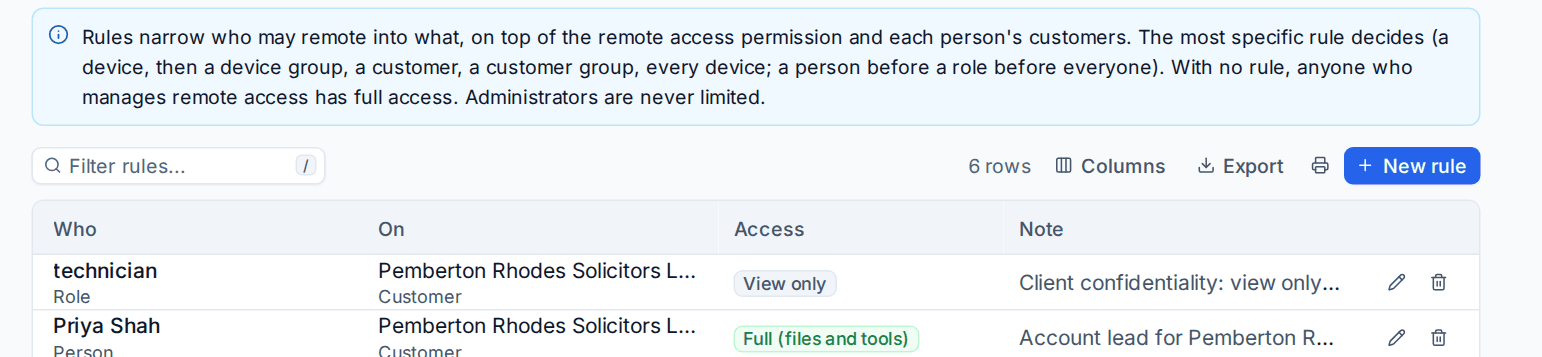
Access levels
| Access | What it allows |
|---|---|
| No access | Nothing: the device cannot be reached by this person. |
| View only | View-only screen sessions. |
| View and control | Screen sessions with control and the clipboard. |
| Full (files and tools) | Control, file transfer and the background tools (terminal, processes, services, event logs, registry). |
Adding a rule
- Click New rule.
- Under Who, choose a Person, a Role or everyone.
- Under On, choose what the rule covers: every device, a customer, a customer group, a device group or one device.
- Choose the Access level.
- Add a Note saying why, for example Client confidentiality: view only unless the account lead says otherwise.
- Save.
Which rule wins
For a technician and a device, Tenvara looks at the matching rules from the most specific target to the least: a device, then a device group, a customer, a customer group, every device. Within a target, a rule for the person comes before a rule for their role, which comes before a rule for everyone. The first level that matches decides; if two rules tie there, the lower access level wins.
- With no rule at all, anyone who manages remote access has full access.
- Administrators are never limited by rules.
- Rules work on top of customer scoping: a technician who cannot see a customer cannot find its devices at all. See Customer groups and scoped access.
Tip: Give the role the narrow level and the named people the wider one. Because a person comes before a role at the same target, the account lead keeps full access while everyone else on the role is held to view only.
Recordings follow access too: watching a recording needs at least View only access to the device.
Related
Was this page helpful?
Thanks for the feedback.