Creating a project
Start a project from scratch, from a template or from an accepted quote, and choose how it is billed and what its budget is.
There are three ways a project starts: you create it by hand (blank or from a template), a customer accepts a quote with one-off work, or an automation rule creates it. Whichever way, you end up with the same project page.
Create a project
You can start a project from:
- Projects with New project (or press
non the project list); - a customer's Projects tab;
- search (Cmd+K), with New project;
- a template's page, with New project from it.
- Choose the Customer.
- Choose a Template, or leave it on Start blank. A template lays out phases, milestones and tasks from the start date, and shows a preview of the plan with each task's date.
- Enter the Name. With a template it starts as the template's name; make it specific, for example "Leaver: Aisha MacDonald".
- Set Starts and Target, and check the Owner (you, to begin with).
- Choose the Site and the Customer contact. The contact is the customer's person for the project: they get milestone sign-off requests and see the project on the portal.
- Choose the Type, such as Onboarding, Microsoft 365 or Office move. Types are your own list in Settings > Projects.
- Choose the Billing and fill in the budget (below).
- Check the Currency and Tax category if this customer is billed differently from usual.
- Add a Description and decide whether to Show on the customer portal.
- Press Create project (or
Cmd+Enter).
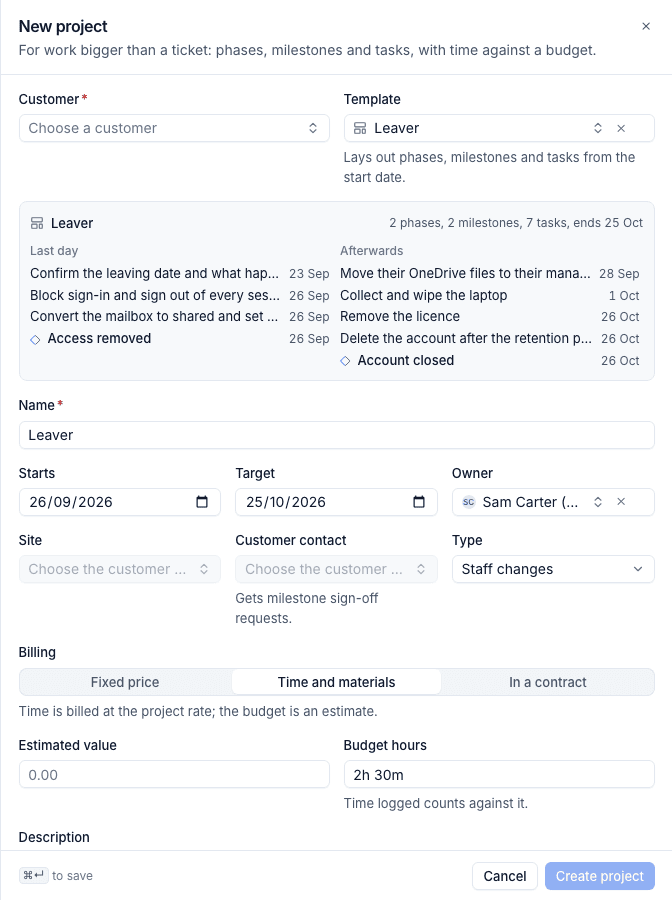
With a template you also see Set the baseline from this plan. Turn it on to save the laid-out plan as the agreed one straight away, so any slip shows from day one. See Time, budgets and billing.
Billing and the budget
Billing decides how the work is charged, and the budget is what the project is measured against.
| Billing | What it means | Budget fields |
|---|---|---|
| Fixed price | One price for the work. Milestones with an amount can bill parts of it as they are reached | Price (before tax) and Budget hours |
| Time and materials | Time logged on the project is billed at the project's hourly rate. The budget is an estimate | Estimated value and Budget hours |
| In a contract | The time counts against the customer's contract and its included hours, like ticket time. The project bills nothing of its own | Budget hours |
In a contract uses the customer's contract in force today unless you choose another one.
Time logged on the project's tasks, and on tickets attached to it, always counts against Budget hours. The hourly rate is the default from Settings > Projects unless you give the project its own (Edit, e). How each kind is billed is covered in Time, budgets and billing.
Note: A project's billing cannot change once it has time logged in an earlier month, or once a milestone has been invoiced. That keeps invoices you have already issued the same.
From an accepted quote
When a customer accepts a quote, its one-off work can become a project on its own.
- On the quote, open Edit details (
e) and choose a template under Project when accepted, or leave A plain project, no template. - Send the quote as usual.
When the customer accepts it:
- the project is created for the customer, laid out from the template if you chose one;
- the budget is the one-off total of the quote before tax, and the budget hours come from the template or from labour lines sold by the hour;
- the project is Fixed price at the price quoted, or, if Settings > Proposals says to bill the one-off work as time worked, Time and materials with the quote as the estimate;
- the owner is the quote's owner;
- the quote and the project link to each other, and recurring lines still go onto the customer's contract.
For a brand new customer the onboarding ticket is still raised, and the project is made as well when the quote has a template. What acceptance does is set in Settings > Proposals under When a quote is accepted; see Acceptance and what happens next.
From automation
The Create a project action in an automation rule makes a project from a template when something happens, for example a new starter request. It takes a name (placeholders allowed), the customer (else the trigger's), an owner, how many days from now it starts and whether it begins Planned or Active. See Project reports and status summaries for the project triggers and actions.
Changing and removing a project
- Edit (
e) changes the name, dates, owner, site, contact, type, billing, budget, rate and portal visibility. - Change the status from the status button at the top, or press
.. - A project can move to another customer only while it has no time, tickets or task links.
- Delete is only offered while no time has been logged. Once time exists, set the project to Cancelled instead.
- Save as a template in the ... menu makes a new template from the project's phases, milestones and tasks.
Related: Phases, tasks and dependencies, Project templates.
Was this page helpful?
Thanks for the feedback.