Terminology, numbering and email templates
Call things what your business calls them, choose how ticket, quote, project and purchase order references look, and change the wording of every email Tenvara sends.
Three Settings pages make Tenvara sound like your business: Terminology for the words, Numbering for references, and Email templates for every email. Only administrators can change them.
Terminology
Settings > Terminology swaps the main nouns for the words your team and customers use. The change reaches everything people read: the app, the customer portal, emails and PDFs, in singular and plural, with "a" or "an" put right ("an incident").
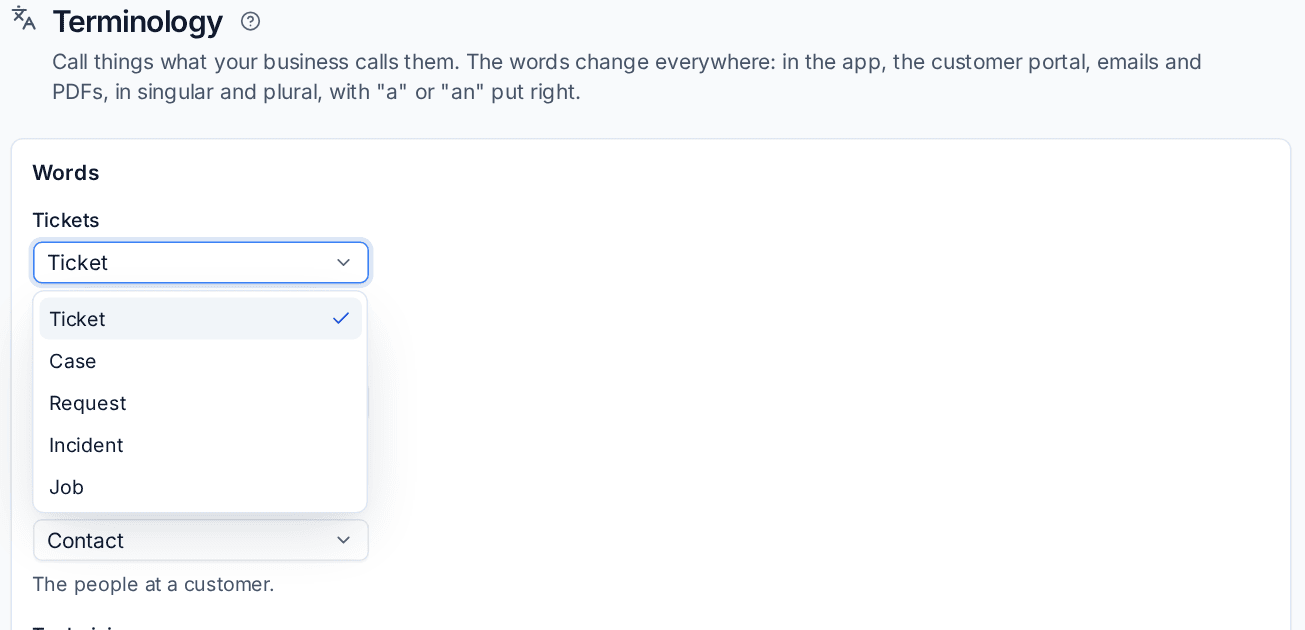
| Word | Choices |
|---|---|
| Tickets | Ticket, Case, Request, Incident, Job |
| Customers | Customer, Client, Company, Account, Organisation, Department |
| Contacts | Contact, User, End user, Employee, Person |
| Technicians | Technician, Engineer, Agent, Analyst, Consultant |
| Sites | Site, Location, Office, Branch |
| Contracts | Contract, Agreement, Plan, Subscription |
| Projects | Project, Job, Engagement, Programme |
| Quotes | Quote, Proposal, Estimate, Quotation |
| Devices | Device, Asset, Endpoint, Machine, Computer |
| Invoices | Invoice, Bill, Statement |
| Queues | Queue, Board, Desk, Inbox |
| Opportunities | Opportunity, Deal, Lead, Prospect |
| Teams | Team, Group, Squad, Pod |
- Go to Settings > Terminology.
- Under Words, choose a word for each noun you want to change.
- Press Save. The How it reads card shows example sentences with your words.
Names are never touched: a customer called "Ticket Masters" keeps its name. Phrases that must stay as they are, such as "contact us", Microsoft Teams, SharePoint team sites and print queues, are left alone.
Module names
Under Module names you can rename each main section of the app as it appears in the side rail, its menu title and the command palette, for example "Service desk" for Tickets. Leave a box empty for the built-in name. The old name still works as a search word in the command palette.
Note: Terminology applies to English. In French, German, Spanish and Dutch, Tenvara uses its own translations. See Languages.
Numbering
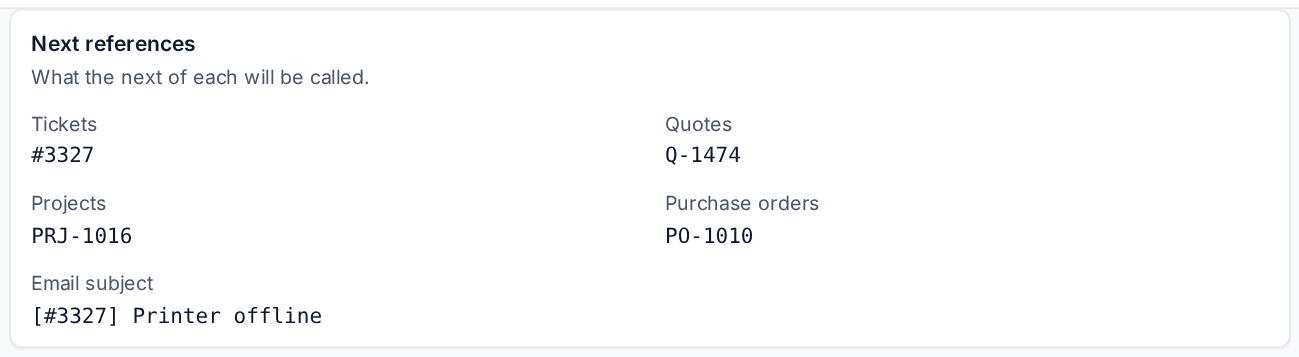
Settings > Numbering decides how references are written and where each sequence carries on from, for Tickets, Quotes, Projects and Purchase orders.
For each kind:
- Prefix: written before the number, for example
#,Q-,PRJ-orPO-. - Minimum digits: pads short numbers with zeros, so 6 digits writes 1042 as
001042. 0 writes numbers as they are. - Next number: where numbering carries on from. It can only move forward, so a number is never given twice.
For tickets there are two more:
- Email subject token: put in the subject of every email about a ticket so replies find it, for example
[{reference}]. It must include{reference}. - Ticket reference format: Prefix and number (
#1042), Year and number (2026-1042), Year, month and number (202610-1042) or Date and number (261001-1042). A ticket type can have a format and sequence of its own in Ticket setup.
The Next references card at the top shows what the next of each will be called.
Tip: Changing a prefix or subject token is safe. Tenvara remembers every earlier one, so replies to emails sent before the change still find their ticket, and search finds a reference written either way.
Invoice and credit note numbers are set on Settings > Invoices, because they are taken when an invoice is issued and can restart each year. See Invoices and credit notes.
Email templates
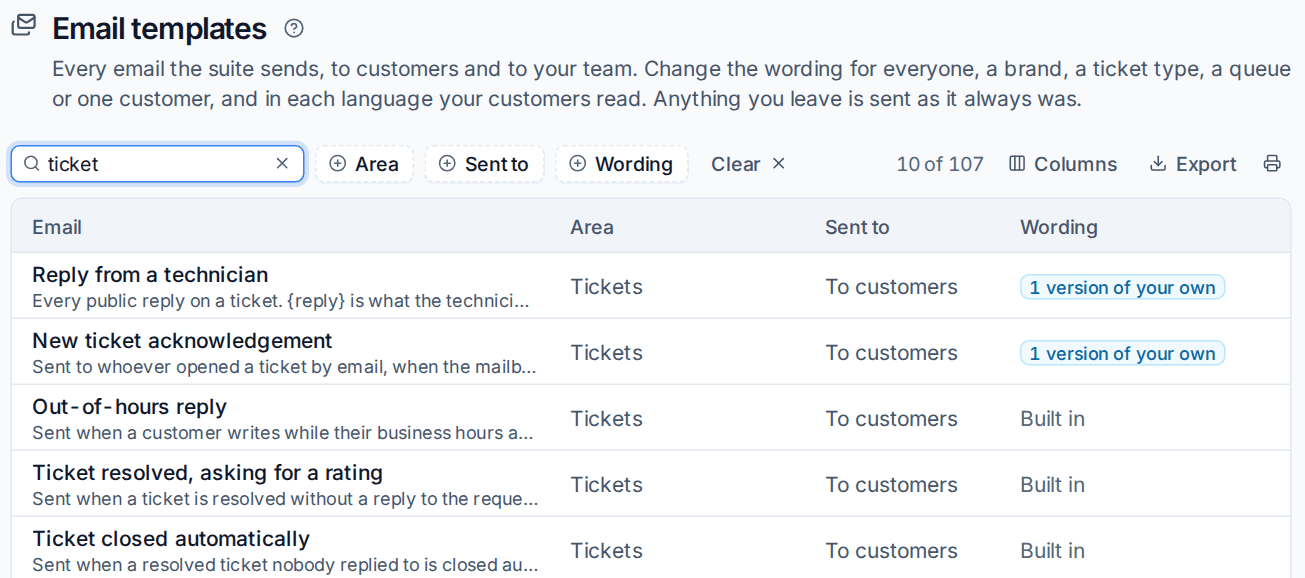
Settings > Email templates lists every email Tenvara sends, to your customers and to your team, in ten areas: signing in and accounts, the customer portal, tickets, the service desk, billing, sales and quotes, projects, scheduling, reports and staff notices. Search and filter by Area, Sent to and Wording. The Wording column says Built in or how many versions of your own an email has. A padlock marks system emails, such as sign-in links and password resets, which must keep their link or code.
Change an email's wording
- Open the email from the list.
- Under Wording for, choose who this version is for: Everyone, or one brand, ticket type, queue or customer.
- Under Language, choose Any language or one language.
- Edit the Subject and Message. Click a placeholder under Placeholders to put it where the cursor is. Required placeholders must stay.
- Check the Preview on the right: Wide or Phone, Light, Dark or Plain text, filled in with made-up values.
- Press Send a test to me to see the real thing in your inbox.
- Press Save as this version.
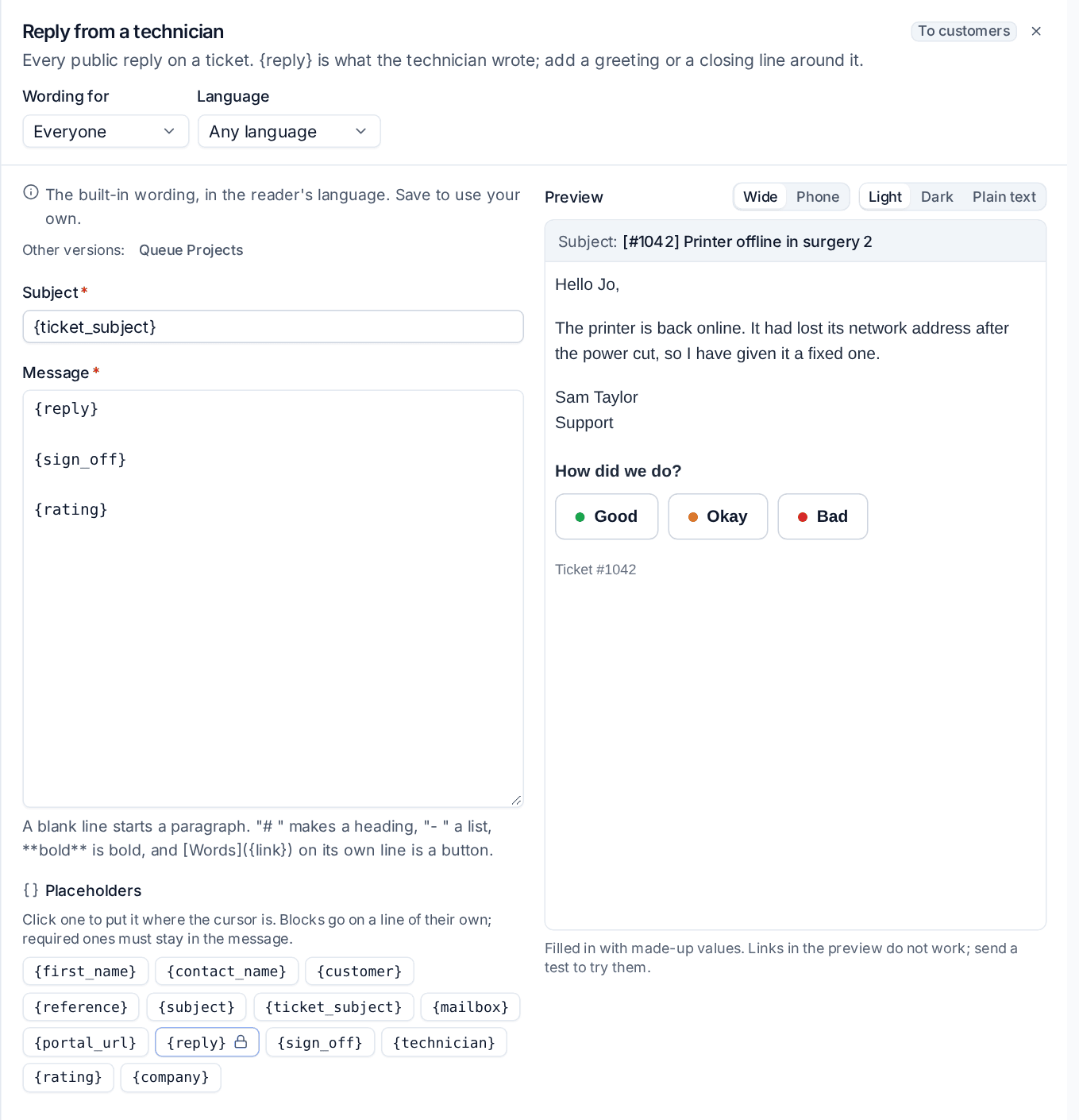
Wording is plain text: a blank line starts a paragraph, # makes a heading, - a list, **bold** is bold, and [Words]({link}) on its own line becomes a button.
Which version is sent
Tenvara picks the most specific version: the customer's, then the ticket type's, then the queue's, then the brand's, then everyone's. At each level it uses the version in the reader's language if there is one. Anything you have not changed is sent with the built-in wording.
A customer's Settings tab lists the emails that customer has its own wording for, and opens the editor at that customer's version. To go back to the built-in wording, reset the version from the editor.
Note: A few parts are kept outside the wording so they cannot be removed by accident: the ticket reference in ticket email subjects, the rating buttons on a reply that resolves a ticket, and the unsubscribe line on status page emails.
Some emails already have wording set elsewhere, such as a mailbox's own acknowledgement, the out-of-hours reply or invoice emails. The editor shows that wording and links to where it is set. Every save and reset is in the audit log.
Related
Was this page helpful?
Thanks for the feedback.