Integrations and the API
The integrations directory, IT Glue and Hudu two-way sync, backup and security vendor connections, signed webhook subscriptions, API tokens, rate limits and the developer reference.
Settings > Integrations is where Tenvara meets your other tools. It is for administrators. The tabs are:
- Directory: every outside service Tenvara works with, and its state.
- Alert sources: monitoring tools that send alerts in. See Webhook triggers and inbound alerts.
- Connectors: IT Glue, Hudu, Datto BCDR, Cove and Veeam.
- Webhooks: subscriptions that send Tenvara's events out to other systems.
- API and limits: rate limits for the API, webhook retries and how long logs are kept.
- Datasets: other tools' figures for the report builder. See Data from other tools.
Every integration connects with your own account at the other vendor, using credentials you create there. Secrets are stored encrypted and never shown again.
The directory
The Directory lists every outside service in groups (Microsoft 365, chat, notifications and paging, alerts from other tools, documentation, backup, security, accounting, payments, distributors and the API). Each card shows whether it is Connected, Available or Needs attention, a line of detail such as how many tenants, channels or sources it has, Manage or Set up to go straight to its settings, and Docs.
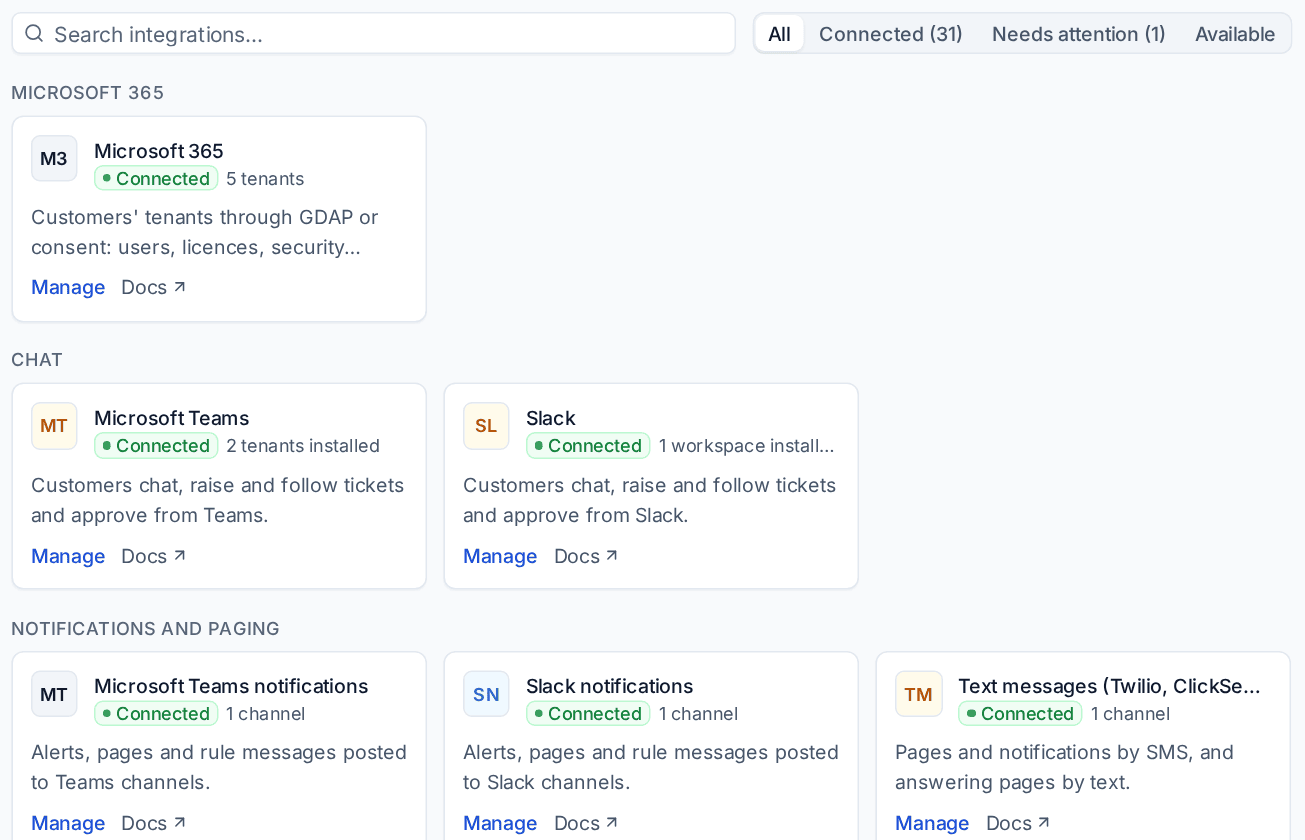
Filter to Connected, Needs attention or Available. A connection that can no longer sign in shows Needs attention with the reason.
IT Glue and Hudu
Connect IT Glue or Hudu to keep each customer's documents in step with Tenvara's documentation, in both directions. You need:
- IT Glue: your Region and an API key (Account > Settings > API Keys in IT Glue).
- Hudu: your Hudu address (for example https://yourcompany.huducloud.com) and an API key (Admin > API Keys in Hudu).
To connect:
- Go to Settings > Integrations > Connectors and click Set up on IT Glue or Hudu.
- Enter the details and click Test the credentials.
- Choose the Direction: both ways, into Tenvara only, or out to the vendor only.
- Choose what happens When both sides changed since the last sync: newest wins (the default), Tenvara always wins, or the vendor always wins.
- Choose whether articles that arrive from the vendor are published to the portal straight away or kept as drafts, and whether new Tenvara articles are pushed out.
- Save, then click Sync now.
Each sync reads the vendor's organisations and matches them to customers by name; match the rest by hand on the Organisations tab, or ignore one. For each matched customer, a document new on one side is created on the other, and a change on one side only is copied across. Conflicts are settled by your rule and listed on the run. Nothing is ever deleted on either side.
It syncs every hour by itself. Each sync is listed on Syncs with its counts, conflicts and errors.
Note: Moving your documentation into Tenvara for good is a one-off import, covered in Importing from IT Glue and Hudu. The connector here is for keeping both in step while you use both.
Backup and security vendors
- Datto BCDR, Cove Data Protection and Veeam connect on the same Connectors tab with your own vendor account. Tenvara reads what each protects and how its last backup went, raises alerts for failed or missed backups, and counts seats and storage for billing. See Data from other tools.
- SentinelOne, Huntress and Microsoft Defender for Endpoint connect in the security settings with your own console's API credentials. See Security integrations and alerting.
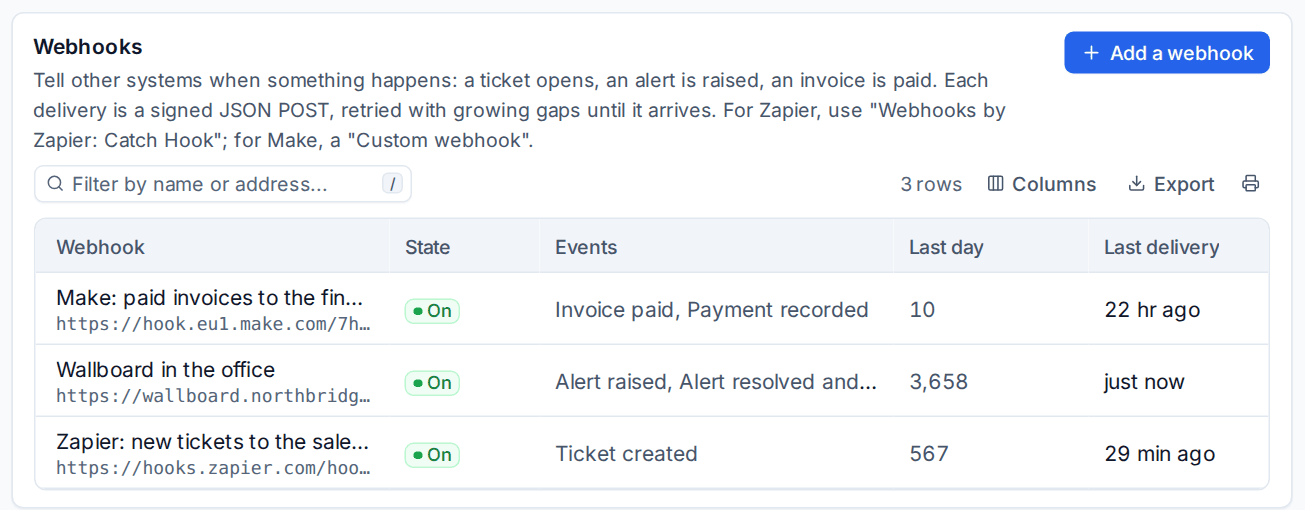
Webhook subscriptions
A webhook subscription tells another system when something happens in Tenvara, as a signed JSON POST.
- Go to Settings > Integrations > Webhooks and click Add a webhook.
- Enter a Name and the Address: a public https address that answers with a 2xx within the time-out.
- Choose the Events, or Every event, including ones added later.
- Click Add the webhook.
- Copy the signing secret now: it is shown once. New signing secret makes another.
| Group | Events |
|---|---|
| Tickets | Ticket created, Ticket updated, Ticket replied to, Customer replied |
| Alerts | Alert raised, Alert resolved |
| Billing | Invoice issued, Payment recorded, Invoice paid |
| On-call | On-call paged, Page acknowledged |
| Customers and devices | Customer added, Device enrolled |
Each delivery carries the event, a delivery id (send the same delivery twice and the id is the same, so you can ignore repeats) and the data, with a link to the record in Tenvara. Money is in minor units with its currency. A signature header carries the time and an HMAC SHA-256 of the time and the body, made with the signing secret. Check it, and refuse anything more than five minutes old. The developer page has the header names and a copyable example.
Retries and the delivery log
Anything other than a 2xx in time is tried again after 1, 5, 30, 120 and 720 minutes. After 50 failures in a row the subscription is switched off and the administrators are told; Turn on again when the other end is fixed. Each subscription lists its Deliveries with the payload, the answer and how long it took. Send again repeats one, and Send a ping checks the address.
Tip: For Zapier, use "Webhooks by Zapier: Catch Hook" as the address; for Make, a "Custom webhook". To go the other way and start something in Tenvara, point the Zap or scenario at a rule's webhook trigger.
The API
Everything the Tenvara app does goes through its REST API, so other software can do the same.
API tokens
- An administrator makes tokens for integrations under API tokens in Settings > Sign-in.
- Anyone can make a personal token for their own scripts in their own security settings.
A token is shown once. It has scopes (read, write, one area at view or manage, or admin), an optional list of addresses it may be used from, and an expiry. It acts as its person, limited to its scopes, and never does more than that person can at that moment. See Sessions, IP allowlists and API tokens.
Send the token as a bearer token: Authorization: Bearer <your token>.
Rate limits
Each token may make 120 requests a minute plus a burst of 30, by default. Change both in Settings > Integrations > API and limits. Every answer carries X-RateLimit-Limit, X-RateLimit-Remaining and X-RateLimit-Reset; over the limit, the answer is 429 with Retry-After.
The same tab sets webhook retries and time-out, how long logs are kept and how often connectors sync.
The developer page
Open Developer from the search (Cmd+K, "Developer: API reference") or the Developer page link on API and limits. Anyone signed in can use it. It shows your base address, how to authenticate, the rate limit, how to check a webhook signature, every webhook event, and the full reference: every operation grouped by area, searchable, with its parameters, request body and answers. Download openapi.yaml for the complete contract.
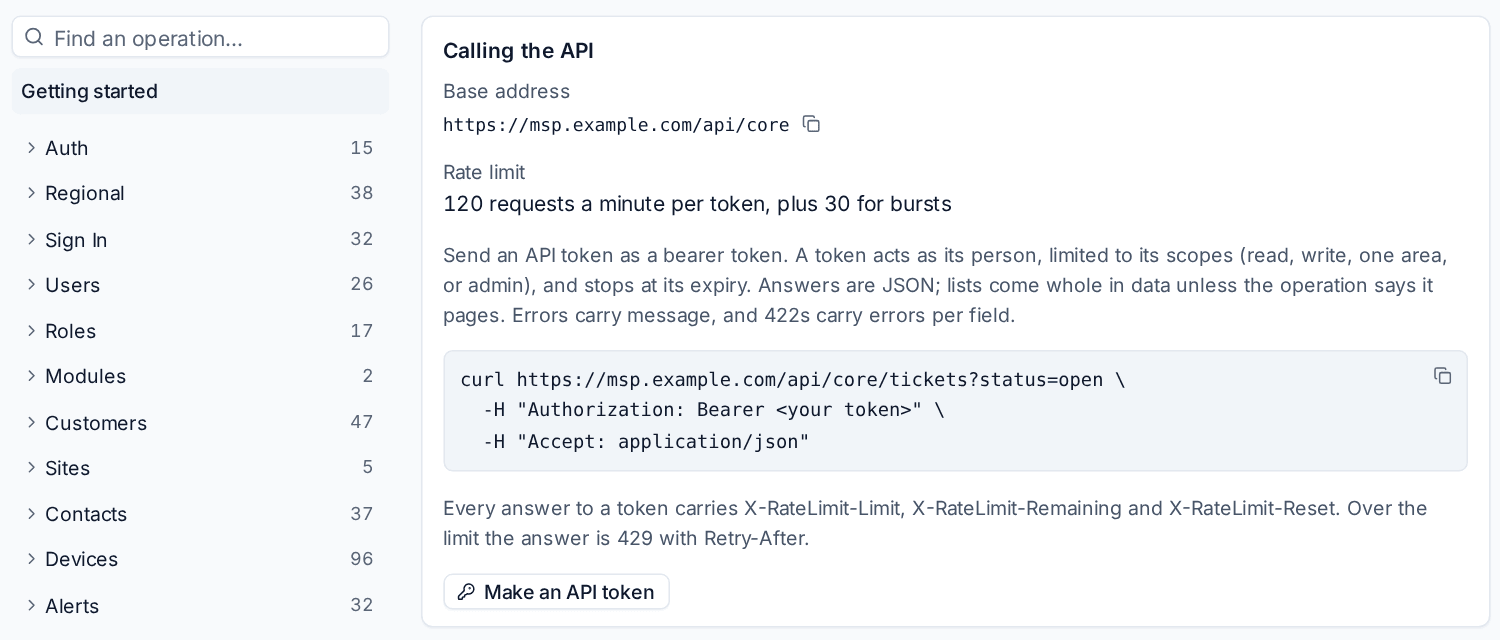
The reference always matches the version you are running.
Was this page helpful?
Thanks for the feedback.