Settings and security
The app's settings, locking the Tenvara app with Face ID or your fingerprint, how your sign-in and secrets are protected, and signing out.
On a phone, Settings is under More. On a tablet it is at the bottom of the rail.
What Settings shows
- Signed in: your name, your work email and your role, such as Administrator or Technician.
- Server: the name and address of the Tenvara server the app is connected to, and its version.
- App:
- Appearance: light or dark.
- Security: the app lock (see below). The row says whether it is on.
- Sync: changes waiting to be sent, and any conflicts. See Working offline and sync conflicts.
- About: the version of the app, for example Version 1.1.0. Quote it when you contact support.
- Account: Sign out.
Lock the app with Face ID or your fingerprint
Your phone may be in a van, on a customer's desk or in a colleague's hand. The app lock makes sure nobody else can open Tenvara on it.
- Open Settings > Security.
- Turn on Unlock with Face ID (on Android, your fingerprint).
- Confirm with Face ID or your fingerprint when the phone asks.
From then on, the app locks when you leave it, and opens again with Face ID or your fingerprint when you come back. The locked screen says Tenvara is locked, with your name and server, and a button to unlock and carry on where you left off. Sign out on the same screen signs you out instead.
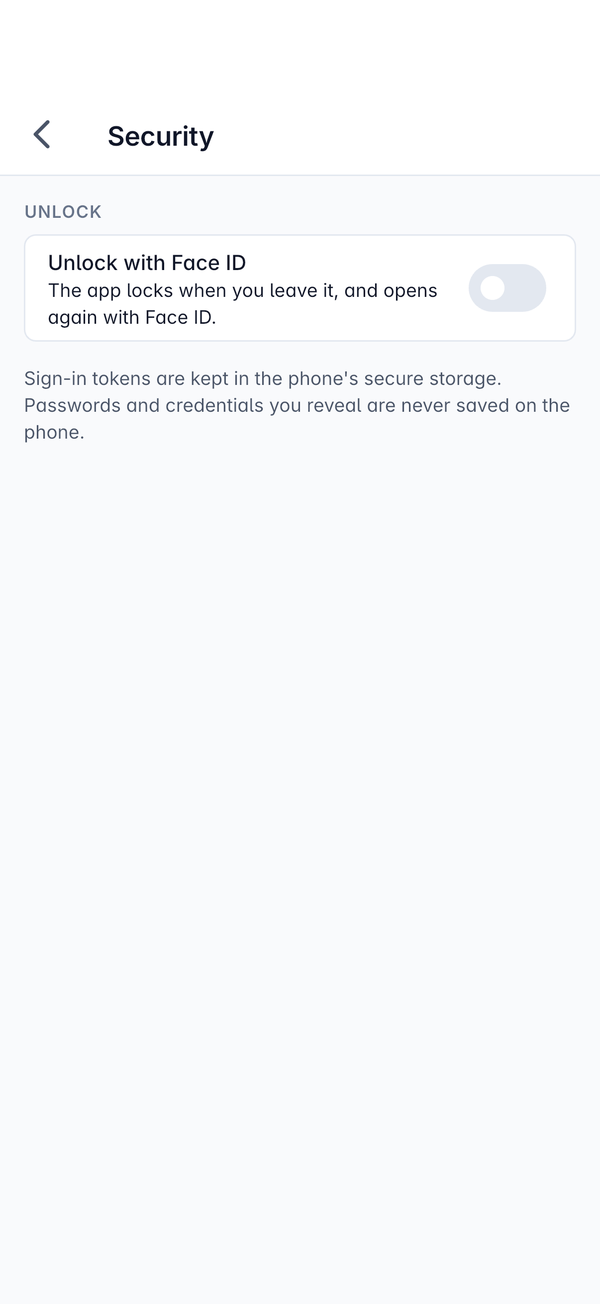
Revealing a password in Docs also checks it is you with Face ID or your fingerprint.
How your sign-in and data are protected
- Your sign-in is kept in the phone's secure storage: the Keychain on iPhone and iPad, and the Keystore on Android. Other apps cannot read it.
- Passwords and credentials you reveal are never saved on the phone. They are fetched from the server each time and hidden again after a short time.
- Every reveal, copy and two-factor code is recorded in the vault audit log, with your name and the time. See Reviews and the vault audit log.
- The same rules as the web: your role, permissions and two-factor apply in the app exactly as they do in the browser. If an administrator deactivates your account, the app is signed out too.
Signing out
- Open Settings.
- Check Sync says Everything is synced, so nothing you did offline is left behind.
- Under Account, press Sign out.
Signing out ends your session on the server, not just on the phone, and removes your sign-in from the phone. The next person to open the app has to sign in with their own account.
If you lose your phone
Tell an administrator straight away. Changing your password on the web signs you out everywhere else, including the app on the lost phone, and an administrator can deactivate an account if needed. See Signing in and Users.
Was this page helpful?
Thanks for the feedback.