Docs and credentials
Read knowledge base articles and customer records on your phone, and reveal or copy a password or two-factor code from the vault, with every reveal audited.
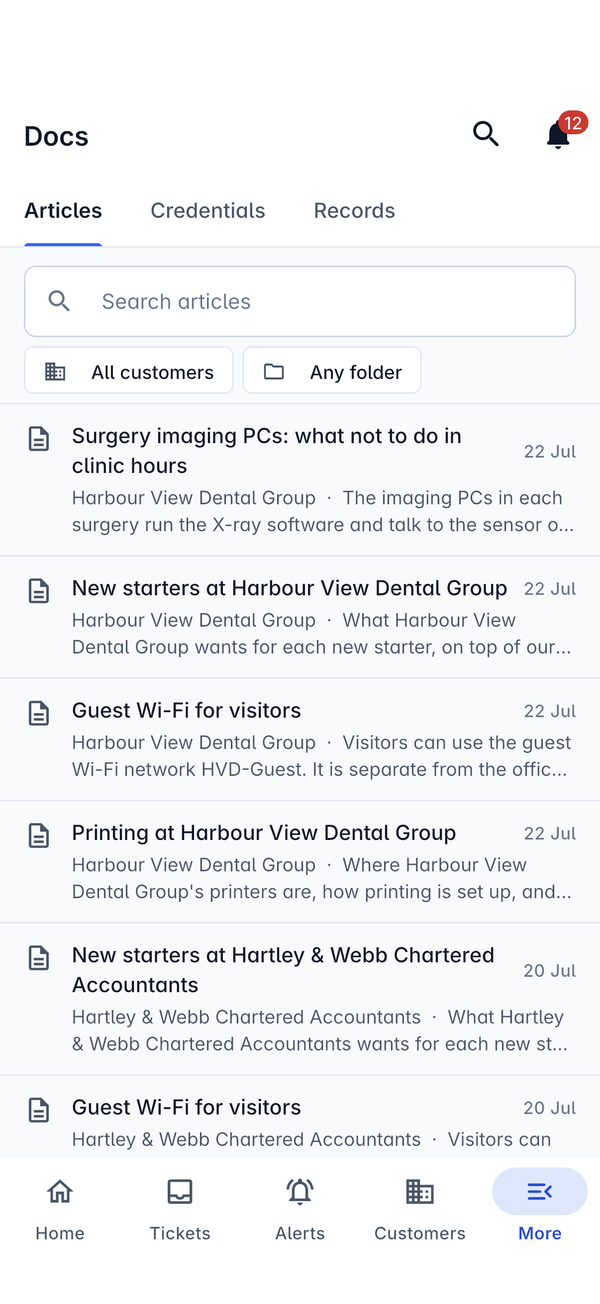
Docs (under More on a phone) has three tabs: Articles, Credentials and Records. It is the same documentation your team keeps on the web, so the steps for a customer's odd printer or the admin password for their firewall are with you on site.
Articles
Articles lists your knowledge base, newest first. Type in Search articles, and narrow the list with All customers (pick one customer) and Any folder. Each article shows its customer, a line from the start of it and when it was last updated.
Tap an article to read it. The top shows its folder, its title, its tags, On the portal when customers can see it too, and who last updated it and which version it is. Articles show with their headings, numbered steps, links and pictures, as on the web.
Records
Records holds the structured records your team fills in from templates on the web, such as VLANs, Wi-Fi networks, suppliers and alarm codes. Open a record to read its fields. See Customer documentation and records.
Credentials
Credentials lists the vault entries you are allowed to see. Type in Search by name, username or address, or pick a customer with All customers. Each entry shows its name, customer and username; passwords are never shown in the list.
Tap an entry to open it. The top shows the customer, the name, its tags and when the password was last changed, with:
- Open: opens the sign-in address in your browser;
- Copy username;
- the customer's name, which opens the customer.
Sign-in lists the Username, the Address and, hidden until you ask, the Password and the Two-factor code.
Reveal or copy a password
- Tap the eye beside Password. The app checks it is you with Face ID or your fingerprint first.
- The password shows for a short time, with a countdown (Hides in 26s), then hides itself.
- Tap the copy button to copy it instead of reading it out.
Two-factor codes
When the entry holds a two-factor key, tap the eye beside Two-factor to show the current six-digit code. The ring beside it counts down to the next one, and the copy button copies it, so you can sign in to the customer's service from your phone without their authenticator.
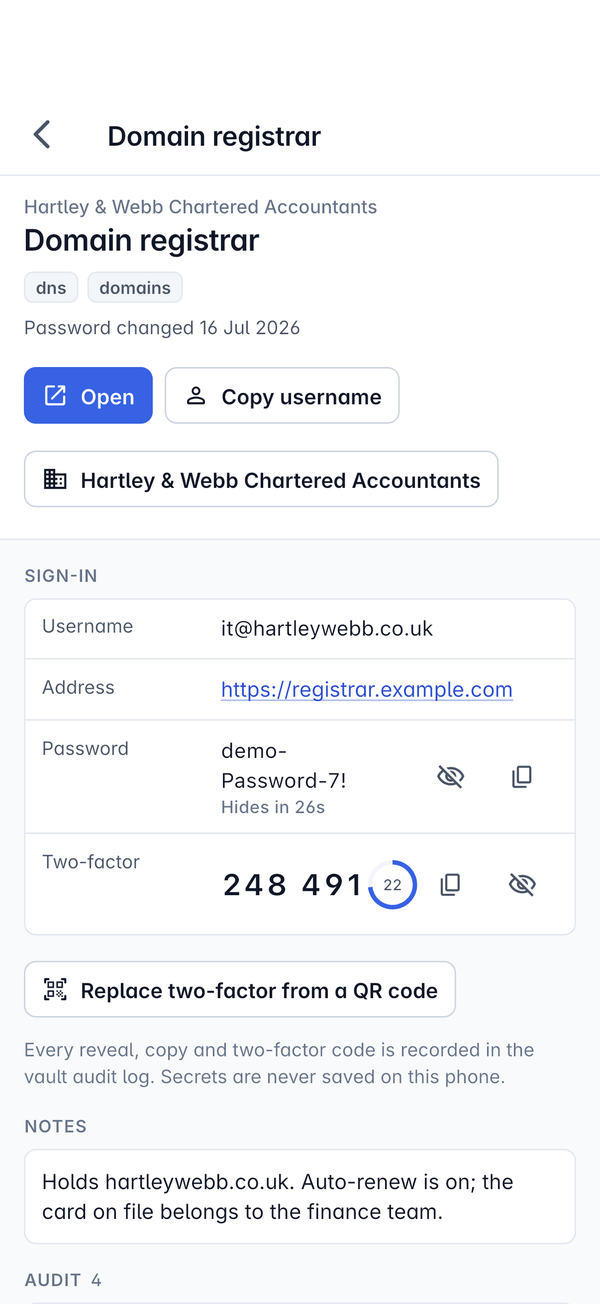
Under the sign-in details are the entry's Notes and its Audit list.
What is recorded, and what is never kept
- Every reveal, copy and two-factor code is recorded in the vault audit log, with who did it and when, just like on the web. See Reviews and the vault audit log.
- Passwords and codes are never saved on the phone. The app fetches them from the server each time you reveal one, so revealing needs a connection, and nothing secret is left behind if the phone is lost.
- You only see the credentials your role allows.
For how the vault works, see The credentials vault.
Was this page helpful?
Thanks for the feedback.