Invoices and credit notes
Make and edit a draft, issue it with the next number, send it, record payments, and correct an issued invoice with a credit note or by voiding it.
Most invoices come from the monthly invoice run, but you can make one by hand at any time, for example for a one-off job or a customer who asked for an invoice early. Either way, every invoice goes through the same steps: a draft you can change, an issued invoice with a fixed number, and payments or credits against it.
Make an invoice by hand
- Go to Invoices and press New invoice (or New invoice in the customer's Invoices section).
- Choose the Customer.
- Check the Currency. It is the customer's own unless you choose another.
- Enter their Reference, for example their purchase order number.
- Turn on Prices include tax if the prices you type include tax.
- Press Create draft.
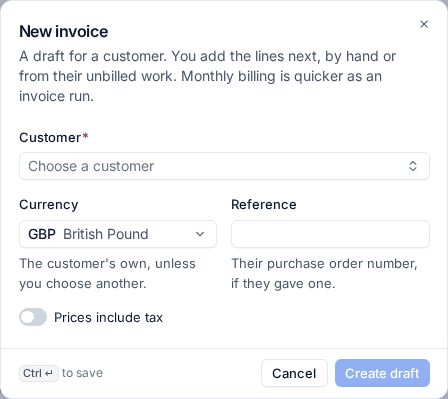
Then add the lines on the draft:
- Add line for something typed in: a description, quantity, unit price, discount and tax category.
- Add unbilled work to pick from the customer's work that is not on an invoice yet: contract months, time, expenses and the rest. Anything you add here is marked as billed, so the next invoice run leaves it alone.
Press Save lines when you are done. Tax is worked out per rate on the total, exactly as it will be on the issued invoice, and the totals update as you type.
The invoice page
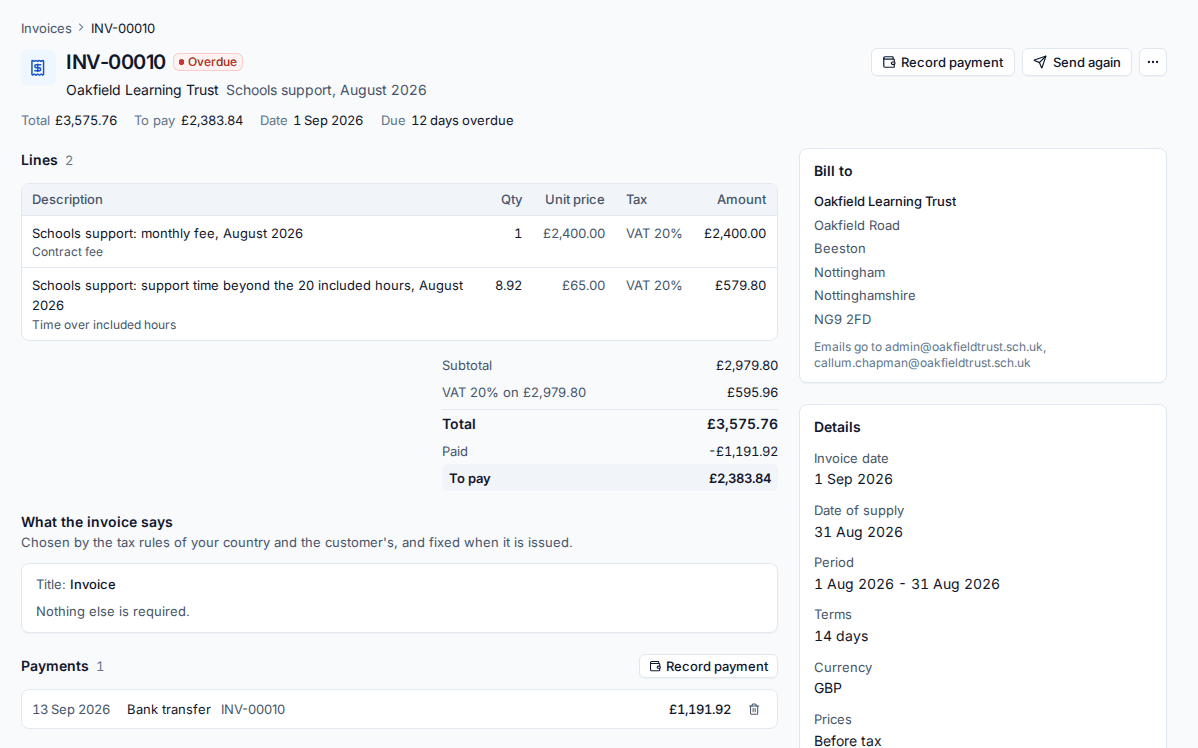
The invoice page shows the lines, the totals with tax per rate, What the invoice says (the title and any notes the tax rules require, such as a reverse charge note), Payments, Credit notes and the Activity: drafted, approved, issued, sent, viewed, paid. The side cards show who it is billed to and where the emails go, and the Details: dates, terms, currency, and the contract and invoice run it came from.
On a draft, Edit details changes the Invoice date, Date of supply (the tax point), Payment terms, Reference, Currency and Notes printed under the lines.
Approve and issue
- Press Approve once the draft is right. Back to draft undoes it.
- Press Issue. Choose the Invoice date (today by default) and whether to Email it now.
Issuing gives the invoice the next number, fixes its wording, tax and totals, and freezes your details and the customer's as they are that day. An invoice in another currency also records its total in your base currency at that day's reference rate.
Numbering
Numbers are given only when an invoice is issued, in order and never reused, so there are no gaps. Set them in Settings > Billing > Invoices under Numbering:
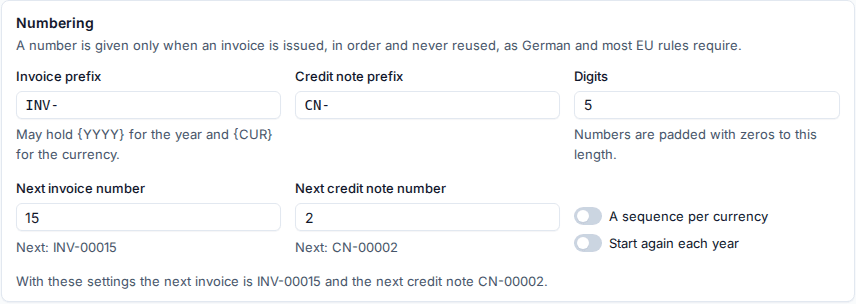
- Invoice prefix and Credit note prefix (
INV-andCN-by default). A prefix can hold{YYYY}for the year and{CUR}for the currency. - Digits: numbers are padded with zeros to this length.
- Next invoice number and Next credit note number, for when you move from another system.
- A sequence per currency and Start again each year, both off by default.
Send it
Press Send (or Send again). Check To, add anyone in Copy to and an optional Message. The email goes in the customer's language with the PDF attached and a link to view and pay the invoice online without signing in. Download PDF saves a copy.
Where invoices go is set per customer: open the customer, find the Invoices section on Contracts and time and press Billing details. Set the Billing email addresses, the Contacts who get invoices, their Payment terms, a Standing purchase order number and whether to Send payment reminders.
Record a payment
Card and Direct Debit payments taken online, and payments your accounting package records, appear on the invoice by themselves. For a bank transfer:
- Press Record payment.
- Enter the Amount and the Date.
- Choose How it was paid (bank transfer, card, Direct Debit, cash, cheque or other).
- Add the Reference as it shows on the bank statement.
- Save. The invoice becomes Part paid or Paid.
A payment recorded by mistake can be removed from the Payments list.
Correct an issued invoice
An issued invoice never changes. To correct one, credit it or void it.
Credit note
- Open the invoice and choose Credit... from the More actions menu.
- Choose Everything not yet credited, or Some lines and the quantity of each to credit.
- Enter a Reason. It is printed on the credit note.
- Press Issue credit note.
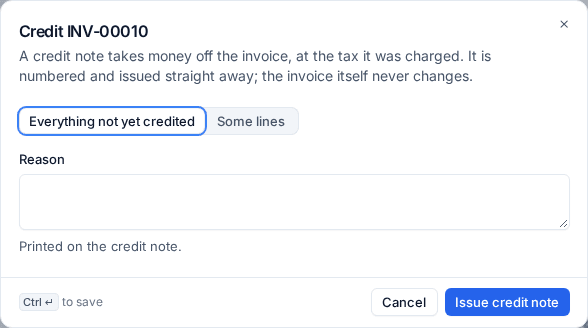
The credit note is numbered and issued straight away, at the tax each line was charged, and takes money off the invoice's balance. If the customer had already paid, record the refund on the credit note when you pay it back. A credit note does not free the work it credits to be billed again: it is a decision about money, not a reason to invoice the work twice.
Void
Choose Void invoice from the More actions menu and give a reason. A void invoice stays on record and its number is never used again, and the work it billed is free to go on another invoice. An invoice with payments cannot be voided until they are removed or refunded; credit it instead.
A draft is simply deleted with Delete draft, and its work goes back to unbilled.
Note: Invoices in another currency show their total in your base currency too, using the European Central Bank reference rate on the issue date. That figure never changes afterwards.
Related
Was this page helpful?
Thanks for the feedback.