Regional formats and time zones
Date and number formats, the 12 or 24 hour clock, week start, distances and addresses, and which time zone Tenvara uses for SLAs, visits, maintenance windows and your own screen.
How dates, times, numbers and money are written, which day a week starts on and which clock a time is on are settings for the install, each person, each customer and each site.
Formats
| Setting | What it changes | Example |
|---|---|---|
| Dates and numbers | The locale dates, times, numbers and money are written in | 27/09/2026 and 1,234.56 in English (United Kingdom); 09/27/2026 in English (United States); 27.09.2026 and 1.234,56 in German (Germany) |
| Clock | 24 hour or 12 hour | 14:05 or 2:05 PM |
| Week starts on | The first day of the week in calendars, the schedule and date pickers | Monday or Sunday |
| Distances | Miles or Kilometres, for mileage and site distances |
Dates and numbers accepts any locale, not just the six languages: English (Ireland), English (Australia), French (Switzerland) and so on. Date and time fields you type into follow these formats too.
Set them for the install
- Open Settings > Regional > General.
- Under Language and formats, set Dates and numbers, Time zone, Week starts on, Clock and Distances.
- Save. The How the suite reads for you box at the top shows the result.
Set your own
In Settings > Profile > Language and formats, set Dates and numbers, Time zone, Clock and Week starts on. Each shows "Using the default for the install" until you choose.
Set a customer's
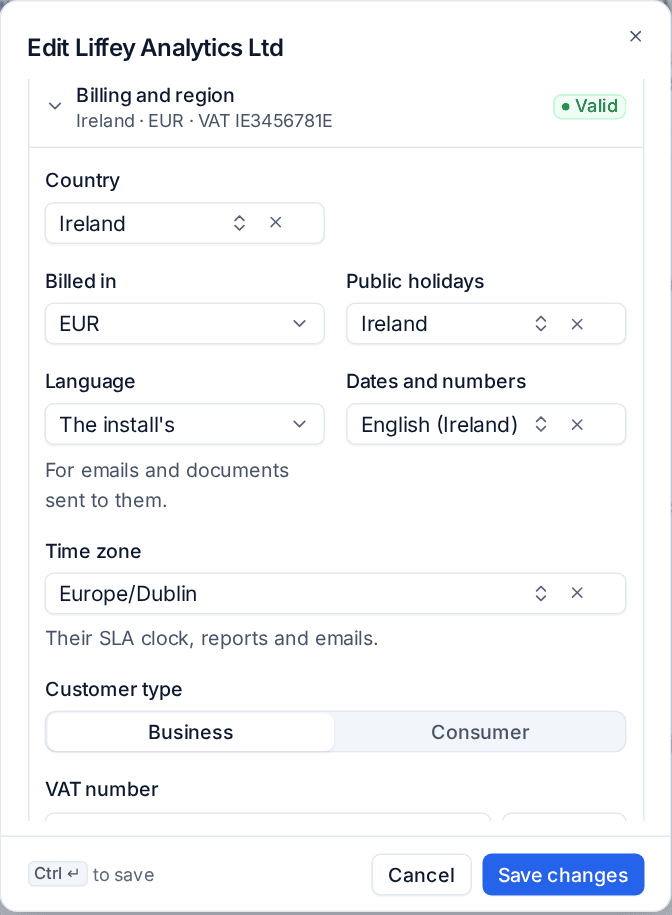
In the customer's Billing and region section, set Dates and numbers and Time zone. Their emails, PDFs and portal use them.
Which time zone applies
| What | Time zone used |
|---|---|
| What you see on screen | Your own time zone, else the install's |
| A customer's SLA clock, reports and emails | The customer's time zone, else the install's |
| A site visit, its confirmation emails and reminders | The site's time zone, else its customer's, else the install's |
| Maintenance windows, patch windows and script schedules | The device's site or customer time zone, else the install's. Patch windows can run in each device's own time zone |
| On-call rotas and automation schedules | The install's |
| Quiet hours | The person's own |
| Business hours calendars | The calendar's own time zone |
When a visit is somewhere with a different clock, the schedule, dispatch board and visit lists show your time with the site's beside it, for example "14:00, 09:00 local". Hover to see the place and time zone. Your notifications about the visit are in your time zone, with the site's time beside it.
Tip: If you work in a different time zone from your computer's, set your own Time zone in your profile. The schedule, "now" line, today's date and every date and time field then follow it rather than the browser.
Sites in other countries
On the site form, the country comes first, then the address fields in that country's order and with its labels (Postcode, ZIP code, Postal code, PLZ), with a state or province list for the United States, Canada and Australia.
- Look up beside the postcode fills in the town and region, and offers a choice when a postcode covers several places. It works for the UK, the United States, Germany, Australia, France, Spain, the Netherlands, Canada and more.
- Time zone and Public holidays show "Follows the customer" for a site in the customer's country. A site abroad takes its country's defaults, which you can change.
Addresses are written in each country's format everywhere they appear: the sites list, the site page, visit emails, calendar invites and the portal.
Distances and mileage
Distances sets miles or kilometres. Mileage rates, bands and the tax year come from your country and can be changed in Settings > Scheduling > Expenses: see Expenses and mileage. A claim keeps the unit it was entered in, so changing the unit later never changes an old claim.
Related: Languages, Public holidays and business calendars.
Was this page helpful?
Thanks for the feedback.