Change management
Plan changes to customers' systems, assess the risk, get approval from your team and the customer, check the change calendar for clashes, then run and review them.
A change is planned work on a customer's systems: a firewall swap, a server restart, a DNS record or a Conditional Access policy. Tenvara records what will happen, why, what could go wrong and how to undo it, gets it approved by your team and the customer, warns you about clashes, and keeps a review afterwards. Changes are numbered CHG-1, CHG-2 and so on, and live under Changes in the tickets sidebar.
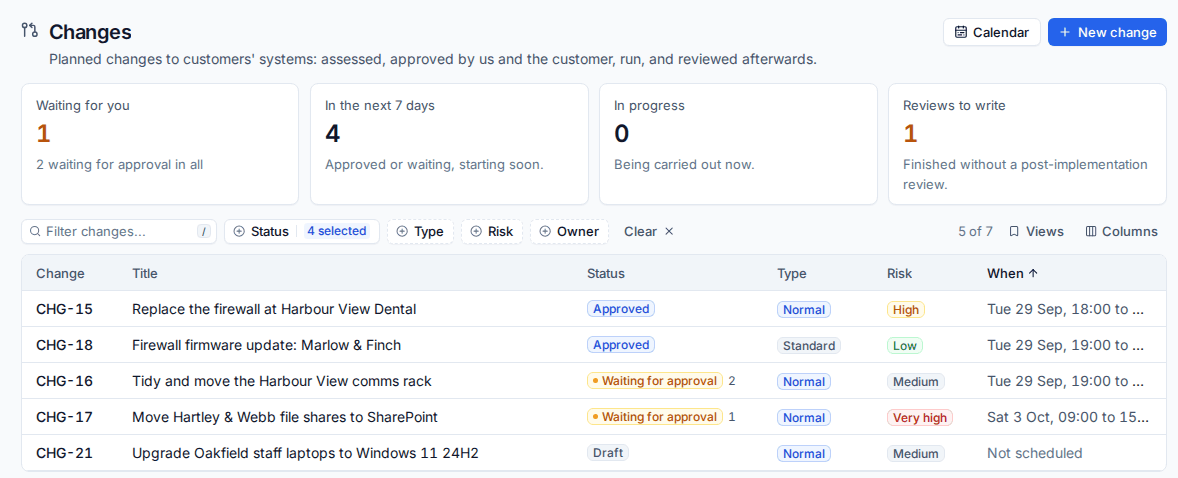
The cards at the top show what is Waiting for you to approve, what starts In the next 7 days, what is In progress and which Reviews to write.
Write a change
- Press New change on Changes or the Change calendar. You can also raise one from a ticket (Raise a change in its Related section or menu) or from the command menu (Cmd+K).
- Pick a Template to fill in the plans, or Start blank.
- Enter a Title: what is changing, in a few words.
- Choose the Type:
- Standard: a repeatable, low-risk change from a template, approved in advance,
- Normal: planned, assessed and approved before it runs,
- Emergency: needed now, with a shorter approval.
- Set the Risk and Impact (Low, Medium or High). Tenvara shows the Rating, from low to very high.
- Write the Risk and impact assessment: what could go wrong, who would notice and for how long.
- Set when it Starts and Ends.
- Choose the Customers affected, or Every customer for your own systems. Pick the Devices it touches (their customers are added) and name the Services customers will recognise, such as Internet, VPN or Phones.
- Write Why it is needed and the Implementation plan, Rollback plan and Test plan, and choose the Owner who carries it out.
- Press Create draft.
When the plans are written and the time is agreed, press Submit for approval. It needs its times and an implementation plan, plus a rollback plan unless it is a standard change.
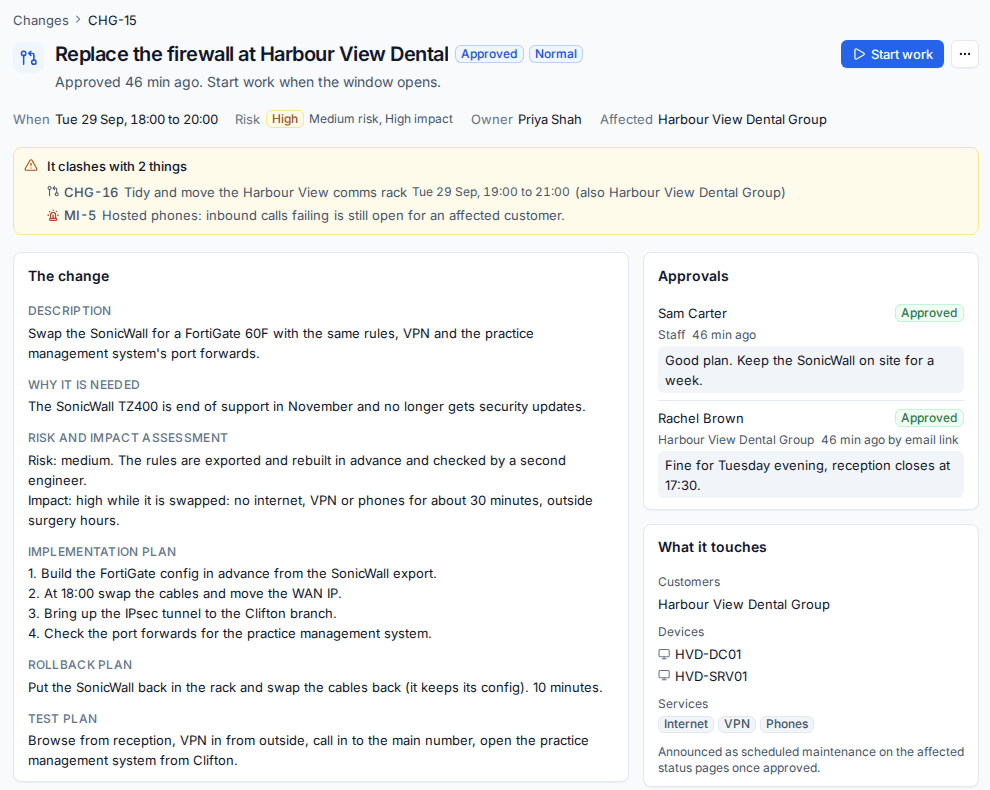
Approval
Settings for approval are in Settings > Ticket setup > Changes.
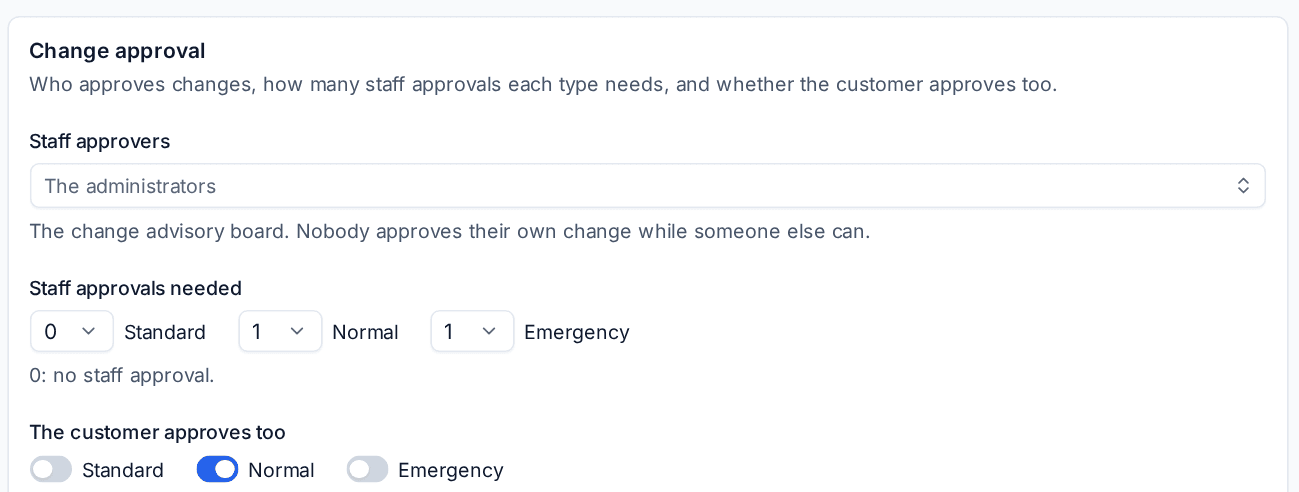
- Staff approvers are your change advisory board (the administrators unless you choose people). Nobody approves their own change while someone else can.
- Staff approvals needed sets how many staff approvals each type needs. By default standard changes need none, and normal and emergency changes need one.
- The customer approves too chooses the types the customer must approve (normal changes by default). Each affected customer approves once, through their approvers from the service catalogue, or else their primary contacts. Changes to every customer are not sent to customers.
Customer approvers get an email with their own link. Opening it shows the change in plain words (why, what they may notice, the risk, the plan and what happens if it goes wrong) and they press Approve or Reject, with an optional note. They can also decide in the portal under Changes, and a technician can Record their answer when it was given by phone. Remind approvers emails anyone still waiting. See Approvals.
Any rejection rejects the change. The Approvals card on the change shows each decision with who, how and when.
Note: If someone edits what was approved (the plans, the times, the type, the risk, the impact, the customers or the devices), the change goes back to draft and needs approving again, so nobody's approval stands for something they did not see.
The change calendar
Change calendar shows changes by month or week, for every customer or one, with patch windows and monitoring maintenance windows drawn behind them.
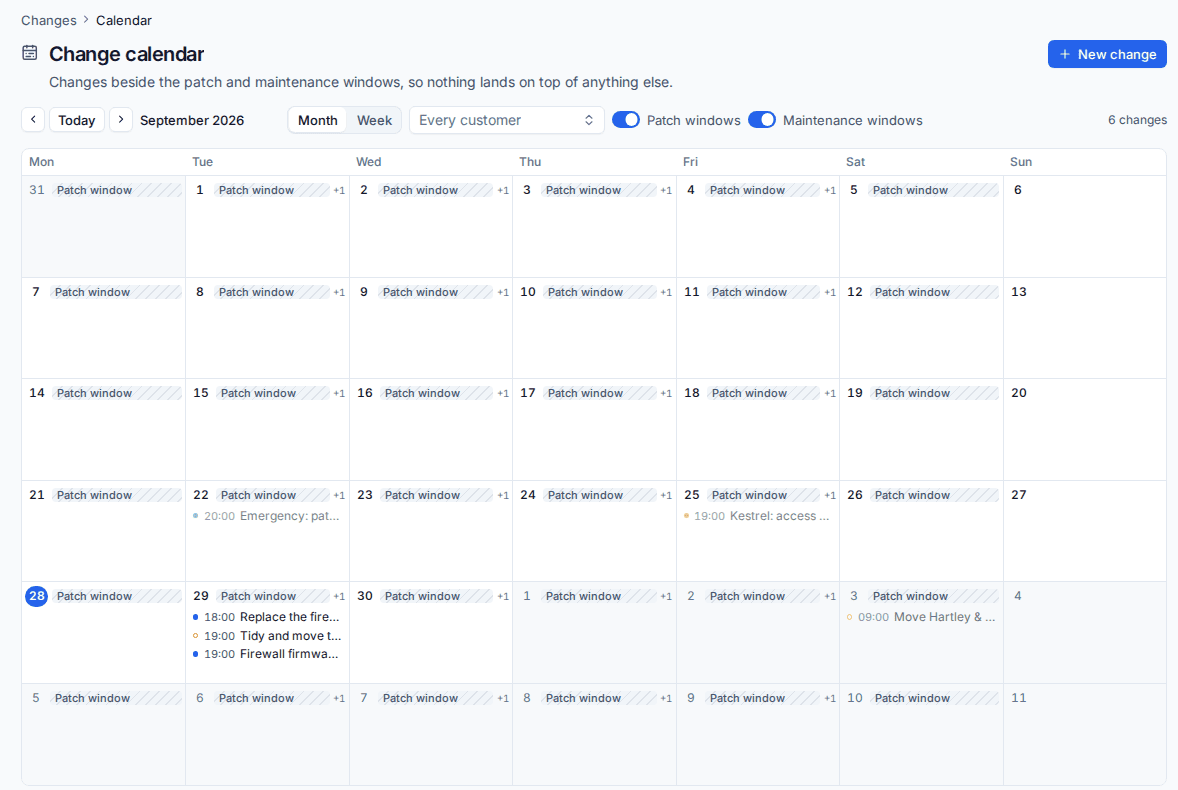
A change warns you when it clashes with:
- another live change at the same time for a shared customer or device,
- a patch window of an affected customer,
- a major incident still open for an affected customer.
The warning shows on the change, as in the screenshot above. It never blocks you.
Run and review it
- When the window opens, press Start work on the approved change.
- When you finish, press Finish and record how it went: Completed, Failed or Rolled back, with notes on timings, anything unexpected and what the tests showed.
- Write the Post-implementation review, which starts from your template.
A change can also be rejected or cancelled. Only drafts and cancelled changes can be deleted.
Tick Announce on the status pages on a change to show it as scheduled maintenance on the affected customers' status pages once it is approved. The notice moves on as the change does. See Status pages.
Change templates
Templates are repeatable changes with the plans already written. Standard templates are approved in advance: they only need the approvals your settings give standard changes.
- Go to Settings > Ticket setup > Changes.
- Press Add the starter templates for firmware updates, a server restart, a DNS record change and a Conditional Access change, or New template to write your own.
- Fill in the type, risk, impact and plans, and save.
The same page sets the Change reference prefix and the Post-implementation review template.
Related: Problems and major incidents, Patching.
Was this page helpful?
Thanks for the feedback.