Checklists, ticket templates and recurring tickets
Keep a library of checklists for tickets and project tasks, fill tickets in with one click from a template, and raise routine work on a schedule for each customer.
Much of an MSP's work repeats: new starters, leavers, a new site, the monthly server check, the quarterly disaster recovery test, the annual firewall renewal. Three tools in Settings > Ticket setup make that work consistent:
- Checklists: a library of reusable step lists, ticked on tickets and project tasks.
- Templates: a ticket filled in with one click, including its checklists.
- Recurring: tickets raised from a template on a schedule, for one customer or many.
Each comes with starters you can use straight away or change.
The checklist library
Settings > Ticket setup > Checklists holds checklists grouped by category, such as Maintenance, Onboarding and Staff changes. Each row shows how many items, required items and sections it has, its due time, how many are open now and how often it has been used.
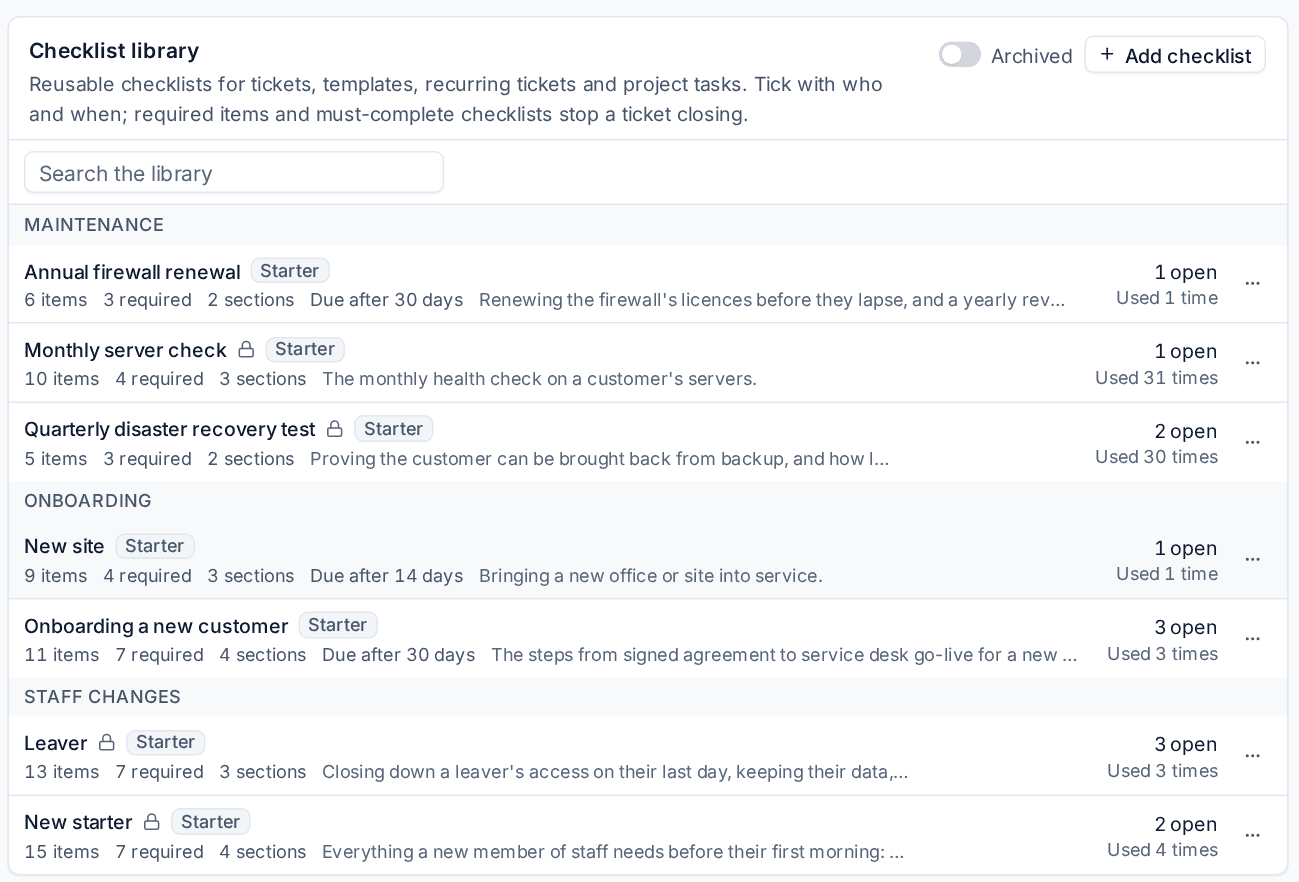
To add one:
- Press Add checklist.
- Enter a Name, a Group and a Description saying when to use it.
- Add items. Press Enter to add the next one. For each item you can:
- make it a Section heading, optionally one that can be marked not needed (its items then stop counting),
- mark it Required, so it must be ticked before the ticket can be resolved,
- add a description, a Knowledge base article or a Link with how to do it.
- Turn on Must be complete before close if every item must be ticked (or its section marked not needed) before the ticket is resolved or closed.
- Optionally set Due after (days).
- Press Save.
Starter checklists cannot be deleted, but you can edit, duplicate or archive them. Archived checklists stay on the tickets they were added to.
Checklists on a ticket
On a ticket, the Checklists strip sits above the conversation. Add a checklist from the library, or write one for this job. Each tick records who ticked it and when, and the ticket's activity log says when a checklist is added, removed or completed.
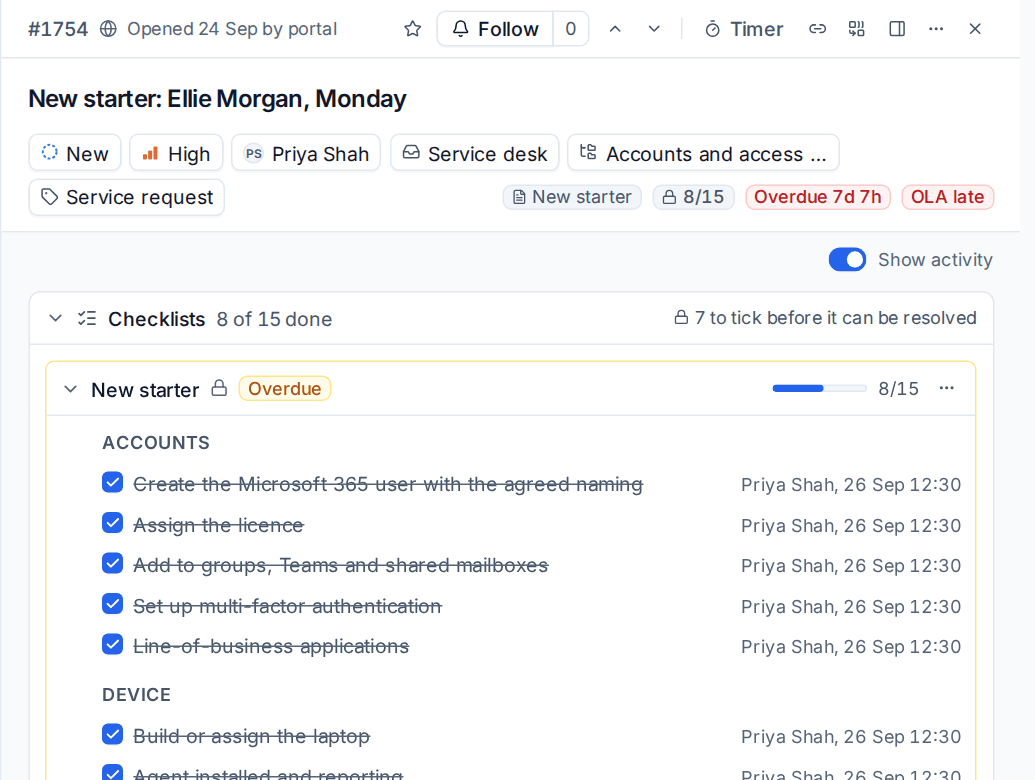
A checklist on a ticket is a copy: editing the library later never changes work in progress. Progress shows as a chip in the ticket header and on its row in the list (for example 8/15, with a lock while it stops the ticket being resolved).
When someone tries to resolve or close a ticket while a must-complete checklist or a required item is still open, Tenvara lists what is open. Whoever your settings allow (administrators by default) can choose Resolve anyway and give a reason, which is kept in the activity log. A customer marking their own ticket as sorted in the portal is never blocked; the activity log notes what was still open.
The same checklists work on project tasks, so the library, required items and reports behave the same everywhere. See Phases, tasks and dependencies.
Reports > Checklists shows open, overdue, blocking and completed checklists, the average time to complete, figures for each library checklist, and every checklist in a table you can filter and export.
Ticket templates
Settings > Ticket setup > Templates lists templates with their subject, type, priority, checklists, time estimate, how many recurring tickets use them and how often they have been used.
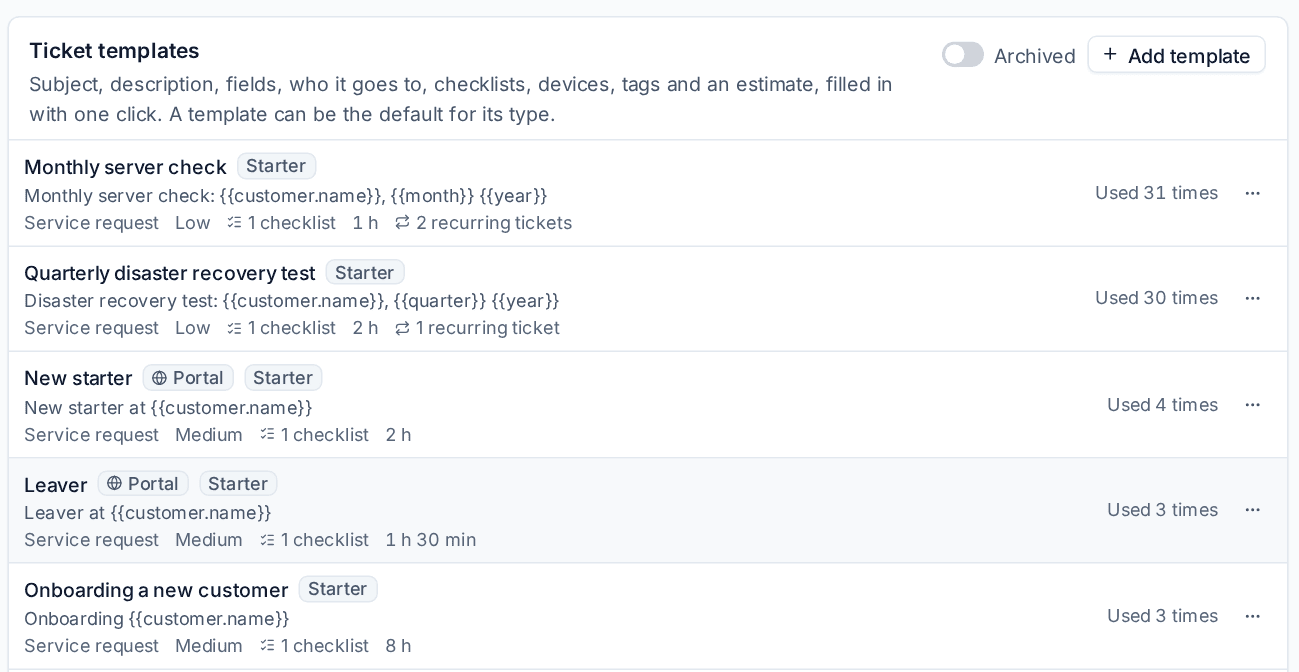
A template fills in:
- the Subject and description, with placeholders such as
{{customer.name}},{{site.name}},{{month}},{{quarter}}and{{year}}(use Insert placeholder), - the type, queue, priority, status and Assignee (a person, or a team, where the member with the fewest open tickets gets it),
- checklists from the library, in order,
- the devices to link (all, servers, workstations, or by type, operating system or name),
- tags, a Time estimate (minutes) and custom field values.
To use a template:
- choose it in the Template field of New ticket,
- use New ticket from template beside New ticket in the ticket list or on a customer's page,
- or type "New ticket from template" in the command menu (Cmd+K).
A template can be the default for its type, so New ticket fills it in when that type is chosen. Turn on Offer it on the customer portal and the option Offer request types on the customer portal to let contacts pick it as a request type in the portal. Ticket for a new customer raises a ticket from a chosen template, once, when a customer is set to onboarding.
Recurring tickets
Settings > Ticket setup > Recurring raises tickets from a template on a schedule. Each rule shows its schedule in words, who it is for, its template, its last run and the next date.
To add one:
- Press Add recurring ticket.
- Choose the Template.
- Choose who it is For: Chosen customers, or Every active customer with any exceptions. Customers added later are included automatically, and each customer gets its own ticket.
- Set How often: daily (optionally only on some weekdays), weekly on chosen days, monthly, quarterly, yearly, or every so many days, weeks, months or years. In months, choose a day, a weekday such as the first Monday, or the last day.
- Set the Time of day and Time zone (each customer's own by default), and when it Starts and Ends.
- Choose what happens On a closed day or public holiday: raise it anyway, skip it, or move it to the next or previous working day.
- Set Raise it this many days ahead so the work is in the queue before the day it is for.
- Optionally override the subject, assignee, priority or contact under Instead of the template.
- Check Next runs with these settings and save.
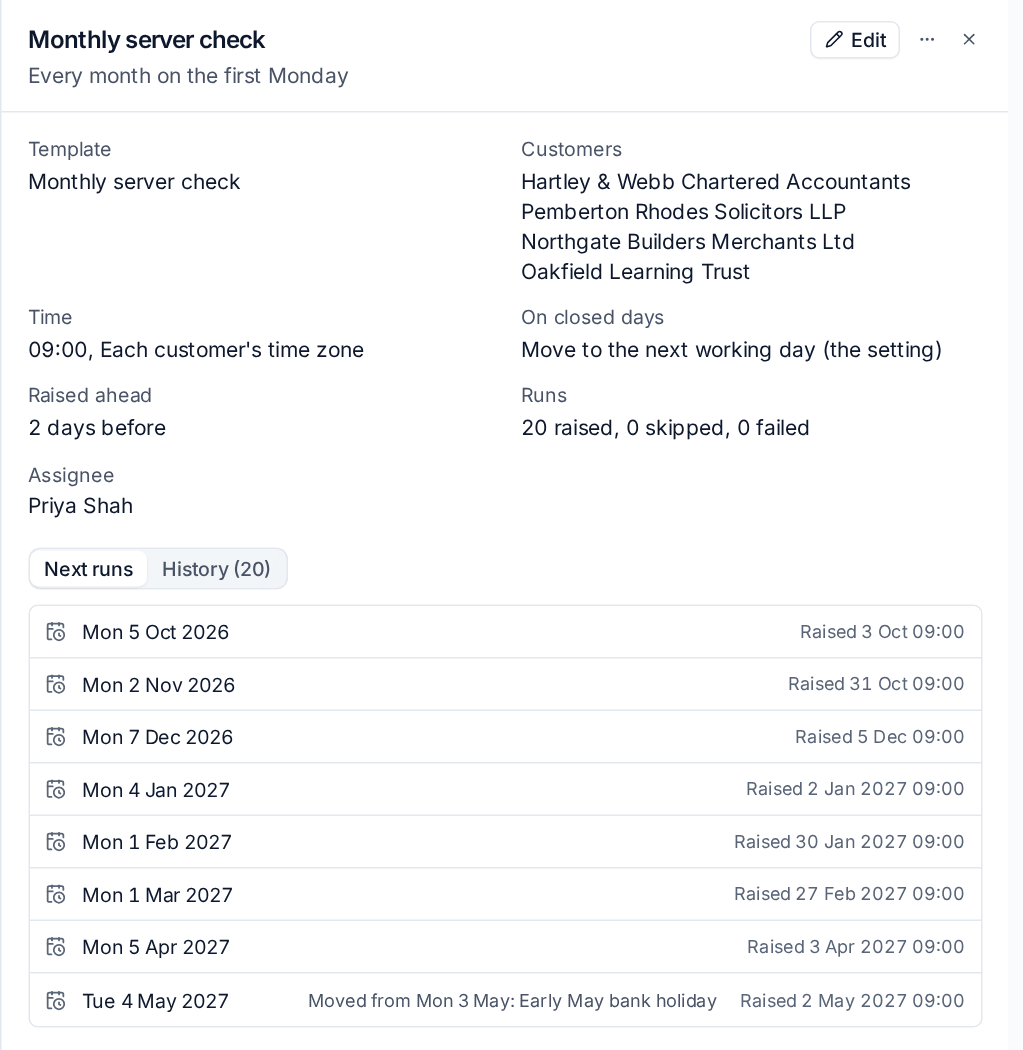
Open a recurring ticket to see its next eight runs (with moved or skipped days and why) and its History for each customer: the ticket it raised, or why it skipped or failed. Use Run now, Pause and Resume from its menu. A rule never raises two tickets for the same customer and day, and after a pause or downtime, runs missed within the catch-up window are still raised.
Recurring ticket options at the bottom of the page set the defaults: what happens on closed days, how many days ahead, the time of day and how many days to catch up.
Automation
Two automation pieces work with checklists: the trigger A checklist is completed (optionally for chosen library checklists) and the action Add a checklist, which adds a library checklist to the ticket unless it is already there. See Actions.
Related: Creating tickets, The service catalogue.
Was this page helpful?
Thanks for the feedback.