Sandbox hosts
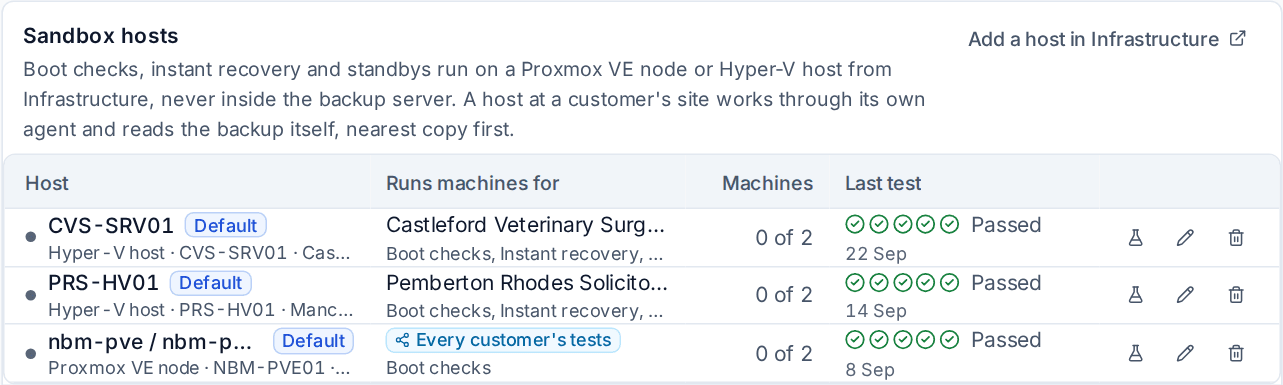
Choose the Proxmox VE nodes and Hyper-V hosts that run machines from backups (boot checks, instant recovery and standbys), share a host for every customer's backup tests, and prove a host works with a test.
Boot checks, instant recovery and warm standbys all start a machine from its backup. Those machines never run inside the backup server: they run on a sandbox host, a Proxmox VE node (or cluster) or a Hyper-V host you already manage in Infrastructure, with the Tenvara agent and its backup helper on it. The host can be in your own data centre or at a customer's site behind their firewall: it does all its work through its own agent, so nothing has to reach in to it.
What a sandbox host does
- Boot checks: starts each machine's newest image backup with no network, waits for it to boot, takes a picture of the screen and removes it. See Test restores, boot checks and malware scans.
- Instant recovery: runs a machine straight from its backup while you sort out the hardware. See Instant recovery and standbys.
- Standbys: keeps a copy of a machine's disk up to date after every backup, ready to fail over.
Until a device has a host that may run its machines, its boot checks are skipped and marked Needs a sandbox host for boot checks, with no pass, no fail and no alert. File-level test restores still run on the backup server.
Adding a sandbox host
- Make sure the host is in Infrastructure, with the agent on it and backup switched on for its device. If it is not there yet, Add a host in Infrastructure takes you to Infrastructure's own add flow.
- Open Settings > Backup and choose the Recovery tab. Scroll to Sandbox hosts.
- Under Proxmox VE nodes and Hyper-V hosts in Infrastructure, find the host. Ready says whether it can be used, or what is missing (for example "Install the agent on it" or "Switch backup on for ... : its backup helper runs the machines").
- Press Use it.
- Set the host up:
- Runs machines for: its own customer, or the customer you assign it to.
- Used for: boot checks, instant recovery, standbys, or any of them.
- Folder for scratch and kept disks (Hyper-V) or Storage for scratch and kept disks and Node (Proxmox VE).
- Isolated switch for boot checks (Hyper-V) or Isolated bridge for boot checks (Proxmox VE): a private switch, or a bridge with no physical port. Leave it empty for no network at all, the default.
- Switch for kept machines or Bridge for kept machines: the network instant recovery machines join when you connect them. Empty means never a network.
- Processors per machine at most, Memory per machine at most (MB) and Machines at once.
- How the backup reaches the host: Copied onto the host, the default, where the host's helper builds the machine's disk from the backup itself.
- Whether it is The default for every customer: used first when a device has not chosen one.
- Press Use as a sandbox host.
Tenvara refuses an isolated switch or bridge that is on your LAN or does NAT, so a machine started from a backup can never meet the real one on the network.
Testing a host
Press the test button on a host's row. The test proves the whole path a boot check takes, stage by stage:
- Reach the host through its agent and read what it has.
- Create a scratch disk with a tiny test image on it.
- Boot a small machine from it on the isolated network.
- Take a screenshot and check it reads the test image.
- Tear down the machine and the disk.
Each stage shows a tick or the problem. A boot check itself says which host it ran on, why that host was chosen (for example "The customer's own host" or "The default shared test host") and where the backup was read from. Last test on the list keeps the result and when it ran. Run the test again after changing a host's network or storage.
Which host a machine runs on
A host runs machines for one customer. For each device, Tenvara picks a host automatically, in this order:
- its customer's host at the device's own site;
- its customer's default host, or the least busy one;
- the default shared test host;
- any other shared host.
The device's Recovery card shows which host it will use and why. In the device's boot check settings you can choose another host that may run it.
Data stays close
To build a machine's disk, the host reads the nearest copy of the backup: its own local copy when it checks its own virtual machines, and otherwise your backup storage. It is given read-only access to that one backup for the length of the check, and the check records which copy it read.
Sharing a host for every customer's backup tests
You may not want a spare host at every customer. Any Proxmox VE node or cluster or Hyper-V host in Infrastructure can be shared for every customer's backup tests:
- Open the host in Infrastructure.
- Choose More > Share for backup tests and confirm. It is recorded in the activity and the audit log.
A shared host runs throwaway work for every customer: boot checks, test restores that start a machine, and standby proofs. Each machine runs with no network or on the isolated one, on a scratch disk removed with it. A shared host never runs machines that are kept (instant recovery, standbys, failover) for anyone but the customer it belongs to. Customers take turns, so one customer with many servers cannot hold everyone else's checks up. Settings shows whose tests used the shared host in the last 30 days, and a boot check says when it ran on a shared host.
Stop sharing for backup tests on the same menu turns it off.
How a boot check proves a boot
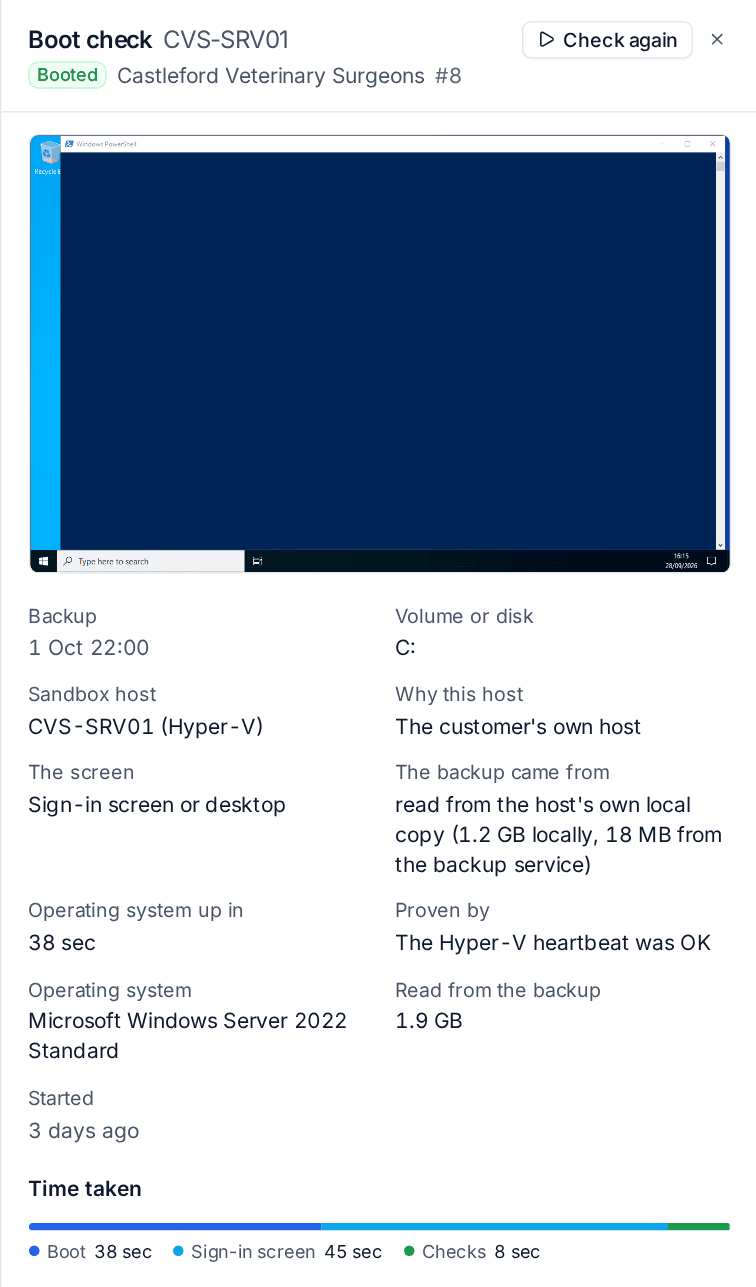
A boot check passes only on real evidence that the operating system is up:
- the Hyper-V heartbeat (integration services), or
- the QEMU guest agent on Proxmox VE, or
- the sign-in screen read from the screenshot, twice in a row.
A screen that merely stops changing is a fail. A firmware page such as "No operating system was loaded", a black screen, a boot logo, a text console or an error screen that does not change for three minutes fails at once with the screenshot. A Linux server with a text-only console needs the guest agent or Hyper-V's integration services to pass.
Related
Was this page helpful?
Thanks for the feedback.