Incidents and response
Incidents that group related detections, response targets and metrics, pinned evidence and tickets, telling the customer, the incident report, digests and the security scorecard.
One attack rarely makes one detection. A brute force, the logon that followed, a remote desktop session from abroad and traffic from a known bad address are four detections about the same account and server. Tenvara groups them into an incident, so they are worked once, on one clock, and reported to the customer as one story.
Incidents
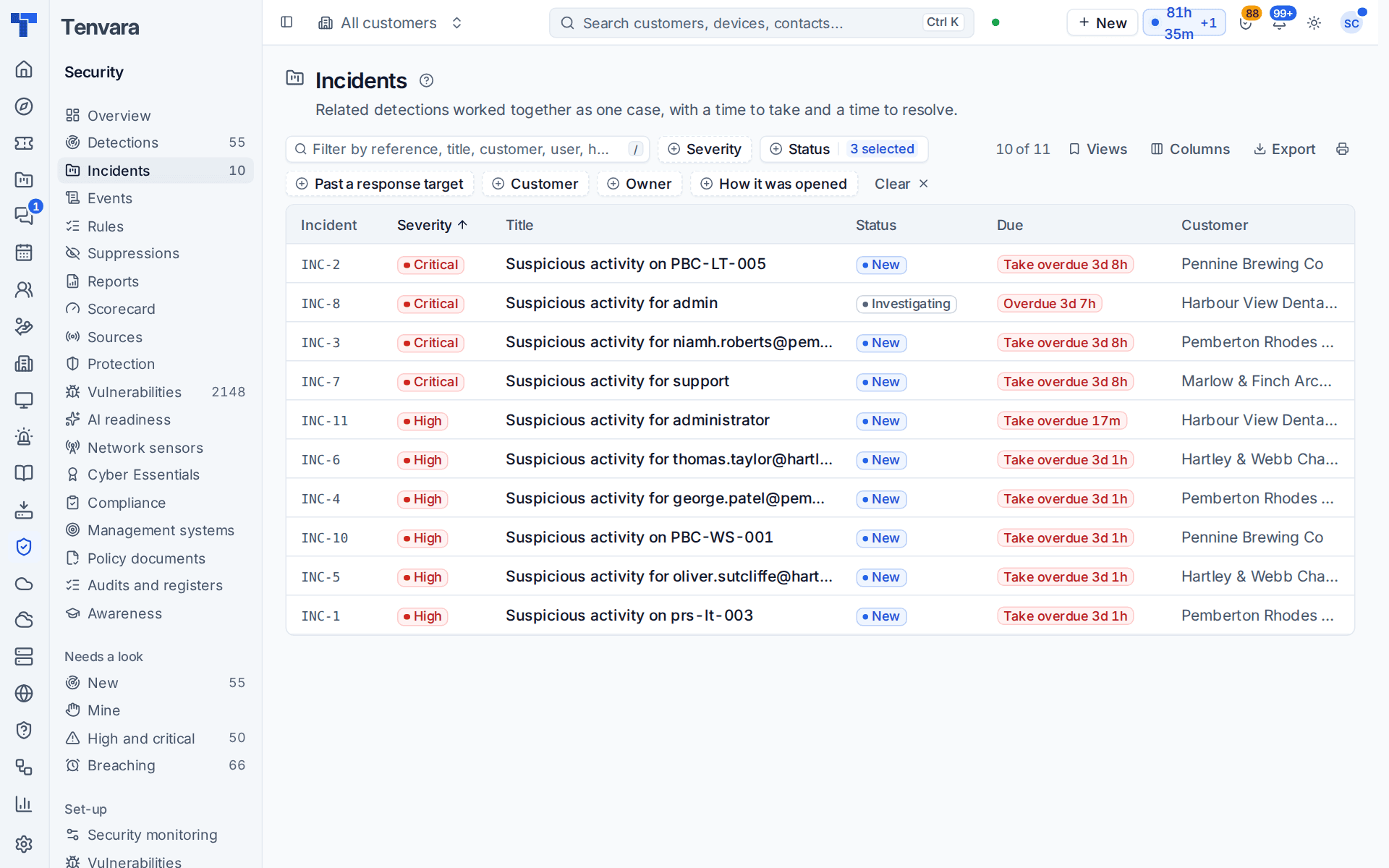
Security > Incidents lists them, worst first, with the reference (INC-8), severity, title, status, the ticking Due time, customer, owner, how many detections it holds and the last activity. Views include Open, Mine, Breaching SLA, Resolved and All incidents; filter by severity, status, customer, owner, how it was opened and whether it is past a response target.
How detections are grouped
Every new detection is compared with the customer's open detections. When it is about the same user (a mailbox counts as a user), host, address or device, and their activity is within the correlation window of each other (12 hours by default), it joins that incident or starts one with them. A lone detection is not an incident. The window, and whether grouping happens automatically, are in Settings > Security monitoring > Response, per customer too.
You can also group by hand: select detections of one customer on Security > Detections and choose New incident from these, or Add to incident. A detection can be taken out of an incident on the incident page. Every move leaves a line on both.
The incident page
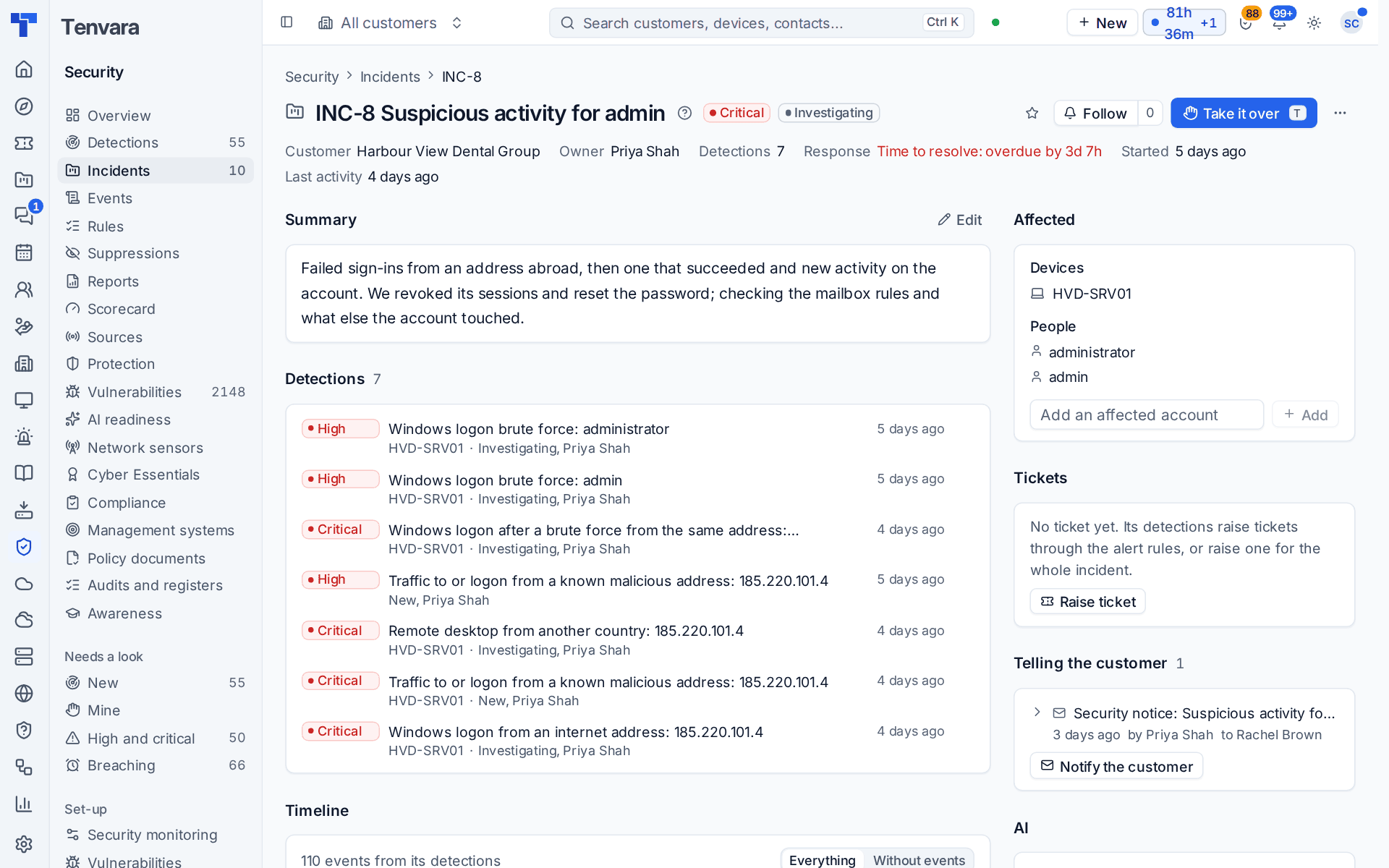
The page shows the customer, owner, detections, the response clock, when it started and its last activity, then:
- Summary: what happened, in your words (press Edit).
- Detections: each one with its severity, device and status.
- Affected: the devices, people and addresses gathered from its detections. Add an affected account by hand if you find one.
- Timeline: every detection's sample events and notes with the incident's own notes, with or without the events.
- Tickets, Telling the customer, Incident report, Evidence and AI.
Its severity is the highest of its detections unless you override it. Take it (or Take it over) makes it yours and takes its new detections with it. Resolving it, or calling it a false positive, closes every detection still open in it with the same note.
Response targets
Each severity has a time to take and a time to resolve. The defaults are 15 minutes and an hour for critical, an hour and four hours for high, six hours and a day for medium, and 18 hours and three days for low. They count the customer's business hours (its contract's calendar) or every hour, per customer, and critical ones count every hour by default.
Detections and incidents show Take in 7m, Take overdue 3d or Time to resolve: overdue by 4h on the lists and pages, and the Breaching view under Needs a look lists everything past a target. The person assigned is told once when 75% of a target is used and once when it is missed; with nobody assigned, everyone who works security is told. A critical one that misses its target can page your on-call escalation policy.
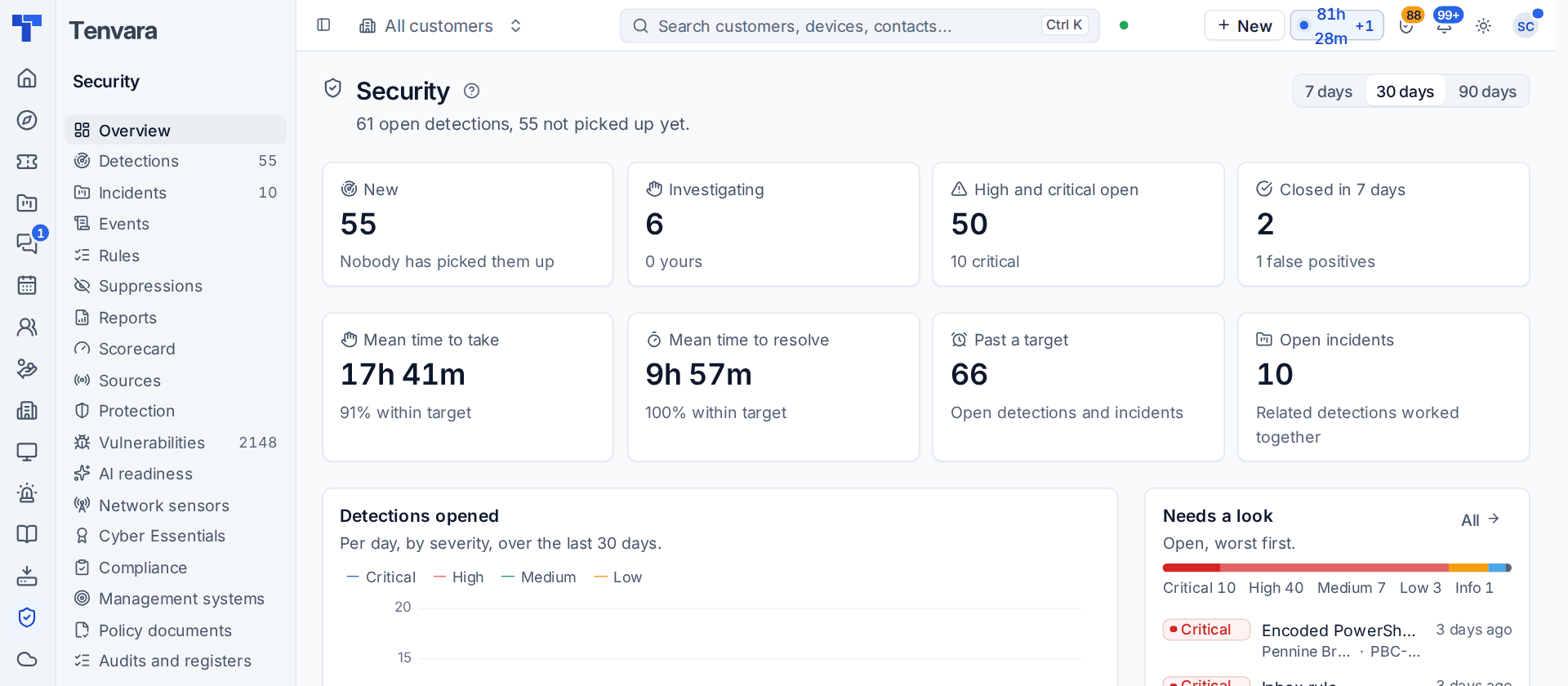
The Security overview shows Mean time to take, Mean time to resolve with the share within target, how many are Past a target, and Open incidents, with response times per week and per customer below.
All of it is set in Settings > Security monitoring > Response. The report builder's security detections dataset has the times to take and resolve, missed targets and whether a detection was in an incident.
Evidence and tickets
- Pin events as evidence. Each sample event on a detection or incident has a pin, and any event in Security > Events has Pin as evidence. A pinned event is copied and kept, so it stays readable after the event store has let it go.
- Files on notes. Attach screenshots, exported logs or a hash report to a note (attach, paste or drop them).
- Raise ticket. Any detection or incident can become a ticket for the customer, including ones below the alerting severity. The ticket starts from a drafted subject and summary, links the devices, and is not sent to the customer. It shows where it came from, and the detection or incident links to it.
Telling the customer
Notify the customer, on a detection or incident, opens a plain-English message in the customer's language: what was seen and when, how serious it is, which computers and accounts, and either "we are looking into it" with what not to do, or "we have dealt with it". If AI is set up you can press Draft with AI, which is marked as drafted by AI. Review it, choose the contacts (the customer's Security contact role is chosen first), and send. Nothing goes without that send, and every notice is logged on the record.
Per customer, Tell the customer about every critical detection at once sends the plain summary to their security contacts as soon as a critical detection is recorded.
The incident report
On a resolved incident, Make the report opens What was done and What we recommend, then Make PDF: a report in your branding and the customer's language with the summary, who and what was affected, the timeline the customer may see (never internal notes), what was done, recommendations and the evidence kept. Each version is kept. Publish one to the customer portal's Reports page for their security contacts, or attach it to the incident's ticket.
Digests
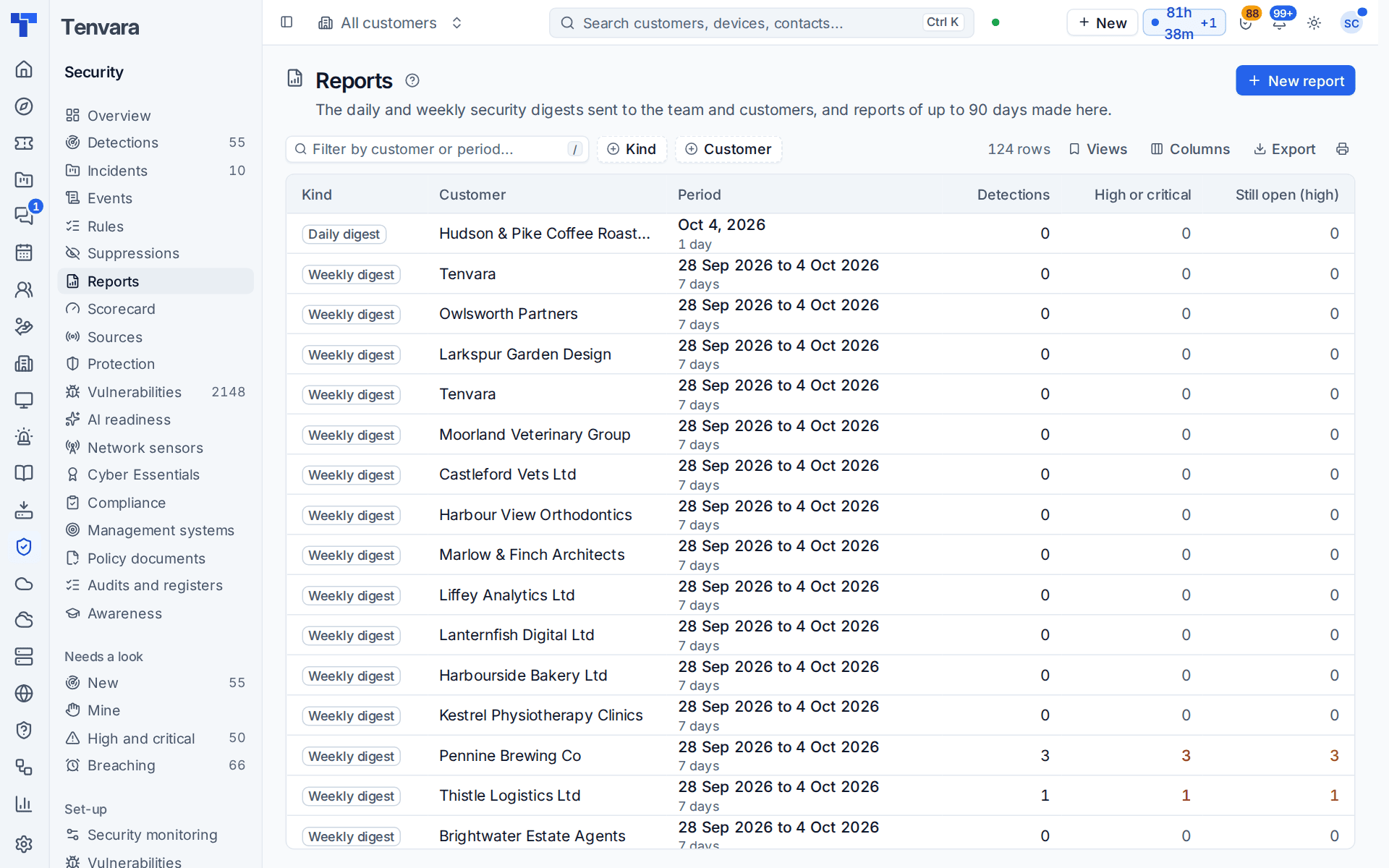
Security > Reports holds the daily and weekly security digests and reports made by hand. A digest covers one customer (or all of them): detections by severity and rule with false positives, time to resolve, what is still open, event volume against the period before, and whether every source is receiving, with an optional short AI narrative.
Set them up in Settings > Security monitoring > Digests: the daily one (the customer's previous day) and the weekly one (the seven days before), at a time in each customer's own time zone, to chosen staff and other addresses, for every customer or those you pick, optionally to the customer's security contacts too, and skipped when there is nothing in them. New report makes one for 1 to 90 days, to download as a PDF or send.
The scorecard
Security > Scorecard ranks customers by a security risk score from 0 (least risk) to 100, worked out every morning, with four parts: Identity (MFA, administrators, risky users and sign-ins), Endpoints (antivirus or EDR, encryption, the firewall, agent versions), Detections (what is open and how fast they are resolved) and Coverage (silent sources and computers without the agent). Each customer has a 30-day trend and its top findings, with where to fix them. The weights, and whether the worst part counts for half, are in Settings > Security monitoring > Scorecard.
Was this page helpful?
Thanks for the feedback.