Maps, routes and on my way texts
See the day's visits on a map, work out travel by road, put a technician's day in the shortest order, and tell customers you are on the way or running late.
Dispatch works better when you can see where everyone is going. Tenvara places every site on a map, works out the drive between visits by road, suggests a better order for a busy day, and lets technicians tell the customer they are on the way, by text or email, with one button.
Maps and travel work out of the box on free OpenStreetMap services. Texts use your own Twilio or ClickSend account.
Set up maps and travel
Settings > Scheduling > Maps and travel holds:
- Look addresses up on the map: site, office and home addresses are sent to the geocoder to place them. Nothing else leaves your install. Turn it off and you place pins by hand.
- Geocoder: Postcodes, then OpenStreetMap (free) uses postcodes.io for UK postcodes and OpenStreetMap Nominatim for everything else. You can point it at your own Nominatim server.
- Travel by road: OSRM (free) by default, or your own OSRM server, OpenRouteService, Google or Mapbox.
- Map tiles: OpenStreetMap, Mapbox or Your own tile address.
- Your own keys (optional): a Google Maps Platform key (with the Geocoding and Distance Matrix APIs switched on), a Mapbox access token or an OpenRouteService key. Keys are stored encrypted, and charges for these services go to your own account with the provider.
- The office: the address days start from and the last visit drives back to. Type it and press Save and place it, or click the map to move the pin.
- Where each person starts: The office or Home. Home addresses are seen only by the person and administrators.
Check the services tests that the geocoder and router answer.
Sites are placed from their postcode or address. If a pin is in the wrong place, drag it to where the site is: a pin moved by hand is never moved back.
Tip: The public demo routing server is fine for a small team. For heavy daily use, add your own key or run your own routing server.
The map
On Schedule > Dispatch, switch from Timeline to Map. Each technician's visits for the day are pins in their colour, numbered in visit order; tickets and project tasks waiting for a visit are grey pins; the office is the house. Click a pin to open the booking or ticket.
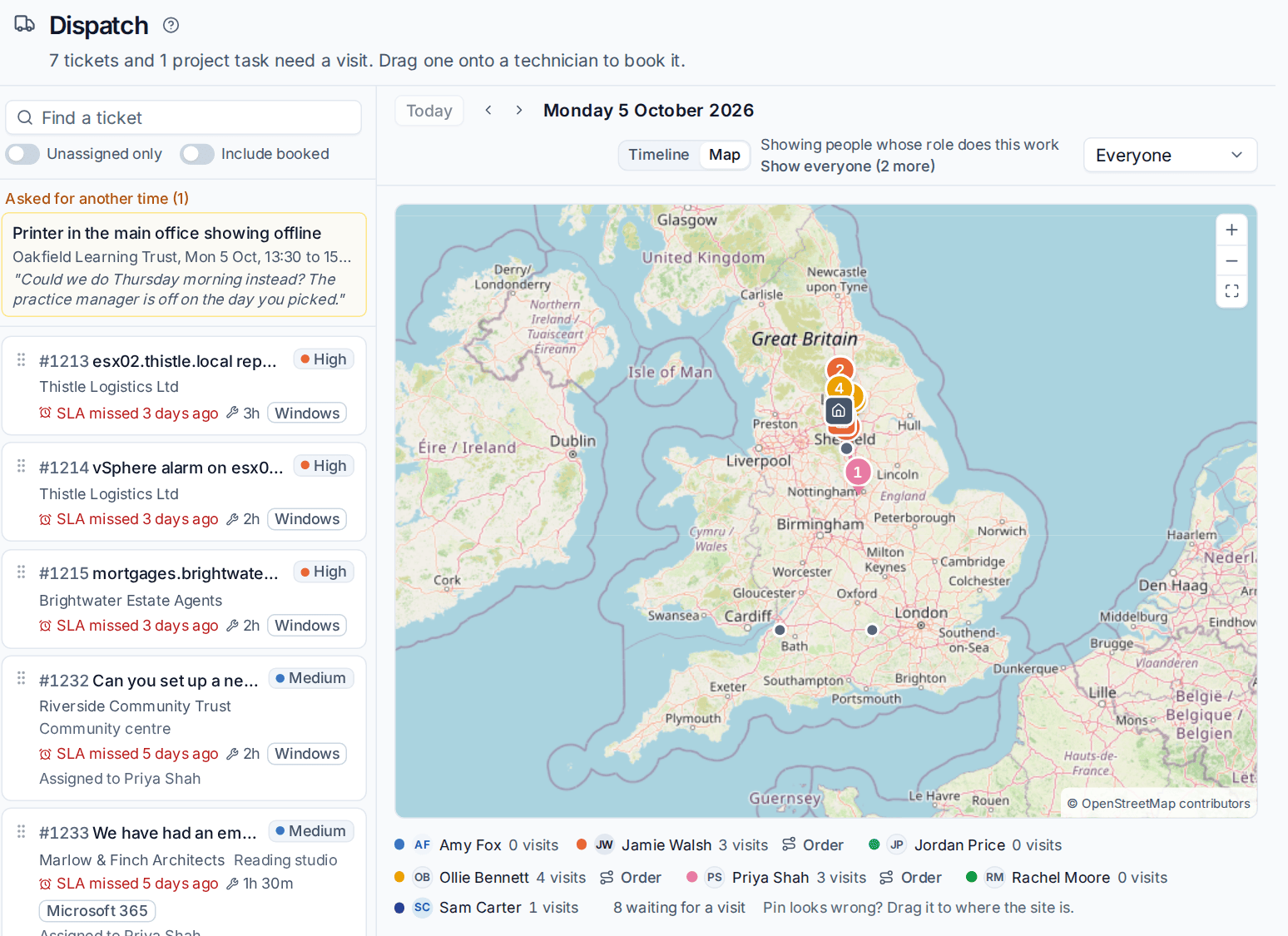
Under the map, each person shows how many visits they have and an Order button.
Travel by road
Travel before a visit is worked out by road from wherever the technician comes from: the previous visit that day, else home or the office. The drive back is only added to the day's last visit, so no drive is counted twice. The booking dialog says where the figure came from, for example "About 35 minutes from Northgate (previous visit)", and you can type your own, which is kept.
When a visit is booked, moved or cancelled, the rest of that person's day is worked out again. If routing is off or a route cannot be found, the site's own travel time from its Visiting card is used.
Dispatch suggestions prefer whoever is nearest on the day. A mileage claim on a visit is offered the routed distance of its drives.
Suggest an order
A day booked as calls came in is rarely the shortest drive.
- On the map, press Order beside a technician (or Suggest an order on their day).
- Tenvara shows the visits in a better order with the new times, the drive before each, and the saving, for example "Saves about 25m of driving".
- Press Move 4 visits to accept, or Keep the day as it is.
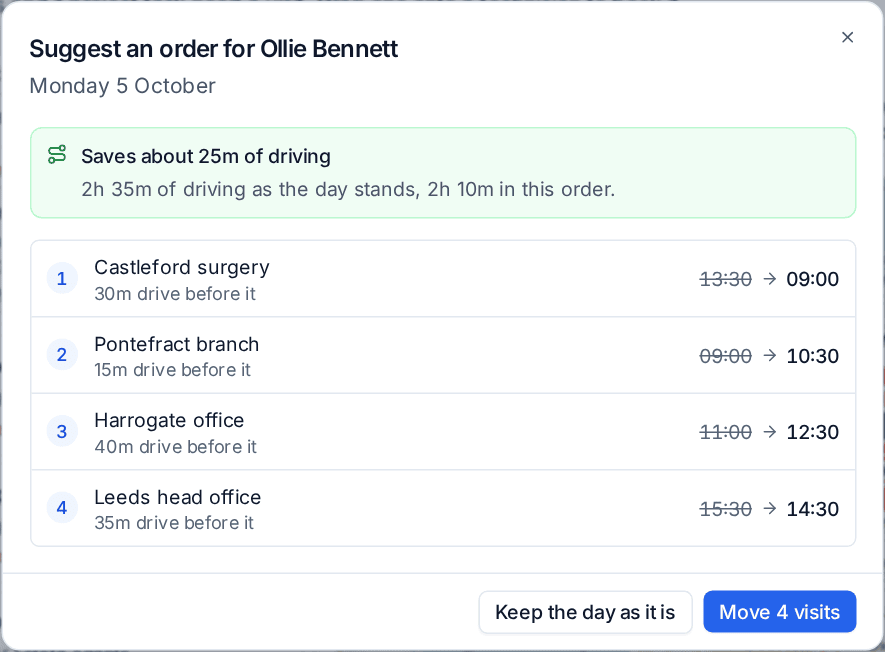
Visits with fixed times stay put, and confirmed visits stay unless your dispatch settings allow moving them. Customers whose visit time changed are emailed, as for any move.
Print the day prints all of a technician's job sheets for the day in one PDF. See Job sheets, parts and recurring visits.
On my way and running late
On the booking panel, On my way tells the visit's contact the technician is coming:
- Press On my way.
- Check Arriving about. It starts from the routed travel time.
- Choose whether to Text their mobile, Email them, or both.
- Press Send.
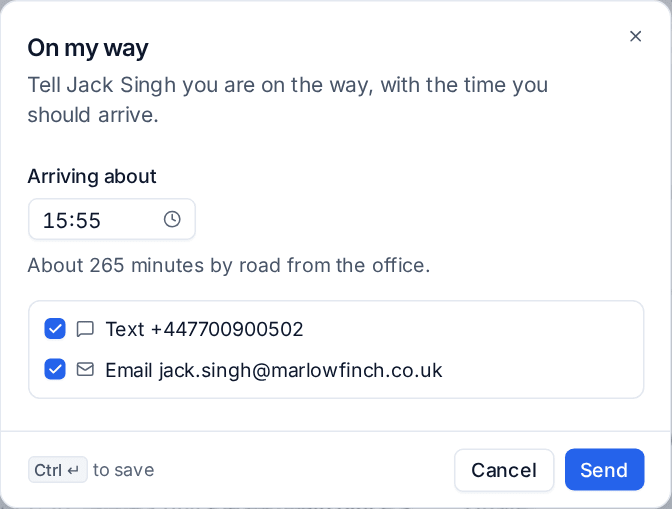
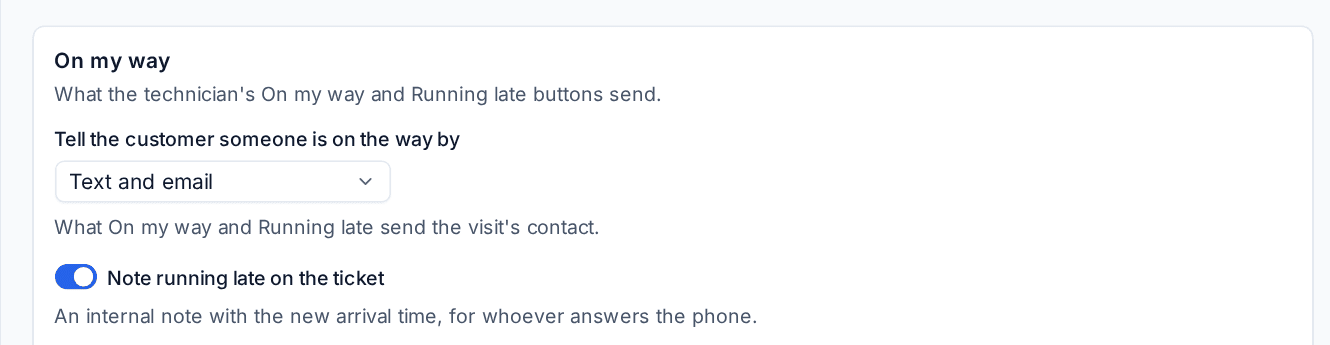
Running late works the same way with the new arrival time. Each is recorded on the booking and as a line on the ticket, and with Note running late on the ticket on, an internal note gives the new time to whoever answers the phone.
In Settings > Scheduling > Emails, On my way sets how the customer is told: Text and email, Text only (email when there is no mobile), Email only, or Nothing: record it on the visit only.
Texts to customers
Texts go through your own SMS account. To set it up:
- Add a Text messages channel with your Twilio or ClickSend details in Settings > Automation > Channels. See Notifications and channels.
- In Settings > Scheduling > Emails, under Text messages, check the wording for On my way, Running late, Visit booked or moved and Visit reminder. Each shows its character count (one text is 160 characters; longer ones go as several and cost more) and the placeholders you can use, such as
{technician},{site},{time}and{eta}. - Turn on Text visit confirmations and reminders too if customers should get a text as well as the confirmation and reminder emails.
Texts go to the visit contact's mobile. A customer who does not want texts can have them turned off on their Visits tab.
Related
Was this page helpful?
Thanks for the feedback.