Fixes, reports and the portal
How fixes go through the customer's approver and can be undone, the branded AI readiness report, the portal page, the remediation project, re-assessment and selling it.
An assessment is only worth something if it leads to change and the customer can see the change. This page covers what happens after you ask for a fix, the report you hand over, what the customer sees in the portal, the remediation project that tracks the work, and how often customers are assessed again.
How a fix is approved
Fixes are asked for from the findings tables (see Data exposure). Every fix that changes the customer's tenant or devices goes through the approvals engine:
- You select findings, press Fix with approval, add a reason and press Send for approval.
- The customer's approver is asked. Who that is comes from the customer's contact roles and approval rules; if nobody is set, the customer's fallback approver is asked. They can approve from the email or in the portal under My approvals. See Approvals.
- Once approved, the fix is applied one item at a time. What was there before is kept so it can be undone.
- Items that worked show as fixing until the next assessment confirms them. An item that failed opens its finding again with the reason.
If the approver refuses, or the request expires or is withdrawn, nothing changes.
The Fixes tab
Open AI readiness and choose Fixes for every fix asked for this customer: the fix, how many items, its status, who asked and when. Open one to see each item and what happened to it.
To undo a fix, open it and press Undo. Undo puts back what was there, item by item. A few things cannot be put back exactly, and the fix said so before it was sent: a removed link comes back with a new address, for example.
Every step, from asking to applying to undoing, is in the audit log.
The report
On the customer's AI readiness overview, press Report.
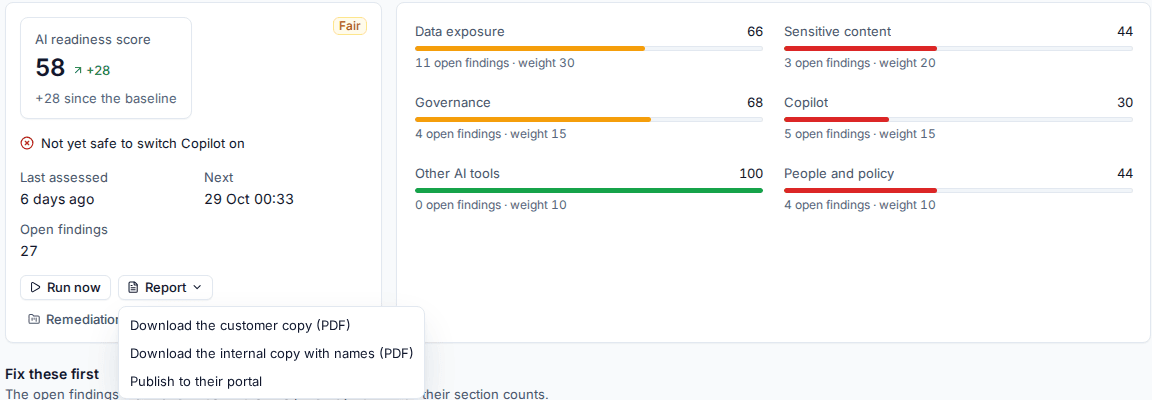
- Download the customer copy (PDF): a branded A4 report in the customer's language with your logo and colours. It has an executive summary, the score and each section's result, the evidence as counts, the remediation plan worst first with an effort for each item (under an hour, half a day, a day, several days), and the progress since the baseline.
- Download the internal copy with names (PDF): the same report with the names behind the counts (files, sites, people and apps), for your own team. It needs the See evidence permission.
- Publish to their portal: puts the customer copy in the customer portal as it stands now. Once published, the menu offers Publish again to their portal to replace it with a newer one.
Tip: Present the first report as the baseline, and the next one after the fixes. The progress since the baseline is often the most persuasive page in it.
What the customer sees in the portal
In the customer portal, the AI readiness page shows:
- the published report, for contacts with the AI readiness portal permission;
- the approved AI tools register, which those contacts can keep;
- for everyone, their own acknowledgement of the AI acceptable use policy, with a prompt to read and accept it if they have not.
Fixes waiting for a contact's decision appear in their My approvals. Set who gets the AI readiness permission in the portal with the customer's contact roles and portal permissions.
The remediation project
On the overview, press Make the remediation project. Tenvara makes a project for the customer from the AI readiness remediation template, with these phases:
- Agree the plan
- Data exposure and sensitive content
- Governance and Copilot
- AI tools
- People and policy
- Re-assess and report
There is a task for each failing check, linked to its findings. After every assessment, a task whose findings have all cleared is completed by itself, and a check that starts failing gets a task. Time logged on the tasks works like any other project. See Projects overview.
Re-assessment and alerts
Customers are assessed again on a schedule. Go to Settings > AI readiness and set Assess again under Re-assessment: Every week, Every month (the default), Every three months or Only when asked. A customer can have its own schedule. The overview shows when the next assessment is due.
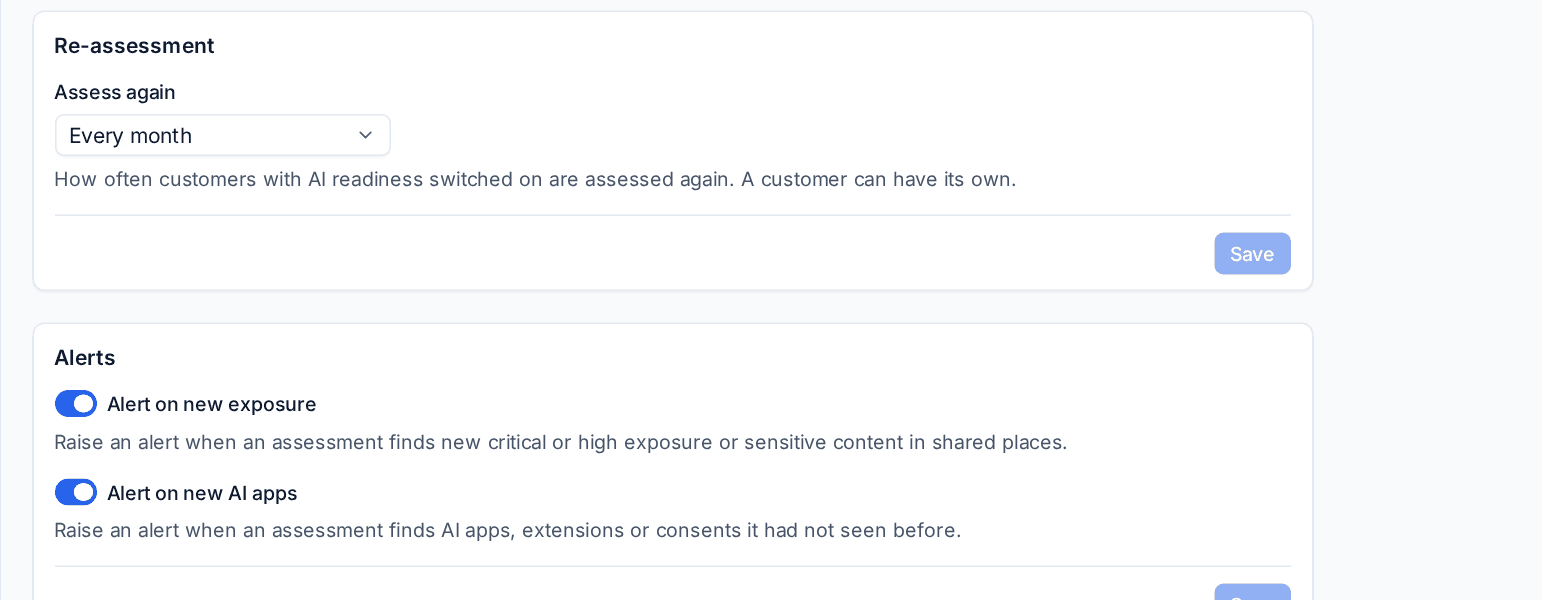
Under Alerts:
- Alert on new exposure raises an alert when an assessment finds new critical or high exposure or sensitive content in shared places.
- Alert on new AI apps raises an alert when an assessment finds AI apps, extensions or consents it had not seen before.
The first assessment never raises them: it is the baseline. Alerts give counts, never names, because the people who get alerts may not be allowed to see evidence. Each alert clears when nothing of its kind is open.
Selling it
When you assess your first customer, Tenvara adds an AI readiness assessment item (SKU AI-READINESS) to your catalogue, priced at nothing. Set your own price and description, then use it on quotes and proposals like any other item. A common pattern is a fixed-price first assessment with the report and a workshop, followed by the remediation project and a monthly re-assessment inside a managed service. See The catalogue.
The setup helper's AI readiness section asks how often to assess customers and which alerts to raise, and checks that customers are assessed and re-assessed. See The setup helper.
Was this page helpful?
Thanks for the feedback.