Company cards and the expense policy
Set spending limits and checks on expenses, add a second approval for large or flagged claims, charge internal costs to cost centres, read receipts automatically, and match company card statements to what was claimed.
The basics of expenses and mileage are in Expenses and mileage. This guide covers the controls around them: an expense policy that flags claims before they are made, a second approval, cost centres, reading receipts, and company cards whose statements are matched to the receipts people claim.
Everything here is set in Settings > Scheduling > Expenses by an administrator.
Limits on each kind of expense
Open a kind of expense under Kinds of expense to set:
- a limit an item, or a night for a hotel;
- a limit a day, for example £15 a day for subsistence;
- What is allowed: a note shown on the claim form;
- the account code your books use for it.
The list shows each kind's limits and account, for example "Up to £120.00 a night · account 494".
The expense policy
Expense policy decides what is checked before an expense is claimed:
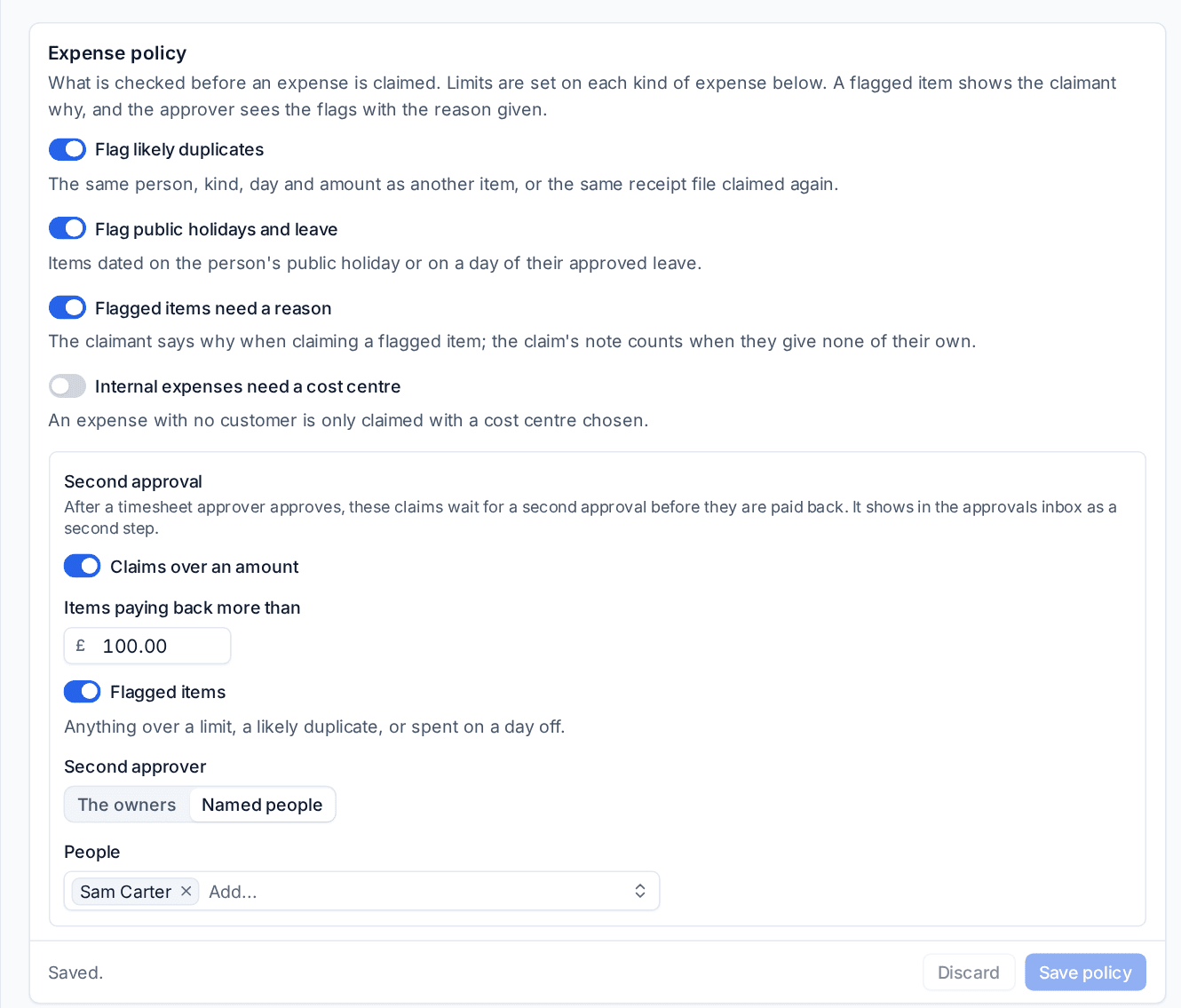
- Flag likely duplicates: the same person, kind, day and amount as another item, or the same receipt file claimed again (by anyone).
- Flag public holidays and leave: items dated on the person's public holiday or on a day of their approved leave.
- Flagged items need a reason: the claimant says why when claiming a flagged item; the claim's note counts when they give none of their own.
- Internal expenses need a cost centre: an expense with no customer is only claimed with a cost centre chosen.
Items over a kind's limits are flagged too, with the amount over ("£12.00 over the Hotel limit of £120.00 a night"). The check runs as the expense is typed in, so the person sees what will be flagged before they save. In the list, a flagged item has a badge with the reason on hover, and the Flagged view lists them all.
Second approval
Under Second approval, claims can wait for a second person after a timesheet approver approves them:
- Claims over an amount: Items paying back more than the amount you set.
- Flagged items: anything over a limit, a likely duplicate, or spent on a day off.
- Second approver: The owners (people with the Owner role) or Named people.
The second step shows in the Approvals inbox like any other approval. The expense says where it is, for example "Approved by Sam Carter, waiting for Tom Beech (step 2 of 2)", and only the person the second step waits for can decide it. A chain for expense claims in Settings > Approvals replaces both steps if you need something more involved. See Approval rules, delegation and out of office.
Approvers see the flags with the claimant's reason, a link to the item it may duplicate, the merchant and the cost centre.
Cost centres
Cost centres are what internal expenses (ones with no customer) are charged to, such as Internal IT or Training, each with the code your books use. Press Add to make one. A cost centre that has been used is archived rather than deleted.
Reading receipts
When a receipt photo or PDF is attached to an expense, Tenvara can read the merchant, date, total, tax and currency and fill them in for the person to check.
Under Reading receipts, set Read receipts with to Off or Text recognition. Text recognition runs on your own server, so nothing leaves it.
In the expense dialog, attaching a receipt starts reading it ("Reading the receipt..."). Only fields the person has not typed are filled, each highlighted, with a line saying they came from the receipt and Looks right and Undo. Read receipt reads it again. Nothing is saved or claimed until the person saves.
Company cards
Company cards are cards the business pays with, each held by one person. Spending on a card needs a receipt and what it was for, and is never paid back through payroll.
Add a card
Under Company cards, press Add and enter the card's name, last four digits, the holder, the currency its statements are in and the ledger account code it belongs to. Below the cards:
- Match lines to items dated up to a number of days apart (3 by default).
- Chase missing receipts every week: each holder is told about card spending still missing a receipt or what it was for, and the approvers get a summary. Choose the day and time.
Claiming card spending
When adding an expense, Paid with offers Own money or each card the person holds. Card items need a receipt and a kind of expense before they can be claimed, are approved like any other item, and are marked Card in the list.
Import a statement
Approvers open Schedule > Company cards and press Import statement:
- Choose the card and the file: a CSV, or an OFX or QFX statement from the bank.
- For a CSV, map the columns (the date and its order, one amount column or money out and money in, the description and an optional id) and the decimal sign. The mapping is remembered for the card.
- Check the preview of the lines as they will import (new, already imported, cannot be read) and import.
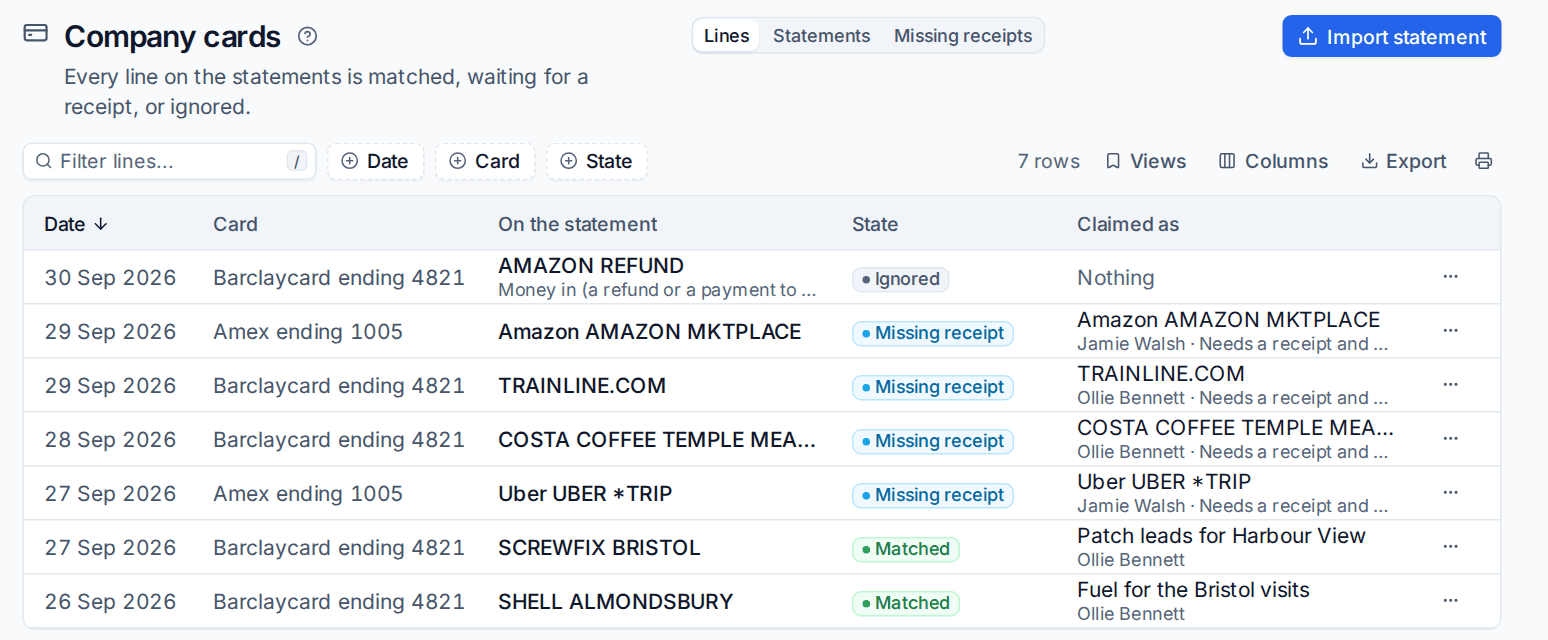
Importing the same or an overlapping statement never adds a line twice. Each spending line is matched to a card item of the same amount on the same day, then up to the matching window. Money in, such as a refund, is ignored with the reason shown.
A line with nothing to match becomes a draft card item for the holder, marked Missing receipt, and the holder is told. They add the receipt and say what it was from Missing receipts.
The page has three tabs:
- Lines: every statement line with its card, date, description and state: Matched (with the item it is claimed as), Missing receipt, Ignored or unmatched. The ... menu matches a line by hand, unmatches it, ignores it with a reason or brings it back.
- Statements: each import, who imported it and what came of its lines.
- Missing receipts: the holder's card payments still needing a receipt or a kind of expense.
Holders see only their own cards' lines.
Was this page helpful?
Thanks for the feedback.