Mailboxes, guests and message trace
Day-to-day Exchange and Entra work from Tenvara: calendar and mailbox access, shared and room mailboxes, addresses, mail apps, message trace, quarantine, guests, deleted users and passwords sent by one-time link.
Most of the Exchange and Entra work a technician would otherwise do in the admin centres or PowerShell can be done from the tenant in Tenvara. Every change here goes through the same preview, approval, log and undo as any other (see Making changes safely), and needs the tenant's Control feature (see Choosing features and consent).
A mailbox's panel
Open a tenant's Mailboxes tab and click a mailbox. As well as forwarding, inbox rules and who else can use it, the panel has:
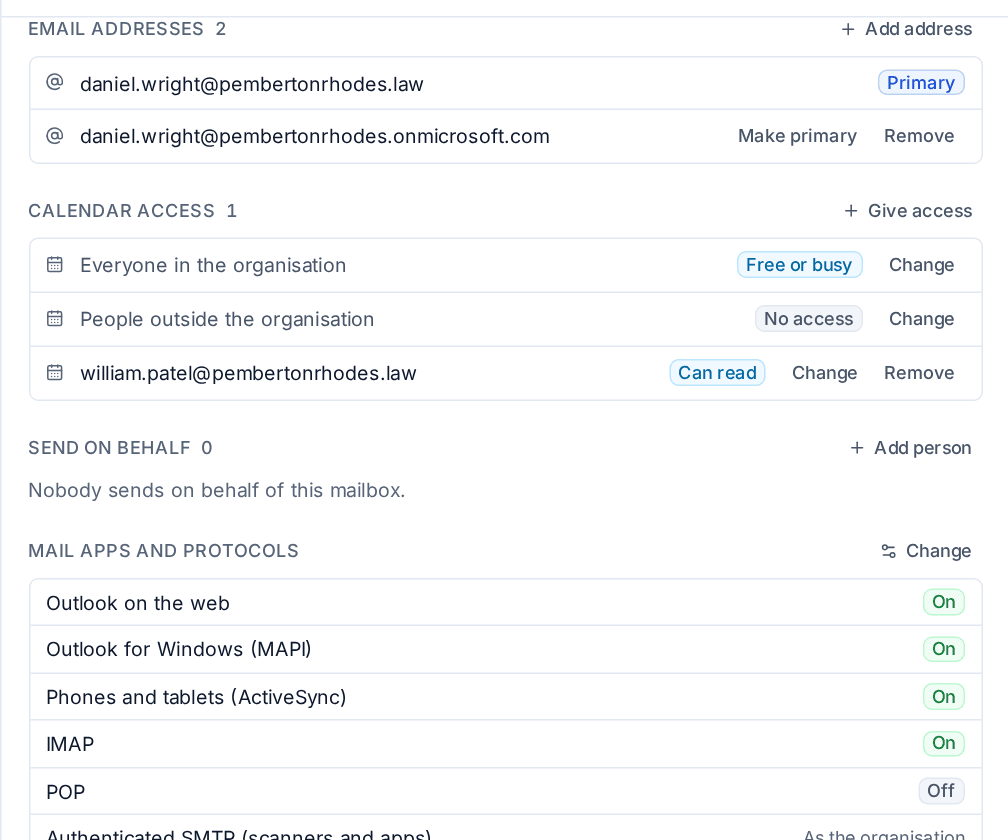
| Section | What you can do |
|---|---|
| Storage | See the mailbox's size against its quota and Turn on archive (or the auto-expanding archive) |
| Email addresses | Add address, Make primary and Remove aliases |
| Calendar access | Give access to a colleague as Reviewer, Editor or Delegate, change what everyone in the organisation and people outside it see, or remove access |
| Send on behalf | Add person who may send on behalf of the mailbox |
| Mail apps and protocols | Change which of Outlook on the web, Outlook for Windows, phones and tablets, IMAP, POP and authenticated SMTP the mailbox can use |
The same actions are in a user's Actions menu under Mailbox: Calendar access, Let someone send on behalf, Mail apps and protocols and Turn on archive.
Tip: Calendar access is given to people, not to a shared or room mailbox. Exchange refuses a shared mailbox as the one getting access, and the preview warns you before you try.
Switching on authenticated SMTP lets a device send without MFA, so the preview says so. The leaver steps can turn off a person's mail apps in one go.
Mailboxes filling up
When a mailbox gets close to its quota, Tenvara raises an alert with Enable archive as the fix. The warning and critical lines (90% and 98% to start with) and the line below which the alert clears are in Settings > Microsoft 365 > Timings under Mailboxes and mail.
Shared, room and equipment mailboxes and mail contacts
On the Mailboxes tab, press New and choose:
- Shared mailbox: its name and address, and the people who get Full Access and Send As (it appears in their Outlook).
- Room or equipment: capacity, location, whether bookings are accepted automatically and how far ahead people can book.
- Mail contact: an outside address that shows in the address book.
The Mail contacts view lists the tenant's contacts.
Sign-in names and profile details
From a user's Actions menu, under Account:
- Change sign-in name renames the user principal name and keeps the old name as an alias, so mail still arrives.
- Edit details covers job title, department, office, phones, address, company, employee ID, hire date and type, and the extension attributes 1 to 15.
- Change photo and Remove photo. A photo needs a mailbox, so the preview warns you for someone without an Exchange licence.
Message trace
The tenant's Message trace tab finds out what happened to an email.
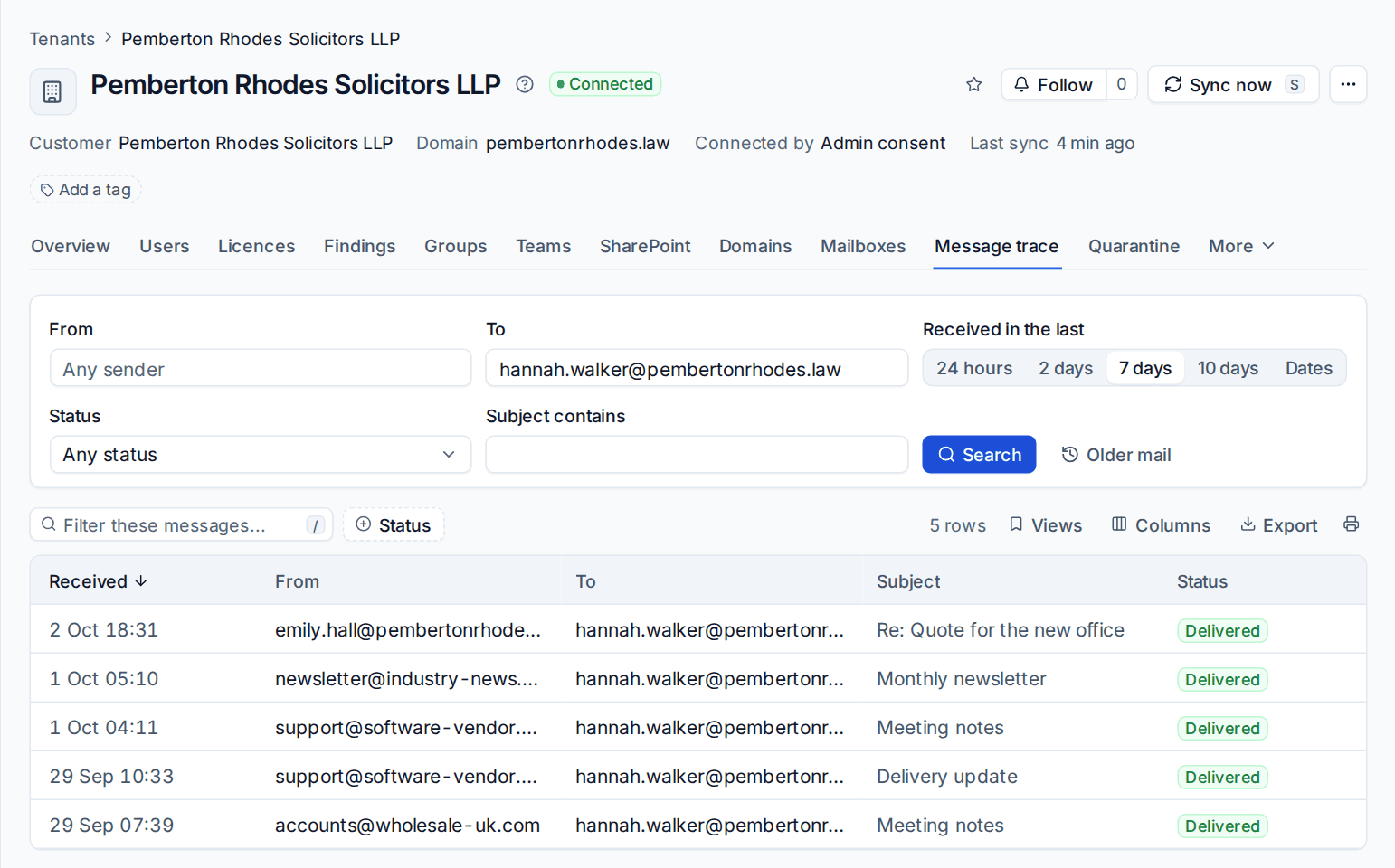
- Fill in From, To, or both. You can also narrow it by Status (delivered, failed, quarantined, filtered as spam and so on) and Subject contains.
- Choose how far back under Received in the last: 24 hours, 2 days, 7 days, 10 days or Dates. One search covers up to 10 days.
- Press Search, then click a message to see each step Exchange took with it.
- For mail older than 10 days (Exchange keeps 90 days), press Older mail. That starts a historical search, and Microsoft emails the report when it is ready.
From a user's panel, Trace their mail opens the trace for them. Copy to ticket adds what you found to a ticket as an internal note, shown first so you can trim it.
Note: Exchange allows about 100 message trace requests every five minutes per tenant. Tenvara stops just below that and says so, so a busy desk never gets the tenant throttled.
Quarantine and allow and block lists
The tenant's Quarantine tab lists quarantined mail with who it was For, Why (spam, bulk, phishing, malware, a mail flow rule) and its Release state, including people's requests to release something.
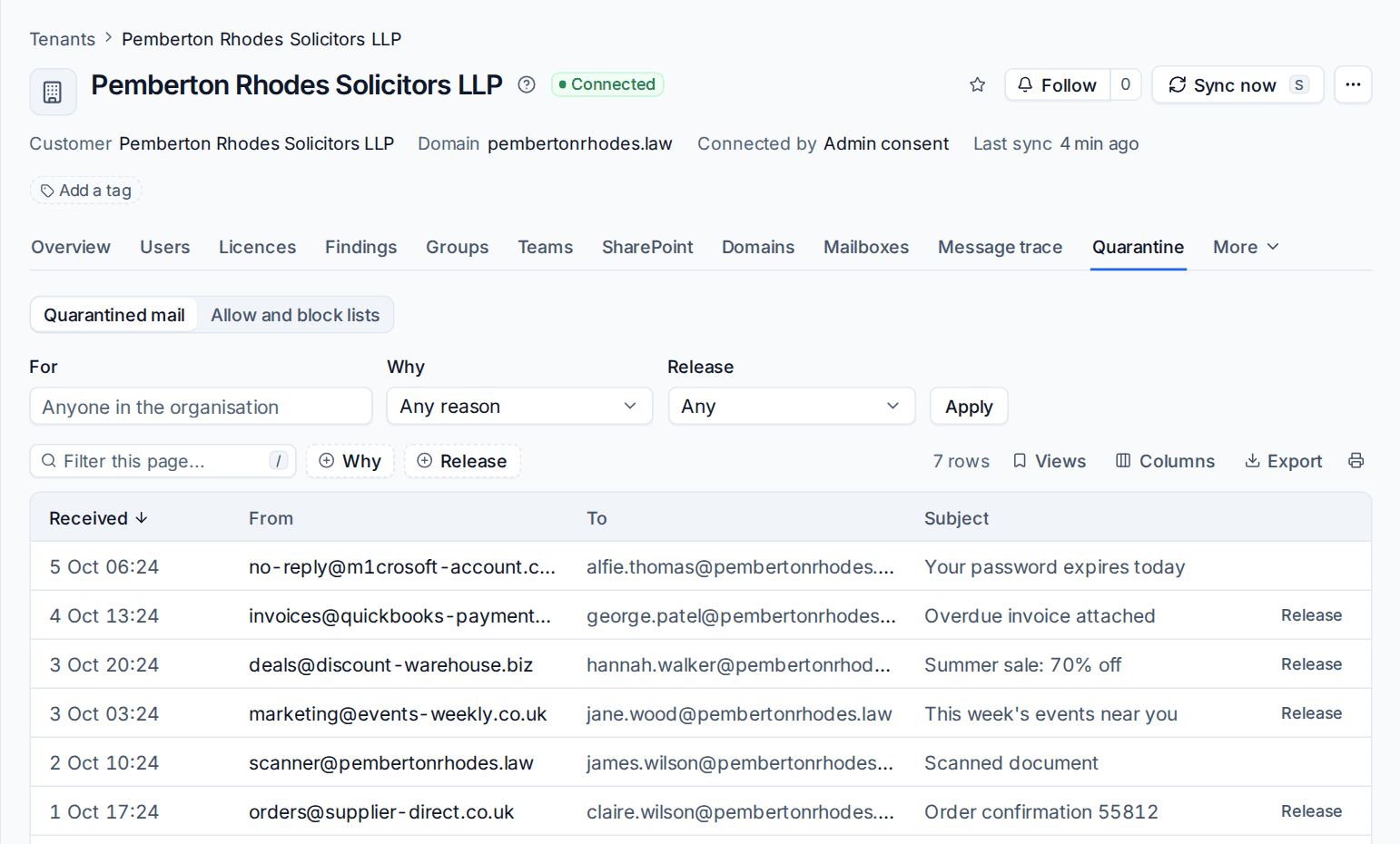
- Open a message to read its headers, then Release it (optionally allowing the sender) or delete it.
- Allow and block lists holds the tenant's allowed and blocked senders, domains, URLs and files, each with an expiry and a note.
- Once a day Tenvara can raise an alert for each tenant where people asked for quarantined mail to be released (on to start with, in Settings > Microsoft 365 > Timings).
Groups' mail settings
Open a distribution list or Microsoft 365 group on the Groups tab to change its mail settings: whether people outside the organisation can send to it, whether it shows in the address book, who may send to it, its addresses, and whether members get copies of conversations. You can also add or remove many members at once by pasting their addresses.
A person's sign-ins and access
The user panel has:
- Full sign-in log: every sign-in in Microsoft's log, successes too, with Conditional Access and MFA detail and the error codes in plain words.
- Access to other mailboxes and data: the mailboxes and calendars this person can open or send as. You can remove that access from here, and the leaver can do it as a step.
- Sites this person can access: the SharePoint sites they reach through their groups.
Guests
The tenant's Users tab has Guests and Guests not signing in views, and Invite guest.
- Press Invite guest and enter who you are inviting. Microsoft sends them the invitation.
- From a guest's panel you can resend the invitation or reset their redemption (so they accept again with a different account).
- Guests not signing in lists guests who have not signed in for the number of days you choose. Select them and remove them in bulk.
Deleted users and groups
The Deleted view on Users (and on Groups) lists what Microsoft is still holding, with the days left. Restore a user (Tenvara offers the licences they had) or a group, or delete it for good.
Sending a password safely
Reset password and Temporary Access Pass let you make one or set one you choose (checked against Entra's rules first), then decide how it reaches the person under Send it:
- Show it to me: shown once in the result.
- Text it to them: through your SMS channel.
- Email a one-time link: to their manager, a contact, the ticket's requester or any address. The link opens a page that shows the password once; opening the page does not use it up, pressing to reveal it does. The link stops working after the time set in Settings > Microsoft 365 > Timings (24 hours to start with), opened or not.
Tenvara never keeps the password itself: only the link's fingerprint, and the password encrypted until it is revealed or the link runs out.
Related: Users, groups and mailboxes, Bulk, scheduled and time-limited changes.
Was this page helpful?
Thanks for the feedback.