Folders, sharing and history
File each customer's documentation in folders, limit who sees a folder, share read-only links with people outside, show records on the portal, print or download PDFs, and see every earlier version of records and credentials.
This guide covers how documentation is organised and who sees it: customer folders and folder access, read-only share links for people without a sign-in, records on the customer portal, printing and PDFs, and the history kept for records and credentials.
Customer folders
The knowledge base has had folders from the start. Each customer's documentation now has its own folder tree too.
- Open the customer and choose the Documentation tab.
- Folders on the left lists the customer's folders with how much is in each. All documentation shows everything.
- Press the new folder button to add one, or use a folder's options menu for New folder inside, Rename, move or access and Delete folder.
- Drag a folder onto another (or onto All documentation) to move it.
Articles and records are filed with the Folder field when you write them, or several at once with Move to folder on the documentation list. Deleting a folder moves what was in it up a level. Knowledge base articles only go in knowledge base folders, and a customer's only in that customer's.
Who sees a folder
Any folder, in the knowledge base or a customer's documentation, can be limited to named people.
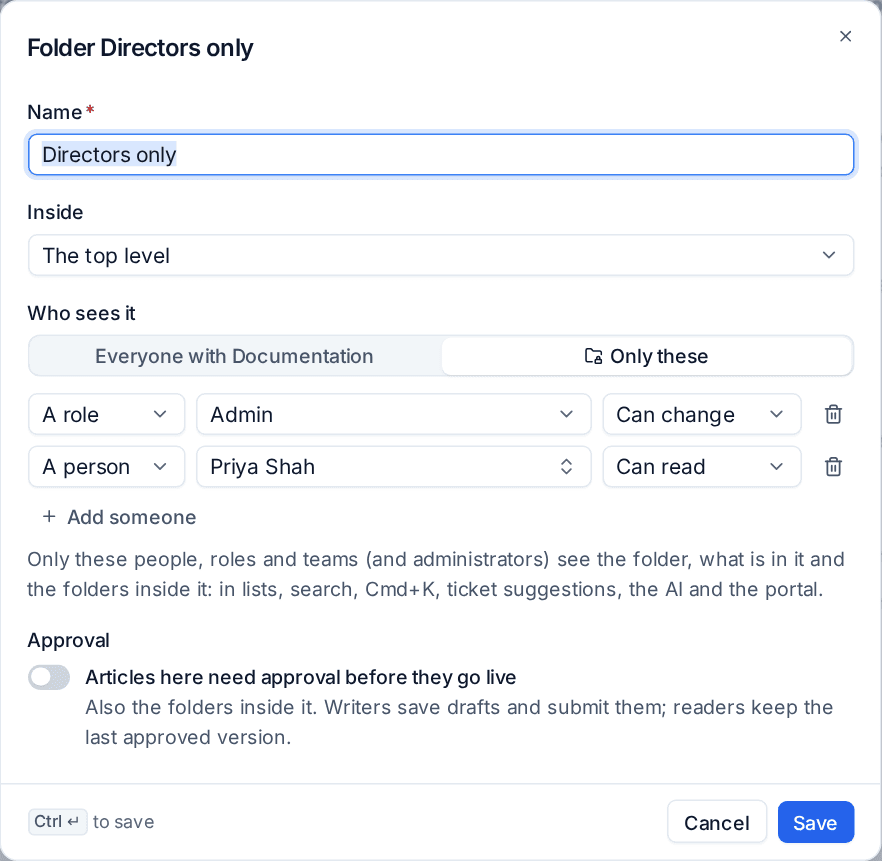
- Open the folder's options and choose Rename, move or access.
- Under Who sees it, choose Only these instead of Everyone with Documentation.
- Add A role, A person or A team, each with Can read or Can change.
- Press Save.
Only those people, roles and teams (and administrators) then see the folder, what is in it and the folders inside it: in lists, search, Cmd+K, ticket suggestions, the AI and the portal. A folder without its own list follows the folder above it, so a limited folder limits everything inside. Only administrators change a folder's list, and the list can only narrow what someone's role already allows.
Tip: Use it for HR procedures in the knowledge base, or a customer's "Directors only" folder for the documentation their directors asked you to keep apart.
The same dialog has Articles here need approval before they go live, which asks for approval of every article in the folder and the folders inside it. See Knowledge base articles.
Share links for articles and records
Sometimes someone without a sign-in needs to read something: a supplier, an auditor, a new starter's manager. A share link gives them a read-only copy.
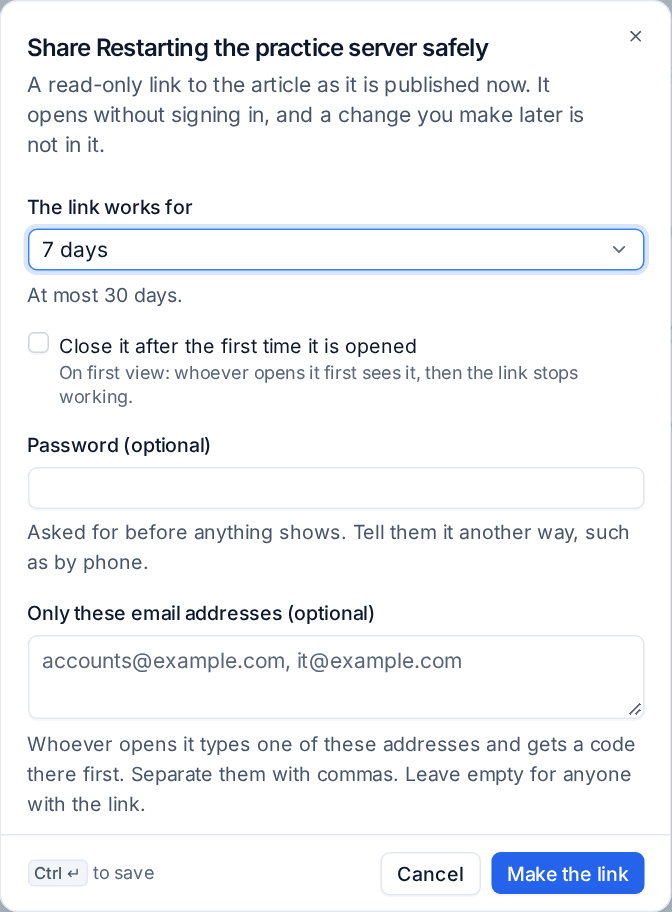
- Open the article or record and choose Share a read-only link... from its ... menu (or press Share on its Share links card).
- Choose how long The link works for, up to 30 days, or tick Close it after the first time it is opened.
- Optionally add a Password (tell them it another way, such as by phone) and Only these email addresses: whoever opens it then types one of those addresses and gets a code there first.
- Press Make the link and copy it. The link is shown once.
What they see is a copy taken at that moment, on your portal's address and in your branding: an article's published version (never a change still in review), or a record's fields. Secret fields only say "hidden", links to devices and contacts are plain names, and embedded credentials are taken out.
The item's Share links card lists its links with views, when and from where they were last opened, the expiry, who made it, and Revoke. Docs > Share links lists every link. Making, opening and revoking a link are on the item's activity.
Settings > Documentation > Share links switches share links on or off (for everyone or per customer), and sets the default and longest expiry. With them off, existing links stop opening.
Records on the customer portal
A record can be shown on its customer's portal Help page with only the fields you choose: the guest Wi-Fi, the door codes, site access notes.
- Open the record and press Show on the portal on its Customer portal card.
- Tick the fields to show. Fields that are not secret are ticked to start with.
- Choose who at the customer sees it: everyone, their portal managers, the people at the record's site, or chosen contacts.
- Save. The record shows an In the portal badge in the customer's documentation list.
A secret field can only be chosen if an administrator has ticked Customers may see it on the portal on that template field. On the portal the secret stays hidden until the contact presses Show, and each reveal is in the vault audit log with their name and address. Records in a limited folder never reach the portal. Change the fields and Take off the portal are on the same card.
Print and PDF
- An article: Print or Download PDF from its ... menu. The PDF has your logo, the title, the customer, site, folder, version, last update and owner, then the text with its headings, tables, code and images. Callouts keep their colours, task lists print as empty boxes, and embedded credentials print as their name with their secrets hidden.
- A record: the same, with each section as a table. Secret fields always print as Hidden, unless you choose to include the revealed secrets, which needs permission to reveal them and writes each one to the vault audit log.
- A documentation pack: Documentation pack (PDF) on a customer's Documentation tab, or a knowledge base folder's Print this folder and Download as PDF. The pack has a cover, a contents page with page numbers and each item on its own page.
Every print and PDF is in the audit log.
History for records and credentials
Articles have always kept versions. Records and credentials now do too.
- Records. Every save that changes something keeps a version. Open Version history from the record's menu (or press
H) to read any version as it was, compare it with now, or Restore version. Secret values a save replaced are listed under that version, each revealed through the vault. - Credentials. When a password, key, certificate, note or file changes, the value it replaces is kept, still encrypted: the last ten of each secret. The credential's history section (Password history, Key history and so on) lists each with who set it and when it was replaced. Revealing an earlier one needs the same permission as the current one and is in the vault audit log. People who manage credentials can Put back an earlier value.
Related: Knowledge base articles, Customer documentation and records.
Was this page helpful?
Thanks for the feedback.