Searching and browsing backups
Browse a device's or a person's backups like Explorer or Outlook with a time slider, show deleted items, compare versions, preview files and gather items from several points in a basket.
Search finds an item when you know its name. When you do not, browse: open a device, a mailbox or a site and look through it as it was at any backup, the way you would in Explorer or Outlook. This page covers the browser, versions, deleted items, previews, the basket and comparing two recovery points. Restoring what you find is covered in Restoring.
Opening the browser
Any of these opens the browser on a device, a Microsoft 365 user, or a site or team:
- Show in browser on a search result in Backup > Restore, which opens at that item's folder and backup.
- Browse by user or device in Backup > Restore, then pick from the Users, Devices or Sites and teams tab. See Restoring from anywhere and sharing.
- Restore on a device's Backup section, a recovery point's row, a Microsoft 365 user, or Cmd+K ("Restore files for LAPTOP-12", "Restore mail for Jane Smith").
The address keeps everything you choose (the part, the backup, the folder and whether deleted items are shown), so back and forward work and you can send a colleague the link.
Finding your way round
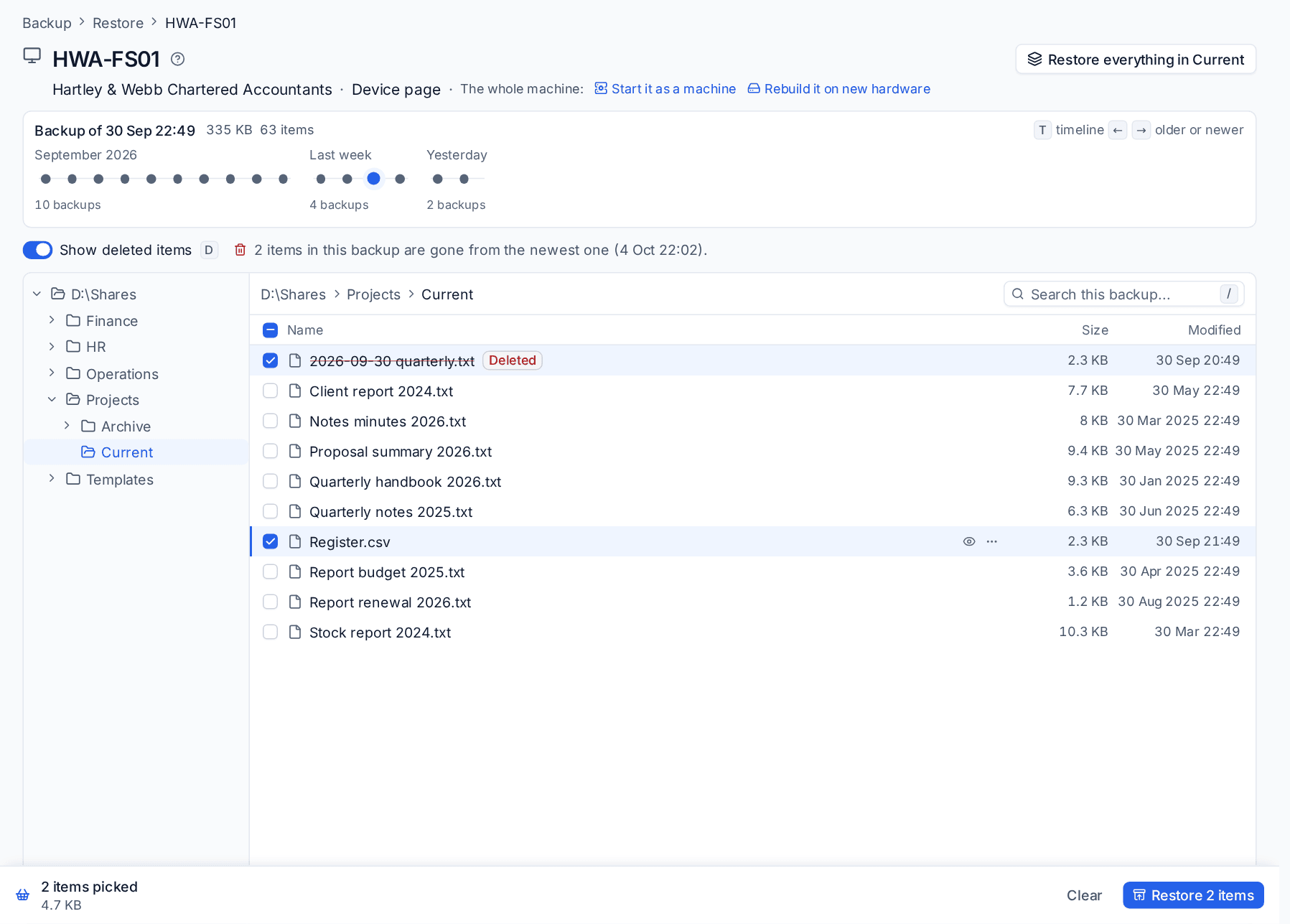
The header shows the device or person and their customer, with links to the device page. For a person, the parts are tabs: Mail, OneDrive, Calendar and Contacts. For a device, its volumes, folders and virtual machines. For a device you also get "The whole machine:" links to Start it as a machine and Rebuild it on new hardware.
The timeline shows every backup as a dot, oldest on the left, grouped the way people think of them: today, yesterday, earlier this week, last week, then by month. The chosen backup shows its date, size and number of items. Pick a dot and the whole view moves to that point in time. The newest complete backup is chosen when you arrive.
Note: A backup that was interrupted part-way is shown as a hollow amber dot and labelled as partial. You can browse and restore what it holds. See Resuming large and interrupted backups.
The folders are on the left and the list on the right. Mail reads like a mail client, with From, Subject or name, Received and Size. Files show Size and Modified. Folders show their size too. Search this backup (or /) searches the backup you are looking at.
Keys
| Key | Does |
|---|---|
| Arrows, j, k | Move up and down |
| Enter | Open a folder |
| Space | Pick an item for the basket |
| Backspace | Go up a folder |
| p | Preview |
| / | Search this backup |
| t | Move to the timeline, then the arrows, Home and End move between backups |
| d | Show deleted items |
| Escape | Close the preview |
Showing deleted items
Turn on Show deleted items (or press d). Anything that was in the chosen backup and is gone from the newest one is shown struck through and marked Deleted, with a count above the list ("2 items in this backup are gone from the newest one"). A folder with deleted things inside says Deleted items inside, so you can follow the trail down.
On the newest backup there is nothing deleted yet to show, and the browser tells you to pick an older point on the timeline.
For a whole deleted folder or mail folder, the folder is one entry with its size: pick it and the whole folder comes back.
Previewing
Select a row and press p, or use the eye icon. The preview opens beside the list:
- Messages, events and contacts as they read in the mail preview.
- Images, PDFs, text, audio and video.
- Word, Excel, PowerPoint and OpenDocument files, shown as a PDF when Office previews are on in Settings > Recycle bin and files.
On a phone, the preview takes the list's place with a back button.
Versions of a file
Right-click an item (or use its ... menu) and choose Versions. Every distinct version is shown side by side with its size, when it was modified and the backups that hold it. The one you are looking at is marked Shown, and the newest Current.
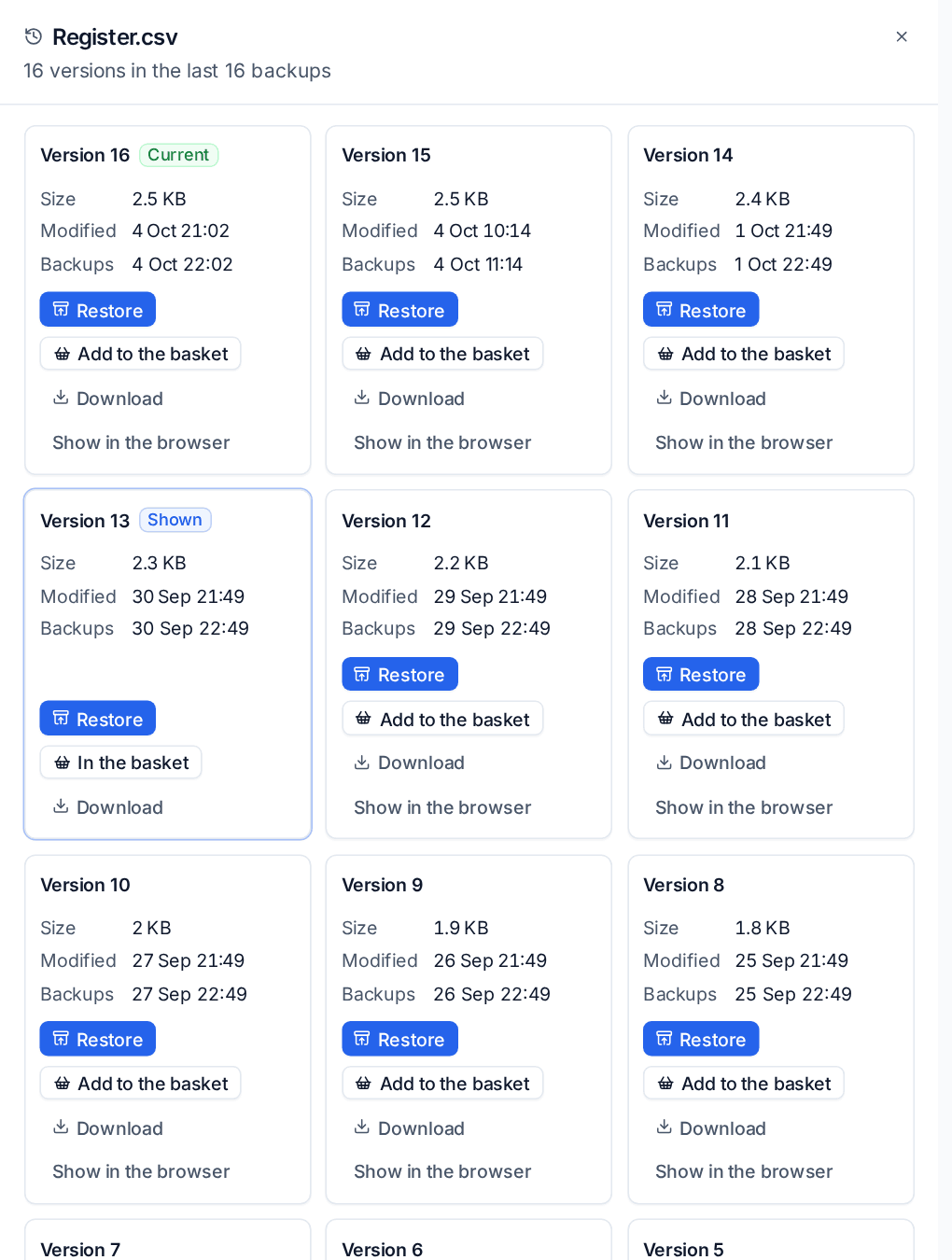
Each version has Restore, Add to the basket, Download and Show in the browser. Pick any two to compare them: text files as they are, and Office documents by their words.
Restore to yesterday's version on the row menu is the quick way back from a bad edit: it takes the newest older copy that differs from the one you are looking at, and restores it to its own place through the restore sheet.
The basket
When the things you need are in different folders, or in different backups, gather them in the basket and restore them together.
- Tick a row, press Space, or Cmd or Ctrl-click it. A plain click only moves the cursor and the preview, so you never lose your picks by clicking around.
- Move to another folder or another backup on the timeline and pick more.
- The bar at the bottom shows how many items you have picked and their size. Open it to take any out, or press Clear.
- Press Restore N items to open the restore sheet with everything in it.
The basket keeps one version of each item: picking the same file at another backup replaces the earlier pick. It stays with you as you move around Tenvara, and through a reload, in the same browser tab.
Comparing two recovery points
On a device's Backup section, hover a recovery point and choose Compare with the point before it to see what was added, changed and deleted between two backups. Microsoft 365 items can be compared the same way. From the list you can restore the deleted ones from the older point in one go.
If a large share of the older point's files changed or went between the two (30% by default, with at least 20 files), the comparison warns that it can be ransomware. Set the share, and whether it also raises an alert on the customer, under Comparing recovery points in Settings > Backup > Restores.
Related
Was this page helpful?
Thanks for the feedback.