Sleeping devices and volumes
How Tenvara shows a device that is asleep rather than offline, keeps brief drops to one timeline line, handles laptops and offline alerts, and tells real disks from installer images and network shares.
A closed laptop is not a problem, and neither is a mounted installer image that reads as 100% full. Tenvara knows the difference, so your device list, timelines and alerts show what is really happening.
Asleep, not offline
The agent tells Tenvara when the machine is going to sleep and when it wakes. A device that said it went to sleep shows as Asleep, its own status beside Online and Offline.

You see Asleep:
- in the device list, with an Asleep entry in the Devices sidebar when there are some, and in the Status filter;
- on the device page, for example Asleep: since 07:04, wakes briefly every 15 min;
- on the customer page and Home, counted apart from offline devices;
- in the customer portal, the report builder's Devices dataset, the monitoring fleet view and Remote in, which says the device is asleep.
To reach a sleeping device, use Wake up in its ... menu, which wakes it through another computer on the same network. See Wake-on-LAN and remote access rules.
Brief wakes stay quiet
Sleeping computers wake for a few seconds every so often for their own maintenance. These brief wakes update when the device was last seen but write nothing on its timeline, raise nothing and clear nothing. When the device fully wakes, its timeline gets one line, such as The device woke up after 4 hours.
A device that disappears without saying it is going to sleep (pulled from the network, out of battery) still goes Offline as before.
Brief drops fold into one line
Wi-Fi blips and flaky lines used to fill a timeline with pairs of "went offline" and "back online" lines. Now a device that comes back for less than a few minutes and drops again keeps one line: The agent went offline 3 times between 18:10 and 20:16, back only briefly in between.
How short a return counts as a blip is Fold a return shorter than this into the offline line in Settings > Devices and agent (5 minutes by default).
Laptops and offline alerts
Sleeping is normal for laptops, so offline alerts take it into account. The settings are in Settings > Monitoring under offline devices, and can be changed per customer:
| Device type | Counts as offline while asleep |
|---|---|
| Laptop | After 7 days asleep |
| Desktop | Straight away, as before |
| Server, virtual machine, network kit and the rest | Straight away, as before |
Time is measured from when the device went to sleep, not from its last brief wake. Past its allowance a sleeping laptop still shows Asleep, and follows the usual offline rules for alerts.
A server going to sleep is almost always a mistake, so it raises a warning, SERVER-01 went to sleep, as soon as it happens, cleared when it wakes. Maintenance windows and mutes hold it back like any monitoring alert.
Note: Workstations going offline do not raise alerts by default; servers and devices marked always on do. See How monitoring works.
Scripts and maintenance wakes
Scripts queued for a sleeping device wait until it is fully awake, because a brief wake can end at any moment. If you would rather they start during a brief wake, turn on Run queued scripts during a sleeping device's maintenance wakes under Scripts in Settings > Device management (off by default, per customer). They may then be cut short when the device sleeps again.
Monitoring data and check-ins still arrive during brief wakes. Backups carry on after a sleep: see Backup.
Volumes that are not disks
The agent tells real disks from everything else that is mounted, so storage monitoring covers only what can actually fill up.
| Kind | Examples | Shown | Alerted on |
|---|---|---|---|
| The machine's own disks | C:, the Mac's data volume, / and /boot on Linux |
Yes | Yes |
| External and network | USB disks and sticks, SD cards, mounted shares (SMB, NFS, AFP) | Yes, under External and network | Only when you turn it on |
| Disk images and system volumes | Installer .dmg files, ISOs, snaps, read-only virtual disks, the macOS system volumes, EFI |
No | No |
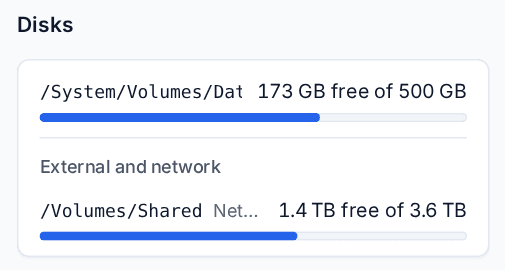
On the device page, the live status card, the health overview and the inventory's disk list show external drives and shares apart, under External and network. Disk alerts, the disk full forecast, Disks nearly full and reports skip them unless Alert on external and network volumes is on in Settings > Monitoring under alert noise (off by default, per customer).
Disk images and system volumes are never shown or alerted on. A mounted installer used to read as a full disk in red; now it is simply left out, and any alert raised on one before resolves by itself.
Tip: A writable disk image, such as a Mac sparse bundle or a writable VHDX, holds real work, so it is still treated as a disk and monitored.
Network drives a user maps on Windows belong to their own sign-in, so the agent does not see or list them. Shares mounted for the whole machine on macOS and Linux are listed under External and network.
Was this page helpful?
Thanks for the feedback.