Quiet monitoring and onboarding findings
How Tenvara stays quiet about normal things, handles offline devices, checks that only fit some machines and checks that could not run, and turns a new customer's first scans into one report.
An alert should mean someone needs to do something. Tenvara is quiet by default about things that are normal: a laptop that went home, a check that makes no sense on a virtual machine, or the dozens of problems every new customer has on day one. This guide explains each of those rules and where to change them.
Offline is normal for desktops and laptops
Desktops and laptops are switched off at night, taken home and put to sleep, so going offline is not an alert for them. Servers, virtual machines and network devices do alert when they go offline.
Whether a device alerts when it goes offline is decided, most specific first, by:
- The device itself. On its Monitoring card, When it goes offline is Automatic, Always on or Never alert.
- Its device groups. A group's When its devices go offline card: if any of the device's groups says always on, it alerts; otherwise if any says never, it does not.
- Its monitoring policies. The policy's Always on setting.
- Its type. Device types that alert when offline in Settings > Monitoring > Alert noise. A customer can have its own list.
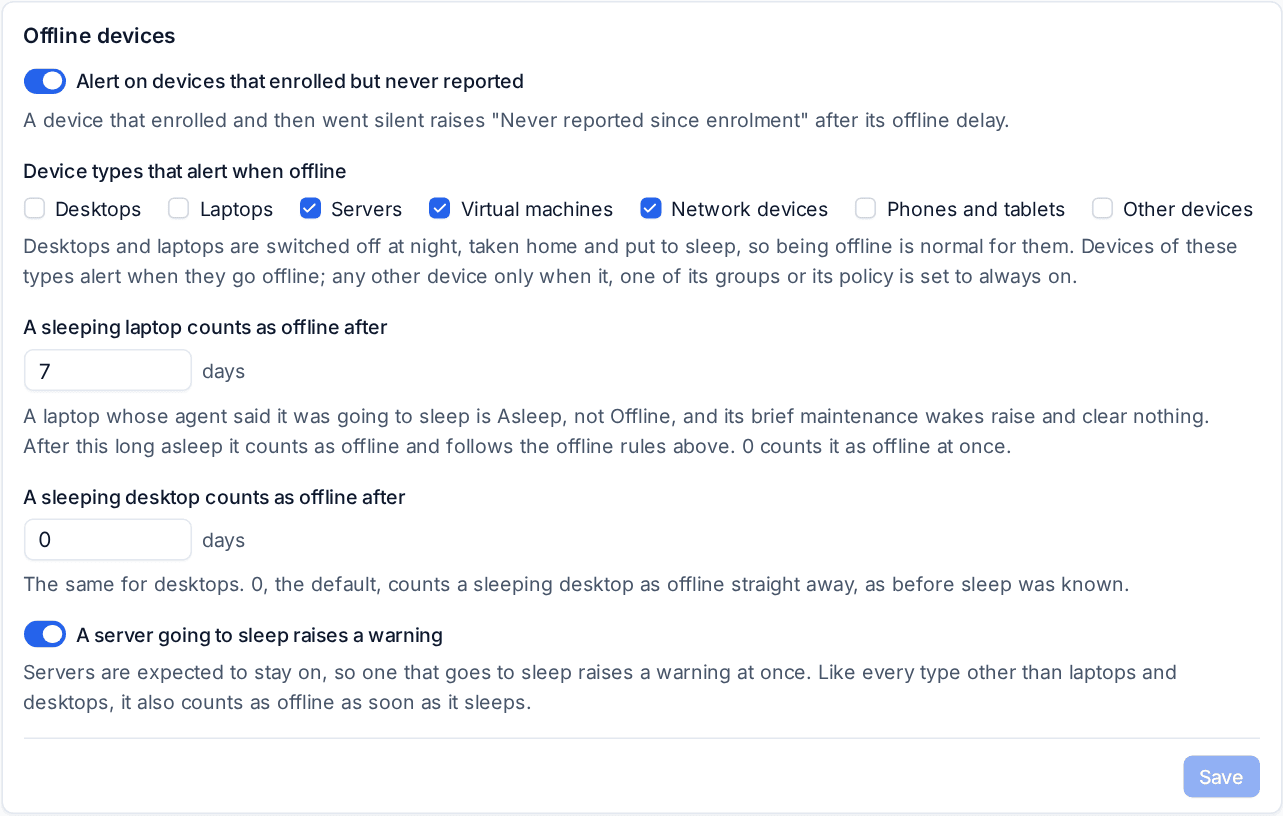
So a reception PC that must stay on can be marked Always on, and a test server can be set to Never alert.
A device that does not alert still goes offline: it shows as Offline in lists, its checks pause, and it counts in Not reporting. One not seen for a long while becomes Stale (30 days by default, in Settings > Devices), which is a quiet clean-up list, never an alert. In the customer portal, offline is shown neutrally, and stale devices as Not seen for a while.
The same rule keeps site outages honest: a Site offline alert counts only devices that alert when offline, so an office's desktops going off at six o'clock is not an outage.
Tip: Laptops and desktops that tell the agent they are going to sleep show as Asleep, not Offline. See Sleeping devices and volumes.
Checks that cannot apply
Some checks make no sense on some devices: a hardware reading on a virtual machine, a laptop-only check on a desktop, a security setting a Mac does not have. Such a result is N/A (not applicable), shown greyed out on the device page with the reason beside it.
An N/A check never alerts, never counts as a failure, never counts against the device's health and never appears in the failing checks lists. Nothing needs doing.
Checks that could not run
"Could not run" means the check applies but the agent could not read it this time. On its own that is a quiet notice on the device, not an alert. It becomes an alert only once it has failed to run several times in a row: A check that could not run alerts after in Settings > Monitoring > Alert noise (3 by default, and per customer). This comes on top of the policy's Failed checks before an alert.
External and network storage
USB disks, SD cards and network shares are shown on the device page under External and network, and are not alerted on or forecast. Turn on Alert on external and network volumes in Alert noise (per customer) if you want them treated like a disk inside the machine. Mounted installer images and system volumes are never shown or alerted on at all.
Onboarding findings
A first scan of anything new finds many real problems at once: a new Microsoft 365 tenant's MFA gaps, a domain's DNS records, a fleet of devices' missing updates. Rather than an alert, a ticket and a page for each, Tenvara gathers what a first scan finds into one onboarding findings report, with one notification.
A report starts when you add:
| What you add | The first scan ends when |
|---|---|
| A customer | the deadline passes (24 hours by default) |
| A Microsoft 365 tenant | its first sync and security checks have run |
| A domain | its registration and DNS have both been read |
| Devices | the deadline passes (4 hours after they enrol by default) |
| A site's network probe | its first scan has finished |
One onboarding is one report: a domain found by a new tenant, or devices and a tenant added during a new customer's first day, join the report that is already scanning. Devices enrolled together share one report.
When the report is ready, the customer's account manager and technical lead (or else everyone who works that customer's alerts) get one notification, for example Oakfield Learning Trust onboarded: 27 findings to review. A report that found nothing tells nobody.
After the first scan, alerts start as normal for anything that appears or gets worse. A device going offline, security detections, alerts raised by hand or by automation, and the connection's own health are never gathered: they alert as always.
Working the report
Open the report from the notification, or from the Onboarding tab on the customer or the tenant.
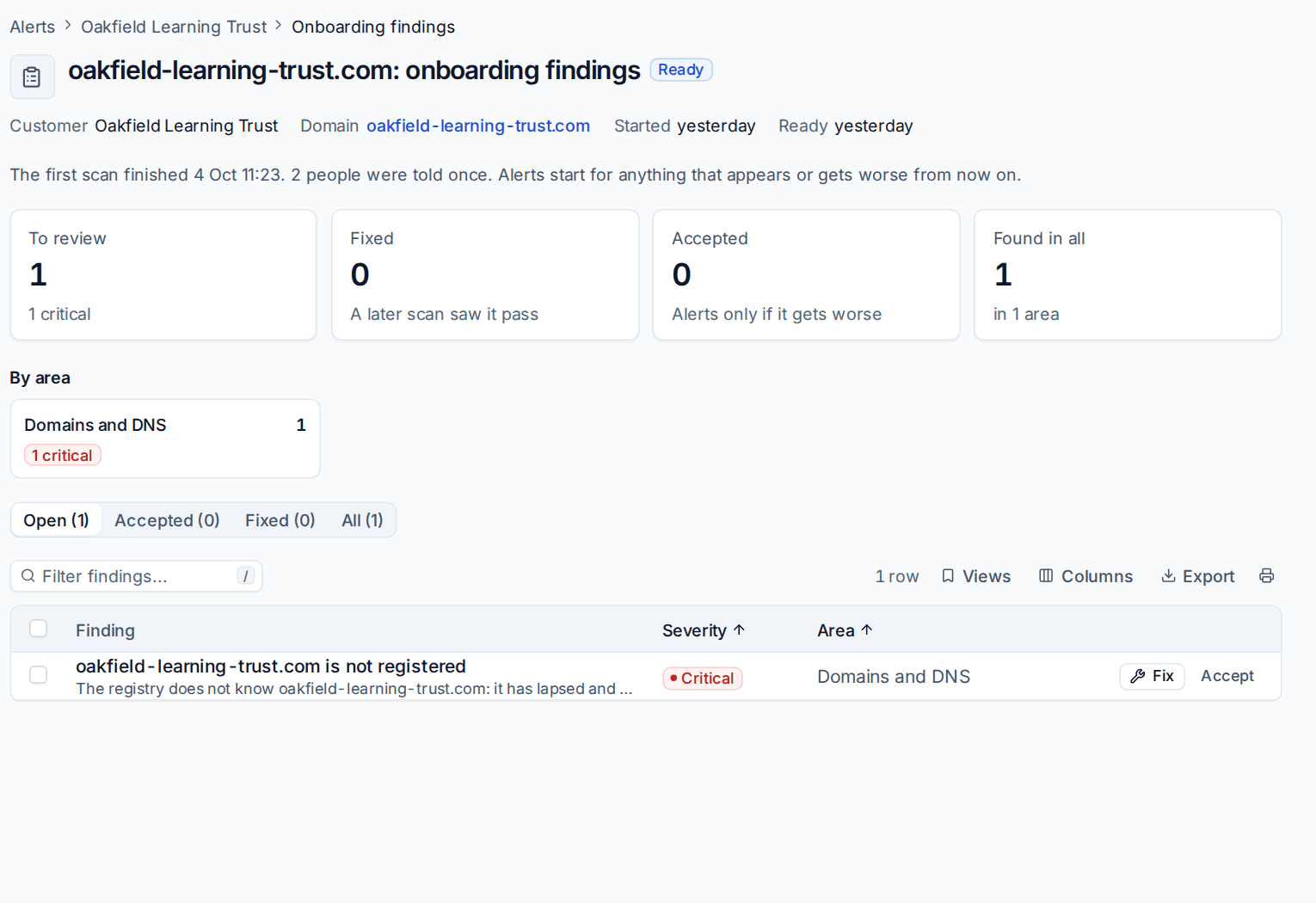
- The counts show what is To review, Fixed (a later scan saw it pass), Accepted and Found in all.
- By area tiles (Microsoft 365 security, Licences, Domains and DNS, Device checks, Patching and so on) filter the table.
- Fix takes you to where the finding is put right: the tenant's findings, the domain's DNS, the device and so on. A Microsoft 365 report also has Review fixes for the tenant's open checks.
- Accept takes a finding as it is, with a reason. An accepted finding alerts only if it later gets worse. Tick several to accept them together.
- While the first scan is still running, Finish now ends it at once.
Managers at the customer can see a plain summary of the first checks on the portal's Security page: how many things were found, how many are fixed, left as agreed or still being worked on. It shows counts only.
Settings
In Settings > Monitoring > Alert noise > Onboarding findings (per customer):
- Gather a first scan into an onboarding findings report: on by default.
- A first scan ends at the latest after and A new device's first scan ends after: the two deadlines.
- Show the onboarding summary in the customer portal: on by default.
Related
Was this page helpful?
Thanks for the feedback.