Approval rules, delegation and out of office
Set reminders, escalation and expiry, build approval chains with cost thresholds, give each customer an approval matrix, and make sure approvals keep moving while people are away.
Settings > Approvals decides who approves what, in which order and above which cost, how approvers are asked and reminded, and who stands in while someone is away. Each customer's own approvers live on the customer's Approvals tab. For the inbox and how people decide, see Approvals.
The page has five tabs: General, Request types, Chains and thresholds, Our approvers and Out of office. Reset this page puts the shipped defaults back.
General
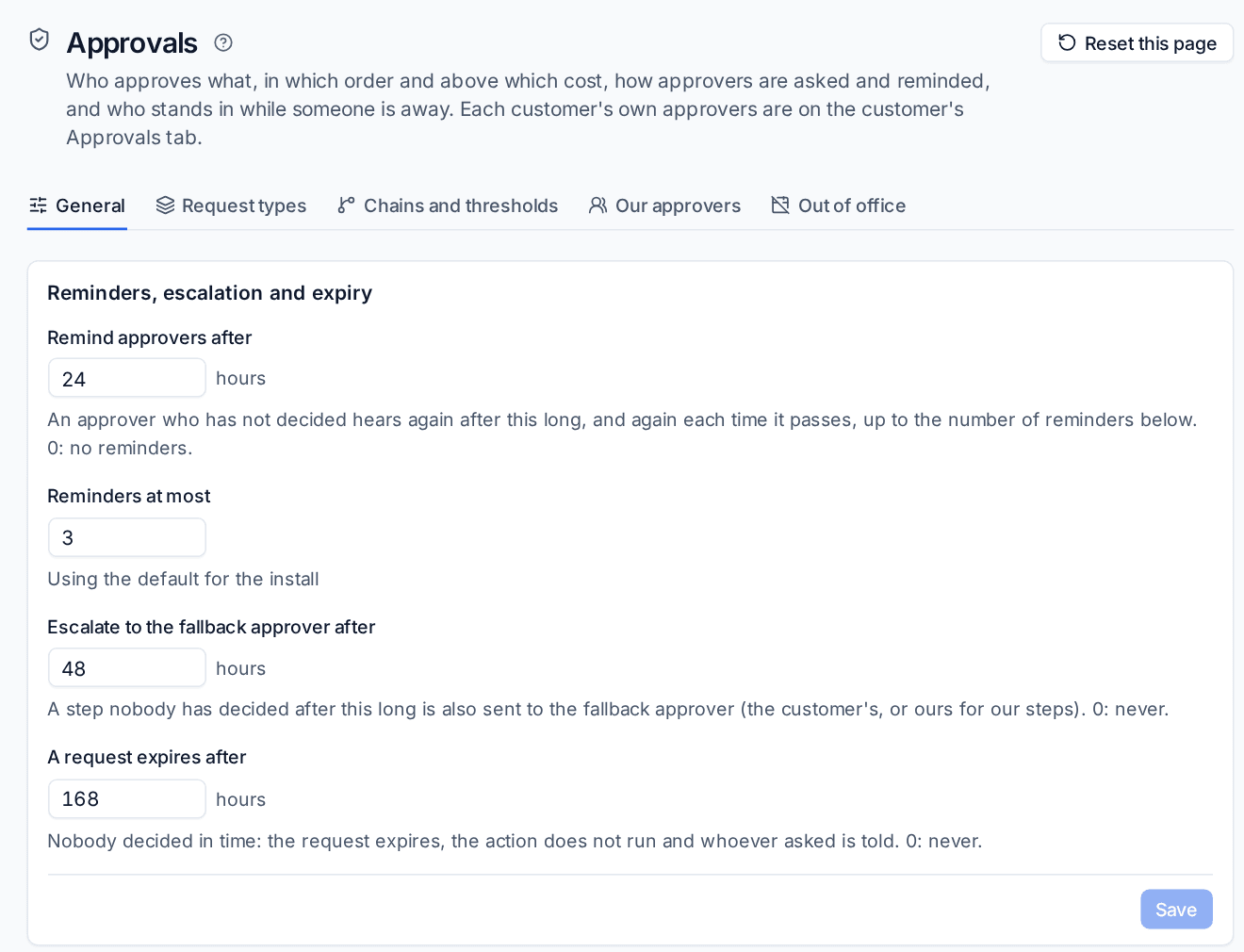
- Reminders, escalation and expiry: Remind approvers after a number of hours, up to Reminders at most; Escalate to the fallback approver after a number of hours; and A request expires after a number of hours, when the action does not run and whoever asked is told. 0 turns each off.
- Emailed links: Approve from the email without signing in up to an amount in the customer's currency (above it, or for high-risk requests, approvers sign in first; 0 means always), Ask approvers to type their name to confirm, and how long Emailed links work for.
- Tickets: A ticket waiting for approval pauses its SLA, the Status while waiting for approval, and whether to Post the decision on the ticket for the customer to see in the portal.
- Our approvers: Our fallback approvers decide your own steps when nobody else is named, and anything a customer has nobody to approve (with nobody chosen, every administrator). Staff may approve what they asked for themselves is off by default.
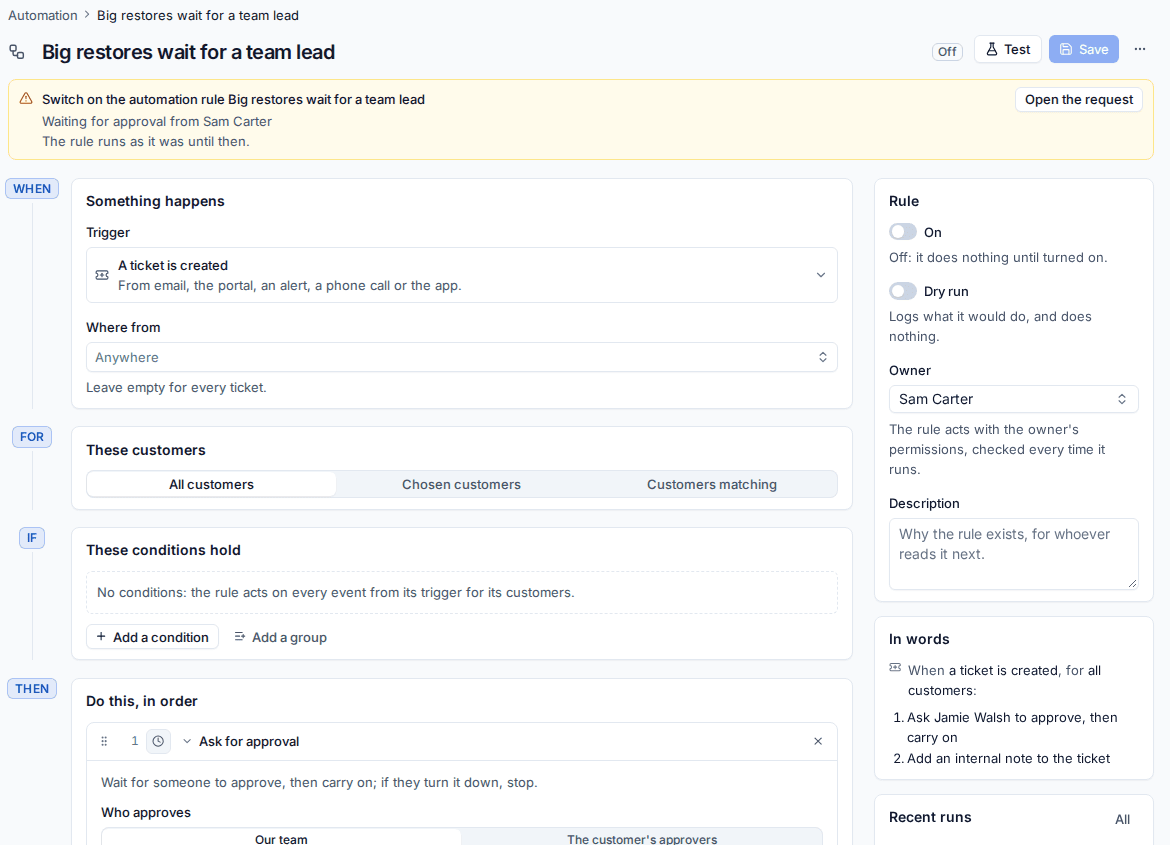
- What waits for our approval: Software to a whole customer or everyone needs approval (on by default, for people who are not administrators), Publishing a script version needs another administrator, and Switching on or changing an automation rule needs approval (the rule keeps running as it was until then; turning a rule off never waits).
Most of these settings can differ for one customer, from the customer's own settings. Request types lists every kind of request, with its own choice of whether Its ticket waits with the SLA paused, whether Approvers sign in to decide, and when it Expires after.
Chains and thresholds
A chain is a list of steps asked in order. Anyone rejecting stops the request, and someone who already approved an earlier step passes a later one automatically.
- Go to Settings > Approvals > Chains and thresholds (or a customer's Approvals tab for a chain that applies to that customer only).
- Press Add a chain and give it a name, such as "Purchases over 500".
- Choose the Kind of request, or Every kind.
- Press Add a step for each step. Give it a Step name, choose who approves and How many must approve (Any one of them or Everyone). Who approves can be:
- the customer's side: Their approver in the matrix, Contacts with a role, A named contact or The customer's fallback approver;
- your side: Their own approver (manager), Staff with a role, a team or its Team lead, A named member of staff or The account manager.
- Optionally set Only when it costs more than an amount, so the step is skipped for cheaper requests, a Due within (hours), and a Fallback approver for when the step names nobody.
- Press Save chain.
The chain that fits a request best is used: a customer's own before everyone's, one for its kind before one for every kind. With no chain, the customer's approval matrix decides, and your own requests go to the person's approver and your fallback approvers. Requests already waiting keep the chain they started with.
Tip: A common chain for purchases is the requester's line manager, then the director only over 500. The second step is skipped for anything cheaper.
A customer's approval matrix
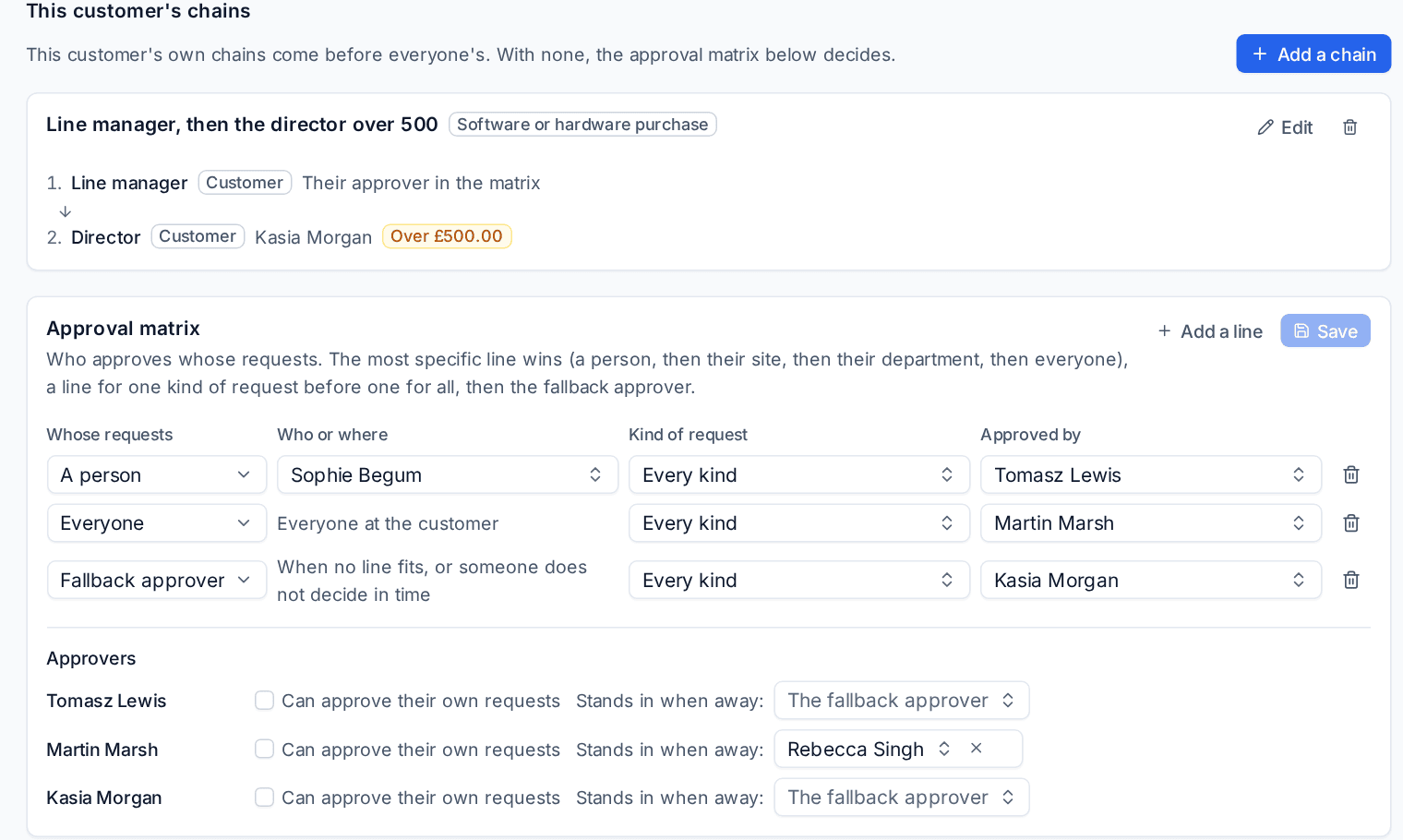
The customer's Approvals tab holds This customer's chains and the Approval matrix: who approves whose requests.
- Open the customer and go to the Approvals tab.
- Under Approval matrix, press Add a line.
- Choose Whose requests: a person, everyone at a site, a department, everyone at the customer, or the Fallback approver used when no line fits or someone does not decide in time.
- Choose the Kind of request (or Every kind) and who it is Approved by.
- Press Save.
The most specific line wins: a person, then their site, then their department, then everyone, and a line for one kind of request before one for all. Until you add lines, requests go to the contacts with the approver role (else the primary contact). Under Approvers you can let someone approve their own requests and choose who Stands in when away.
Out of office and delegation
Our approvers lists each member of staff with Their approver (their manager unless you choose someone else, used for leave, timesheets and expenses) and who Stands in when they are away.
While someone is away, whatever they would approve goes to whoever stands in, and the request says so. Customer replies and SLA warnings on their tickets also go to the stand-in, and the assignee picker shows Away until beside their name.
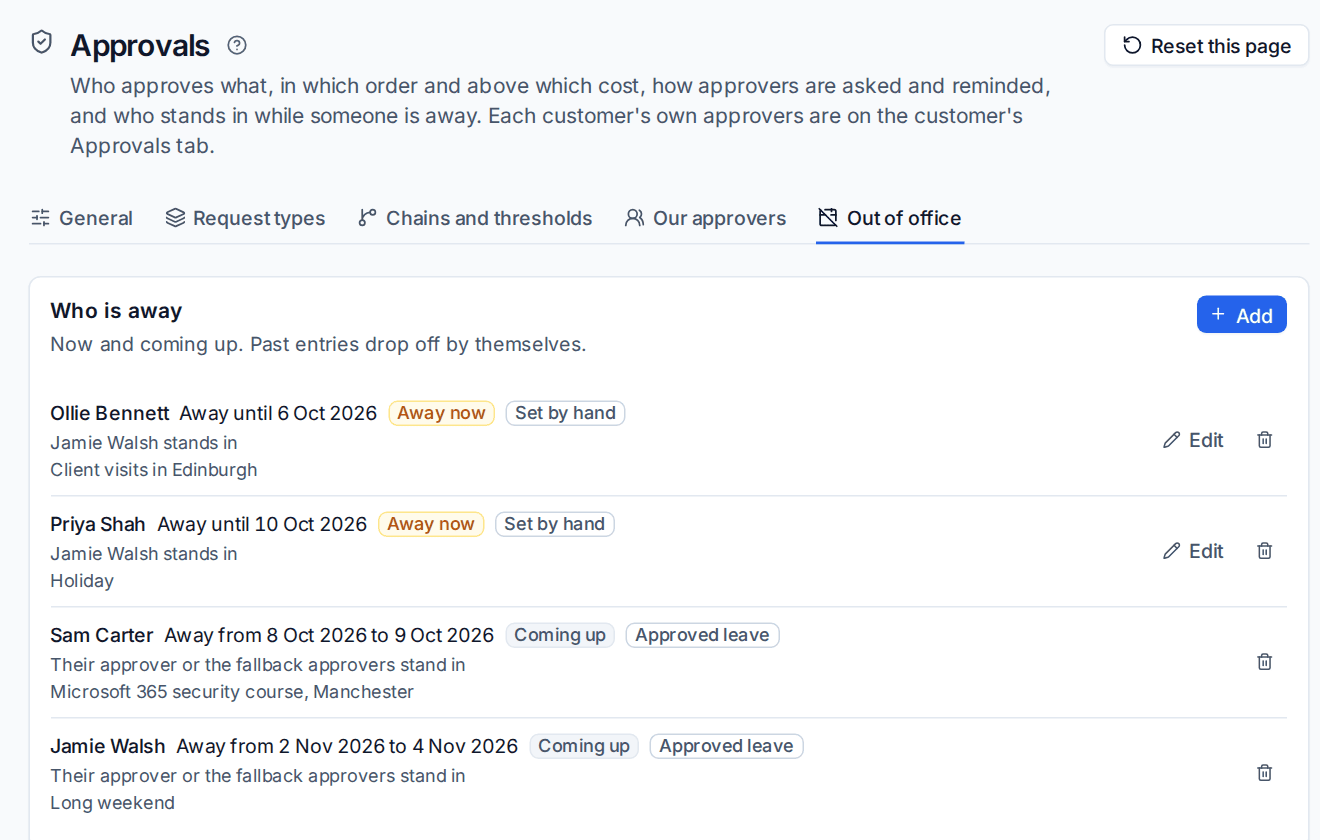
Out of office comes from three places:
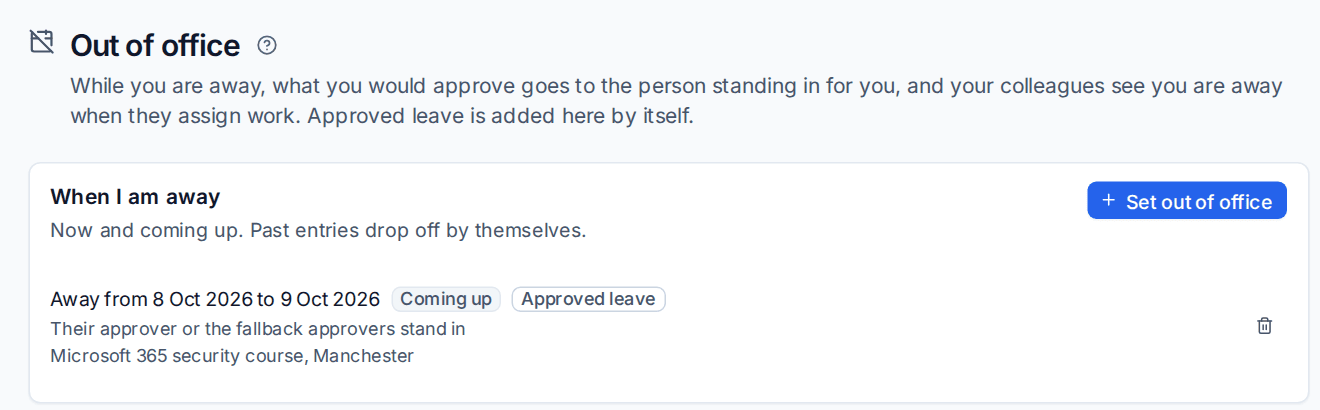
- Set by hand: each person in Settings > Out of office (Set out of office), or an administrator for anyone in Settings > Approvals > Out of office with Add.
- Approved leave: when leave is approved in Scheduling, it is added automatically for those days. See Leave, sickness and overtime.
- Microsoft 365 automatic replies: for customers whose Microsoft 365 tenant is connected, a contact's automatic reply makes them away, and switching it off ends it. This needs the tenant's consent to read mailbox settings.
Set your own out of office
- Go to Settings > Out of office and press Set out of office.
- Choose From, Until (empty means until you say you are back) and Who stands in (empty means your usual delegate, else your approver).
- Optionally tick Put a note on their open tickets saying who is covering, then press Save. Back now ends it early.
Contacts are handled the same way under Contacts out of office on the customer's Approvals tab.
Ask for approval in automation
Automation rules have an Ask for approval step: the rule waits for someone to approve, then carries on; if they turn it down, or it expires or is withdrawn, the rule stops with the reason. Choose who approves: your team (people, a role or a team, any one or all) or the customer's approvers. The rule asks, but never approves. See Actions.
Export and reports
Approvals > Log exports to CSV with Export. The report builder's Approvals dataset has every request in the period: who asked (a person, a contact, the AI or an automation), who decided and how, the hours to decide, the cost, whether someone stood in or it was escalated, and the outcome. See The report builder.
Was this page helpful?
Thanks for the feedback.